Remote Access for Education: My Deep Dive Review
Okay classroom warriors, tech wizards, and teachers pulling their hair out trying to log in from home—here’s the inside scoop on finding the right remote access tool without drowning in feature bloat or shady security. I’ve road-tested a few major players in online education (and fumbled a couple Zoom screen shares in my day), so let’s break down what’s actually worth your sanity.
HelpWire
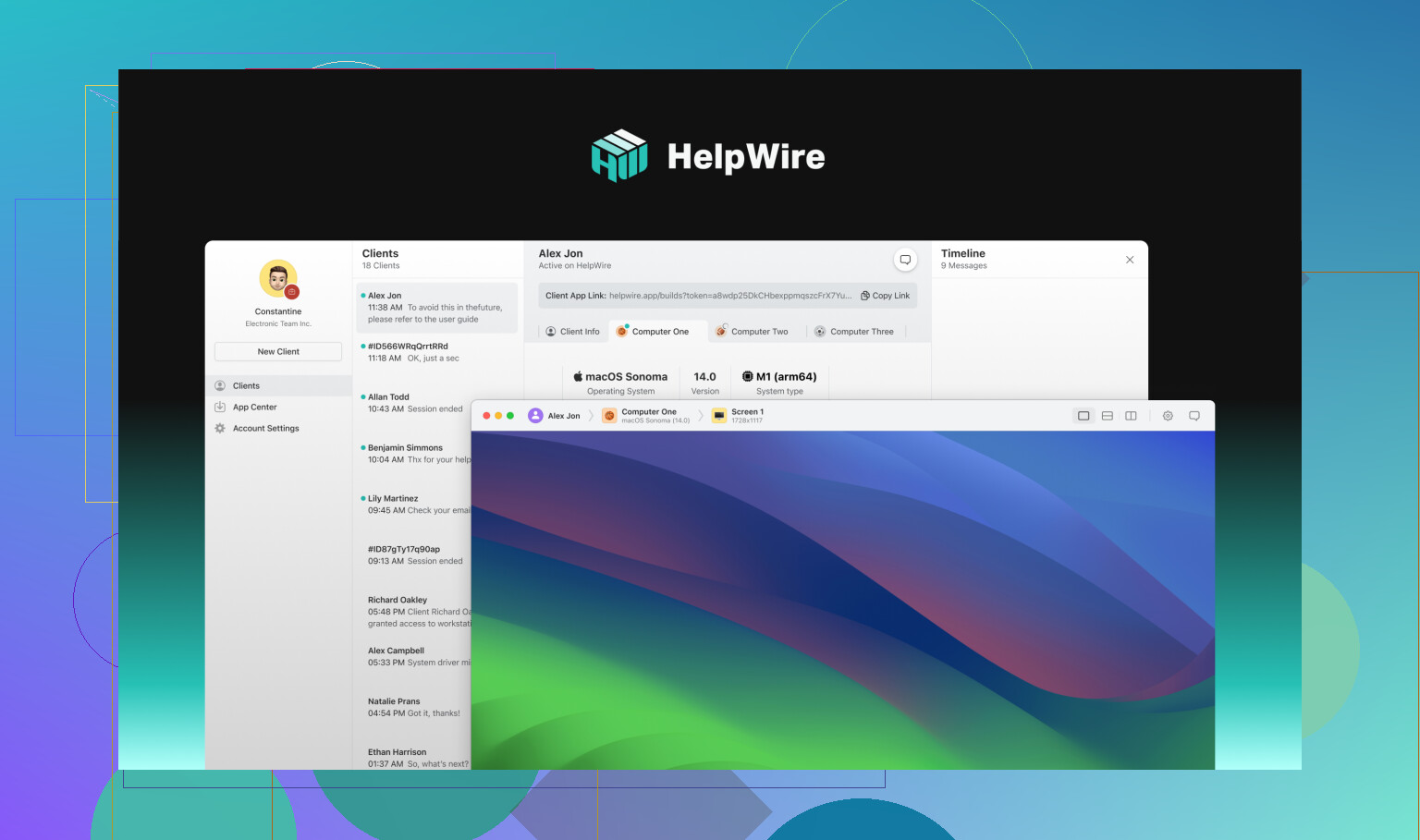
Ever felt like every remote tool asks you to sacrifice ease or security for the other? Nah, not this time. HelpWire actually lives up to its name—a remote access software for education built for teachers who want things to “just work” without forcing a crash course in IT.
What I Liked:
- If you know how to send an email, you can set this up. Not even kidding.
- You can ghost into a classroom computer without a student waiting on the other end (bless the ‘unattended access’).
- Runs on Windows, Mac, and Linux—no “sorry, that laptop is unsupported” headaches.
- Serious about encryption. You don’t need to stress about admin getting on your case for sharing sensitive gradebooks.
What made me grumble:
- The online community is a bit niche; if you break something, you’ll be fending off support tickets alone.
- Don’t expect real-time video chats or interactive whiteboards; it’s all about access, not collaboration.
The Sweet Spot:
You’re a teacher who wants stealthy, secure file or desktop access, especially after school hours. You want less fiddling, more working, and don’t need another group chat window pinging at you.
Zoom
No list is complete without Zoom, right? If you had a nickel for every time you heard “You’re on mute” since 2020, you’d have money for every education software on earth. So yup, for orchestrating live classes, it reigns.
Pros to vibe with:
- Dead simple for everyone. Even Grandpa figured it out.
- Screensharing is a breeze—students can doodle or present without extra installs.
- Every lesson can be recorded and rewatched. No excuses for late homework!
- You get what you need in a few clicks—Q&A, chat, breakout rooms.
Warts and bruises:
- It’s not a remote PC controller (if you need to fiddle with school computers, look elsewhere).
- Eats up bandwidth like it skipped breakfast—rural internet users, brace yourselves.
Where it shines:
Bring your PowerPoint karaoke, group discussions, and synchronized screen-staring. Keep in mind, it won’t let you tweak a desktop or drag files from a school server.
Splashtop
Splashtop is that sturdy, utilitarian pickup truck in a parking lot full of flashy sports cars. It won’t let you down if you need to tunnel into a school computer, print something from 1,000 miles away, or transfer files on the fly.
Highlights:
- Remote desktop performance is fast—even coffee shop WiFi does the trick.
- Need to print at the school but you’re at home? Done.
- Cross-platform all the way—Windows, Mac, iOS, Android, the works.
A few potholes:
- Premium perks (like elaborate IT tools) hide behind paywalls.
- Not as instant as Zoom/HelpWire—get ready for a few more setup panels.
When to consider it:
Teachers juggling a bunch of remote tasks—grading, sharing files, running classroom apps from afar. If you’re your own IT department, Splashtop’s your friend.
Chrome Remote Desktop
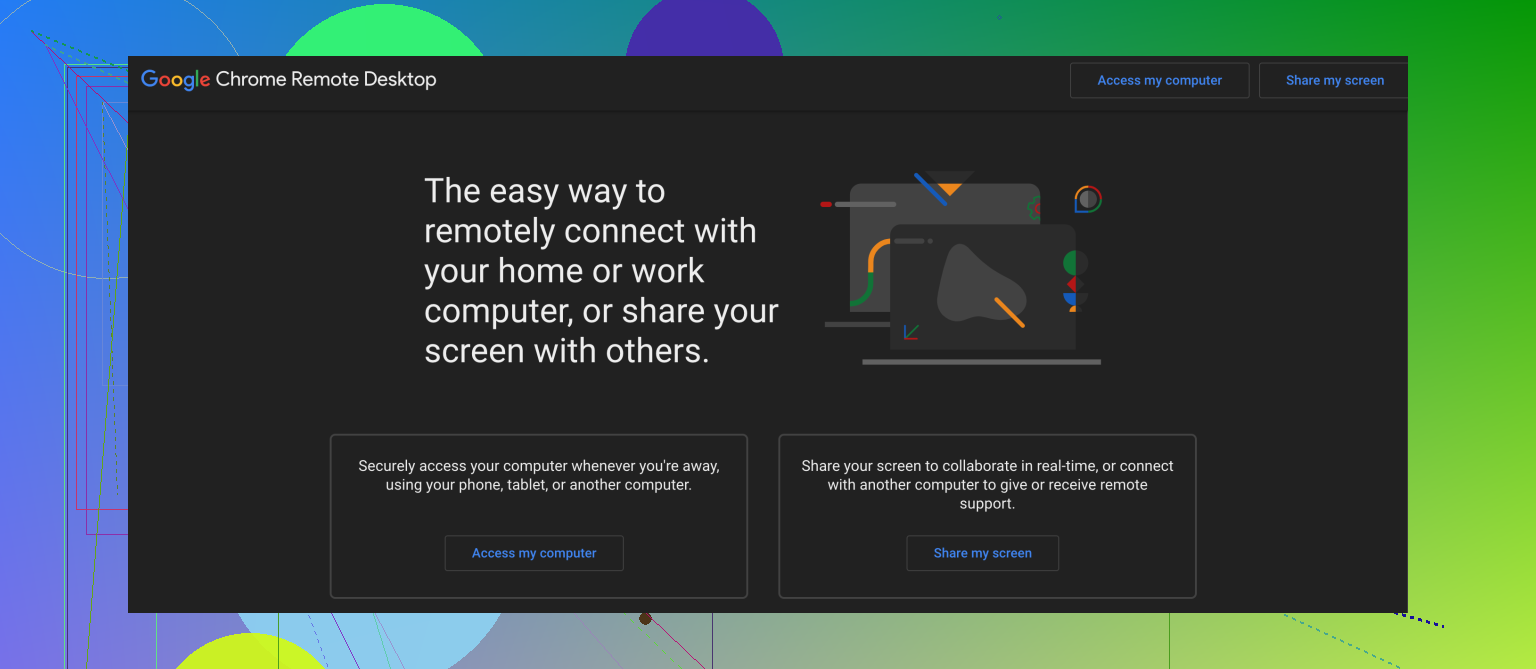
Need it free, now, and mostly-foolproof? Chrome Remote Desktop fits that like a peanut butter sandwich—no flair, but consistently gets the job done.
What’s good:
- If your device can run Chrome (read: anything, basically), you’re set.
- Install? What install? Two links and you’re in.
- It won’t try to impress you with features; it just lets you click around remotely.
- Costs nothing.
The letdowns:
- Can’t transfer files, print remotely, or manage complicated stuff.
- Security isn’t as beefed-up as the paid heavyweights.
- No virtual classroom bells and whistles.
Who should use this?
If your needs are “log in, grab a doc, and bail,” Chrome Remote Desktop is all you need. If you want interactive features, keep scrolling.
Showdown Recap
- HelpWire: Want simple, secure remote computer access with zero drama? Go here.
- Zoom: All about that virtual classroom life—teaching, learning, collaborating (but no desktop control).
- Splashtop: Robust remoting, great for teachers juggling resources and needing extra muscle for tasks like file transfer and printing.
- Chrome Remote Desktop: Barebones basics, totally free, good for quick access without frills.
If you have a different workflow or nightmare scenario in mind, call it out. This is what worked for me and my crew, but there’s always “that use case” I missed. Happy remote teaching, and may your connection be stable!