So, you’re having trouble mirroring your iPhone to your ONN TV. That sucks. Screen mirroring issues are super annoying, but let’s see if we can figure it out. Here’s a step-by-step breakdown:
-
Check Compatibility: First off, make sure your ONN TV actually supports AirPlay. Not all models do. If it doesn’t, you might be trying to fit a square peg in a round hole.
-
Ensure Both Devices are on the Same Network: Both your iPhone and your ONN TV need to be connected to the same Wi-Fi network. This is a common mistake, and it can be easily overlooked.
-
Update iOS and TV Firmware: Make sure both your iPhone’s iOS and your TV’s firmware are up-to-date. Outdated software can cause connectivity issues.
-
Enable AirPlay on TV: Go into your TV settings and ensure that AirPlay is enabled. This is sometimes disabled by default.
Once AirPlay is enabled:
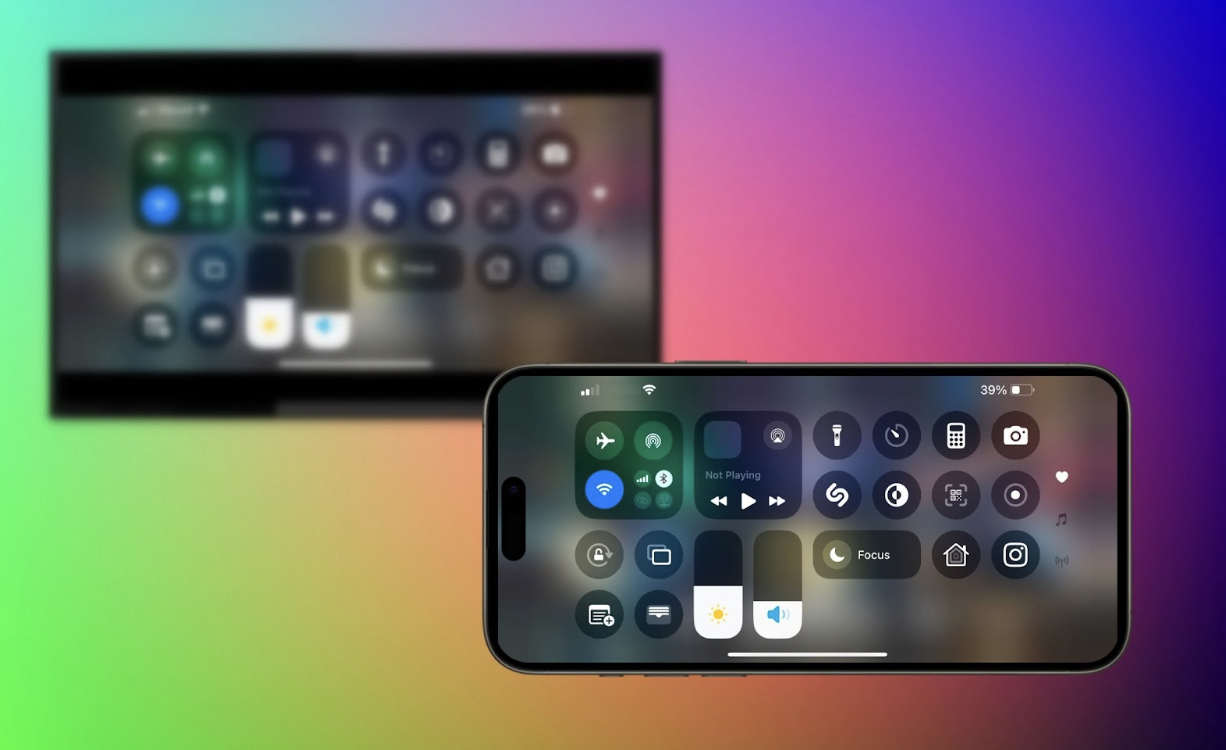
- On your iPhone, open Control Center (swipe down from the top-right corner).
- Tap Screen Mirroring.
- Select your ONN TV from the list.
- Enter the AirPlay code shown on your TV (if prompted).
If Your ONN TV Doesn’t Support AirPlay
If your ONN TV model doesn’t have built-in AirPlay, you can still mirror your iPhone using one of these methods:
- DoCast is a mirroring iPhone app that works with almost all smart TVs and streaming devices — including Chromecast, Fire TV, Roku, Samsung, LG, ONN, Sony, and others.
- After installing, connect your iPhone and TV to the same Wi-Fi network, open DoCast, select your TV or streaming stick from the list, and start mirroring or casting videos, photos, and music.
- It’s wireless, easy to set up, and supports multiple brands in one app.

- Lightning to HDMI Adapter (Apple Digital AV Adapter)
- This is the most reliable, lag-free option for mirroring.
- Plug the adapter into your iPhone’s Lightning port, connect an HDMI cable from the adapter to your ONN TV, and select the matching HDMI input on the TV.
- Your iPhone screen will appear instantly, no Wi-Fi required.
If you want a comprehensive guide on how to do this step-by-step, you can check out this screen mirroring your iPhone to ONN TV guide. Sometimes a walkthrough can shed light on an overlooked detail.
Following these steps should get you sorted. If not, it might be time to think about resetting your network settings or even a factory reset on the TV, but that’s a last resort kind of thing. Hope this helps!