Absolutely! You can share your iPad screen to your TV in a few different ways — both wirelessly and with a cable. Here’s how to do it:
- Option 1: Use AirPlay (wireless, easiest if your TV supports it)
If you have a TV with AirPlay built-in (like newer models from Samsung, LG, Roku, or Sony):
- Make sure your iPad and TV are on the same Wi-Fi network.
- On your iPad, swipe down to open Control Center.
- Tap Screen Mirroring and select your TV from the list.
- If prompted, enter the code that appears on your TV.
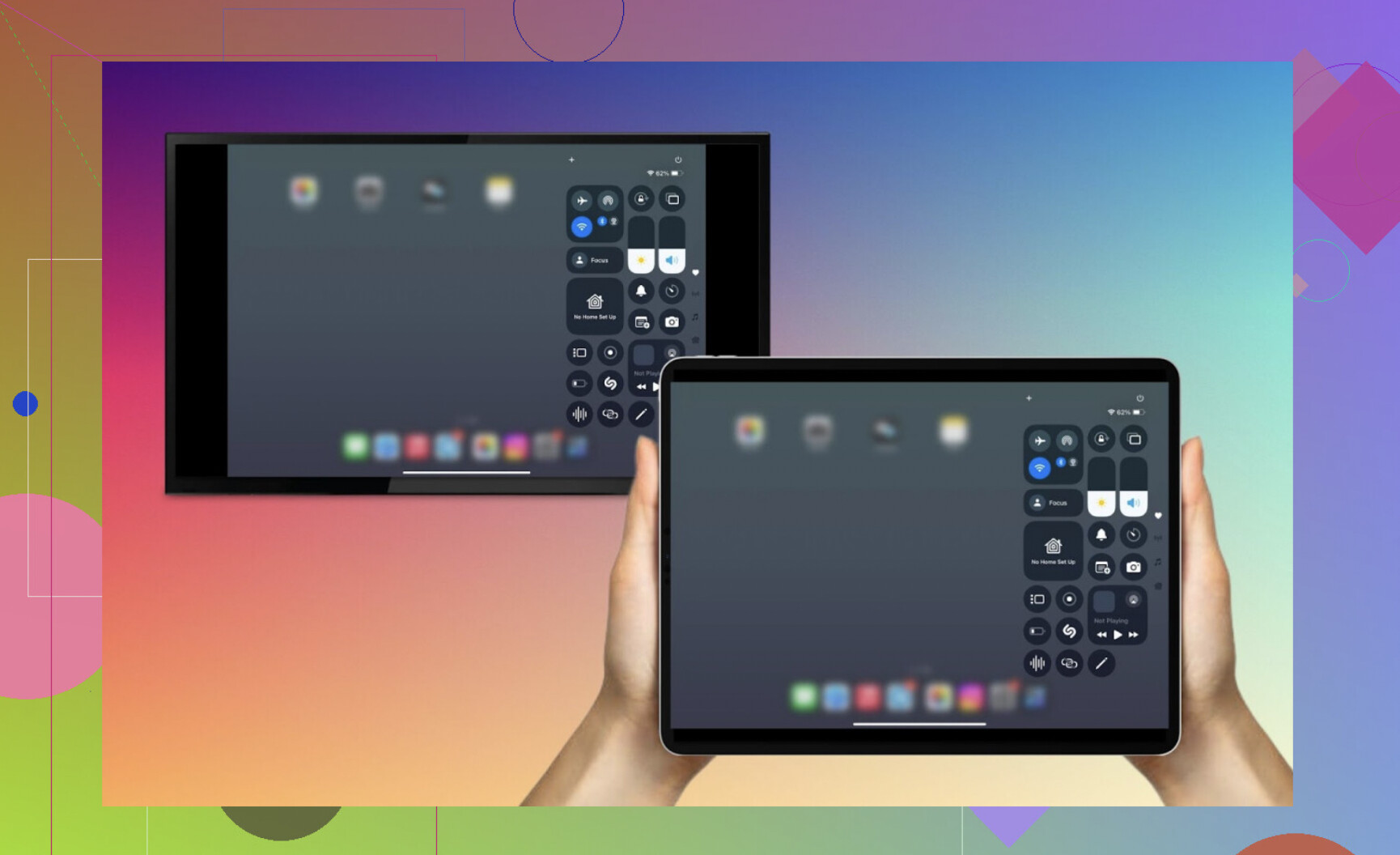
That’s it — your iPad screen should now appear on the TV.
- Option 2: Use a third-party app like DoCast (for smart TVs without AirPlay)
If your smart TV doesn’t have AirPlay, try an app like DoCast:
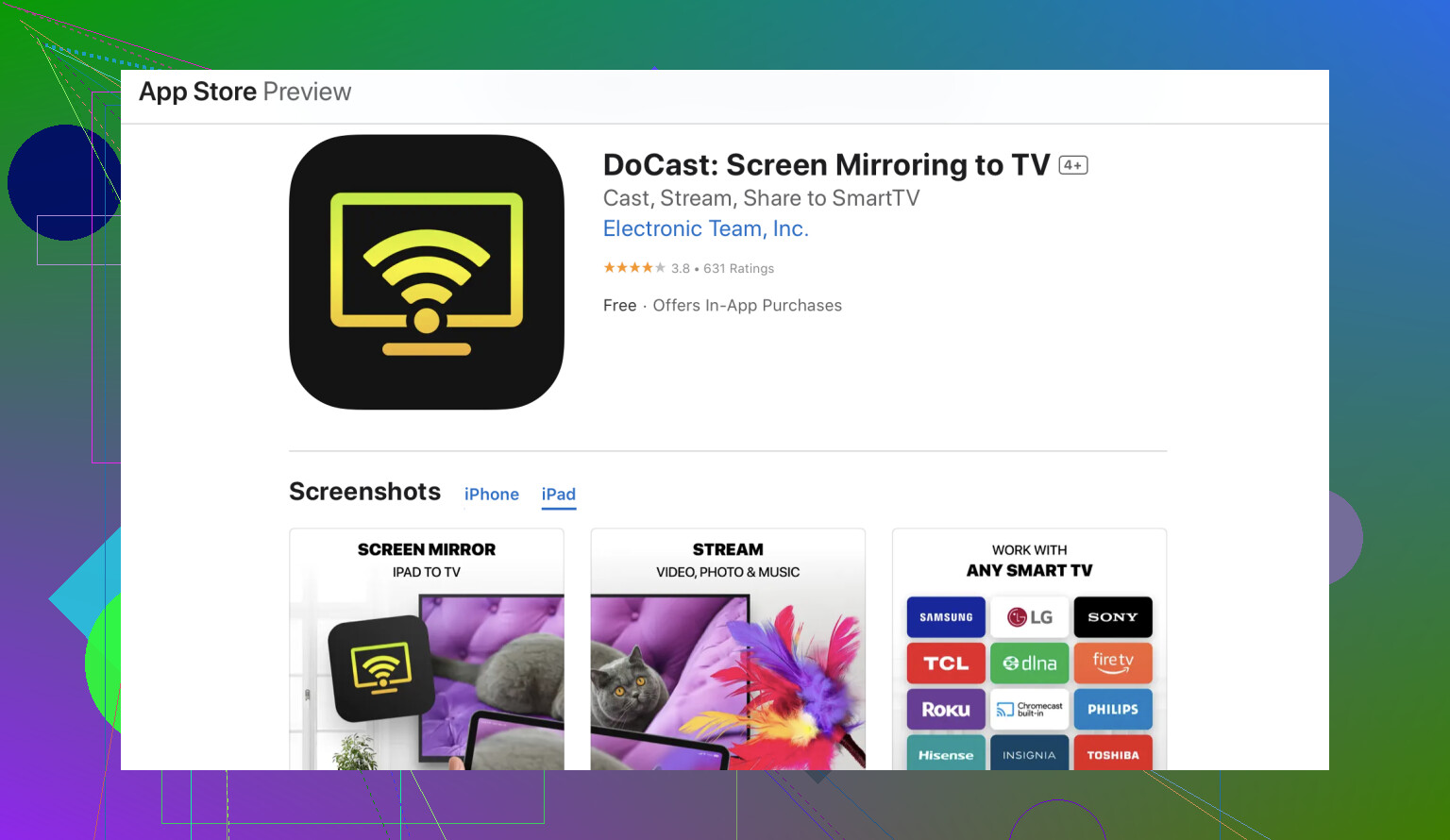
- Download it from the App Store.
- Open the app and connect to your TV (TV and iPad must be on the same Wi-Fi).
- Choose your TV from the list of devices.
- Tap “Screen” to Start Mirroring.
- Option 3: Use a Lightning to HDMI adapter (wired method)
If your TV doesn’t support AirPlay:
- Get a Lightning to HDMI adapter (Apple’s own is the most reliable).
- Connect it to your iPad and plug in an HDMI cable between the adapter and the TV.
- Switch the TV to the correct HDMI input, and your iPad screen should display instantly.
This method works with any TV that has an HDMI port — no Wi-Fi required.
Notes:
If you’re looking Roku remote control app for iPad, give TVRem a try. This app transforms your iPad into a remote control, enabling you to adjust the volume, switch channels, and browse apps directly from your iPad — no physical remote required. TVRem is compatible with Roku TVs and various other brands, making it a flexible option for any setup.
There you go. Try these steps and enjoy those videos and photos on a larger display.
To share your iPad screen to a TV, use AirPlay if your TV supports it, or connect directly with a Lightning to HDMI adapter. If neither is available, try a third-party app like DoCast for screen mirroring over Wi-Fi. Each method works great — just pick the one that matches your setup.
Hope this helps!