Oh no! Deleted important files from your Android, that’s a bummer. But don’t stress, you can recover them on your Mac. Here’s how:
Method 1: Use Recovery Software
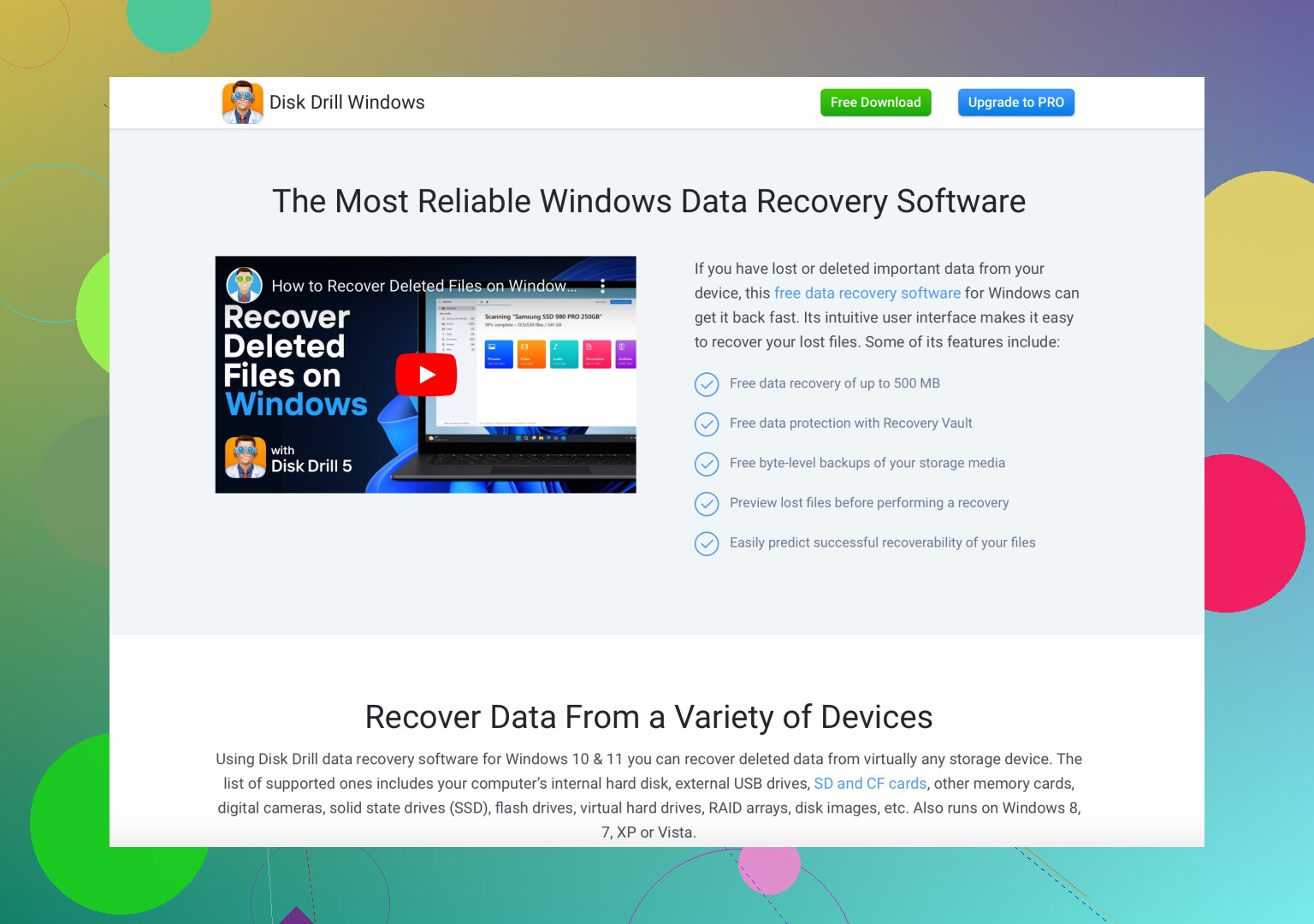
Disk Drill is your friend here. This data recovery software is slick and efficient for Android data retrieval. Here’s what you do:
- Download Disk Drill from their website.
- Install and launch the software on your Mac.
- Connect your Android device via USB.
- Make sure your phone is in debugging mode (Settings → Developer options → USB debugging).
- Scan your device using Disk Drill.
- Preview and recover the files you need.
Method 2: Backup and Restore
Hopefully, you’ve been diligent with backups. If you have Google backups or any other cloud service backups, restore your device with these steps:
- Go to your device settings.
- Look for ‘Backup & reset’.
- Select restore from backup (Google, Samsung Cloud, etc.).
Method 3: Manual Approach
If your phone stores information on an SD card:
- Remove the SD card from your Android device.
- Insert it into a card reader connected to your Mac.
- Use Disk Drill again to scan the SD card for deleted files.
Additional Tips:
- Try to stop using your phone until you’ve recovered the data. Every new action on the device risks overwriting the data you want back.
- Always use reputable recovery software.
Disk Drill is pretty much your go-to for Android data recovery on Mac, and you can find it here.
Good luck retrieving your files!