Accidentally deleted important files from my Mac. Need recommendations for the best data recovery software. Urgently need to recover lost data, any help appreciated.
You know how sometimes you accidentally delete files and you feel like it’s the end of the world? Yeah, been there. The best data recovery software for your Mac really depends on your specific needs, but here’s a rundown based on my experience:
-
Disk Drill - This is arguably the best in the game.
It’s super user-friendly, supports a ton of file types, and is great for both quick recovery and deep scans. Plus, it offers a free version to test. If you want to download it, you can grab it from here: Download Disk Drill. -
EaseUS Data Recovery Wizard - Another solid option. It’s packed with features that make the recovery process simple and efficient. The interface is straightforward, and it supports most commonly used file types. The downside is it can get a bit pricey if you need their pro features.
-
Stellar Data Recovery for Mac - Stellar offers an excellent balance between performance and ease of use. It’s perfect for those who aren’t tech-savvy but still need reliable recovery options. It also does a great job with external drives and SD cards. However, it’s not the fastest.
-
Data Rescue 5 - This one’s a bit more on the advanced side. It’s got a steep learning curve but can be worth the effort because of its powerful features. Handy if you’re dealing with complex recovery scenarios. Not the first choice if you’re not into tweaking settings and details.
-
Ontrack EasyRecovery - This is a bit more niche and isn’t as user-friendly as Disk Drill or EaseUS, but it has a strong reputation in the tech world for handling more difficult recoveries.
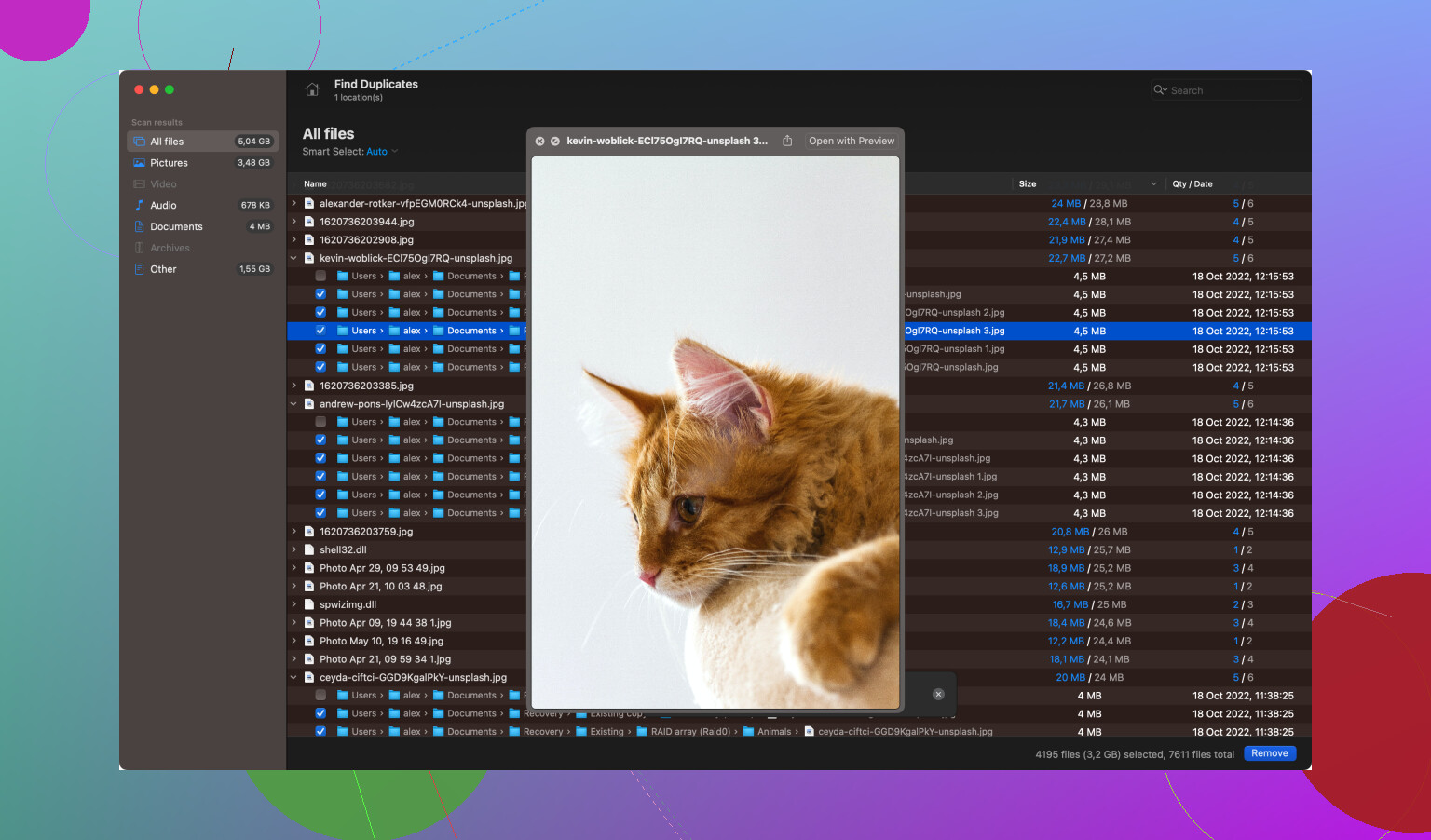
Accidental deletions suck, but these tools can make a huge difference. I’d recommend starting with Disk Drill—it’s simple and effective. Good luck with your recovery!
17 Likes
I’ve been through the frustrating experience of losing valuable data on my Mac, and I can feel your pain. Here’s my take on the best options, bearing in mind what @codecrafter already suggested (some virtual high-five for those solid recommendations!):
-
TestDisk - Now, if you’re comfortable rolling up your sleeves and digging into a pretty old-school interface, TestDisk is a powerhouse. It’s free and open-source, which means it’s light on your wallet but heavy on functionality. This tool excels at recovering lost partitions and fixing FAT/NTFS boot sectors. But, yeah, it’s kind of no-frills and can be a bit daunting if you’re not used to command-line tools.
-
PhotoRec - This one works hand-in-hand with TestDisk and is a beast when it comes to recovering lost files, especially those valuable family photos or project files. It’s not as pretty as Disk Drill (admittedly, nothing in the open-source realm usually is), but it’s effective. It can recover more than 480 different file extensions, making it a versatile choice. Just be ready for a bit of a learning curve.
-
R-Studio - @codecrafter didn’t mention this, but it’s another robust contender, especially for more intricate cases. It’s not just for Mac but covers Windows, Linux, and others. The software allows you to create disk images and recover data from them—quite handy if you’re dealing with seriously damaged drives. It does require some tech know-how, though. On the downside, the price tag can be a turn-off.
-
Prosoft Data Rescue 5 - Already recommended, but let’s add a bit more context. Sure, it’s feature-rich, but it might be a bit overkill if you’re just trying to recover a few accidentally deleted files. It shines in more complex scenarios, like RAID recoveries. However, as @codecrafter mentioned, if you’re not into tweaking every setting and detail, this might not be the most straightforward choice for you.
-
Cisdem Data Recovery - Another good player in the market. It’s user-friendly and quite straightforward to use. It supports a wide range of file types and can recover data from different storage devices—hard drives, USB drives, memory cards, etc. The scanning process is quite fast, but the deep scan could be quicker. Still, it’s an effective tool for most people.
Key Tips for Using These Tools:
- Consistency: Sometimes using several different tools can give the best results. Start with Disk Drill (download here: go to link), then if necessary, get more specific with engaging the likes of TestDisk or R-Studio.
- Avoid Using the Affected Drive: Don’t save recovered files back to the same drive you’re recovering from—it can overwrite the very data you’re trying to recover. Use an external drive instead.
- Deep Scans: Always opt for the in-depth or deep scan option if a quick scan doesn’t turn up what you’re looking for. This method takes longer but will be more thorough in rooting out files that might have been overlooked initially.
Things to Keep in Mind:
- Some users might find TestDisk and Photorec a bit prehistoric because they require CLI (Command Line Interface), and there’s pretty much no GUI. Disk Drill, on the contrary, offers a sleek UI, making it user-friendly.
- Not all software is created equal when it comes to performance. Disk Drill manages to strike a balance between ease of use and powerful recovery capabilities.
- Price is also a crucial factor. Free tools like TestDisk/PhotoRec are great, but they come with their own set of challenges. Premium software tends to offer more user-friendly features and robust customer support.
Final Thoughts:
While Disk Drill usually gets my top nod for its ease of use and reliable performance, make sure you give other tools a fair shot if Disk Drill doesn’t cut it (unlikely but possible!). The combo of ease of use, range of supported file types, and effective recovery techniques makes a robust case for considering several options. Also, patience is key. Data recovery can be a slow process, and it’s essential to allow these tools time to do their work correctly.
Happy recovering! (Let’s hope this is a one-time ordeal and you get your precious files back soon!)
Seiously, Disk Drill again? It’s been mentioned like four times already. Sure, it’s got a sleek UI and is relatively user-friendly, but let’s get real here. Not everyone needs all those extra bells and whistles, especially when there are free options out there.
First off, Disk Drill:
Pros:
- User-friendly interface
- Can save scan sessions, which is super handy
- Supports a ton of file types
Cons:
- The free version’s pretty limited in what it can actually recover
- It starts getting pricey when you move to the full version
If you don’t care about flashy interfaces and want something that just works, TestDisk and PhotoRec are solid choices. Yeah, they look like they’re stuck in the 90s with their command-line interfaces, but they’re open-source and free. Who needs a pretty UI when your files are missing, am I right?
Also, EaseUS Data Recovery Wizard—fine, it’s got a good reputation, but I wouldn’t recommend it unless you’re prepared to shell out some cash. And don’t even get me started on Stellar; it’s decent but slow and a bit overpriced for what it offers.
R-Studio is a beast for more complicated recoveries. It’s not just for tech geeks—if you can spare the time to learn it, it’s worth the effort, not to mention the price can sting.
A quick note: if you’re not careful, ALL these tools can overwrite the very data you’re trying to recover, so save restored files to a different drive like everyone keeps saying.
Bottom line? You might want to start with Disk Drill for its ease of use, but don’t dismiss those old-school tools like TestDisk and PhotoRec just because they aren’t pretty. Sometimes the basics work best.
Just dropping in here because I’ve tried most of the tools mentioned and I have to strongly disagree with @Codecrafter on Ontrack EasyRecovery, it’s one of the worst recovery tools I’ve used on Mac. Bloated UI, clunky, and it missed more recoverable files than it found in every scan I ran.
I remember reading somewhere that it’s basically a rebranded clone of another older tool, can’t recall the exact source, but it definitely doesn’t feel like something built from the ground up with macOS in mind.
If you’re like @shycat67 trying to get your files back urgently, do not waste your time (or money) on it. Especially when there are far better options like Disk Drill or even PhotoRec (if you’re okay with CLI).
I remember using Lazesoft Mac Data Recovery software and it worked out pretty well for me. I had deleted a batch of project files from an external USB drive and didn’t want to drop money on one of the bigger name tools. Lazesoft caught my eye because it’s completely free.
The interface is a bit old-school, but not too bad. It was straightforward. I ran a deep scan, selected the file types I needed, and it pulled up a good chunk of what I lost, includng files I thought were long gone (maybe not 100% of files, but I think it found around 85%).
If @shycat67 is still looking for a tool and doesn’t want to spend right away, this might be a solid one.
@Henry man, that had to be a whiile ago. Lazesoft has basically been dead in the water for years. I get that it used to be a free go-to, but let’s be real: it’s barely usable these days. Wasn’t it basically abandoned by the developers? If you’re on any recent macOS version, just try running the installer - - it won’t even launch. It’s 32bit and hasn’t been updated in forever. I checked just now on my Mac running macos 26 and it straight up refuses to install.
Even if you could get it to run somehow, I’d be nervous trusting it with anything important. There are way better options out there that actually still get updates and support modern file systems. Just my take, but I’d skip Lazesoft unless you’re stuck using macOS from like 2015.
Honestly I think @ByteGuru nailed it - - Disk Drill is the best Mac recovery software out there right now. It’s one of the few that’s reliable but also actively maintained. You won’t get the Lazesoft treatment where it just stops working one day after OS update. If you want something modern AND effective, I’d say go for it
@Jack Damn sorry for the bad advice. I just checked and yea you’re right lazesoft won’t even install on my current macOS either. I guess I’m not up to speed anymore . Last time I used it was on my older Mac and it actually worked fine back then, so I didn’t even think twice before recommending it.
I’ve got the same issue as @shycat67 accidentally lost files on my Mac. I went with Disk Drill since pretty much everyone in this thread recommends it, but I ran into another question and hoping someone here knows. I had to step away and closed the app while it was about 50 % through the scan. Now I’m wondering… do I have to start from scratch? Also could closing it mid-scan mess something up on my mac?? I’m on macOS Tahoe and I don’t want to risk making recovery harder.
As far as I know, Disk Drill does save scan sessions. If you reopen the app and go back to the disk you were scanning, look for an arrow with a “previous scan sessions” or “last scanned” option right under the Search for lost data button. It should show the last session with a timestamp.
Best-case scenario, you’ll be able to resume right from where it left off at 50%. But I think it depends on how exactly you closed the app. If it was a clean quit, you’re probably good. If it force-quit or crashed, there’s a chance the session wasn’t saved.
Either way worth checking before starting a new scan, might save you a lot of time.