Looking for a trustworthy free TV remote app for my iPhone after my physical remote stopped working. I’ve tried a couple of apps but they were full of ads, didn’t connect well to my smart TV, and some felt sketchy with permissions. Can anyone recommend a safe, easy-to-use free iOS TV remote app that works smoothly with popular TV brands and doesn’t bombard you with ads?
If you keep losing your TV remote or leave it on the couch at your friend’s place like I did last month, using your iPhone as a remote starts to sound less like a gimmick and more like basic survival.
I went through a bunch of “free” TV remote apps on iOS. Most of them look fine in the store, but once you open them, they hit you with 3-day trials, weekly subscriptions, and every second tap pops an upgrade screen. So I ended up testing a few of the more popular ones and stuck with one that did not try to charge me for turning the volume down.
Here is how it went, app by app.
TVRem – Universal TV Remote App
This one is the only one I kept on my phone.
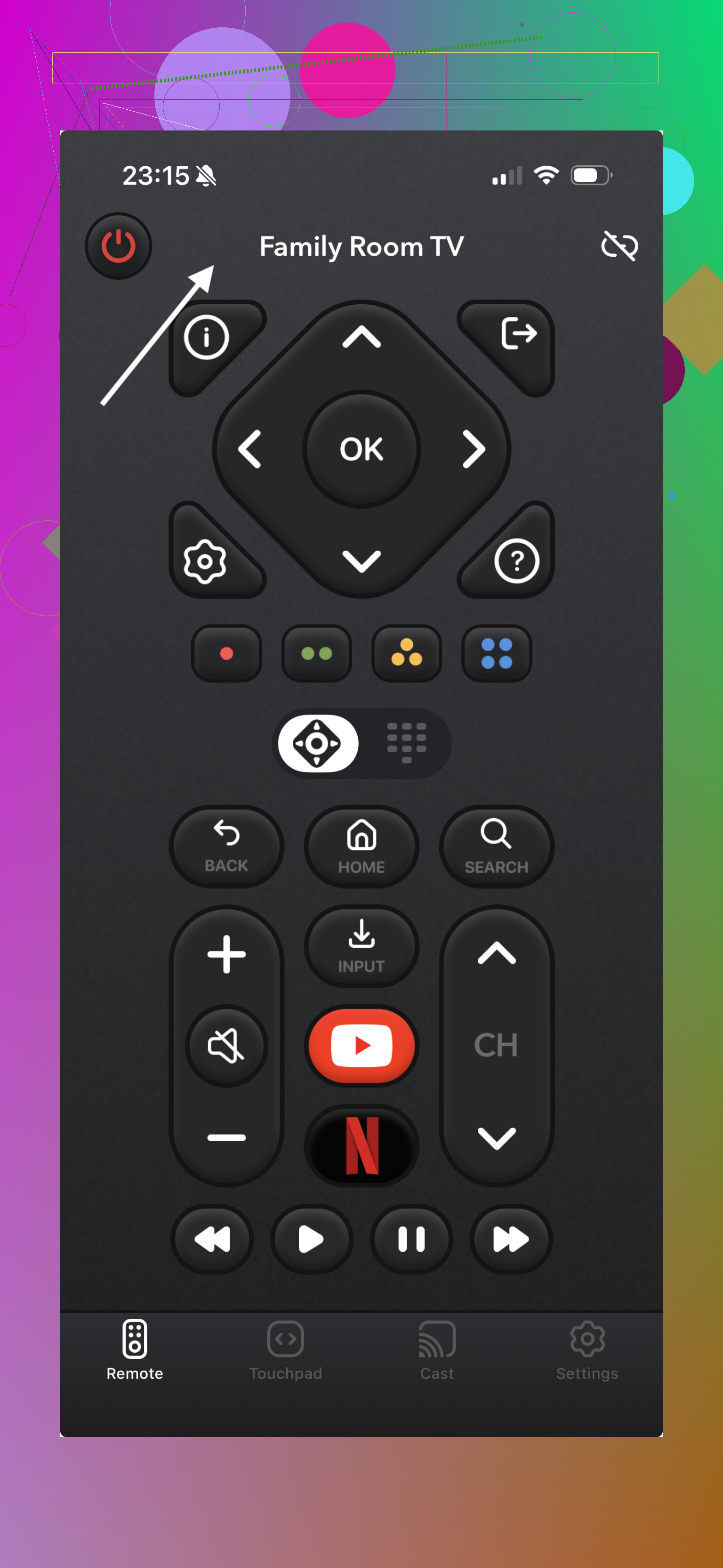
TVRem turns your iPhone into a full remote for a bunch of smart TVs and streaming boxes. I tried it with an LG TV and a Roku stick on the same network, both got detected without any weird pairing process.

YouTube demo:

What it lets you do
-
Full remote controls
I used it for:
• Volume up and down
• Channel switching
• Play, pause, rewind on streaming appsIt behaves like a normal remote, not something half-baked with only a few buttons.
-
Touchpad-style navigation
Instead of arrow buttons, there is a big area for swiping.
Swipe to move through menus, tap to select.
On my LG TV this felt faster than the physical remote, especially inside their slow settings UI. -
Voice input and voice control
There is a microphone button.
I used it to search for shows by speaking instead of typing on the TV.
On supported TVs you can also trigger some basic actions with voice, like opening an app or searching. -
On-screen keyboard
This is what made me keep it.
When you need to type a Wi-Fi password or a search term, it uses the iPhone keyboard.
No more moving a selector across an on-screen grid one letter at a time. -
App shortcuts
Netflix, YouTube and some other apps show up as shortcuts, so I could jump straight into them from the remote interface.
Pricing
This part is simple.
No subscription for the core features.
I did not get paywalls on basics like volume, keyboard, or app shortcuts.
Connection steps
What worked for me every time:
- Put the TV and iPhone on the same Wi-Fi network.
- Open the TVRem app.
- Wait a second for it to list nearby devices.
- Tap the correct TV or streaming box.
- Start using the controls.
If your TV is older or not on the same network, it will not show up, so check that first before blaming the app.
Universal Remote TV Control
This one looks decent at first, but the free part is fairly limited.
What it offers
• Touchpad navigation
Similar swipe interface for menu control.
• Volume and channel buttons
Works like a basic remote.
• Keyboard input
On-screen typing from the phone.
• Multiple device support
You can switch between different TVs or devices if you have more than one at home.
Functionally, for basic use, it does about the same thing as TVRem. The difference hits when you start touching features that live behind the paywall.
Pricing
It is “free” to download.
A lot of what you expect from a full remote prompts you to pay for a subscription or premium plan.
If you do not mind paying for a remote on your phone, it might be fine.
If you specifically want something free, the constant upgrade screens get annoying fast.
Connection steps
Same standard network setup:
- Put your iPhone and TV on the same Wi-Fi.
- Launch the app.
- Let it scan, then pick your TV from the list.
- Use the touchpad and buttons once connected.
No weird pairing here either, so at least setup is straightforward.
Universal Remote | Smart TV
Third one on the list.
Feature list looked strong, but the paywall is stronger.

What it offers
• Large touchpad
Big swipe area that makes menu browsing easy.
• Volume and mute
Standard audio controls.
• Channel shortcuts
It has hotkeys that jump directly to specific channels.
If you still use antenna or cable, this might save some time.
• Built-in keyboard
Helps with search fields and passwords.
• Media casting
Lets you stream media from your iPhone to the TV, not only control it.
On paper this one is more feature-packed than the others, especially with the casting.
Pricing
The catch is simple.
You can install it free, but full use needs a subscription.
They offer weekly, monthly, and yearly premium plans.
If your main interest is casting, and you do not mind paying, it might be worth looking at.
If you want free remote control for daily use, it feels overkill and too locked down.
Connection steps
For this one I did:
- Put TV and iPhone on the same Wi-Fi.
- Open the app, let it scan.
- Pick the TV from the detected devices.
- Start using the remote and casting features.
Again, no complicated pairing process, everything is over the local network.
Which one I would install again
If you want a free remote app without getting pulled into weekly billing, TVRem – Universal TV Remote App is the one that made sense for me.
Direct link:
It covers:
• Touch navigation
• Keyboard input
• Voice search and control
• Quick app launching
All without demanding a subscription to adjust volume or type in a search term.
If you want more opinions from people in the wild, I found this Reddit thread useful when I started looking:
https://www.reddit.com/r/DataRecoveryHelp/comments/1qqa2bh/best_universal_tv_remote/
There are a few other suggestions there too, with some people listing what worked on older TVs or weird brands. I would skim that, cross-check with your TV model, then start with TVRem if you want something that does not start charging you the second day.
I’m in the same boat, my Samsung remote died and the cheap replacement was worse than the stock one, so I switched to phone apps too.
I agree with @mikeappsreviewer on avoiding the super paywalled stuff, but I’d add a few options and a different approach.
- Try the official TV apps first
These are usually the least sketchy and have fewer shady ads.
– Samsung: “SmartThings”
Controls power, volume, apps, source, typing. No random full screen ads in my use.
Downside: UI feels slow, pairing sometimes fails if your TV is on a guest VLAN or weird Wi Fi setup.
– LG: “LG ThinQ”
Works fine for WebOS sets. Again, main limits come from the TV, not the app.
– Sony: “TV SideView” is abandoned, but newer Google TV and Android TV sets work with
“Google TV” app on iPhone for basic remote and typing.
– Roku: “Roku – Official Remote”
Free. No subscription prompts for remote use. Search, private listening, channels, all there.
If your TV brand has an official remote app, start with that before any “universal” tool.
- Use the built in iOS remote for Apple TV and some boxes
If you have an Apple TV, or some TVs with AirPlay 2, the iOS Control Center remote works well.
Steps, short version:
Settings > Control Center > add “Apple TV Remote”
Then use it from the pull down Control Center.
No ads, no tracking beyond Apple stuff.
- Alternatives to TVRem that are still tolerable
I tested a few on an LG and a TCL Roku.
– “Roku – Official Remote”
If you have any Roku TV or stick, this is the one I would install before any universal app.
Free, stable, no big nags.
– “Mi Remote controller” does not work on iPhone like on Android, since iPhones do not have IR, so skip anything promising IR control on iOS. If an app says it will control “any old TV” with “built in IR”, uninstall.
-
About TVRem
I tried TVRem after seeing it mentioned. It worked fine on my LG, detected it fast, and the keyboard was solid.
Where I disagree slightly with @mikeappsreviewer is on keeping only that.
For a single brand TV, I still prefer the official app. Apple remote for Apple TV, Roku official for Roku, SmartThings for Samsung, because those keep working after firmware updates more reliably. -
Safety and “sketchy” apps checks
Things I do before trusting a remote app:
– Check recent reviews on the App Store filtered by “Most Recent”. Look for complaints about forced trials, surprise charges, or data issues.
– Look at app permissions. A remote app requesting location and contacts is a red flag.
– If it throws a subscription popup before you even connect a TV, remove it.
If you tell us your TV brand and model, you can probably narrow this to one official app plus maybe TVRem as a backup. That cuts a lot of the trash from the store.
Short version: if you want “free and not sketchy,” you basically have three realistic routes on iPhone:
-
Official apps first
I actually disagree a bit with @mikeappsreviewer here: I’d always start with brand‑specific stuff before any universal “magic” remote.- Samsung: SmartThings
- LG: LG ThinQ
- Roku TV/stick: Roku – Official Remote
- Google/Android TV: Google TV app
- Fire TV: Amazon Fire TV app
They’re ugly sometimes, but they’re not trying to trap you in a $7.99/week “pro remote” for pressing the volume button twice.
-
iOS built‑in remote
If you have Apple TV or a TV/box that shows up as an Apple TV target, the Control Center remote is way cleaner than half the store.
No ads, no trial popups, no “start 3‑day free trial to mute.” -
When you actually need a universal app
Here I’m mostly with @mikeappsreviewer on TVRem: it’s one of the few “universal” ones that isn’t a total ad circus and doesn’t throw a paywall at every tap. I’d use it as:- Backup when the brand app is buggy
- Single remote if you’ve got mixed gear (like LG TV + Roku stick, same Wi Fi)
Where I’d be a bit cautious is assuming any universal app will be future‑proof. Firmware updates love to break unofficial stuff first, so keep at least one official app around even if you like TVRem more.
-
Red flags to avoid (based on the junk I’ve installed & deleted):
- App shows a “Start free trial” screen before you even connect a TV
- “IR blaster” promises on iPhone (no IR hardware, so that’s marketing BS)
- Requests for location, contacts, photos, etc for “better remote experience”
- Reviews full of “it auto‑charged me” and “can’t cancel” in the most recent section
If you drop your exact TV brand/model, you can usually narrow it to:
1 official app + 1 universal backup (TVRem is a decent pick there) and ignore the rest of the store’s adware pretending to be remotes.