I need help recovering files from a CompactFlash card on a Windows PC. The card suddenly stopped opening after I moved photos and important documents, and now Windows says it needs to be formatted. I’m trying to find the safest data recovery method or software before I do anything that could make the files harder to recover.
CF card recovery, what I’d do first
Yeah, this sucks. I’ve had a CF card go weird after a shoot, and the worst move was touching it too much. If your photos or work files were on it, stop using the card now. No test shots. No copying files onto it. No formatting. Leave it alone.
Why files sometimes still come back
From what I’ve seen, missing files on a CF card are often still sitting there for a while. What disappears first is the file table, the part telling the system where stuff lives. The data itself might still be intact until new data lands on top of it.
So the first rule is simple. Do nothing which writes to the card.
Check the boring stuff first
Before going into recovery tools, I’d rule out the reader or port.
Try this:
- Use a different USB port.
- Try another CF card reader.
- Plug it into a second computer if you have one.
- Check whether the card appears in Disk Management on Windows or Disk Utility on Mac.
I’ve seen cheap readers cause half the panic. Card looked dead, reader was the mess.
If the card shows up, scan it
If the system detects the card at all, even if you can’t open it normally, recovery software still has a shot.
One option is Disk Drill. It handles common camera card file systems like FAT32 and exFAT, and it tends to find missing photos, videos, and RAW files pretty well. I liked the preview part since you get a quick read on what is still salvageable before saving anything.
The usual recovery flow
This is the order I’d stick to:
- Remove the CF card from the camera.
- Connect it with a proper CF card reader.
- Install the recovery app on your computer, not on the CF card.
- Pick the CF card and start the scan.
- Look through the found files and preview the ones you care about.
- Save recovered files to your computer or another external drive.
Do not recover back onto the same CF card. I did that once years ago with a different card type. Bad idea. You risk overwriting files you haven’t pulled out yet.
If the card looks unstable, clone it first
If the card drops connection, throws errors, or acts flaky, I’d stop scanning the original and make a disk image first.
That gives you a full copy of the card, including areas normal browsing won’t show. Safer to work from the copy than keep hammering the original hardware.
Stuff I would not run first
Skip repair tools at the start.
I would avoid:
- CHKDSK
- First Aid
- Any repair or “fix card” option
Those tools write changes to the card. If your goal is getting files back, do recovery first. Cleanup comes later.
When I’d stop and hand it off
If the card:
- is not detected anywhere
- has bent pins
- gets warm or hot
- disconnects over and over
I wouldn’t keep retrying software. At that point, a recovery shop makes more sense.
Short version
If the CF card still shows up, your odds are often decent. Stop using it, connect it with a reader, scan it, preview what was found, and save everything somewhere else.
1 Like
If Windows says the CF card needs formatting, skip the format prompt. I agree with @mikeappsreviewer on that part. I disagree a bit on one thing though. I would not spend too long swapping ports and readers if Disk Management shows the card with the right size. At that point, move fast and make a read-only image first if your tool supports it.
My order on Windows:
- Open Disk Management.
- Check if the CF card shows the correct capacity.
- If it does, use recovery software on the card, or better, on an image of it.
- Save recovered files to your SSD or another external drive.
- Only after recovery, think about reformatting the CF card.
For software, Disk Drill is a solid pick on Windows because it handles damaged FAT and exFAT volumes well and does deep scans for photos, RAW files, PDFs, DOCX, and other common stuff. Preview matters. If your JPG or CR2 previews open, your odds are decent. If file names are gone but content previews fine, that still means the data blocks survived.
One more thing people skip. Check SMART or health data if the reader exposes it. Some CF cards start throwing read errors before they fail hard. If scans freeze at the same percentage, stop poking the original card. Make an image and work from teh copy.
Also, if you want a walkthrough, this CompactFlash card recovery guide for Windows is easier to follow than most forum posts.
If the card shows 0 bytes, wrong size, or drops offline, software is less likely to help. Then it’s lab time, sad but true.
Windows telling you to format it usually means the file system got damaged, not always that the files are gone. I mostly agree with @mikeappsreviewer and @sognonotturno, but I’d push one extra thing before a full recovery scan: check the card in Device Manager and Disk Management to see whether Windows is reading it as a normal disk, RAW, or “No Media.” That tells you a lot fast.
If it shows the correct size as RAW, that’s actually better than people think. Means the controller is probably still talking. In that case, skip format, skip chkdsk, and copy the card sector-by-sector first if you can. I know they already touched on imaging, but imo it’s not just for “unstable” cards. If the files matter, image first, scan second. Less risk, less regret.
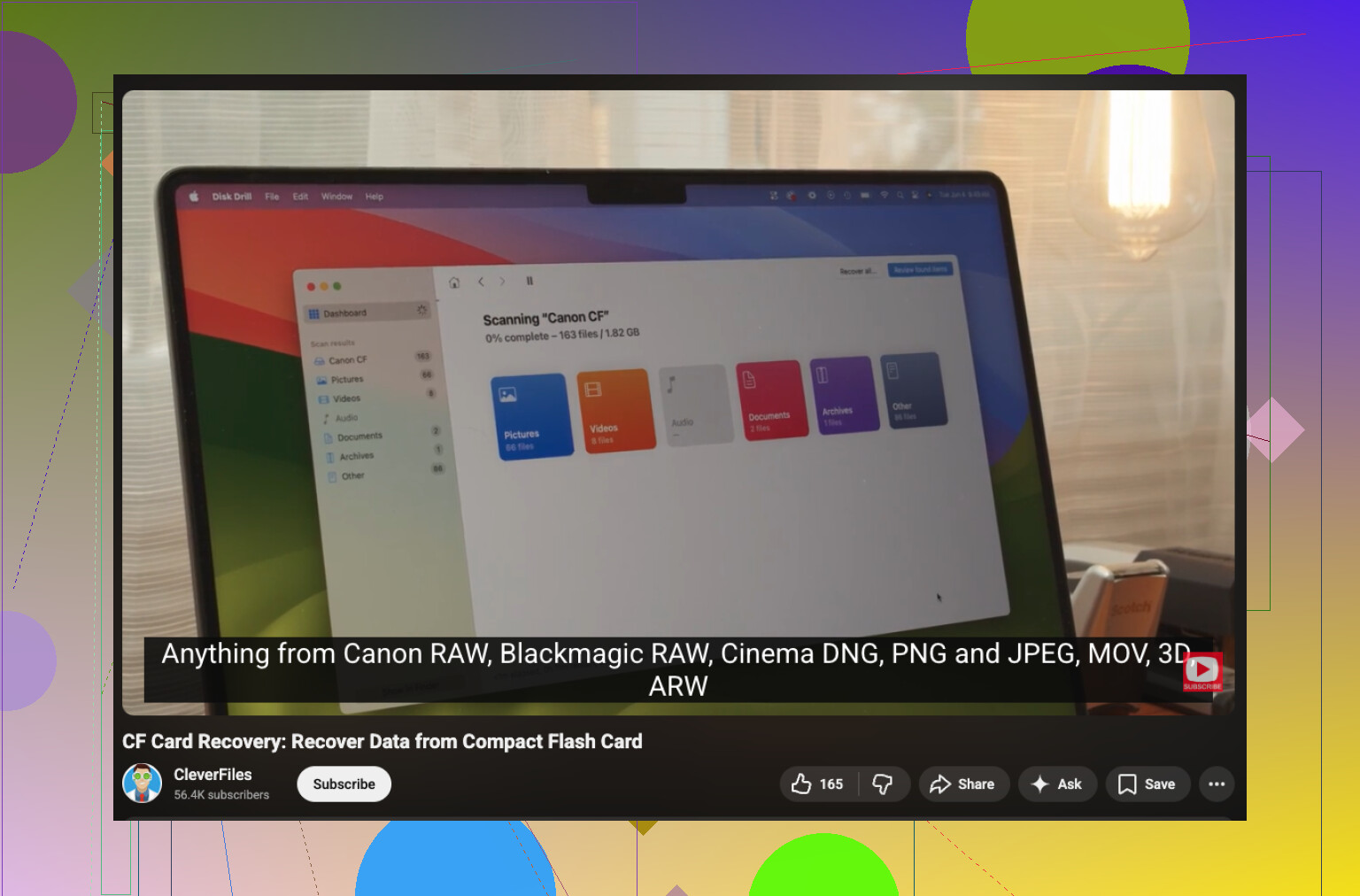
If you want the easy route on Windows, Disk Drill is one of the better options for CompactFlash card recovery because it can scan RAW/damaged partitions and pull back photos, docs, and camera files without trying to “repair” the card. Recover to a different drive only. Seriously, don’t save back to the CF card unless you enjoy making problems worse.
One thing I kinda disagree with: I would not keep plugging the card into a bunch of random readers if the card is already acting weird. Every reconnect is another chance for it to hiccup. One known-good reader, one stable USB port, then get the image.
Also worth a read: real-world CF card data recovery advice from the community
If Disk Management shows 0 bytes or the capacity is totally wrong, software may not do much. At that point, it’s probly a hardware issue, not just filesystem damage.