My external hard drive suddenly shows as RAW instead of NTFS, and now I can’t open any of my files. Disk Management still detects the drive, but Windows says it needs to be formatted before I can use it. I have important photos and work documents on it, so I need help figuring out the safest way to convert RAW to NTFS or recover the data first without making things worse.
I hit this mess a few days ago, so I’m posting it here in case your drive suddenly shows up as RAW and Windows keeps pushing the format prompt.
My external drive did exactly that. One minute it was fine, next minute Windows acted like the file system was gone and kept asking me to format it. I didn’t touch format, because all my stuff was still on there and I wasn’t going to gamble with it.
I started reading about converting RAW to NTFS without losing files, and honestly I got turned around fast. A lot of guides skip steps, and some make it sound way safer than it feels when your data is sitting on the line.
The page that helped me sort out the situation was this one:
https://discussion.7datarecovery.com/forum/topic/how-to-convert-raw-to-ntfs-without-losing-data/
What I got from it, and what I wish I knew sooner:
Formatting the drive is not the first move. If you format it, you risk wiping the file system info and making recovery harder.
In a lot of cases, the files are still there. The drive shows as RAW because Windows stops recognizing the file system properly, not because every file vanished.
The safer order seems to be recovering your files first, then dealing with repair or formatting after you’ve copied out what matters.
That part calmed me down a bit. Before reading it, I was close to clicking random fixes and hoping for the best, which would’ve been dumb tbh.
I’m still working through the steps myself, and I’m not fully out of the woods yet. The recovery-first part makes sense, so I’m sticking with that before trying anything else.
If you’ve had a RAW drive and got it back without losing your files, post what you did. I’d like to hear real outcomes before I push further.
No, you should not try to convert a RAW drive straight to NTFS if your files still matter.
A RAW drive usually means Windows sees the partition, but the file system metadata is damaged or unreadable. Your data might still be there. That part I agree with from @mikeappsreviewer. Where I differ a bit is this. I would not spend too much time chasing ‘conversion’ tools. Most of them end up doing a format or a rebuild, and both raise risk.
What I’d do:
-
Stop using the drive.
No scans from random apps. No CHKDSK yet. No format. Every write lowers your odds. -
Check the drive’s health.
Use SMART tools like CrystalDiskInfo. If health looks bad, clone it first. If you hear clicks or disconnects, stop. That points to hardware trouble. -
Recover files to another drive.
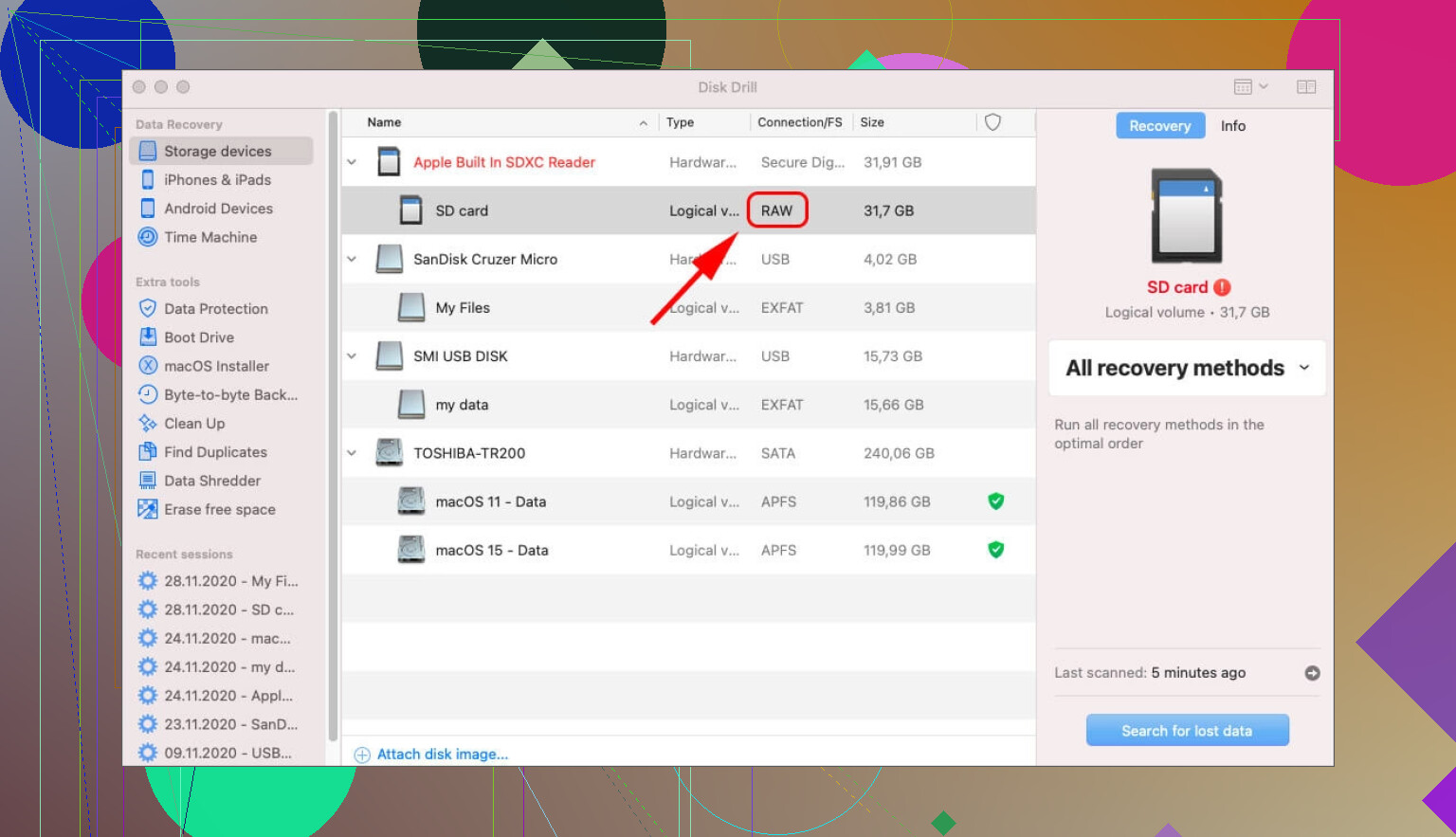
Disk Drill is a solid option for RAW external hard drive recovery. Scan the RAW disk, preview files, recover to a different disk. Not the same one. This is the safest path for most people. -
After recovery, wipe and format it back to NTFS.
Use Disk Management or diskpart. Quick format is fine if SMART looks clean. Full format if you want to test the surface. -
If recovery fails, test the partition structure.
TestDisk sometimes restores access if the issue is only partition or boot sector damage. It is free, but less beginner frendly.
Also, if you want a plain-English explainer on NTFS, this helps:
how the NTFS file system works on Windows drives
Short version, recover first, format later. Don’t let Windows bully you into clicking Format.
Nope, not in any clean one-click way if the files actually matter.
I mostly agree with @mikeappsreviewer and @techchizkid, but I’d push back a little on one thing: people jump straight to “repair” like the file system is the only issue. Sometimes RAW is just corruption, sure. Sometimes it’s a flaky USB bridge, bad cable, dying enclosure, or power issue making NTFS look gone when it isn’t. So before doing anything heavy, try the boring stuff first:
- different USB port
- different cable
- different PC
- if possible, remove the drive from the enclosure and test it directly
That has saved me once, no joke.
Also, if the drive shows RAW, “convert RAW to NTFS without losing data” is kinda the wrong framing. RAW isn’t a proper file system you convert from. It usually means Windows can’t read the existing one. So the real workflow is:
- verify the hardware connection
- copy/recover the data off
- then reformat to NTFS after
If the drive is stable enough to scan, Disk Drill is a reasonable option for RAW drive recovery because it can pull files off before you wipe anything. Just recover to another disk, obviously. If the drive keeps dropping offline, stop messing with software tools because that starts sounding physical.
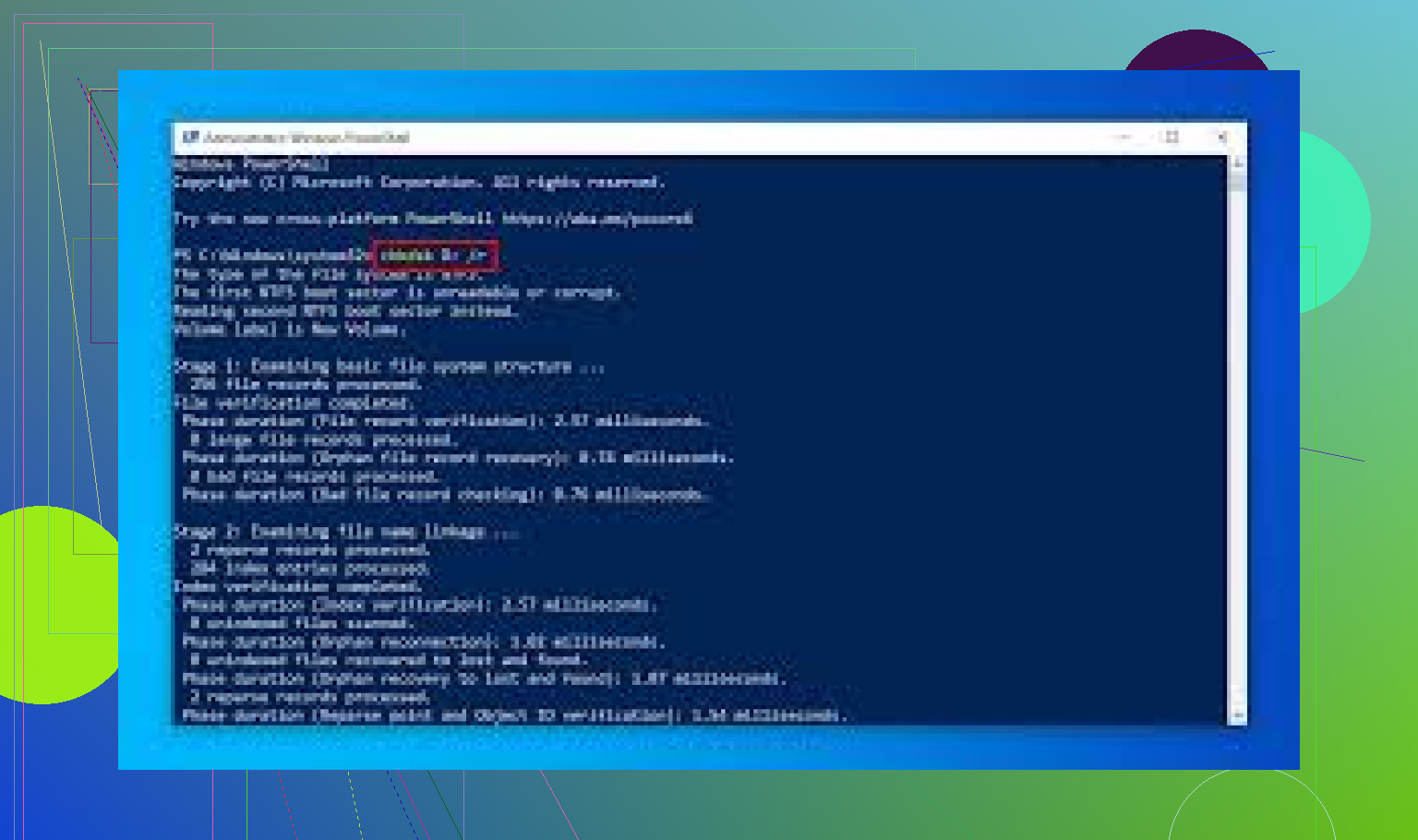
One more thing I’d avoid at first is CHKDSK with /f or /r. People throw that command around like it’s magic. On a damaged external, it can make a bad sitution worse.
If you want a visual walkthrough, this video is actually relevant:
how to recover data from a RAW drive before formatting
So yeah, can you convert RAW to NTFS without losing data? Practically speaking, no. Recover first, format second. That’s the safe answer.