My TV remote just stopped working and replacing it is weirdly expensive. I’ve heard some phones can act as universal remotes, but I’m confused about what I actually need (IR blaster, special apps, smart TV, Wi‑Fi, etc.). Can someone explain how to set this up, what limitations there are, and whether it will work with older non-smart TVs?
Lost my remote again last week. Sofa ate it or my kid ‘borrowed’ it, not sure. Batteries in the backup remote were dead. I did not feel like digging around for them, so I went back to what has worked better for me long term: using my phone as the main remote.
Yes, you can control a TV with a phone. How you do it depends on two things:
- iPhone vs Android
- Smart TV on Wi‑Fi vs older TV with IR sensor
Here is what I ended up using, what broke, what worked, and what I would skip next time.
iPhone options I tried
If you use an iPhone, everything goes through Wi‑Fi. Your phone and TV need to be on the same network. No workaround there.
1) TVRem – Universal TV Remote

Out of all the iOS apps I tested, this one stayed on my phone. Most others annoyed me with popups, weird limits, or lag.
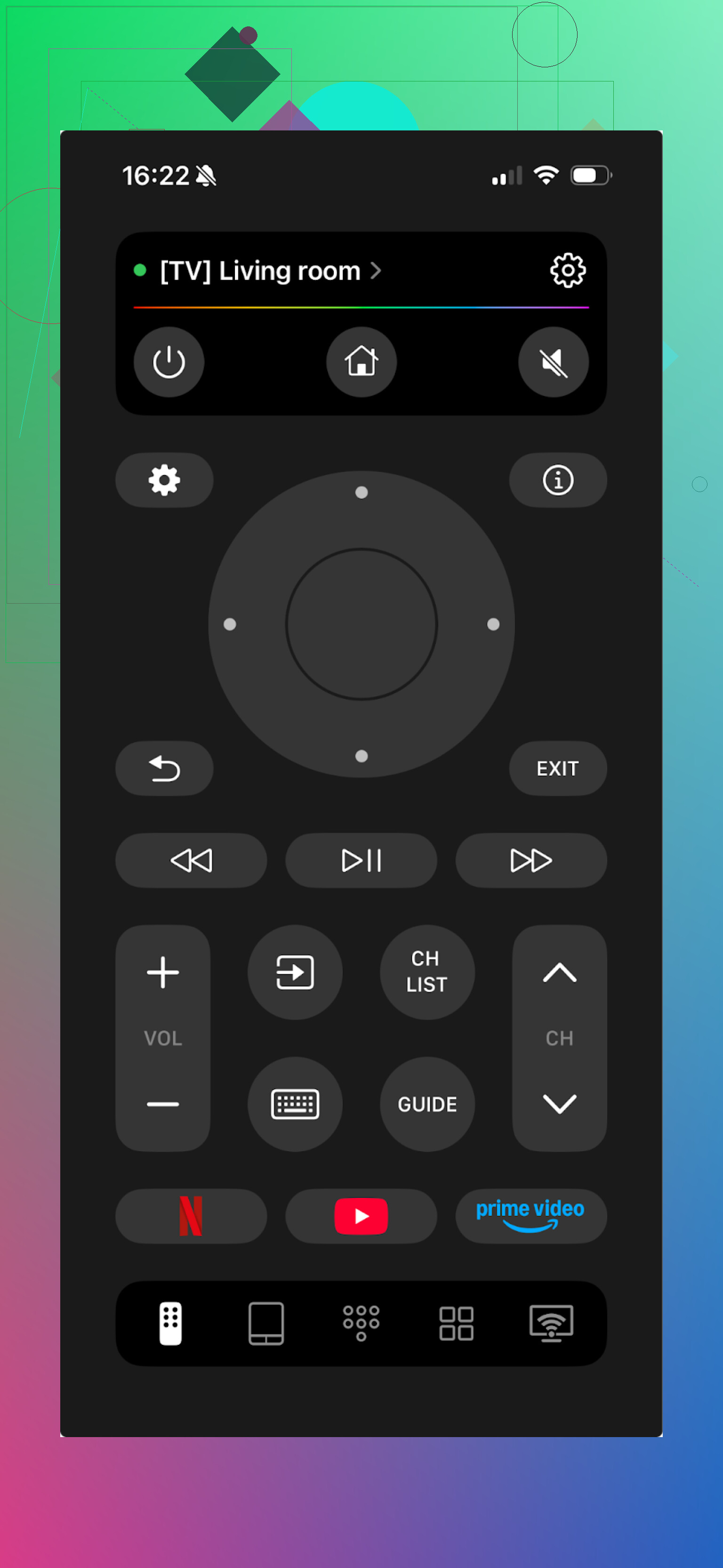
What worked well for me:
-
Auto detection
I opened the app, it saw my LG and Samsung TVs on the network in a couple of seconds. I did not have to type IP addresses or mess with router settings. On my network with a ton of devices, that helped. -
Touchpad control
Instead of tapping arrow buttons, you get something like a laptop touchpad. You swipe to move focus on the TV. It felt closer to using a trackpad on a laptop than a remote. For long sessions in YouTube or a browser, this felt faster for me. -
Real keyboard input
This is where it saved me the most time. Typing long titles on a TV remote is slow. Searching for something like “The Lord of the Rings trilogy extended” with a normal remote is pain. On TVRem I used the iPhone keyboard and typed it in a few seconds. Works for app logins, Wi‑Fi passwords, search boxes, all of it. -
Quick launch for apps
From the phone I could open Netflix, YouTube, Disney+ and similar apps on the TV directly instead of scrolling through the TV home screen. Small thing, but I stopped touching the physical remote after that. -
Voice input
When supported by the TV, I used voice search from the phone. Hit the mic icon, say the title, done. My accent is not perfect, so it misheard a few times, but most of the time it was good enough.
More info here if you want their page:
2) TV Remote – Universal
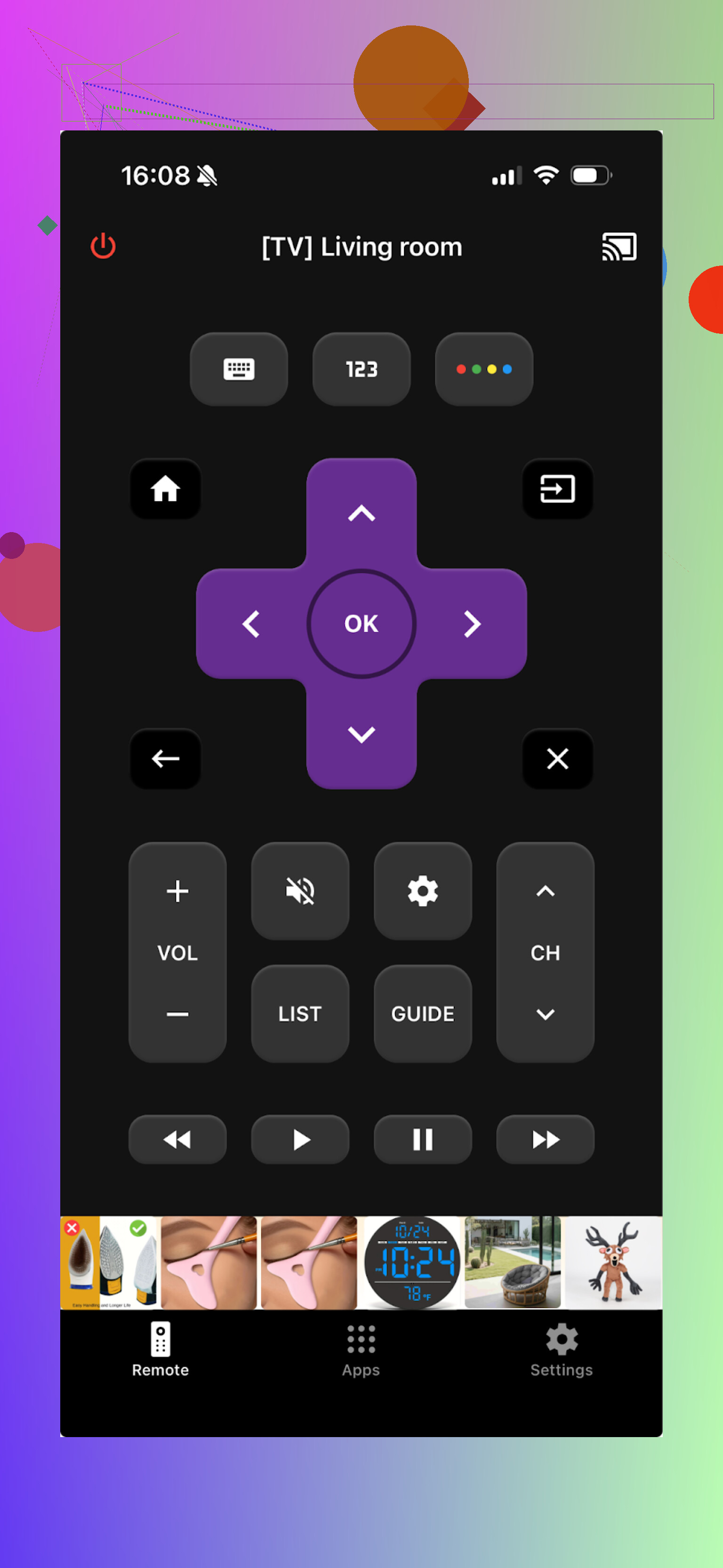
I used this on a setup where we had a Samsung in the living room, an LG in the bedroom, and a Roku TV in the guest room.
What I liked:
- It handled multiple brands in one app
- Switching between TVs was not painful, I could pick the device and it remembered the layout
If you have a mix of brands in one house, this sort of app makes more sense. For a single TV, it felt a bit heavier than I needed.
3) Built‑in Apple TV Remote on iPhone
This one surprised me when I first discovered it. If you use an Apple TV box or a TV with AirPlay 2, your iPhone already includes a working remote.
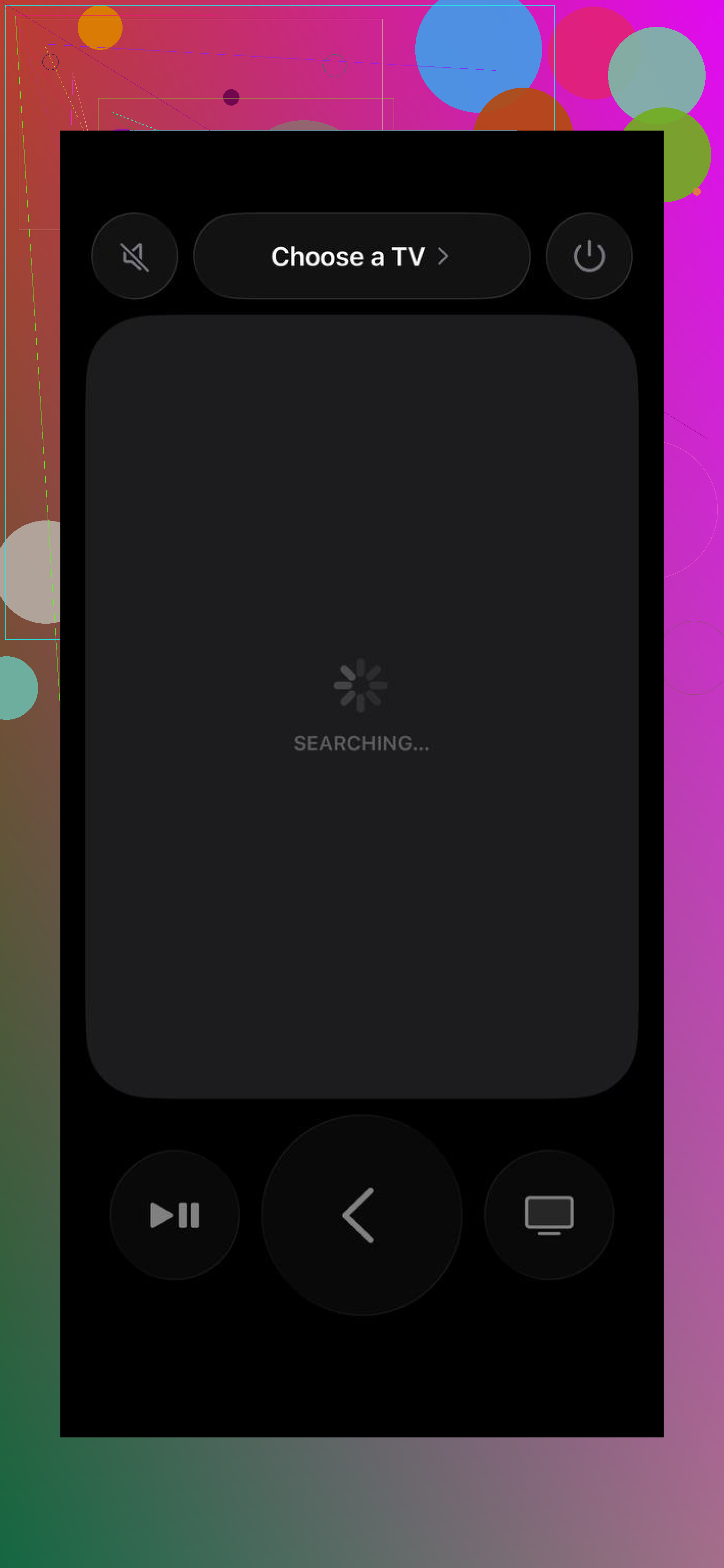
How to open it:
- Swipe down from the top right corner of your iPhone screen to open Control Center
- Look for the gray remote icon
- Tap it and it should find your Apple TV or compatible TV on the same network
What I used it for:
- Navigating tvOS without hunting for the tiny Apple TV remote
- Volume control on supported setups
- Siri search for movies or apps
Where it falls short:
- It is locked into the Apple ecosystem. Great if you use Apple TV, not useful if you mainly use a Samsung or LG smart TV without an Apple box.
Quick “How-To” Guide
The setup process for any of these options is straightforward:
- Same Network: Make sure your iPhone and TV are on the exact same Wi-Fi (ideally the same frequency, e.g., both on 5GHz).
- Permissions: When you open an app like TVRem, allow it to “Find and connect to devices on your local network.”
- Pairing: Select your TV from the list. A 4-digit PIN code might appear on your TV screen; just type that into your phone.
- Control: You’re ready! Use the touchpad or keyboard to navigate.
Android options I tested
On Android, things split into two groups:
- Wi‑Fi based remotes for smart TVs
- IR based remotes using the phone’s infrared blaster for older TVs
Some Android phones no longer include an IR blaster. My older Xiaomi and an old Samsung had one, my Pixel does not. That decides whether IR based apps work for you.
1) Universal Smart TV Remote (Uzeegar)
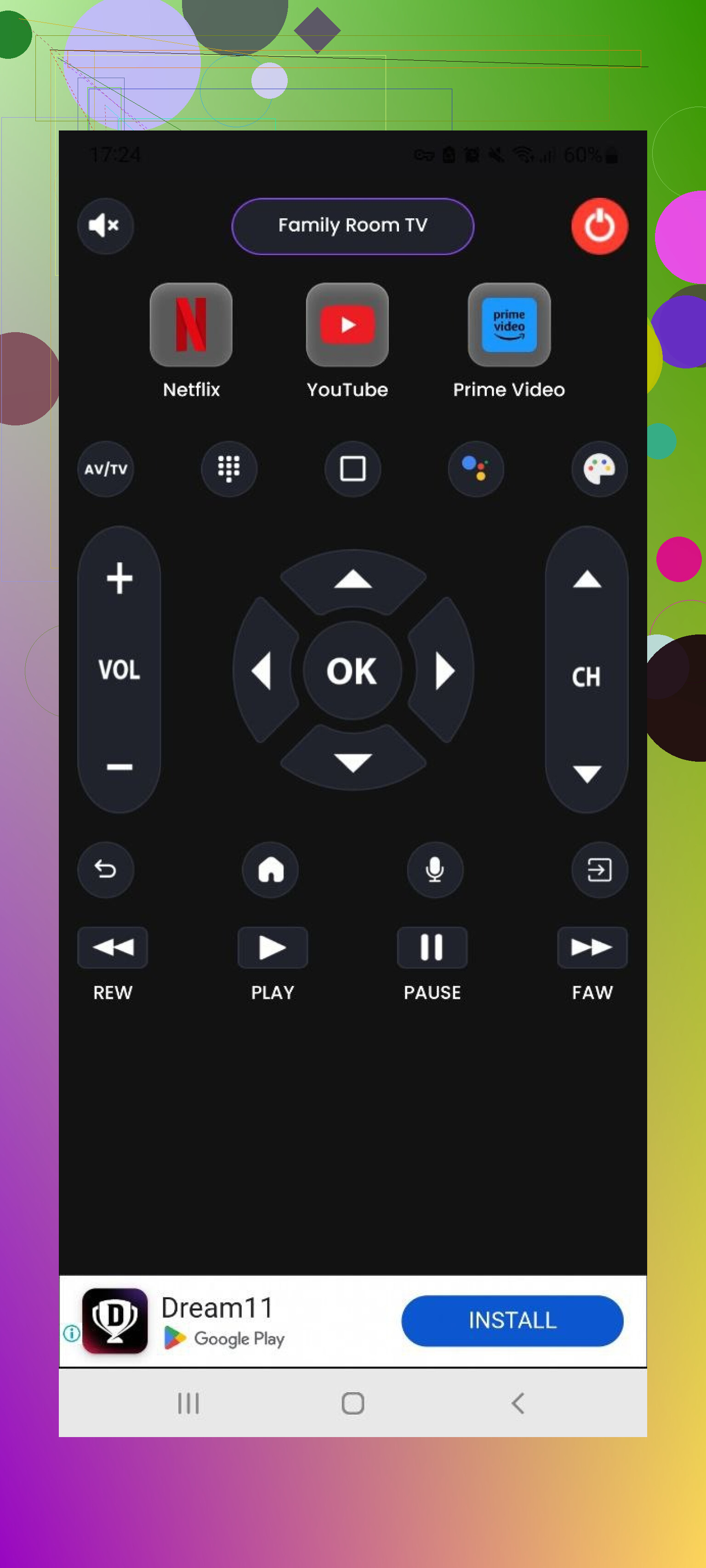
This one became my daily driver on Android for newer TVs.
What stood out:
-
Dual connection mode
It supported Wi‑Fi for modern smart TVs and IR for the older set in my parents’ place. One app handled both cases, which saved me from explaining two different apps to them. -
Screen mirroring
I used it to throw photos from my phone to the TV during family visits. Also used it once to mirror an Android game to the TV for kids. No special hardware beyond the TV and Wi‑Fi. -
Simple layout
Big buttons, clear labels. My father, who ignores most tech, figured it out in a few minutes.
2) Universal TV Remote Control (Codematics)
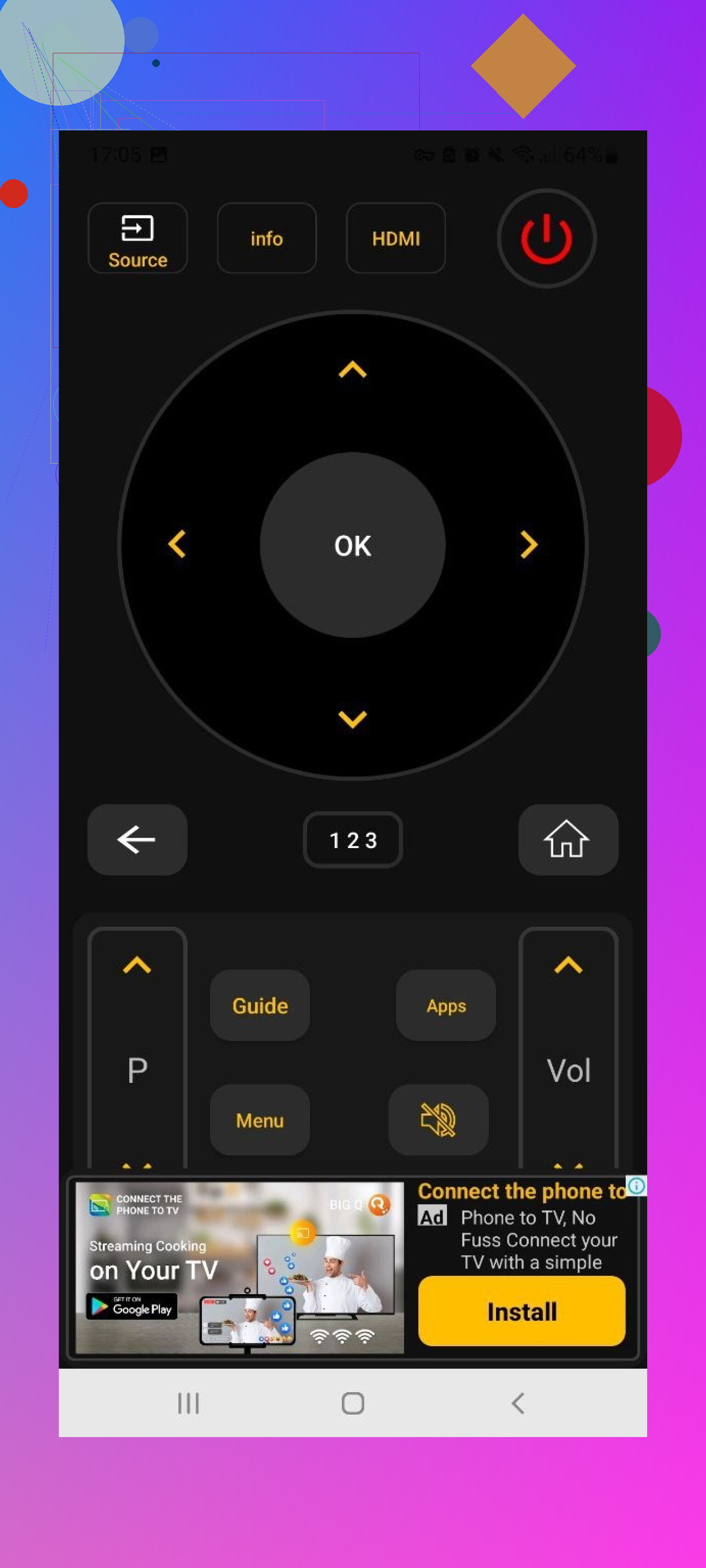
This one has been around for a long time and has a lot of downloads.
My experience with it:
-
It recognized a bunch of random TVs
I used it on an older Panasonic, an off brand hotel TV, and a no‑name set in a rental. The database seems large, which matters if your TV brand is obscure. -
Voice search
When the TV supported voice features, the app passed voice commands through. Useful on some Android TV setups. -
It worked better on phones with IR when dealing with very old, non‑smart TVs
Which one to pick
If you strictly use an Apple TV box, the built-in iOS remote is fine. However, for a truly universal experience that controls the actual TV hardware (Samsung, LG, etc.), TVRem is the winner. It’s free, includes a keyboard that the native remote sometimes lacks for third-party apps, and feels much more modern than the physical remote.
For Android, Codematics is your best bet for compatibility, while Uzeegar offers a cleaner experience for modern sets.
If you want more opinions and edge cases, there is a useful thread here with other people’s picks and weird setups:
https://www.reddit.com/r/DataRecoveryHelp/comments/1qqa2bh/best_universal_tv_remote/
If your physical remote vanished or died, your phone is good enough to replace it for almost everything. The only time I still touch the plastic remote is when I need some rare settings menu that third party apps do not expose, or when the TV is so old it barely responds to anything. For daily watching, the phone won.
33 Likes
Short answer for your situation. Yes, your phone can replace the remote, but only if your setup fits one of a few paths.
First thing. Figure out what your TV supports.
- Check if it is a smart TV on Wi Fi
Go to the TV settings with its buttons on the frame or a cheap wired keyboard in the USB port.
If you see:
- Network or Wi Fi menu
- Apps like Netflix, YouTube on the home screen
Then you have a smart TV. Your phone needs:
- Same Wi Fi network as the TV
- A remote app that talks over the network
Here I partly disagree with @mikeappsreviewer. You do not always need a third party app.
Try brand specific apps first:
- Samsung TV: SmartThings
- LG TV: LG ThinQ
- Roku TV: Roku official app
- Fire TV: Amazon Fire TV app
- Android TV or Google TV: Google TV app
These usually:
- Pair faster
- Have fewer random ads
- Support power, volume, apps, input switching
If those work, stop there. No need to pile on extra apps.
- If the TV is smart but old or weird
Some older models do not behave well with their own apps. In that case, third party apps like the ones @mikeappsreviewer listed help.
What I would watch for when you pick an app:
- No hard paywall for basic buttons
- No full screen ad every few taps
- Clear support for your TV brand in the description
- Recent update date in the store
If an app has not been updated for a couple of years, skip it. TV firmwares change often.
- If the TV is not smart and has only IR remote
Look at the remote you lost. If it says only things like AV, HDMI, no home or apps, and the TV menu has no Wi Fi option, you need infrared.
Then you have two paths:
A. Your phone has an IR blaster
- Common on older Xiaomi, some Huawei, some older Samsung models
- Rare on Pixels, rare on iPhones, rare on recent flagships
Check:
- The top edge of the phone for a tiny dark plastic window
- Phone specs page on the maker site, look for Infrared or IR
If you have IR:
- Install an IR remote app
- In brand selection, pick your TV brand
- Test power and volume from close range, with direct line of sight
You do not need Wi Fi in this case.
B. Your phone has no IR
Then you need an extra device. People often skip this, but it solves the “dumb TV” problem better than chasing apps.
Options:
- Cheap external IR blaster that sits near the TV and talks to your phone via Wi Fi or Bluetooth
- A streaming box that comes with its own remote plus a phone app
Typical cheap and workable path:
- Buy a Roku, Fire TV Stick, Chromecast with Google TV, or Apple TV
- Plug it into HDMI
- Use the official phone app for that box
That gives you:
- A new modern interface
- A phone remote that controls the box
- Often HDMI CEC control of TV power and volume from the box remote and sometimes from the app too
You do not control the old TV menus perfectly, but for watching stuff it solves the missing remote.
- Your exact “what do I need” checklist
If your TV is:
-
Smart and on Wi Fi
You need: phone on same Wi Fi, official brand app or a trusted universal app. -
Non smart, but your phone has IR
You need: IR remote app only. -
Non smart, phone has no IR
You need: hardware, either an external IR hub or a streaming device.
- A few quick “gotchas” that bite people
-
Phone on mobile data, TV on Wi Fi
Fix: put the phone on the same Wi Fi as the TV. -
Router with guest network isolation
If TV is on guest Wi Fi and phone on main Wi Fi, they do not see each other. Put both on the same SSID. -
TV on Ethernet, phone on Wi Fi
That often works, but some cheap routers isolate wired from wireless. If apps never find the TV, try putting the TV on Wi Fi once to test. -
Power on issue
Some TVs do not accept network control while fully off, only in standby. So phone control wakes it from standby but not from a full power cut.
- When a new remote is still worth it
I would not bother with phone only in these cases:
- You tweak picture and sound settings often
- You have an older TV with deep menus only fully accessible from the original remote
- Other people in the house hate phone remotes
Then a replacement remote from the TV brand or a good universal physical remote works better. Phone remote stays as backup.
If you post your TV brand and rough year, plus phone model, people can tell you which exact path above fits you.
Short version: yes, your phone can 100% replace the remote, but not in every setup and not always as “universal” as the app ads promise.
You already got solid play‑by‑play from @mikeappsreviewer and @andarilhonoturno. Let me fill in some gaps and push back on a couple of points.
1. First reality check: “universal” is kinda marketing
A lot of apps scream “Universal Remote!!!” but:
- Some only work over Wi Fi
- Some only work over IR
- Some only talk to specific “smart” protocols (like LG webOS, Samsung Tizen, Roku, etc.)
So your actual options depend on this combo:
- What your TV is
- What your phone can physically do
- Whether you’re willing to add a small piece of hardware
Until you know those, you’re just installing random apps that yell at you for a subscription.
2. Figure out your TV without overthinking it
Instead of digging through menu trees like a raccoon in the trash, just check these 3 things:
-
Does the TV have built in apps like Netflix or YouTube on its home screen?
- Yes → It’s a smart TV, likely controllable by Wi Fi.
- No → Probably IR only.
-
Does the TV have an Ethernet port labeled LAN and a Network/Wi Fi section in settings?
- Yes → Also a good sign it can be controlled over the network.
-
Brand + rough age
- Newer than ~2015 from Samsung, LG, Sony, TCL, Roku, Hisense: almost always network controllable.
- Early flat panels or cheap old brands: often only IR.
You don’t need exact model to get started, but if you have it, it helps.
3. Check what your phone can actually do
Here’s where I mildly disagree with both of them: people often waste time searching for “that magical universal app” when the real blocker is that the phone simply has no IR.
- iPhones: No built in IR. Full stop. If the TV is not on Wi Fi and cannot be controlled over network, your iPhone alone will never act like the original IR remote. Period.
- Most modern Pixels / Galaxy S / iPhone: same story, no IR.
- Some Xiaomi, Huawei, some old Samsung / LG Androids: have an IR blaster on the top edge.
If there is no IR in the phone and your TV is dumb, no app fixes that. This is where people start thinking “these apps are scams” when the hardware just isn’t there.
4. The path nobody talks about but works the best
Both @mikeappsreviewer and @andarilhonoturno touched streaming boxes, but I’d push this harder:
If your TV is old and/or your remote is dead and expensive to replace, the cleanest solution is often:
- Buy a streaming stick or box
- Roku / Fire TV Stick / Chromecast with Google TV / Apple TV
- Plug into HDMI
- Use your phone as the remote for the box, not the TV
Why this is actually better than hunting “universal remote apps”:
- Official phone apps are maintained and relatively sane
- You get modern apps and UI instead of the TV’s cursed 2012 menu
- Many sticks control TV power and volume with HDMI CEC
- You don’t care about the original TV remote except maybe for rare settings
So yeah, technically it does not control the TV input menus perfectly, but in day to day use it feels like your phone became the main remote.
5. External IR blaster: the underrated middle ground
Everyone jumps from “phone has IR” to “phone has nothing, give up,” but there is a middle option:
A small Wi Fi or Bluetooth IR blaster box that sits in front of the TV and blasts IR when you tap buttons in an app.
Pros:
- Works with iPhones and IR‑less Androids
- Can control multiple devices (TV, soundbar, receiver) from one app
- Some support “scenes” like “Watch” that power on TV and switch input
Cons:
- Setup is more annoying than an app
- Quality varies, some cheap ones are flaky
- You are now dependent on some random company’s cloud in some cases
So if you refuse to buy a streaming stick and you want something close to a true “universal” remote, this is the nerdy answer that actually does that.
6. When I would not bother with a phone remote
Everyone’s singing praises, so let me be the wet blanket for a second:
I’d personally still buy a physical remote (original or a decent universal like a GE/One For All) if:
- More than one technophobe uses the TV
- You tweak picture/audio settings a lot
- You hate unlocking your phone / opening an app every time just to pause
- Your Wi Fi is trash and cuts out a lot
Phone remotes are great until the battery is at 2% and someone’s calling you while you’re trying to mute an ad.
7. What you probably need right now
Since you did not list brand/model, here’s a rough decision tree you can follow in 2 minutes:
-
TV has apps and is on Wi Fi or Ethernet
- Phone and TV on same network
- Use: brand’s official app first
- If that sucks or does not see the TV, then try one of the third party apps like the ones @mikeappsreviewer likes.
-
TV has no apps and you have:
- Phone with IR → install an IR universal app, pick your brand, test Power from a few feet away.
- Phone without IR → forget pure app fixes. Get either:
- A streaming stick and use its official app
- Or an external IR hub
-
If the replacement remote price is only slightly more than a cheap streaming stick, I’d honestly just buy the stick and move your viewing to that.
If you drop your TV brand + a rough year you bought it and your phone model, you can get a dead specific “do this, use this app or box” answer instead of guessing.