Lost my remote again last week. Sofa ate it or my kid ‘borrowed’ it, not sure. Batteries in the backup remote were dead. I did not feel like digging around for them, so I went back to what has worked better for me long term: using my phone as the main remote.
Yes, you can control a TV with a phone. How you do it depends on two things:
- iPhone vs Android
- Smart TV on Wi‑Fi vs older TV with IR sensor
Here is what I ended up using, what broke, what worked, and what I would skip next time.
iPhone options I tried
If you use an iPhone, everything goes through Wi‑Fi. Your phone and TV need to be on the same network. No workaround there.
1) TVRem – Universal TV Remote
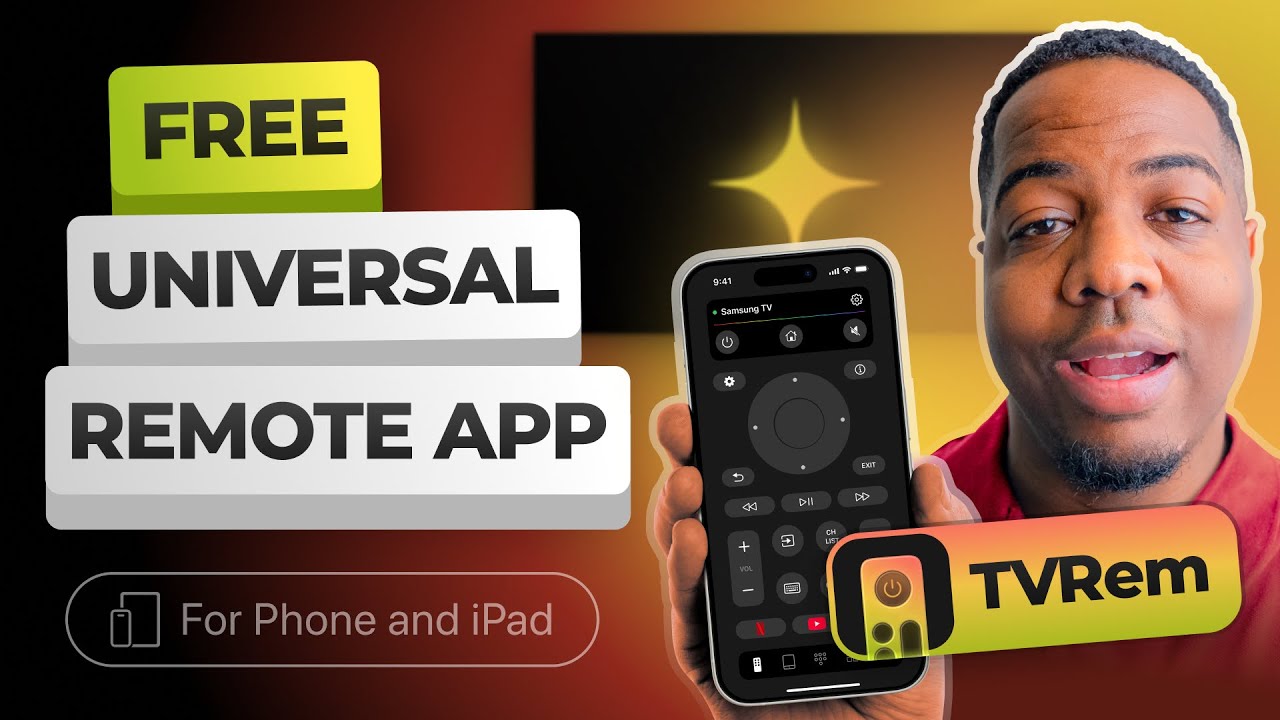
Out of all the iOS apps I tested, this one stayed on my phone. Most others annoyed me with popups, weird limits, or lag.
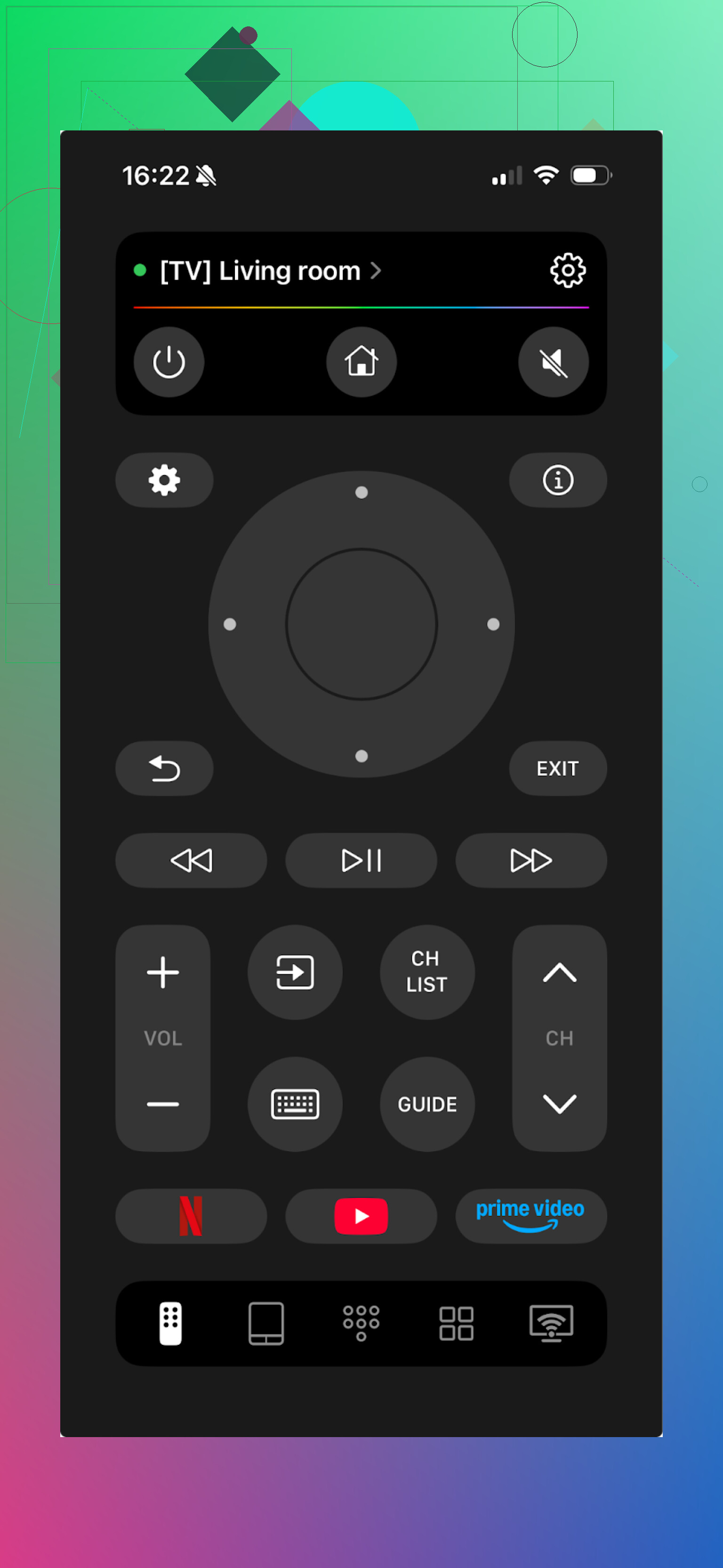
What worked well for me:
-
Auto detection
I opened the app, it saw my LG and Samsung TVs on the network in a couple of seconds. I did not have to type IP addresses or mess with router settings. On my network with a ton of devices, that helped. -
Touchpad control
Instead of tapping arrow buttons, you get something like a laptop touchpad. You swipe to move focus on the TV. It felt closer to using a trackpad on a laptop than a remote. For long sessions in YouTube or a browser, this felt faster for me. -
Real keyboard input
This is where it saved me the most time. Typing long titles on a TV remote is slow. Searching for something like “The Lord of the Rings trilogy extended” with a normal remote is pain. On TVRem I used the iPhone keyboard and typed it in a few seconds. Works for app logins, Wi‑Fi passwords, search boxes, all of it. -
Quick launch for apps
From the phone I could open Netflix, YouTube, Disney+ and similar apps on the TV directly instead of scrolling through the TV home screen. Small thing, but I stopped touching the physical remote after that. -
Voice input
When supported by the TV, I used voice search from the phone. Hit the mic icon, say the title, done. My accent is not perfect, so it misheard a few times, but most of the time it was good enough.
More info here if you want their page:
2) TV Remote – Universal
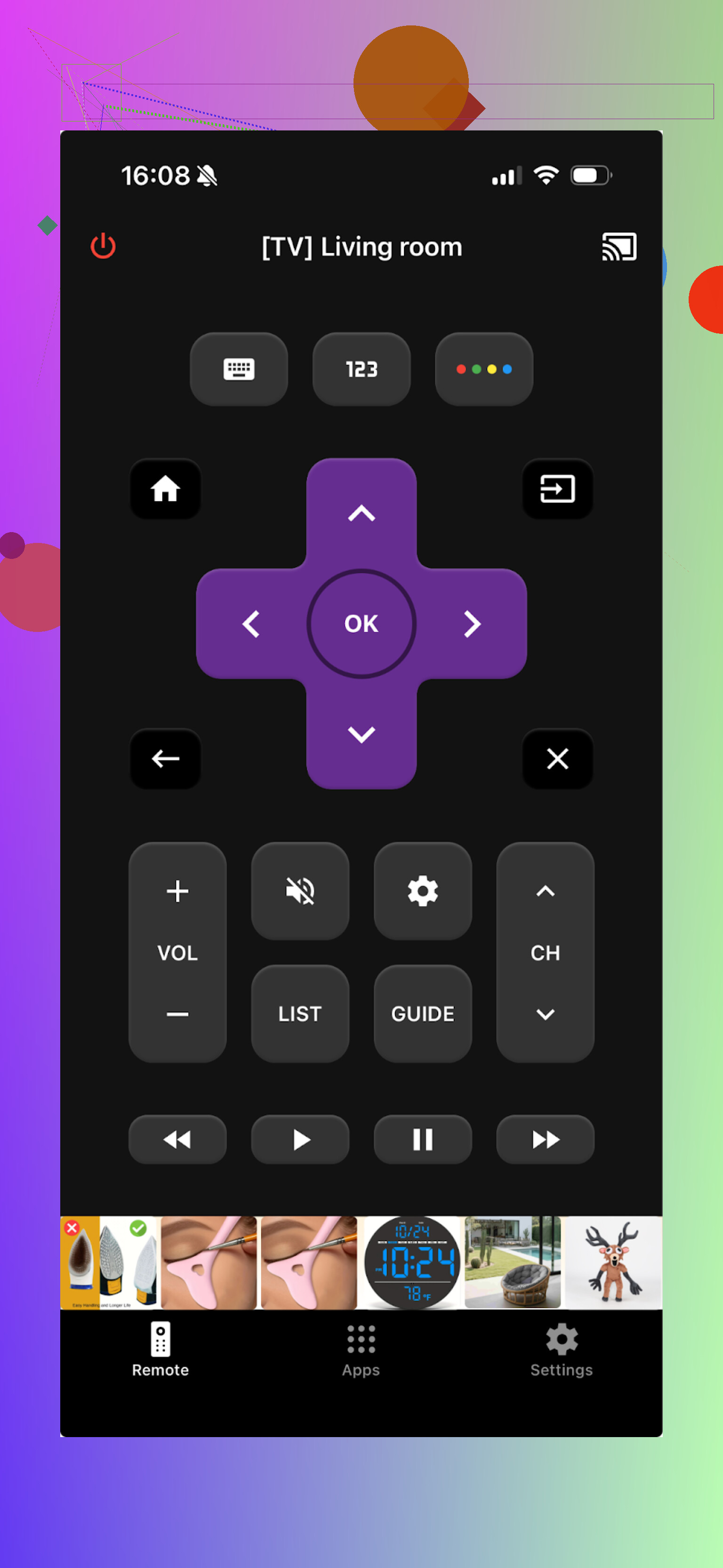
I used this on a setup where we had a Samsung in the living room, an LG in the bedroom, and a Roku TV in the guest room.
What I liked:
- It handled multiple brands in one app
- Switching between TVs was not painful, I could pick the device and it remembered the layout
If you have a mix of brands in one house, this sort of app makes more sense. For a single TV, it felt a bit heavier than I needed.
3) Built‑in Apple TV Remote on iPhone
This one surprised me when I first discovered it. If you use an Apple TV box or a TV with AirPlay 2, your iPhone already includes a working remote.
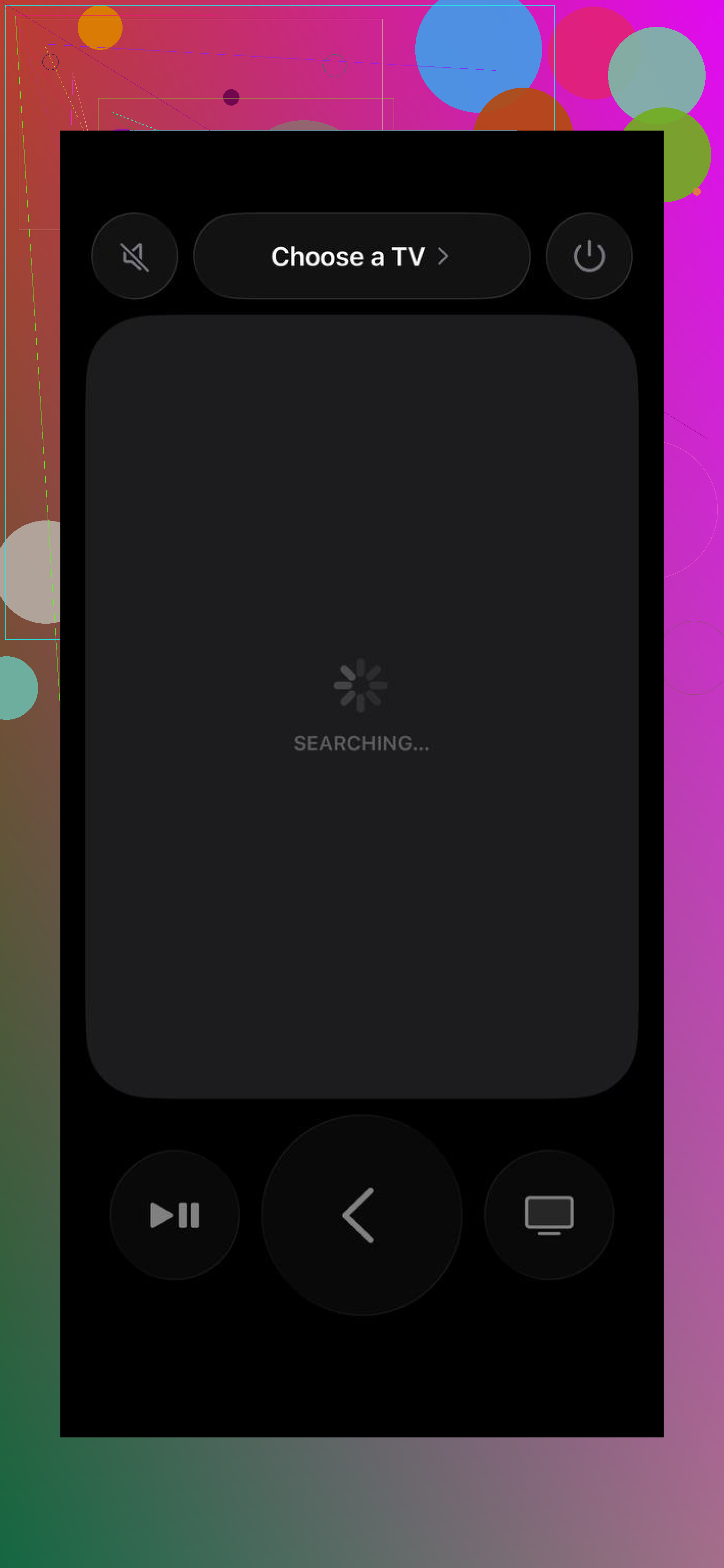
How to open it:
- Swipe down from the top right corner of your iPhone screen to open Control Center
- Look for the gray remote icon
- Tap it and it should find your Apple TV or compatible TV on the same network
What I used it for:
- Navigating tvOS without hunting for the tiny Apple TV remote
- Volume control on supported setups
- Siri search for movies or apps
Where it falls short:
- It is locked into the Apple ecosystem. Great if you use Apple TV, not useful if you mainly use a Samsung or LG smart TV without an Apple box.
Quick “How-To” Guide
The setup process for any of these options is straightforward:
- Same Network: Make sure your iPhone and TV are on the exact same Wi-Fi (ideally the same frequency, e.g., both on 5GHz).
- Permissions: When you open an app like TVRem, allow it to “Find and connect to devices on your local network.”
- Pairing: Select your TV from the list. A 4-digit PIN code might appear on your TV screen; just type that into your phone.
- Control: You’re ready! Use the touchpad or keyboard to navigate.
Android options I tested
On Android, things split into two groups:
- Wi‑Fi based remotes for smart TVs
- IR based remotes using the phone’s infrared blaster for older TVs
Some Android phones no longer include an IR blaster. My older Xiaomi and an old Samsung had one, my Pixel does not. That decides whether IR based apps work for you.
1) Universal Smart TV Remote (Uzeegar)
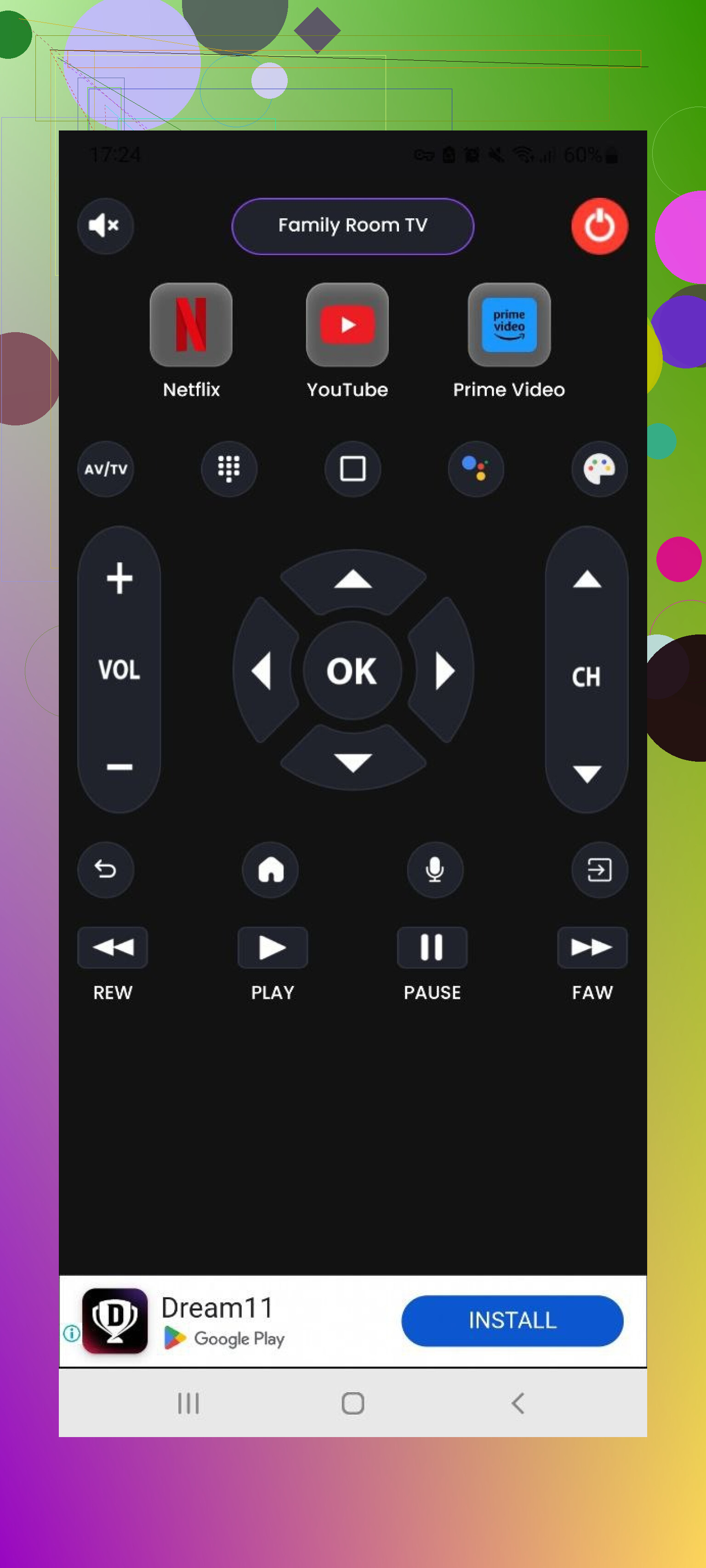
This one became my daily driver on Android for newer TVs.
What stood out:
-
Dual connection mode
It supported Wi‑Fi for modern smart TVs and IR for the older set in my parents’ place. One app handled both cases, which saved me from explaining two different apps to them. -
Screen mirroring
I used it to throw photos from my phone to the TV during family visits. Also used it once to mirror an Android game to the TV for kids. No special hardware beyond the TV and Wi‑Fi. -
Simple layout
Big buttons, clear labels. My father, who ignores most tech, figured it out in a few minutes.
2) Universal TV Remote Control (Codematics)
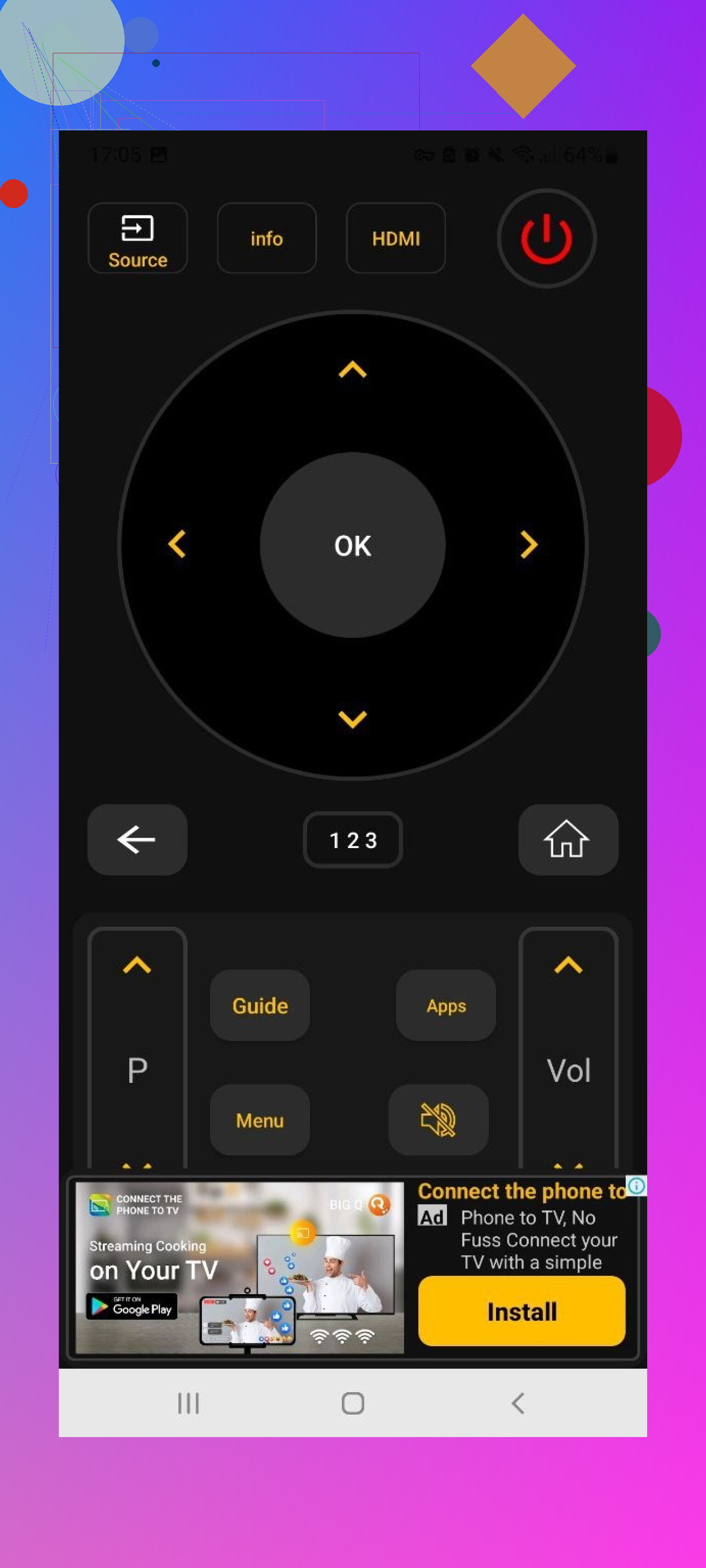
This one has been around for a long time and has a lot of downloads.
My experience with it:
-
It recognized a bunch of random TVs
I used it on an older Panasonic, an off brand hotel TV, and a no‑name set in a rental. The database seems large, which matters if your TV brand is obscure. -
Voice search
When the TV supported voice features, the app passed voice commands through. Useful on some Android TV setups. -
It worked better on phones with IR when dealing with very old, non‑smart TVs
Which one to pick
If you strictly use an Apple TV box, the built-in iOS remote is fine. However, for a truly universal experience that controls the actual TV hardware (Samsung, LG, etc.), TVRem is the winner. It’s free, includes a keyboard that the native remote sometimes lacks for third-party apps, and feels much more modern than the physical remote.
For Android, Codematics is your best bet for compatibility, while Uzeegar offers a cleaner experience for modern sets.
If you want more opinions and edge cases, there is a useful thread here with other people’s picks and weird setups:
https://www.reddit.com/r/DataRecoveryHelp/comments/1qqa2bh/best_universal_tv_remote/
If your physical remote vanished or died, your phone is good enough to replace it for almost everything. The only time I still touch the plastic remote is when I need some rare settings menu that third party apps do not expose, or when the TV is so old it barely responds to anything. For daily watching, the phone won.