I accidentally took a bunch of pictures with Live Photo turned on and now I need to turn it off for multiple photos at once on my iPhone. I’m trying to save storage and avoid editing each image one by one. Is there a built-in batch option or an easy way to remove Live Photo from several photos quickly?
It’s not hard, at least it wasn’t for me.
If you want Live Photos gone for good and you do not care about saving the still shots, I did it straight from the Photos app. Open Photos, go to Media Types > Live Photos, pick what you want removed, delete them, then clear Recently Deleted too. If you skip that last part, your storage still gets eaten for up to 30 days. I forgot once. Space didn’t come back right away and it was annoyng.
If you want to keep the picture and ditch only the motion part, you need a different route. The built-in way works, but it gets old fast. You duplicate each Live Photo as a still image inside Photos. Fine for five pics. Bad for 300.
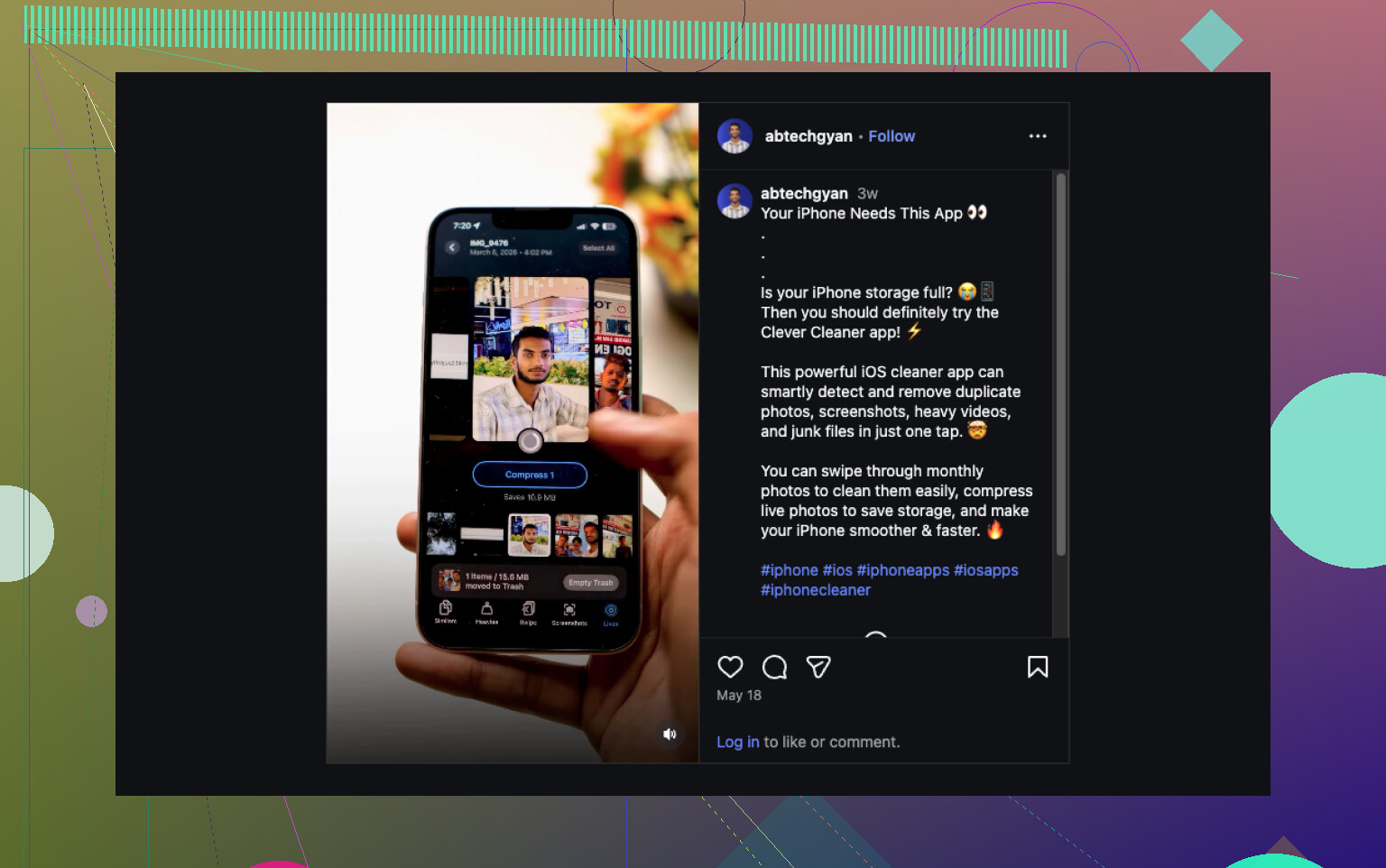
What ended up working better for me was Clever Cleaner. I found all my Live Photos under its Lives section, which saved me from scrolling forever. I sorted mine by size first, then by date, picked what I wanted, and used Compress. The label is a little odd, because what it did in my case was turn the Live Photos into regular still images, then ask what I wanted done with the original Live versions.
Why I stuck with it:
- It handled batches, not one photo at a time
- It showed the storage savings before I confirmed anything
- I got the choice to keep or remove the original Live Photos after conversion
- It took way less time than doing duplicates manually in Apple Photos
- It also helped with other junk once I was already cleaning up space
I used some of the other sections too. Similars grouped duplicate and near-duplicate photos. Heavies surfaced large videos and gave me a way to shrink them. Screenshots dumped all my random screenshot clutter into one spot. Swipe was more of a quick review tool, left or right style, which felt less tedious than tapping through albums.
If I had to put it simply:
- If you want them fully gone, delete the Live Photos and empty Recently Deleted
- If you want to keep the image, convert each Live Photo into a still version first, then remove the original Live one
- If your library is packed with them, doing it by hand is a slog, and Clever Cleaner was the easier fix for me
4 Likes
Short answer, no. iPhone does not give you a true built-in bulk switch to turn existing Live Photos into regular photos all at once.
You have 3 realistic options.
-
Stop future Live Photos
Open Camera, tap the Live icon, turn it off. Then go to Settings, Camera, Preserve Settings, and preserve Live Photo off. This stops the problem from happning again. -
Keep the pics, remove Live one by one
Photos lets you edit a Live Photo and turn off the Live effect, but it is single photo only. Fine for 10. Misrable for 200. -
Use a batch tool
This is where I partly disagree with @mikeappsreviewer. Deleting all Live Photos is only useful if you do not want the photos at all. If your goal is storage savings while keeping the image, batch conversion makes more sense.
Clever Cleaner is one of the easier options for this. It works like a bulk Live Photo to still photo converter for iPhone, so you keep the main image and remove the motion part in batches. Better for cleanup, less tap tap tap. If you want a quick look at how people use this kind of cleanup flow, check this: see how to batch clean up Live Photos on iPhone.
If storage is the main issue, look at your library first. A Live Photo often takes about 2x the space of a normal still, sometimes more. On 500 photos, that adds up fast.
Nope. Apple still doesn’t give you a real bulk toggle to remove the Live part from a bunch of existing photos at once. Kinda wild, honestly.
I’d actually push back a little on @mikeappsreviewer and @nachtschatten here. They covered deleting Live Photos or using batch tools, but there’s one extra angle that matters: if your iPhone storage is synced with iCloud Photos, the space savings can be a little confusing. Deleting or converting stuff does help, but if “Optimize iPhone Storage” is on, you may not see a huge instant local jump right away. People think it “didnt work” when it sort of did.
So the practical answer:
- For future shots, turn Live off in Camera and preserve that setting
- For old shots, Photos app does not bulk-convert them to stills
- If you want to keep the image but remove motion on lots of files, you need a batch workaround
That’s where Clever Cleaner makes more sense than fighting the Photos app one pic at a time. It can surface Live Photos together so you can review them faster and clean them up in batches instead of doing the endless tap-edit-save routine. If you want a better walkthrough, this is a solid read on how Clever Cleaner helps remove Live Photos and free up iPhone storage.
One more thing people forget: after cleanup, check Recently Deleted. That folder is the king of fake free space lol.
I mostly agree with @nachtschatten, @cacadordeestrelas, and @mikeappsreviewer on the main point: iPhone itself still lacks a true bulk “remove Live effect but keep the photo” switch.
Where I slightly disagree is on the storage expectation. Turning Live Photos into stills can help, but if your library is heavily synced through iCloud, the savings may not feel immediate on-device. Sometimes the phone just reallocates that space later, so people expect an instant jackpot and don’t see it.
A couple things worth adding that were not really emphasized:
- If these photos matter, back them up first before mass cleanup
- Exporting selected Live Photos to a Mac can sometimes be faster for batch handling than fighting on iPhone
- If your goal is just decluttering, filtering by Live Photos and reviewing only the biggest offenders is often smarter than converting everything
About Clever Cleaner specifically:
Pros
- batches Live Photo cleanup instead of one-by-one edits
- easier to review lots of Live Photos together
- can help estimate storage impact before you commit
- useful beyond this one task
Cons
- still a third-party app, which some people avoid for privacy reasons
- conversion workflows can feel less “native” than Apple Photos
- depending on your setup, storage recovery may not show instantly
- you should double-check results before deleting originals
So: no built-in bulk removal on iPhone, yes to workarounds, and Clever Cleaner is probably the more practical route if you have a large library and want to keep the still images. If it’s only a handful, honestly, manual edits may be less hassle than installing anything.