I keep seeing references to Google Drive for Desktop but I’m confused about what it actually does compared to the web version and Backup and Sync. I’m trying to figure out if I should install it on my Windows PC to manage large work files locally without filling up my hard drive. Can someone break down how it works, its main features, and whether it’s safe and reliable for daily use
If you’ve ever gotten tired of opening a browser just to grab a file from Google Drive, Google Drive for desktop is basically Google’s fix for that. It’s their official app that connects your computer directly to your Drive so your cloud files just show up inside File Explorer (Windows) or Finder (Mac) like they live there.
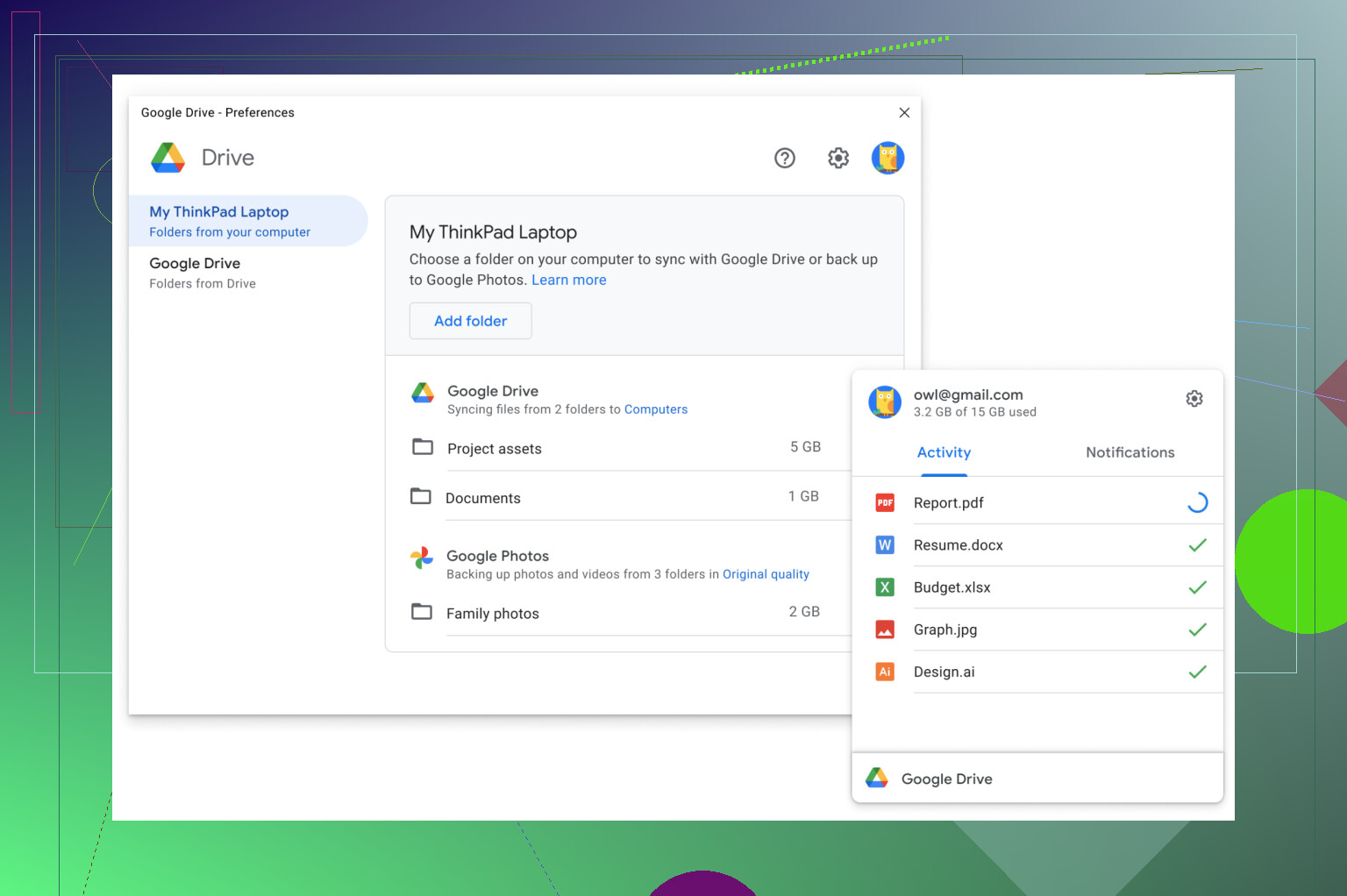
The big difference from older sync apps is that it mostly streams files instead of downloading everything. So your stuff stays in the cloud and only downloads when you open it. If you know you’ll need something offline, you can pin it and it stays on your machine. This app actually replaced the old Backup and Sync and Drive File Stream apps after Google merged them.
Advantages of Google Drive app
Having your Drive files show up directly in your file manager is honestly the best part. It feels much more natural than dragging stuff through a browser tab. And since files stream on demand, your SSD doesn’t get filled with stuff you barely touch.
It also plays nicely with Google Docs, Google Sheets, and Google Slides, and you can auto-backup folders like Desktop or Documents if you want. Shared drives also work well if you’re collaborating. Once it’s running properly, it mostly stays out of your way.
Disadvantages of Google Drive app
Streaming sounds great until your internet is slow and a file takes forever to open. The app also has a bit of a reputation for randomly signing people out or needing a restart after updates.
Sync conflicts can get messy too, especially if multiple people edit files. Settings aren’t always obvious either – you sometimes have to dig around to find basic options. And if Google changes something on their end, you sometimes just have to wait for fixes. It’s definitely built for convenience, not control.
A cleaner alternative for desktop – CloudMounter
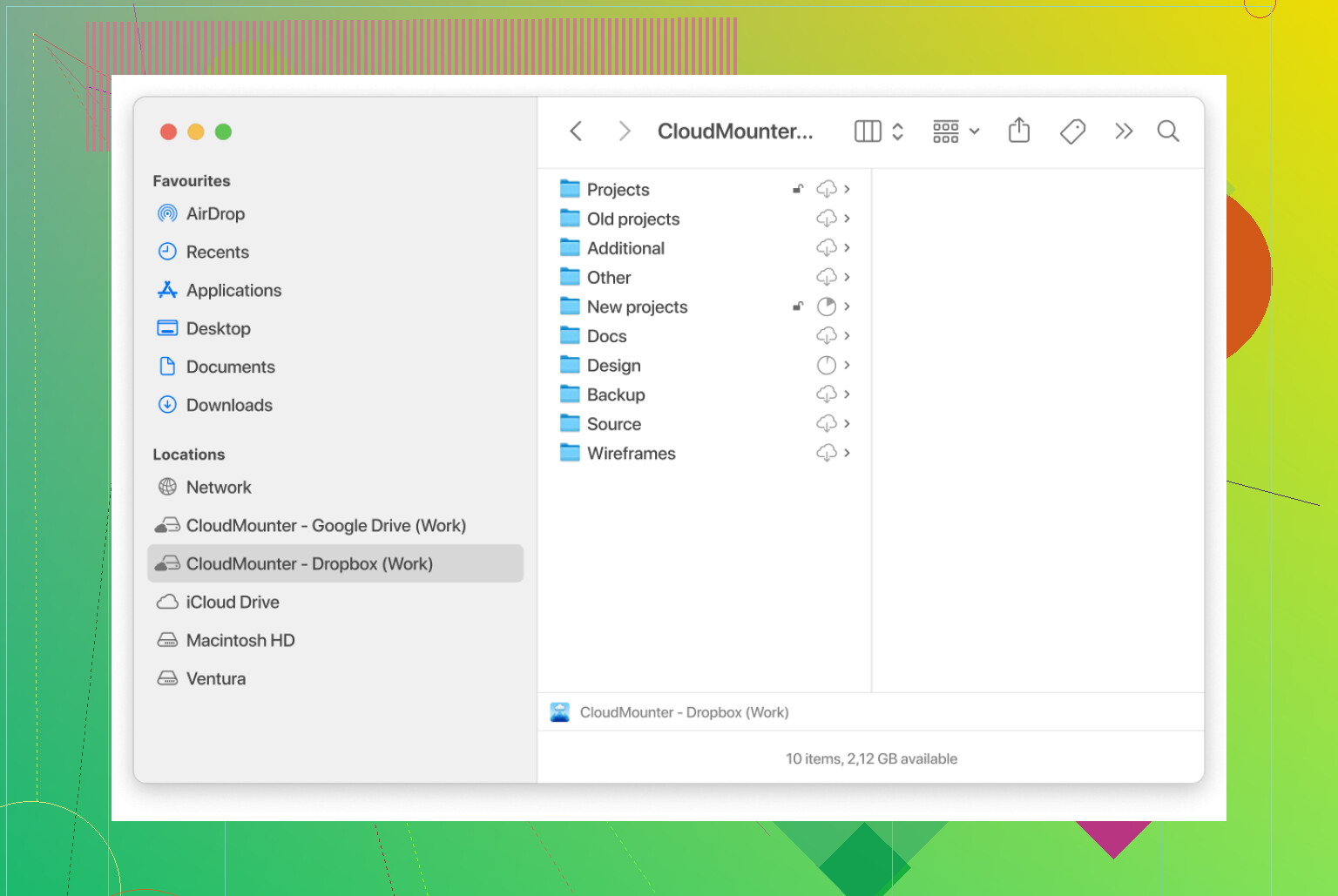
If you want something that feels more like a normal mounted drive and less like a sync service, CloudMounter is worth checking out. It lets you connect Google Drive (plus stuff like Dropbox, Microsoft OneDrive, S3, FTP, etc.) and mount them directly as drives in Explorer or Finder.
So instead of syncing or streaming through Google’s system, you just work with files like they’re local. Open, edit, move, rename – same as any folder. It can also encrypt files before upload, supports multiple accounts, and doesn’t sit there chewing CPU in the background. Feels a lot cleaner if the official app annoys you.
MacBook users: step it up with Commander One
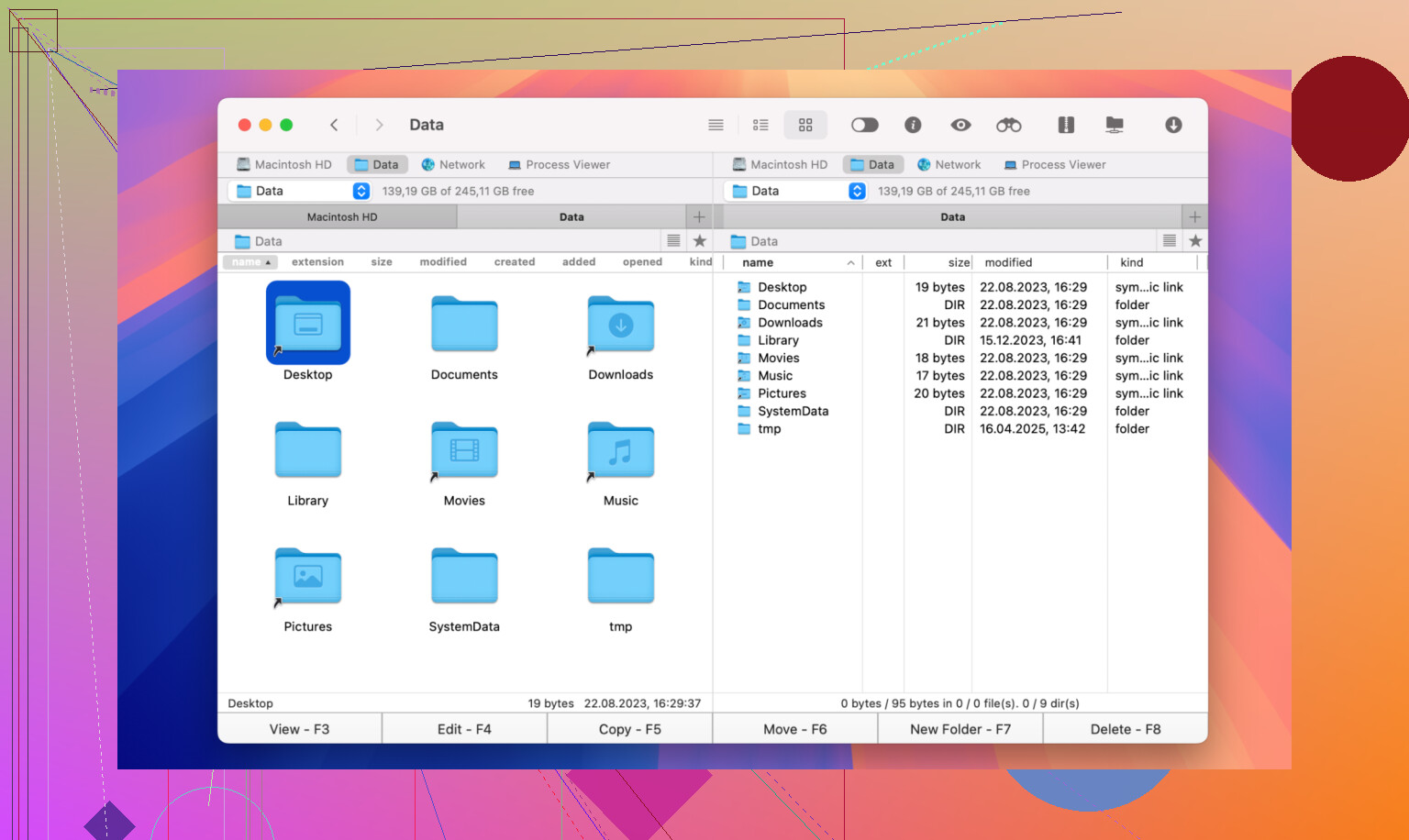
If you’re on a Mac and deal with files a lot, Commander One is another step up. It’s a dual-panel file manager, which sounds small but makes a huge difference when you’re moving stuff between folders or cloud accounts.
You can connect Google Drive, S3, FTP, and others directly inside it, handle ZIP files without extra apps, and use tabs, hotkeys, and batch rename tools. There’s even root access if you need deeper control. It’s the kind of tool you end up liking if Finder starts to feel a bit too basic.
From experience, Google Drive for Desktop is totally fine if you just want easy access to your files. But if you start wanting more control over how cloud storage behaves on your computer, that’s when you start looking at alternatives.
Short version for your question:
Google Drive on the web
You use it in a browser. Files live in the cloud. You download, edit, reupload, or edit Google Docs in the browser. No tight integration with File Explorer.
Old Backup and Sync
Google killed it and merged it into Google Drive for desktop. It used to mirror folders from your PC to Drive and sync your whole My Drive locally if you wanted.
Google Drive for desktop (the current app)
Single app that replaces both Backup and Sync and Drive File Stream.
What it does on Windows:
-
Mounts Drive like a disk
• You get a “Google Drive” letter in File Explorer.
• My Drive and Shared drives show as folders.
• You open, save, rename like a normal drive.
• Non Google apps, like Word or Photoshop, can open from there. -
Streaming vs mirroring
This is where people get confused.
Mode 1: Stream files
• Files appear in Explorer but stay online.
• When you open a file, it downloads on demand.
• You can right click files or folders and mark “Available offline” so they stay on disk.
• Good if your Drive is larger than your SSD.
Mode 2: Mirror files
• A copy of your Drive lives on your PC.
• Every change syncs both ways.
• Uses local disk space, but you are less dependent on internet.
You pick the mode per account during setup and you can change it later.
- Replacement for Backup and Sync
Compared to old Backup and Sync:
• Still backs up local folders like Desktop, Documents, Pictures to Drive if you choose them in settings.
• Handles Google Photos differently than before, so check that part if you rely on photo sync.
• Has more control over streaming vs mirroring, while Backup and Sync tried to keep full local copies a lot of the time.
When you should install it on your Windows PC:
Install Drive for desktop if:
• You want to work from File Explorer instead of the browser.
• You often use non Google apps with Drive files.
• You need your Desktop/Documents backed up to Drive without thinking about it.
• Your internet is stable most of the time.
Skip or limit it if:
• Your internet is slow or unstable and you do not plan to use offline mode.
• You hate background sync software running all day.
• You use several clouds and want one simple tool for all.
I agree with most of what @mikeappsreviewer said, except I find the client a bit more stable on newer Windows builds than they described, at least in the last year. The sign out bugs hit me less, but sync conflicts on Office files are still a pain. For shared Excel files I avoid Drive for desktop and use native Google formats or another system.
If you want simple “Drive as a mounted disk” and you also have Dropbox, OneDrive, maybe an S3 bucket, I would look at CloudMounter too. It mounts multiple cloud storage accounts as drives without heavy sync, so you browse them as remote storage. On Windows it helps if you prefer to control what is local and what stays remote. It is not a full backup client, more a clean way to access different clouds in one place.
Practical suggestion:
• If your Drive size is bigger than your SSD, choose streaming mode.
• Mark only active project folders as offline.
• Keep large shared Office files either in Google formats or locked to one editor at a time.
• Check the Drive for desktop “Preferences” once and set backup of Desktop/Documents if you care about that.
If you tell what your Drive size is and if you use mostly Docs or mostly Office, people can give more specific advice.
Short version: on Windows, Google Drive for desktop makes your Drive show up in File Explorer like a real disk, and replaces the old “Backup and Sync” thing. It’s mainly about how you access Drive, not a different storage.
Let me break it down a bit differently from @mikeappsreviewer and @vrijheidsvogel, since they already covered a lot of the how‑to.
1. Web Drive vs Drive for desktop vs old Backup and Sync
Drive on the web:
- Pure browser.
- You upload/download through Chrome/Edge, or edit Google Docs directly in the tab.
- Windows has no idea that “Drive” exists; it just sees downloaded files in your Downloads folder.
- No automatic backup of Desktop/Documents unless you manually upload.
Old Backup and Sync (retired):
- Tried to mirror your PC folders to Google Drive.
- Could also sync your entire “My Drive” down to a local folder.
- Kind of brute‑force: lots of local copies, lots of disk usage, sometimes very chatty on the network.
- This is what you keep seeing referenced, but it’s basically history now.
Google Drive for desktop (current app):
- One app that replaced both Backup and Sync and Drive File Stream.
- Creates a “Google Drive” letter in File Explorer, where My Drive and Shared drives look like regular folders.
- Still can back up specific local folders (Desktop, Documents, Pictures) if you tick them in settings.
Think of it as:
- Web Drive = “web portal”
- Backup and Sync = “old heavy sync engine”
- Drive for desktop = “virtual drive + smarter sync + basic backup”
2. What it actually changes for you
Stuff you can do with Drive for desktop that you can’t easily do with just the web UI:
- Open/save directly from apps like Word, Excel, Photoshop into your Drive letter, instead of saving locally then uploading.
- Use normal drag and drop inside File Explorer between local folders and Drive, so it feels like any network drive.
- Keep some folders offline, others online only, without downloading everything.
I slightly disagree with how scary some people make the “streaming” mode sound. For a lot of average users, streaming is fine as long as you:
- Mark current projects as “Available offline”
- Don’t expect huge video files to be happy over hotel WiFi
The client has gotten a bit more stable on recent Windows builds than it was when it first launched, at least in my case.
3. Streaming vs mirroring in practice
You choose this per account:
Streaming (default):
- Files appear in Explorer instantly, but are mostly on Google’s servers.
- First time you open a file, it pulls it down.
- You right click → “Available offline” if you want it to live on disk permanently.
- Good if your Drive is bigger than your SSD.
Mirroring:
- Keeps a local copy of your whole Drive (or whatever it’s configured for).
- Faster open times and better for spotty internet.
- Eats disk space roughly equal to your Drive usage.
- Closer to how the old Backup and Sync felt.
If your C: is, say, 256 GB and your Drive is 500 GB, definitely use streaming and only pin important folders offline.
4. Compared to Backup and Sync specifically
What you lose vs the old Backup and Sync:
- That “everything lives locally in a normal folder by default” behavior, if you liked that.
- Some of the older Google Photos related settings.
What you gain:
- Cleaner integration as a real drive letter instead of a weird local folder.
- Better control over what is online only vs offline.
- One unified thing that works for both personal and Workspace accounts.
So if you were used to Backup and Sync mirroring everything and treating Drive as “just another folder” on C:, Drive for desktop will feel slightly different. Same idea, more options.
5. Should you install it on your Windows PC?
Install it if most of these sound true:
- You use Drive a lot and you’re tired of downloading / reuploading through the browser.
- You edit files with non‑Google apps (Office, Adobe, dev tools) and want them to save straight to Drive.
- You’d like your Desktop/Documents automatically backed up.
- Your internet is decent and you can remember to mark important folders as offline when traveling.
Maybe skip (or at least think twice) if:
- You almost only use Google Docs/Sheets in the browser and don’t care about Explorer integration.
- Your connection is unreliable and you never want to deal with “this file is still syncing.”
- You’re already juggling multiple clouds and don’t want another sync client sitting in the tray.
6. When a third‑party tool is actually nicer
This is where something like CloudMounter can make more sense than Google’s own client, especially if you:
- Use more than one cloud (Google Drive, OneDrive, Dropbox, maybe S3 or WebDAV).
- Prefer the idea of “remote drive” without a huge hidden cache.
- Want some files encrypted before they ever hit the cloud.
CloudMounter mounts Google Drive and other services as drives in Windows, but:
- It doesn’t try to run a heavy background sync engine.
- You browse and open files as if they’re on a network drive.
- It can encrypt data locally so what sits on the cloud is unreadable without your key.
So:
- If Drive is your only cloud and you want backup + simple Explorer access, stick with Google Drive for desktop.
- If you’re more about “one tool for all my clouds, light footprint, more control,” seriously look at CloudMounter instead or alongside.
If you share what size your Drive is and whether you mostly live in Google Docs or MS Office, you can get even more targeted advice, but that’s the core difference between web, Backup and Sync, and Drive for desktop.