I deleted large message attachments on my iPhone to free up storage, but the available space still hasn’t changed. I’ve already checked iPhone Storage and expected it to update right away. I need help figuring out why my iPhone storage is not decreasing after deleting attachments and what else I can do to clear space.
What happens when you delete message attachments on iPhone
I ran into this while trying to clear space, and the part I cared about was simple. If I remove attachments from Messages, what else gets wiped? Here’s the short version.
Saved photos stay in Photos
No. Deleting an attachment from Messages does not remove a photo you already saved.
Once you hit Save Image, your iPhone puts a separate copy into the Photos app. From there, the image in Messages and the image in Photos are no longer tied together. I deleted old message attachments before, and the saved versions were still sitting in my library like nothing happened.
Your texts stay put
Also no. Removing attachments does not erase the conversation itself.
If you delete media through the chat’s Info screen, or through iPhone Storage settings, iOS strips out the image or video file only. The text thread remains. You still have the messages, but the bulky attachment is gone.
Why your storage number barely moves at first
This part threw me off the first time.
Two things are usually happening:
1. The files are still in Recently Deleted
Deleted attachments do not vanish right away. They go into a Recently Deleted area for 30 days.
If you want the space back now, do this:
- Open Messages
- Tap Edit in the top left
- Tap Show Recently Deleted
- Remove the items there permanently
If you skip this step, the storage hit often sticks around for a while.
2. iPhone storage updates slowly
The storage graph on iPhone is not fast. I’ve seen it lag behind even after removing a pile of files.
A restart usually helps. After I cleared Recently Deleted and rebooted, the storage total finally updated to something closer to the truth.
What about iCloud
This depends on whether Messages in iCloud is turned on.
If it is on, deleting an attachment on one device removes it from iCloud and from your other Apple devices tied to the same Apple ID.
If it is off, the change stays local to the device where you deleted it.
So yes, check this before you start cleaning stuff up if you use both an iPhone and iPad.
Why bulk deleting attachments feels awful
Apple gives you a built-in way to review large attachments in Settings > General > iPhone Storage. It works, sort of.
The annoying bit is there’s no real Select All option. You end up tapping files one by one. If your message history goes back years, this gets old fast. Mine did. Felt dumb.
A quicker way if the mess is bigger than Messages
Message attachments were only part of my storage problem. The phone was dragging, apps were stalling, and low free space was a big part of it. Clearing Messages helped, but it didn’t touch the rest of the junk in the photo library.
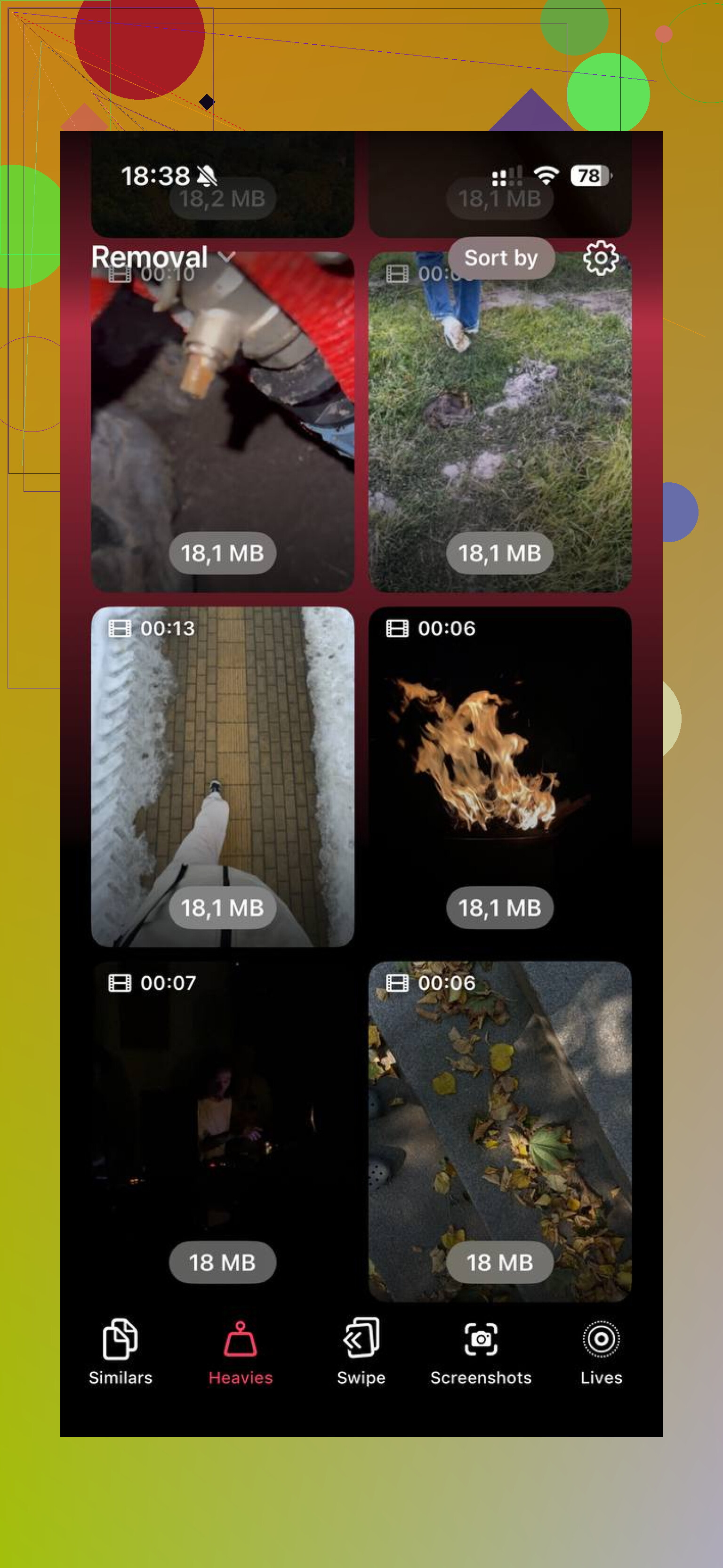
I ended up using Clever Cleaner. What I liked was the sorting. The Heavies section puts the biggest files first and shows the exact size on each thumbnail, so the space hogs are obvious right away. The Similars section groups near-duplicate photos, not only exact copies, which helped with burst shots, repeat screenshots, and the same photo taken three times because my hand moved a little.
It processes on the device, which mattered to me.
After I cleared about 30GB between large videos, screenshots, and old leftovers in Recently Deleted, the phone stopped choking on basic stuff. Storage came back fast. The lag went away too, or close enough I stopped noticing it.
The plain answer
Deleting message attachments:
- does not remove photos you already saved to Photos
- does not delete the text messages
- might not free space right away unless you empty Recently Deleted
- syncs across devices only if Messages in iCloud is enabled
If your goal is space, delete the attachments, empty Recently Deleted, then restart the iPhone. If your library is a bigger wreck, clean both Messages and Photos or you’ll keep chasing the same problem.
5 Likes
Storage on iPhone does not always drop the second you delete big message files. iOS is slow at recalculating, and sometimes the space gets reassigned to “System Data” for a while before the number settles. So I slightly disagree with @mikeappsreviewer on one part. A restart helps, but it is not the main fix every time.
What I would check next:
- Wait 15 to 60 minutes on Wi-Fi and power.
- Force close Settings, then reopen iPhone Storage.
- Check if Messages still shows a large size after the delete.
- Look at System Data. If it jumped, the phone is still indexing.
- Make sure the attachments were deleted from the thread itself, not only from the storage suggestions list.
If Messages in iCloud is on, sync lag is another reason. Your phone may keep local cache untill sync finishes.
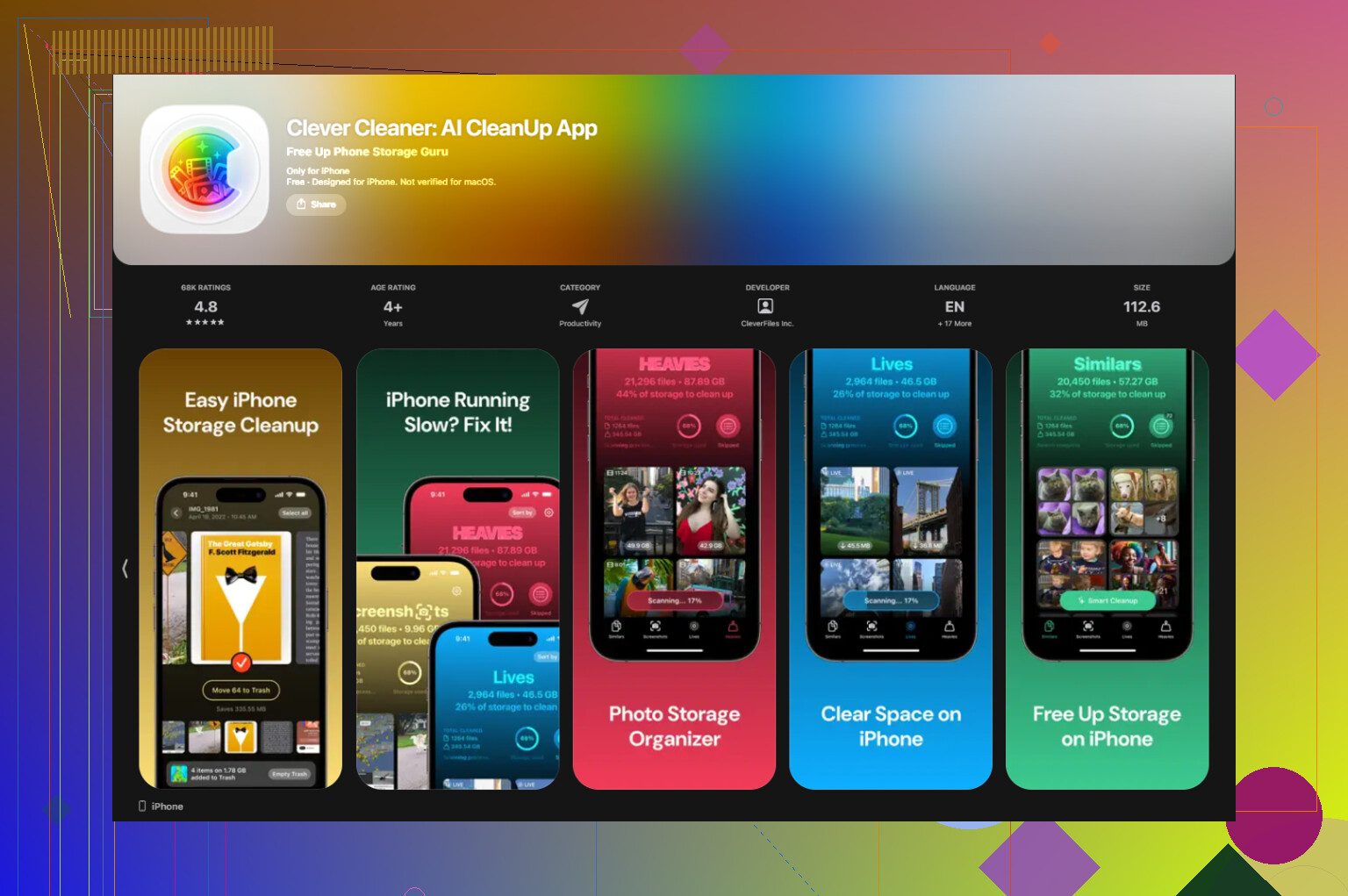
Also, if your goal is space, look beyond Messages. Photos and video clips usually eat more storage than texts ever do. Clever Cleaner is useful for this because it spots heavy files, duplicates, and similar shots faster than doing it by hand. That tends to free more space than chasing old iMessage junk.
If you want a clean walkthrough, this Clever Cleaner guide explains how to remove large files and clean up iPhone storage fast: watch this iPhone storage cleanup guide
If the number still does not move after a few hours, reboot, plug in, connect to Wi-Fi, and recheck. iOS storage reporting is kinda janky sometiems.
What usually gets missed is APFS purgeable space and spotlight/indexing lag, not just the Recently Deleted stuff @mikeappsreviewer and @waldgeist mentioned.
A few things I’d check that are a little diff from the usual advice:
-
Compare the number in Settings with actual usable space
Go to Files app, try copying or downloading a big file. Sometimes iPhone says storage is “used” but the system can reclaim it when needed. Annoying, but real. -
Messages may still be caching thumbnails/previews
Even after deleting attachments, the convo can keep tiny cached versions around for a bit. That won’t be the full size, but it can make the category look weird for a while. -
Your backup/sync process can temporarily hold onto data
If iCloud backup kicked in around the same time, storage can look stuck until iOS finishes housekeeping. I’ve seen this on older iPhones esp after deleting a ton of videos at once. -
Low Power Mode can slow cleanup tasks
Sounds dumb, but background cleanup/indexing can be slower when the phone is throttling stuff.
One thing I kinda disagree on: restarting helps, sure, but if the storage number is frozen for a day or more, that’s not “normal lag” anymore. At that point I’d:
- Turn off and back on Messages in iCloud
- Check Date & Time is set automatically
- Update iOS if you’re behind
- See whether System Data or Mail suddenly ballooned instead
Also, if the real goal is freeing space fast, Messages is often small potatoes compared to Photos. I’d use Clever Cleaner to scan for giant videos, duplicates, and similar pics before wasting more time in Messages. This breakdown of how Clever Cleaner helps clean up iPhone storage faster is a decent overview.
So yeah, deleted attachments not changing storage right away is pretty common, but if it still hasn’t moved after several hrs on charger + Wi-Fi, something else is hoarding the space. iOS storage reporting is janky as hell sometiems.