I accidentally deleted everything on my hard drive while trying to format an old external drive, and now all my files are gone. I need help figuring out if hard drive data recovery is still possible and what steps I should take right away to avoid making it worse.
I wiped a drive by mistake once on Windows, and the first thing I learned was this: stop touching it. No reinstall. No moving files onto it. No CHKDSK. No repair pass. Stuff like that writes to the disk, and every write chips away at what you might still get back.
Before you mess with recovery tools, check the obvious places. I’d look at Recycle Bin first. Then File History. Then OneDrive. Then any USB drive or backup app you forgot you set up six months ago. If what happened was a deleted partition or an accidental format, leave it alone. Don’t make a new partition on top of it. Don’t format it again thinking it will help. It won’t.
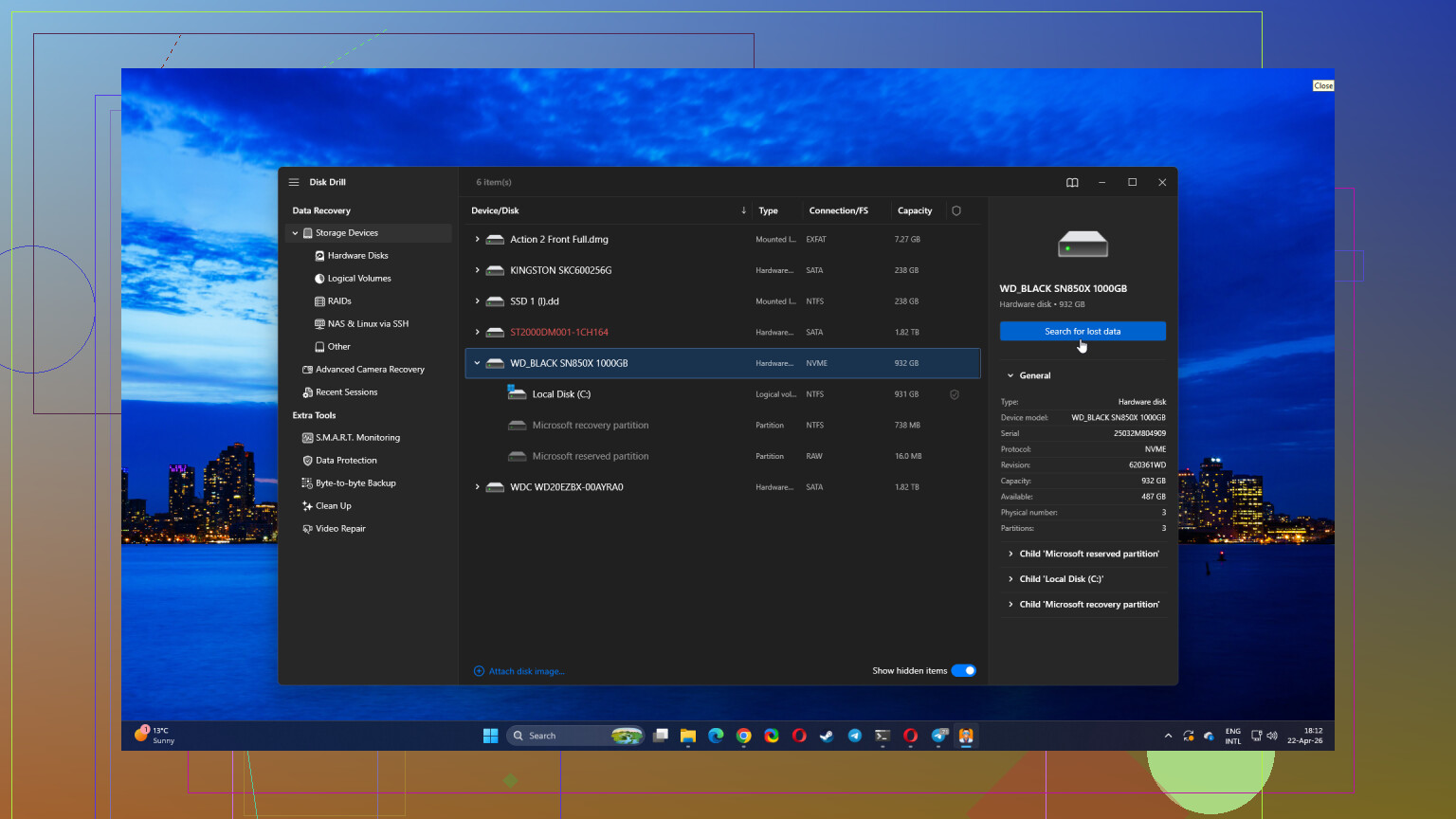
If backups are dead ends, I’d start with Disk Drill for a do-it-yourself pass. It scans formatted drives, deleted partitions, and drives where files vanished after a bad click. The useful part is the preview. You get a sense of what’s still there before you spend time pulling data out. If you go this route, save recovered files somewhere else. Different drive, always. Same drive is how people make a bad day worse. I did this wrong once years ago. Lost more than I had to.
One more thing. If the drive is clicking, dropping offline, showing up and disappearing, or acting weird in bursts, stop there. Software recovery on a failing drive is where things go sideways fast. At that point I’d ask for input before doing anything else. You can post the full situation in this data recovery-related Facebook community. Include what you deleted, whether it was a format or partition loss, the drive model if you know it, and what steps you already tried. The more exact you are, the better the replies tend to be.
If the drive was quick-formatted or the partition table got nuked, recovery rates are often still decent. If it was a full format on an SSD with TRIM, the odds drop fast. HDD and SSD are not the same here. People miss this part alot.
I mostly agree with @mikeappsreviewer on stopping all writes. Where I differ is this. I would not spend much time guessing in Windows if the drive is the one your system boots from. Pull it, or boot from another disk or a USB recovery OS, then inspect it read-only first. That matters.
A few checks I’d do:
- Open Disk Management. See if the drive shows as RAW, unallocated, or with the wrong size.
- Check SMART health with CrystalDiskInfo. If health is bad, skip DIY scanning marathons.
- If it is an external HDD, make a sector-by-sector image first with ddrescue or similar. Recover from the image, not the original.
- If this was an SSD, stop fast. TRIM wipes blocks in the background.
For DIY, Disk Drill is fine for deleted files and formatted volumes. I’d use it after imaging if possible. TestDisk is better if the partition itself vanished and you want structure back. PhotoRec is ugly, but it pulls raw files when file system data is toast.
If you want a visual walkthrough, this hard drive data recovery video guide is easier to follow than most blog posts.
If the data matters more than the drive price, stop now and send it to a lab. DIY gets expensive when you scan the wrong disk and make it worse. I did somthing close once. Cost me a week and half my photos.
First thing, don’t assume “everything is gone forever” just because Explorer looks empty. Sometimes what actually happened is the file system got reset, the partition letter changed, or Windows mounted the wrong disk and now it looks blank. I slightly disagree with @mikeappsreviewer on checking all the usual Windows stuff first if this was the main internal drive, because every extra reboot and login can write more junk in the background.
What I’d do next is verify what kind of erase happened:
- Quick format on an HDD: recovery odds can still be pretty decent
- Full format: much worse
- SSD with TRIM: honestly, odds can fall off a cliff pretty fast
- Partition deleted but data not overwritten: often recoverable
Also, don’t trust drive labels. Check the disk size, serial if possible, and whether your “missing” drive is showing as RAW or unallocated. I’ve seen people recover the wrong drive becuase two volumes had similar names. Super annoying.
One thing not mentioned enough: if the files were super important, do not spend 8 hours running random free tools one after another. Every scan stresses a drive, especially an old one. Pick one sane workflow and stick to it. If you want a consumer option, Disk Drill is a reasonable place to start for hard drive data recovery because it can show previews and identify recoverable files before you dump them onto another disk. Just recover to a separate drive, not the original. Yes, people still mess that up.
If you want something more structured, this hard drive data recovery step-by-step help lays out the process in a pretty readable way.
If the drive is making noises, disappearing, or running painfully slow, skip DIY. That’s lab territory, no matter how much we all want the cheap fix.
If the disk still shows the right capacity, I’d add one check the others did not really stress enough: inspect the first and last few sectors before scanning. If the GPT backup header is still there, tools can sometimes rebuild the partition map very cleanly. If both ends are trashed, file carving is usually where this goes.
I slightly disagree with trying lots of “see what turns up” scans early. On a healthy HDD that is annoying. On a marginal drive it can be the difference between recoverable and dead. One controlled pass is smarter.
Practical order I’d use:
- Confirm whether it was the internal drive, external drive, HDD, or SSD.
- Disconnect it from normal use.
- Clone it if it is an HDD and especially if it is old.
- Check whether the partition scheme is damaged versus the filesystem being empty.
- Only then run recovery software against the clone.
On software, Disk Drill is reasonable if you want a cleaner interface and previews. Pros: easy to use, good at finding deleted files and formatted volumes, preview helps avoid wasting time. Cons: not the best choice for deep partition repair, scans can take ages on large disks, and recovering huge datasets can get messy if folder structure is already damaged. If partition recovery is the main problem, TestDisk still deserves a look. If names and folders are gone, raw recovery tools can pull files but often return a giant unsorted pile.
Also, one unpopular opinion: if this was mostly documents and photos, check cloud web portals from another device before touching the disk again. Sometimes the “disaster” is local sync weirdness plus a changed drive letter.
@voyageurdubois, @vrijheidsvogel, and @mikeappsreviewer are all right about stopping writes. I’d just be stricter about diagnosis before scanning.