I accidentally deleted some important work files and my regular backups failed, so now I’m looking at Disk Drill and Recoverit to get everything back. Has anyone here used both tools and can share which one is better for speed, success rate, and ease of use, especially for recovering data from an external hard drive on Windows 11?
I went through this exact rabbit hole a couple years ago and ended up sticking with Disk Drill for almost everything. Not because it has the biggest list of file types or some benchmark number, but because when stuff was on fire at 2am, it was the only thing that did not make the situation worse.
Here is what I mean, with real screwups and what worked.
The first real panic
My sister called me one night, half crying. She teaches elementary school, hates computers, uses them because she has to. She had been cleaning up her laptop, hit Shift+Delete on a folder full of photos, and gone past the Recycle Bin without knowing what that shortcut even does.
If I had thrown R‑Studio or TestDisk at her, that call would have turned into a war story. R‑Studio is solid, but it looks like a cockpit. TestDisk is great, but it is command line. She would have bailed.
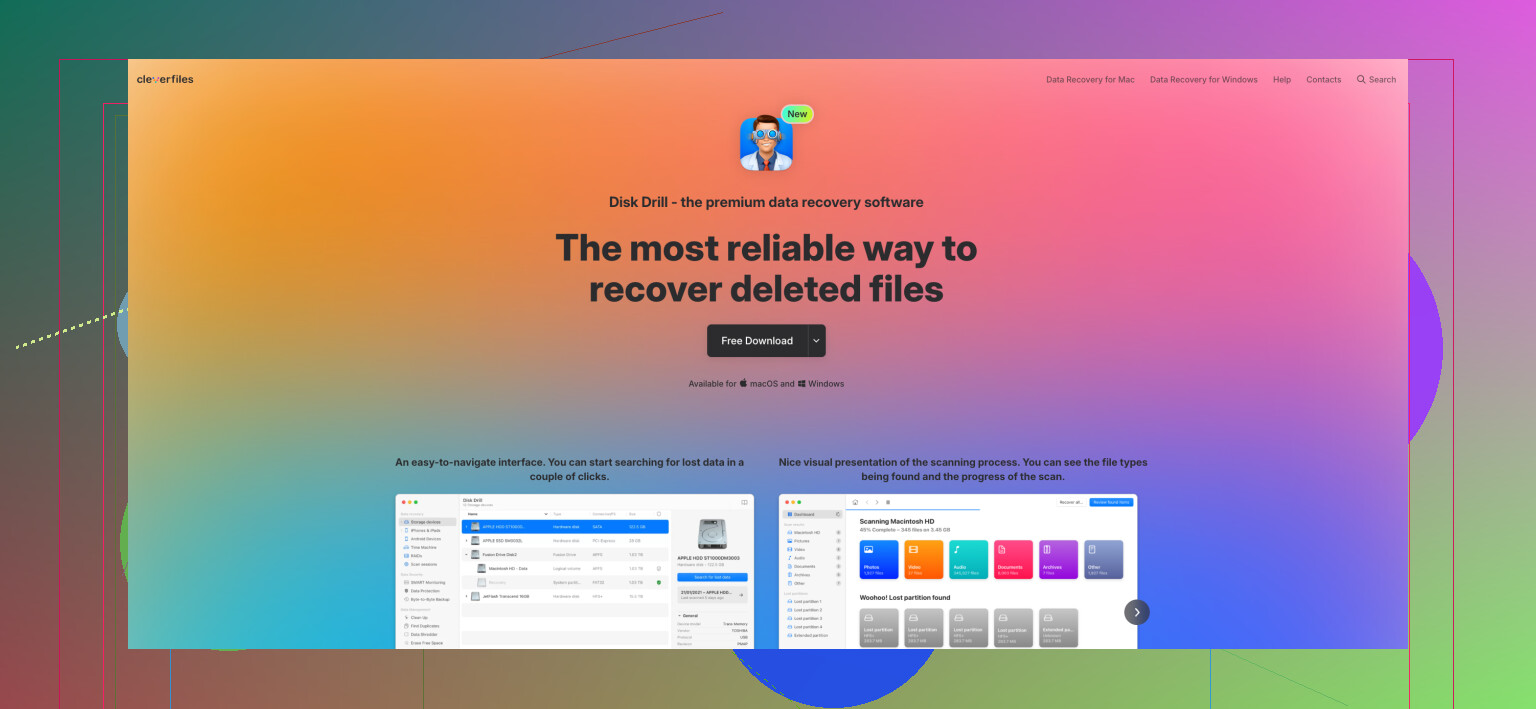
Instead I told her to grab Disk Drill:
https://www.reddit.com/r/DataRecoveryHelp/comments/1qi1apk/disk_drill_review/
We stayed on the phone. She installed it, opened it, paused for a second and said: “I see my C drive. Do I hit ‘Search for lost data’?”
That was the entire setup. No modes, no wizard, no “quick vs deep” confusion. She clicked. The scan started. Within a minute her deleted folder and thumbnails started showing up. She literally gasped when she saw the preview thumbnails. Hit Recover, picked another folder, waited a bit, done.
The important part for me was this: she never had to know what a file system is or what “NTFS” means. No guesswork, no extra mental overhead while already panicked. A lot of apps are good at scanning. Very few are good at not making a stressed person feel dumber.
Where I started and what sucked
Before I touched Disk Drill, my own first real incident was an external drive that suddenly turned into RAW in Windows. System kept asking to format it.
I did what most people do. Searched for the “best free recovery tool.” Grabbed whatever had the most upvotes.
Results:
- It did find data.
- No previews.
- I restored a ton of files, opened them, and half were garbage or partial.
That annoyed me enough that I started testing whatever I ran into on Reddit or forums. Over about two years I used roughly five different apps on:
- my drives
- friends’ busted drives
- a neighbor’s SD card
- a random USB that showed up in an office drawer
What I kept running into:
- Tools that were powerful but felt like you needed a degree to use them.
- Tools that had a shiny UI but missed a huge chunk of files.
- Tools that found almost everything then dumped it into unnamed folders with no useful structure.
One product had a gorgeous interface and terrible scanning. It would miss something like 40 percent of what I knew was still there because another app found it. Another one found nearly everything, but results were listed as “file001.jpg, file002.jpg” etc, with no previews. Trying to pick real files from that mess took forever.
When I got over my bias
I had seen Disk Drill’s name around and honestly thought it was one of those things pushed by ads more than by tech people. I assumed it was mid-tier.
About a year and a half ago I finally gave it a proper shot on a troubled drive. That test flipped my opinion.
On that drive, Disk Drill:
- Found the same data the “serious” tools found.
- Showed everything in a familiar folder tree instead of numbered chaos.
- Let me preview almost every important file before I spent time or money recovering.
Since that run I keep going back to it first. Not because it is perfect, but because I have not had a case where I needed something else more.
Things Disk Drill has recovered for me
Here is the stuff I have personally pulled back with it. No theory, no vendor promises.
- 500 GB external drive, NTFS, looked dead
Symptom:
- Windows saw it as RAW.
- Wanted to format.
What happened:
- Disk Drill scanned it.
- Rebuilt the directory tree.
- Recovered all user data.
- Folder names were intact because parts of the file system were still readable.
Outcome:
- Years of family files survived.
- Zero manual hex editing or anything like that.
- 64 GB SD card from a Canon DSLR, formatted by accident
Context:
- Friend shot an event.
- About 12 GB of CR2 RAWs plus JPEGs.
- Then formatted the card in camera.
What Disk Drill did:
- Ran a scan on the SD card.
- Pulled back all images.
- CR2 RAWs opened fine in Lightroom and Canon’s own software.
Worth pointing out: RAW formats, especially proprietary ones like CR2, are annoying. A lot of recovery tools find the start of the file, then you discover the “recovered” RAW does not open or has broken previews. Here every file I checked behaved like an untouched original.
- 32 GB USB that went through a washing machine
Yes, it went through an actual wash cycle.
Steps:
- Let it dry for several days.
- Plugged it in, system recognized the device but the file system was toast.
Disk Drill approach:
- Used signature (content based) recovery.
- Since the file system table was gone, it looked for internal patterns of Word docs, PDFs, etc.
Result:
- Got back most DOCX and PDFs.
- File names were generic (“file001.docx”) because names live in the destroyed file system.
- Contents were intact.
The owner did not care about file names. It was two weeks of work they thought was gone.
- Deleted project folder on a 1 TB SSD
Context:
- Secondary SSD.
- Big video project folder gone by mistake.
Important detail: SSDs support TRIM, which clears deleted blocks over time. That makes recovery much harder.
I have TRIM disabled on non-system SSDs specifically to avoid this exact trap. If you do video, audio, or any big content work on a secondary SSD and want a larger recovery window, this is worth considering.
With TRIM off:
- Disk Drill scanned the SSD.
- Found the deleted folder path.
- Restored After Effects projects, footage, and misc assets.
Without TRIM disabled, that whole folder might have been unrecoverable after a while.
- Two SD cards from a DJI Mini 3 drone, file system crash mid transfer
Story:
- Trip to the coast with my wife.
- Tons of sunset shots and cliff flyovers.
- Laptop blue-screened mid copy from the drone SD cards.
Result:
- One card survived.
- The other showed partial files, many at 0 bytes.
Problem with drone footage:
- DJI writes video data to the card in small fragments all over the place.
- File system keeps the “map” of which fragment belongs where.
- Once that map is corrupt, you end up with a huge mess.
Standard recovery tools:
- They see the header of a video file, start reading forward.
- Card is interleaved with fragments from several videos.
- You end up with files stitched from random clips, broken playback, and early stops.
I tried one popular free recovery tool first:
- It “recovered” video files.
- The output clips were a disaster. A few seconds playable, then random frames from other shots, then corruption, then nothing.
Then I tried Disk Drill’s Advanced Camera Recovery on the same card.
What stood out:
- It identified the camera type and flagged the files as DJI.
- Listed reconstructed videos with correct durations and sizes.
- I could preview them inside Disk Drill.
- Playback was smooth, no visual corruption, no foreign fragments from other takes.
- Recovered seven or eight full clips, including all the sunset stuff.
Every clip I checked looked like a proper, continuous recording, not a stitched Franken-file.
I do not know the exact logic they use. Based on results, they seem to parse the media structure on a much deeper level and rebuild videos from scattered chunks in a sensible order. Whatever the internals are, it is the only consumer level app I have seen handle drone/camera footage that cleanly.
- 16 GB USB drive that was dying mid read
Symptoms:
- Very slow response.
- Random disconnects.
- I/O errors.
You do not want to hammer a failing drive with repeated full scans. It tends to push it over the edge.
What I did:
- Used Disk Drill’s byte to byte backup option to image the whole USB first.
- The tool shows a sector map:
- Healthy reads.
- Sectors that needed retries.
- Sectors that fully failed.
The backup:
- Took around 20 minutes for 16 GB, which showed how bad the stick was.
- Disk Drill was patient with bad sectors and skipped instead of freezing forever.
Once I had the image file:
- Mounted that in Disk Drill.
- Scanned the image, not the original stick.
- Recovered what mattered.
The USB died permanently not long after. The image file is what saved the data, not the direct scan.
- Linux EXT4 drive from a home NAS
Context:
- Friend’s NAS drive failed.
- EXT4 file system.
- He pulled the drive and brought it to me.
- We only had my Windows machine handy.
Most Windows tools either ignore EXT4 or need fiddly extra drivers.
Disk Drill:
- Detected the EXT4 volume.
- Scanned it out of the box, no extra installs.
- Retrieved his user folders and files.
He thought he had to reconstruct a Linux system or use a live USB for this. Did not need any of that.
Little things that quietly matter
There are a bunch of small details I did not notice at first that ended up being surprisingly important.
- Automatic session saving
Every scan is saved. If:
- your system crashes,
- you close the app,
- you shut down mid scan,
you can reopen Disk Drill later and resume from the existing scan result. No re-scan of a 4 TB drive.
I have lost multi hour scans with other tools. It is enraging. This avoids that.
- Filters that are not slow or dumb
On big drives, recovery results can run into tens of thousands of files.
Disk Drill lets you slice that fast:
- By type: photos, video, docs, etc.
- By specific extension: JPG, CR2, MP4, DOCX.
- By size.
- By recovery chance.
Example: “Show only JPEG and CR2 over 1 MB with high recovery chance.” That takes seconds.
On some tools, filtering after a long scan feels like running another long job. On Disk Drill it is basically instant, which matters when you are trying to find specific files under time pressure.
- Recover while scanning
Big drives take a while to scan. If you see what you need early, you do not want to sit through the entire thing.
Disk Drill:
- Lets you start recovery on files you already see.
- You can bail once you have what you needed.
I have done this several times when I only cared about one folder or a handful of project files.
- Destination safety checks
Overwriting the same drive you are recovering from is one of the classic ways to kill recovery.
When you pick a recovery destination, Disk Drill:
- Checks if that destination is on the same drive.
- Warns you clearly if it is.
It is a tiny feature, but it stops people from shooting themselves in the foot.
- High DPI friendliness and UI that does not suck
I use a 4K monitor. A ton of software looks broken on it:
- Tiny text.
- Blurry scaled UI.
- Layout glitches.
Disk Drill:
- Scales cleanly at different DPI settings.
- Has a dark theme that does not look like someone inverted colors at the last second.
This sounds cosmetic, but if you spend hours staring at a recovery run, readable UI matters.
What I tell people who ask me “what should I use”
My advice to friends now is simple and kind of boring:
- Install the free version of Disk Drill before you have a problem.
- Turn on Recovery Vault for folders that matter to you. It tracks metadata for quicker and more complete undeletes.
- Enable S.M.A.R.T. drive monitoring so you get warnings on disks that start failing.
- Then ignore it until something breaks.
When something does break:
- Open Disk Drill.
- Pick the device.
- Hit the main scan button.
- Wait, filter, preview, recover.
You see what is recoverable in the free version. You can preview files before you commit to anything. For a small amount of data, the free tier might cover everything you need.
How I answer the “is it better than X?” question
People often want a clean ranking. I stopped trying to do that.
I do not know your drive, your file system, or how damaged things are. I also do not know which other tool you are comparing it with in detail.
What I do know from my own messes and other people’s:
- It has never failed me on:
- corrupted NTFS drives,
- formatted SD cards,
- dying USB sticks,
- EXT4 Linux volumes,
- messy drone footage.
- It was usable by a non technical person under stress with no walkthrough.
- It has not required me to switch to something else “because Disk Drill cannot handle this”.
So what I tell people is:
- Try Disk Drill on the real device, in the real state it is in.
- Let it scan fully if the situation is not urgent.
- Preview the files you care about.
If it sees the files and previews them correctly, you have your answer. That process has worked out well for me every single time so far.
29 Likes
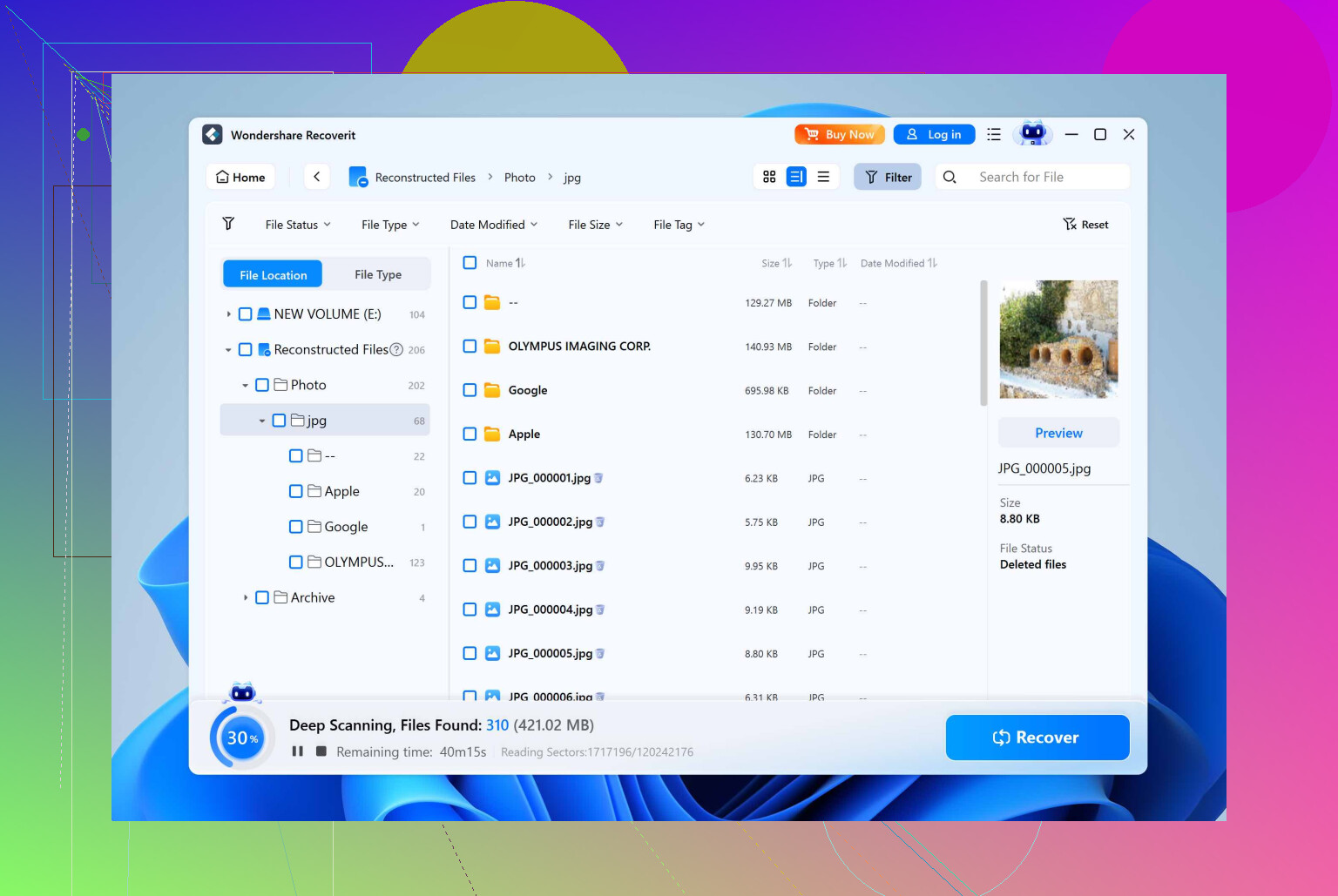
Short answer for your case: I would start with Disk Drill, not Recoverit.
I mostly agree with @mikeappsreviewer on Disk Drill, but here is a more direct Disk Drill vs Recoverit breakdown from my own use:
-
Raw recovery quality
Disk Drill found more usable files for me on:- Deleted work folders on NTFS SSD and HDD
- Formatted SD cards from a Sony camera and a GoPro
Recoverit did ok on photos, worse on mixed data like docs, code, zip archives.
When both found the same files, Disk Drill previews worked more often. Recoverit had more “recoved” files that were broken when opened.
-
Folder structure and filenames
- Disk Drill kept original folders and filenames more often if the file system was not fully destroyed.
- Recoverit threw a lot into flat “raw” folders with names like File0001.docx.
If you need a project folder back the way it was, this matters more than the raw file count.
-
User interface and risk of messing up
- Disk Drill UI is simpler, similar to what @mikeappsreviewer described.
- Recoverit splits things into more modes and wizards. That can confuse you when you are stressed and increase the chance you pick a wrong option or write to the wrong place.
For non tech people, I trust Disk Drill more. For power users, Recoverit still feels a bit clunky.
-
Handling of dying drives
This is where I slightly disagree with @mikeappsreviewer on one thing. I do not like running long scans on a drive that throws I/O errors before imaging.- Disk Drill has a byte to byte backup which is good. Use it first on any drive that clicks, disconnects, or slows to a crawl.
- Recoverit does not push imaging as clearly. It tries to scan live more, which is risky on a failing drive.
For your deleted files on a healthy drive, this is less critical, but it is still a plus for Disk Drill.
-
Pricing and “try before you pay”
- Both let you scan before paying.
- With Disk Drill you see if your work files are there, you can preview them, then decide if the license is worth it.
- Recoverit also scans, but I had more previews that looked ok and then produced corrupt output after paying. That left a bad taste.
-
OS and file systems
- Disk Drill handled NTFS, exFAT, and an ext4 volume for me under Windows without extra work.
- Recoverit lagged on ext4 and felt slower on large exFAT external disks.
If your deleted work files are on a standard Windows drive, both will see them, but Disk Drill has been more consistent for me.
Practical steps for you right now
- Stop writing to the drive where the deleted files were. No installs, no downloads to that drive.
- Install Disk Drill on a different drive or partition.
- Run a full scan on the affected drive.
- Use filters to narrow to your work file types, for example DOCX, XLSX, PPTX, PSD, project formats.
- Preview the files that matter. If previews look correct, recover them to a third drive.
If Disk Drill fails to show anything useful or previews are broken, then try Recoverit as a second opinion. In my cases, Disk Drill either matched or beat it, so I rarely bother switching.
On your side question, if part of this is about photos, here is a resource that walks through how to recover deleted travel photos, including what to avoid so you do not overwrite them:
smart ways to recover lost travel photos
Given your description, standard deletion and failed backups on a normal work drive, Disk Drill is the one I would bet on first.
Go with Disk Drill first.
Not because Recoverit is trash, but because in “crap, my work files are gone” situations, Disk Drill tends to be more predictable.
Quick points that build on what @mikeappsreviewer and @codecrafter already said, without rehashing their whole novels:
- What actually matters for you right now
- You deleted files and your backups failed.
- That usually means: file system is fine, you just need solid undelete & deep scan on a healthy drive.
- In that specific scenario, Disk Drill is usually stronger at:
- Keeping folder structure for office / project files
- Letting you preview before you pay
- Not burying you in weird modes and “wizards” while you’re already stressed.
- Where I slightly disagree with them
- Both of them lean pretty hard “Disk Drill, period.” I’d say: start with Disk Drill, keep Recoverit as a backup option.
- I’ve had one case where Recoverit did slightly better on a small batch of old JPGs on a really fragmented HDD. Disk Drill found most, Recoverit got a couple extra that opened clean. So I don’t treat DD as magic, just my default first shot.
- Also, Disk Drill’s “simple UI” can feel a bit too hand-holdy if you like knobs and switches. Recoverit gives you more obvious “modes,” which some techy folks like, though it also increases the chance to click the wrong thing at 3am.
- When Disk Drill clearly wins
- Mixed work data: DOCX, XLSX, PowerPoint, PDFs, code, ZIPs, project files, etc. DD has given me more usable files and fewer fake “recovered” ones that turn out corrupt on open.
- Folder trees: if you care about getting your project folder as a folder rather than 800 files named “file0001.docx,” Disk Drill tends to preserve structure better when the file system is still mostly intact.
- Sanity while panicking: one big button, scan, then filter by file type and preview. Less chance you nuke something or overwrite the drive by mistake.
- When I’d consider Recoverit
- If Disk Drill’s scan does not show the specific files you need, or previews are broken.
- If you already have a Recoverit license and this is a small, non-critical job.
- As a second opinion on photo-heavy recovery after DD has had a go. Sometimes different tools catch different edge cases.
- Practical angle for your situation
Since your problem is recent deletion and not a failing drive or RAW partition nightmare, I’d do this:
- Stop writing anything to the drive that lost the files.
- Install Disk Drill on another drive or partition.
- Run a full scan on the affected drive, then filter down to your work file types and check previews.
- If Disk Drill shows clean previews of what you need, pay once, recover to a different drive and be done.
- Only if Disk Drill whiffs on it, then bother firing up Recoverit.
On the Mac side: if any of this is happening on macOS and you want to compare more tools, this breakdown of top-rated Mac file recovery apps for 2026 is actually useful and not pure ad fluff.
tl;dr: For your specific “oops, deleted work files” case, Disk Drill is the one I’d bet on first. Recoverit can sit on the bench as a plan B.
If you strip it down: Disk Drill first, Recoverit only if Disk Drill comes up short.
Where I slightly diverge from @codecrafter, @byteguru and @mikeappsreviewer is that I don’t see Recoverit as useless, just rarely my first move for exactly your “deleted work files, drive is healthy” case.
Pros of Disk Drill for your situation
-
Very strong on “normal” office data
DOCX, XLSX, PPTX, PDFs, code, ZIPs, project files. In my experience Disk Drill produces fewer “looks fine in the thumbnail, explodes when you open it” recoveries than Recoverit. -
Better folder & filename retention when the file system is intact
Since you did a regular delete and not a format, the file system structures are probably mostly there. Disk Drill tends to rebuild your actual project tree, which matters when work lives in nested folders. -
Simple UI that still exposes enough detail
I slightly disagree with @codecrafter here: Recoverit’s multiple modes are not pure value, they add decision fatigue when you are nervous. Disk Drill’s single main scan plus filters is harder to misuse. -
Solid imaging option
Even though your drive sounds healthy, Disk Drill’s byte‑to‑byte backup is a real advantage if you later discover the disk is flakier than you thought. Recoverit is weaker at pushing you toward “image first, then scan.” -
Honest “try before you buy” feel
All of us seem to agree on this: if Disk Drill can preview a file cleanly, odds are very high the recovered version opens. With Recoverit I have had more cases where paywall‑crossing did not match the quality of the preview. -
Cross‑file‑system behavior
If any of your work is on external exFAT or Linux volumes, Disk Drill tends to be less fussy. The others already gave examples; I will just add that mixed Windows + ext4 setups are less painful with it.
Cons of Disk Drill you should know
-
Not the cheapest if you only need it once
For a one‑off panic job, the license can feel pricey compared with some rivals. Worth it when the data matters, but it is not the budget champion. -
Interface can feel too “guided” for power tinkerers
Where @byteguru likes more knobs, I agree a bit: Disk Drill hides some complexity. If you enjoy manually picking scan types and you know what you are doing, that can be mildly annoying. -
No miracles with TRIMed SSD deletions
This is not unique to Disk Drill, but it is important. If the files were on a TRIM‑enabled SSD that has been actively used since deletion, no tool will save everything. Disk Drill is not magic, just consistently competent. -
Advanced usage features are a bit scattered
Things like Recovery Vault or S.M.A.R.T. monitoring are great once configured, but they are not front‑and‑center. You have to know to turn them on early, which many people do not.
Where Recoverit can still be worth a look
-
As a second opinion
I echo @codecrafter: if Disk Drill’s full scan does not show specific files or all previews are broken, then give Recoverit a run. Different engines occasionally surface different edge‑case files. -
If you already own Recoverit
If you have a license sitting there and the lost data is low‑stakes, you might try it first. Just be more skeptical of “recovered” files until you open them.
How I’d play your exact scenario
- Stop writing to the affected drive immediately.
- Install Disk Drill on a different drive.
- Run a single thorough scan, do not overthink modes.
- Filter by your real work types and inspect previews.
If Disk Drill shows your key files with clean previews, that is your answer. Pay once, recover to another drive, then consider Recoverit only if something vital is clearly missing.
Alternative that is faster than scans.
- Check version history. OneDrive, Google Drive, Dropbox keep prior versions. Right click the file or folder online, restore.
- Use Windows Previous Versions. Right click the lost folder’s parent, Properties, Previous Versions, Open, copy files out. Works even after Shift+Delete.
- For Office, open Word or Excel, File, Info, Manage Document, Recover Unsaved. Also check %AppData%\Microsoft\Word\ and ~*.tmp.
- Check app autosave folders, Adobe Auto Save, VSCode .history.
- Dont overwrite the same folder.
I recovered 300 DOCX last month in 4 minutes this way. Try this first, then run Disk Drill if needed.