I accidentally formatted an HFS drive and now need to recover important files that were stored on it. I haven’t written much new data to the drive, but I’m not sure what recovery options actually work for HFS file recovery after formatting. What tools or steps should I try first?
I went through something similar with an old external Mac drive after deleting a bunch of files by mistake. The main thing is to stop touching the drive right away. Don’t copy anything to it, don’t reformat it again, and don’t keep trying random fixes. Deleted or formatted data can often still be there, but new writes can overwrite the parts you’re trying to recover.
First, check the easy stuff. Look in the Trash, and if you use Time Machine, see if there’s a backup from before the files disappeared. If that doesn’t get you anywhere, I’d go straight to recovery software rather than messing around with disk repair tools.
I used Disk Drill for HFS/HFS+ recovery because it handled the Mac file system well and didn’t make the process too confusing. The basic flow was:
- Install Disk Drill.
- Choose the HFS/HFS+ drive.
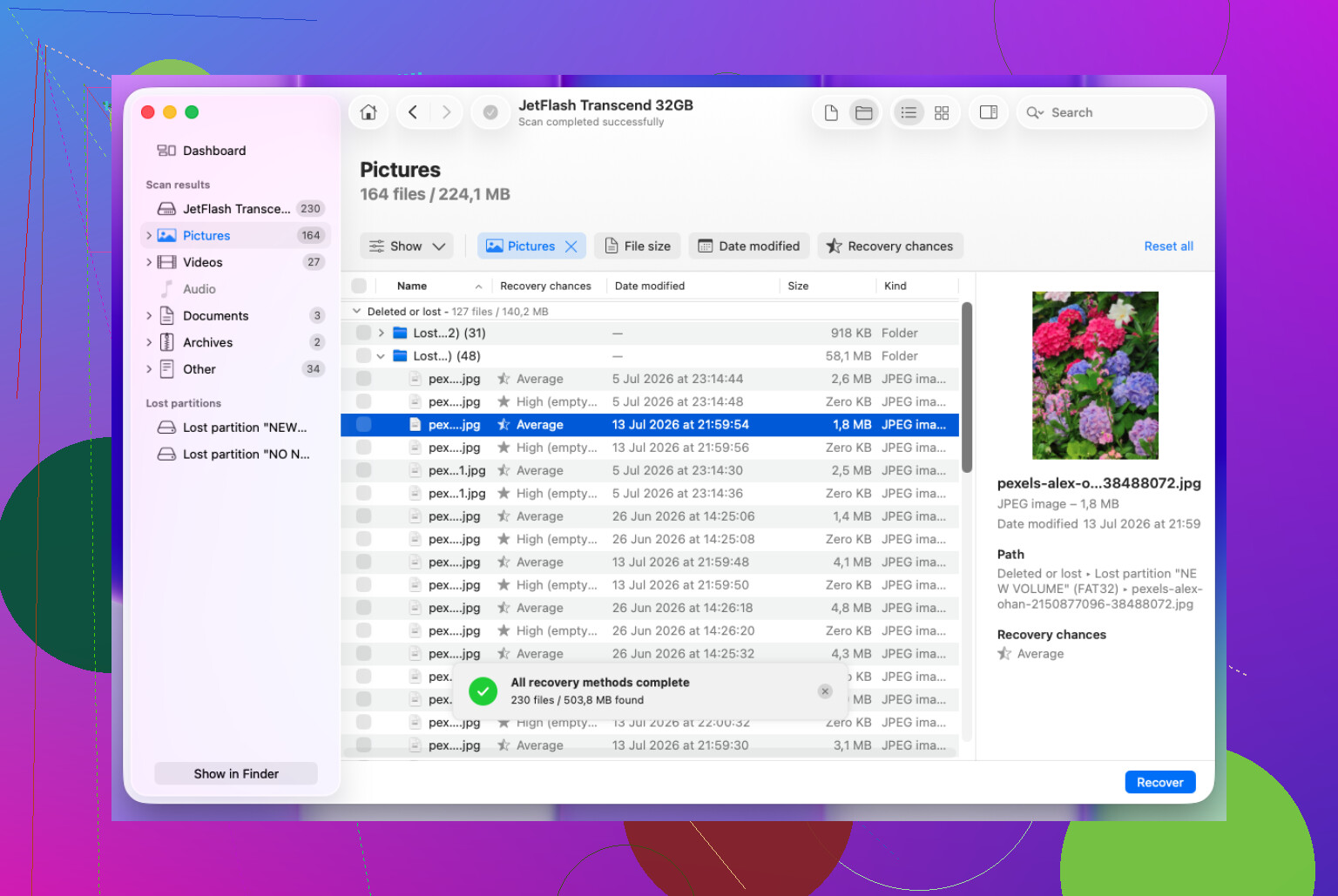
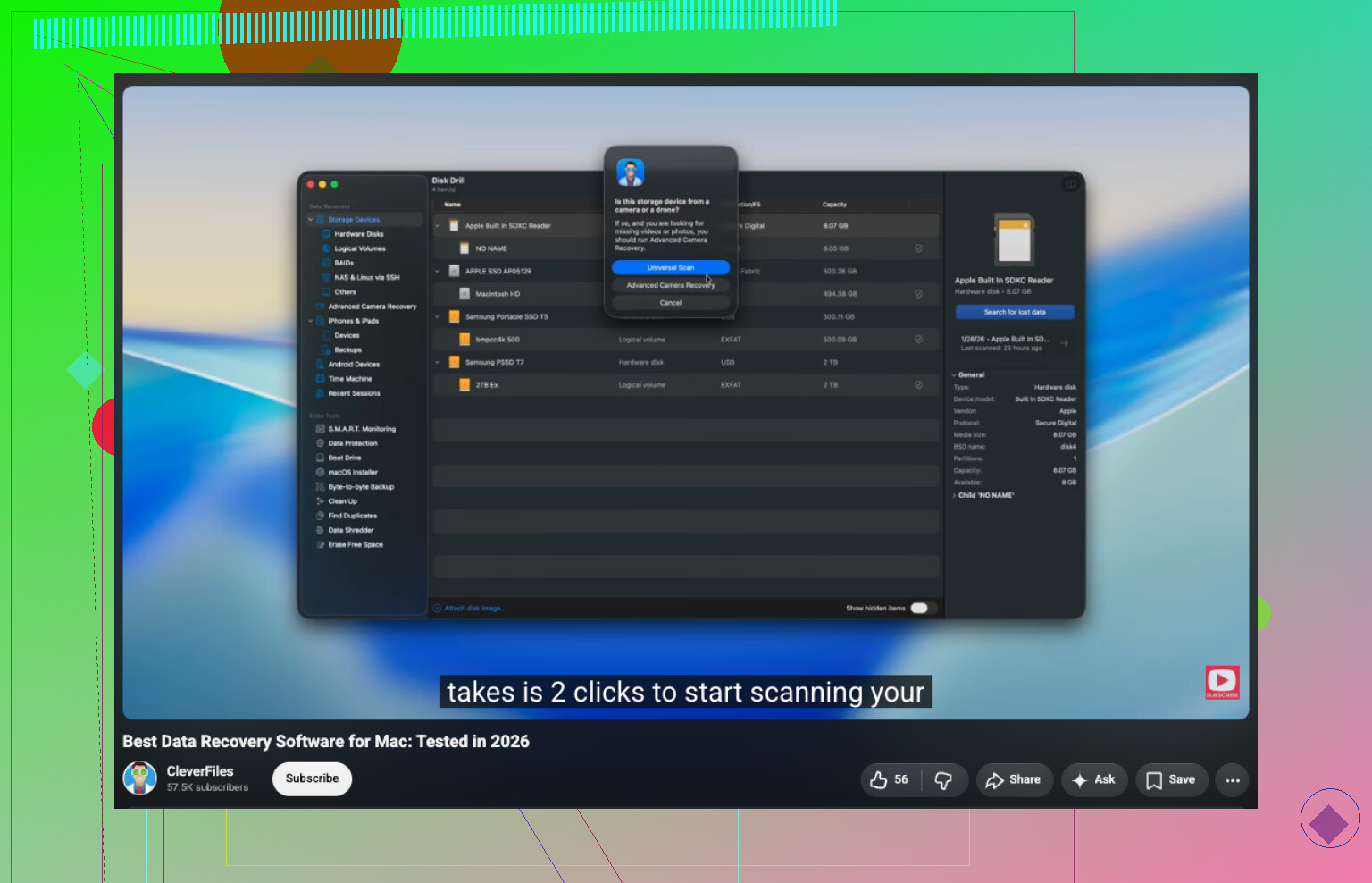
- Click Search for Lost Data. For an external drive, I used Universal Scan so it could try all available recovery methods.
- Let the scan finish, then open Review Found Items.
- Preview anything important before recovering it.
- Select the files you want and click Recover.
- Save the recovered files to another drive, not the same HFS drive.
If the drive was formatted, it still may be recoverable. A quick format usually removes the file system info more than it immediately destroys every file. So if you haven’t written much new data to the disk, scanning it sooner gives you a better shot.
For an external drive that’s acting weird, I’d be more careful. If it disconnects, throws read errors, or seems unstable, make a disk image first if the recovery tool supports that. Then scan the image instead of hammering the actual drive over and over.
If the drive won’t show up in Disk Utility, is clicking or grinding, keeps disconnecting, or the scan can’t finish because of bad read errors, that’s where I’d stop with DIY recovery. At that point a professional recovery service is safer, because software can only help so much and every extra attempt can make things worse.
Don’t run First Aid, fsck, or any “repair” option on that HFS drive until you’ve pulled an image or tried recovery from another disk. Those tools are meant to make a volume mountable, not preserve deleted catalog records, and they can change metadata you may still need. @mikeappsreviewer is right that a quick format can leave a lot behind, but keep expectations realistic: if the old HFS catalog is damaged or replaced, software like Disk Drill may recover the file contents but not always the original names and folders. If the files are valuable, clone/image the drive first, then scan the clone. If they’re merely inconvenient to lose, scanning the drive directly is the faster gamble.
The erase type and the new format matter a lot here. “Formatted an HFS drive” can mean a quick erase back to Mac OS Extended, or it can mean the drive was converted to APFS, exFAT, or something else. Those are not equal from a recovery point of view.
If it was a normal quick erase and you have barely used the disk since, yes, recovery is still possible. The file data may still be sitting there. The annoying part is that HFS/HFS+ keeps important folder and filename info in catalog structures, and formatting can damage or replace those. So you might get a nice folder tree back, or you might get a pile of files named by type and number. Both count as “recovered,” but only one is pleasant to sort through.
I agree with the advice above about not repairing the volume. I’d be even stricter: don’t keep mounting it in Finder if you can avoid it, especially if macOS is asking to initialize, repair, or use it for anything. Finder and Spotlight can write little bits of metadata, and while that may not destroy everything, it is exactly the kind of unnecessary activity you do not want on a disk you are trying to recover from.
A detail people often miss: do not install the recovery app onto the same drive you are recovering from. If this was an external HFS drive, install Disk Drill or whatever tool you choose on your Mac’s internal drive and recover to a separate disk. If this was the Mac’s internal drive, stop using that Mac normally. Boot from another drive, Target Disk Mode, another Mac, or a recovery environment if you know how. Downloading apps, browser caches, system logs, and updates can all write over recoverable data.
Disk Drill is a reasonable first try for this kind of case, but I would judge it by preview results, not by how many files it claims to have found. Recovery tools love to show huge numbers. The useful question is whether the specific files you need preview correctly and have sane sizes. If a photo previews, that is a good sign. If a document is listed but opens as garbage or is 0 KB, don’t count it as recovered yet.
If the drive was reformatted to APFS, I’d lower expectations a bit. It still may recover files by scanning raw data, but the old HFS folder structure may be harder to rebuild. If the drive was securely erased, encrypted and the encryption metadata/key is gone, or filled with new data after formatting, then software recovery may not have much to work with. “I haven’t written much new data” is good, but even a small amount of new writing can hit the wrong areas.
For a practical order of operations, I’d do this:
- Get another drive with enough free space for recovered files, preferably more than the size of what you lost.
- If the original disk is healthy, scan it read-only if the tool supports that.
- If the disk is flaky, image/clone it first and scan the image instead.
- Preview the most important files before recovering a giant mess.
- Recover only to a different disk.
- After recovery, open a sample of the restored files before assuming the job is done.
The faster but less perfect route is to scan the drive directly and recover what previews. That is fine if the files are not life-or-death and the disk is behaving normally. The safer route is imaging first, but it takes more space and time.
So yes, it is still possible, especially after a quick format with little new use. Just don’t treat “the drive mounts again” as the goal. The goal is to get the files off before anything else changes on that disk.
If this was an SSD, lower your hopes. HFS recovery after a quick format is much better on an old spinning external drive, while TRIM on an SSD can make the deleted blocks effectively gone fast. Disk Drill can still scan it, but if the important files don’t preview, repeated scans probably won’t improve things.