My iPhone storage is almost full because I have thousands of screenshots in Photos, and deleting them one by one takes forever. I’m using iOS 18 and need a fast way to remove all screenshots at once without deleting my other pictures. Looking for the easiest method to clear screenshot clutter and free up storage.
Yeah, I ran into this too. I opened Photos to find one pic from a trip, then spent ten minutes digging past old boarding passes, OTP screens, Wi-Fi logins, random memes, and grocery receipts from forever ago. My library was packed with junk. Finding real photos felt awful.
There are a couple clean ways to remove screenshots without taking out your normal pictures. A few parts are easy. A few parts are annoyng if you miss them.
Use the Screenshots album if you want the low-risk route
Do not start from All Photos. That view mixes everything together, so it is the worst place to do bulk cleanup if you are tired or rushing.
Open Photos, go to Albums or Collections, scroll down to Media Types, then open Screenshots. This album isolates screenshot files, so anything you remove there stays limited to screenshots.
If you only have a small pile, tap Select and drag across the thumbnails. iPhone is decent at multi-select once you get the motion right. If your phone is stuffed with thousands, tap Select and look for Select All near the top left. That saved me a lot of time.
On newer iOS versions, filtering works too
Apple changed the layout a bit on newer releases like iOS 18 and later. In the main library view, tap the button with the two arrows near the bottom, open Filter, then choose Screenshots. After that, the library view shows screenshot items only.
From there, tap Select. I usually start near the bottom right and swipe upward across rows to grab a big chunk fast. Then tap the trash icon.
Do bulk deletes in chunks or Photos might hang
I learned this the dumb way. I tried removing a few thousand in one shot and Photos froze long enough for me to think the phone was cooked. It came back, but I stopped doing huge deletes after that.
What worked better for me was batches of around 500 to 1,000. Less dramatic. Faster overall too, because you are not waiting on the app to choke while it updates the library.
If this keeps happening, set up a Shortcut
I did this after my screenshot habit got out of hand. Open the Shortcuts app and make a new shortcut. Add the Find Photos action. Set the filter to 'Is a Screenshot.' Then add Delete Photos under it.
One setting matters here. Go to iPhone Settings, then Apps, then Shortcuts, then Advanced. Turn on Allow Deleting Large Amounts of Data. If you skip it, the shortcut tends to fail when it tries to remove a big batch.
After setup, you can tell Siri to run your shortcut and be done with it.
Third-party apps help when you need more control
The built-in Photos tools are okay for basic cleanup. Where they fall short is when your storage is low and you need to see what is taking the most space first.
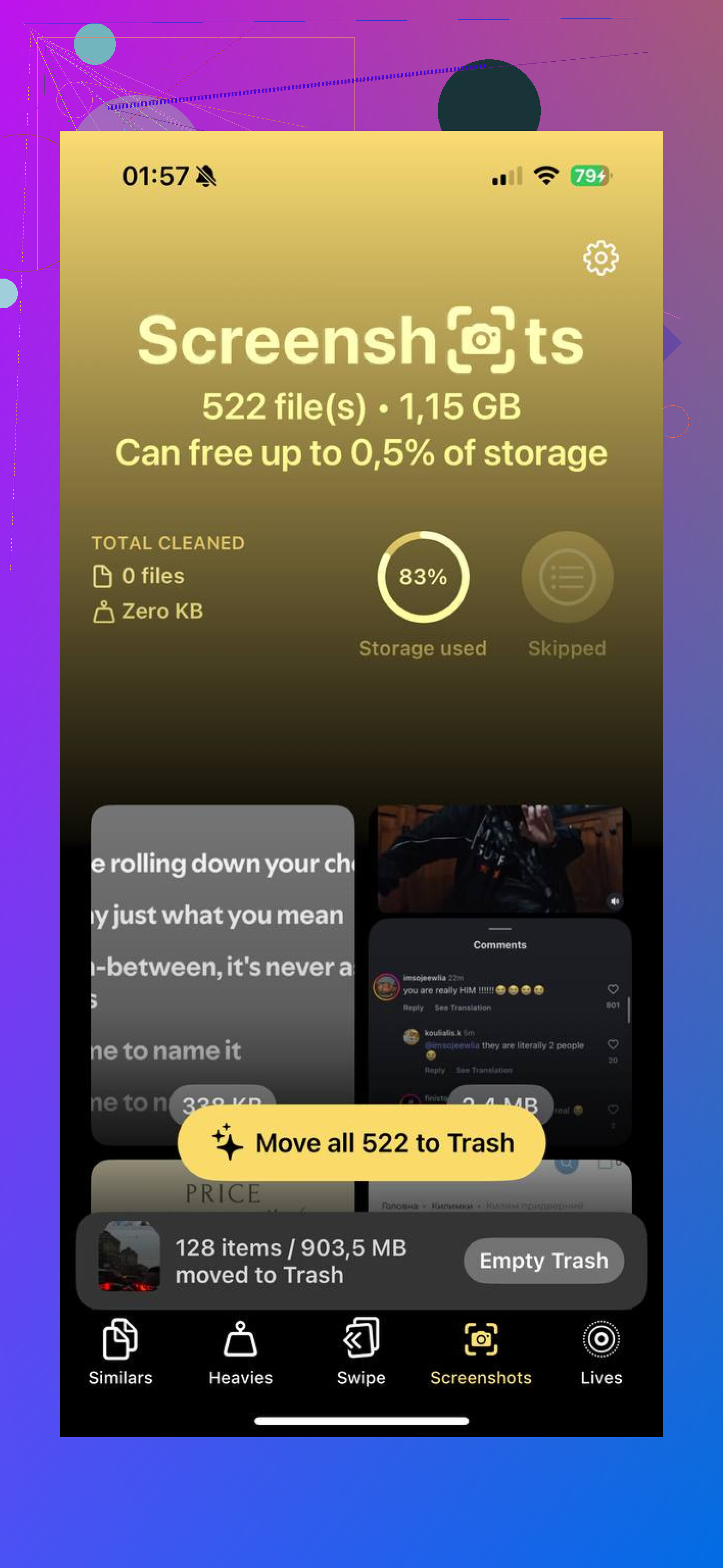
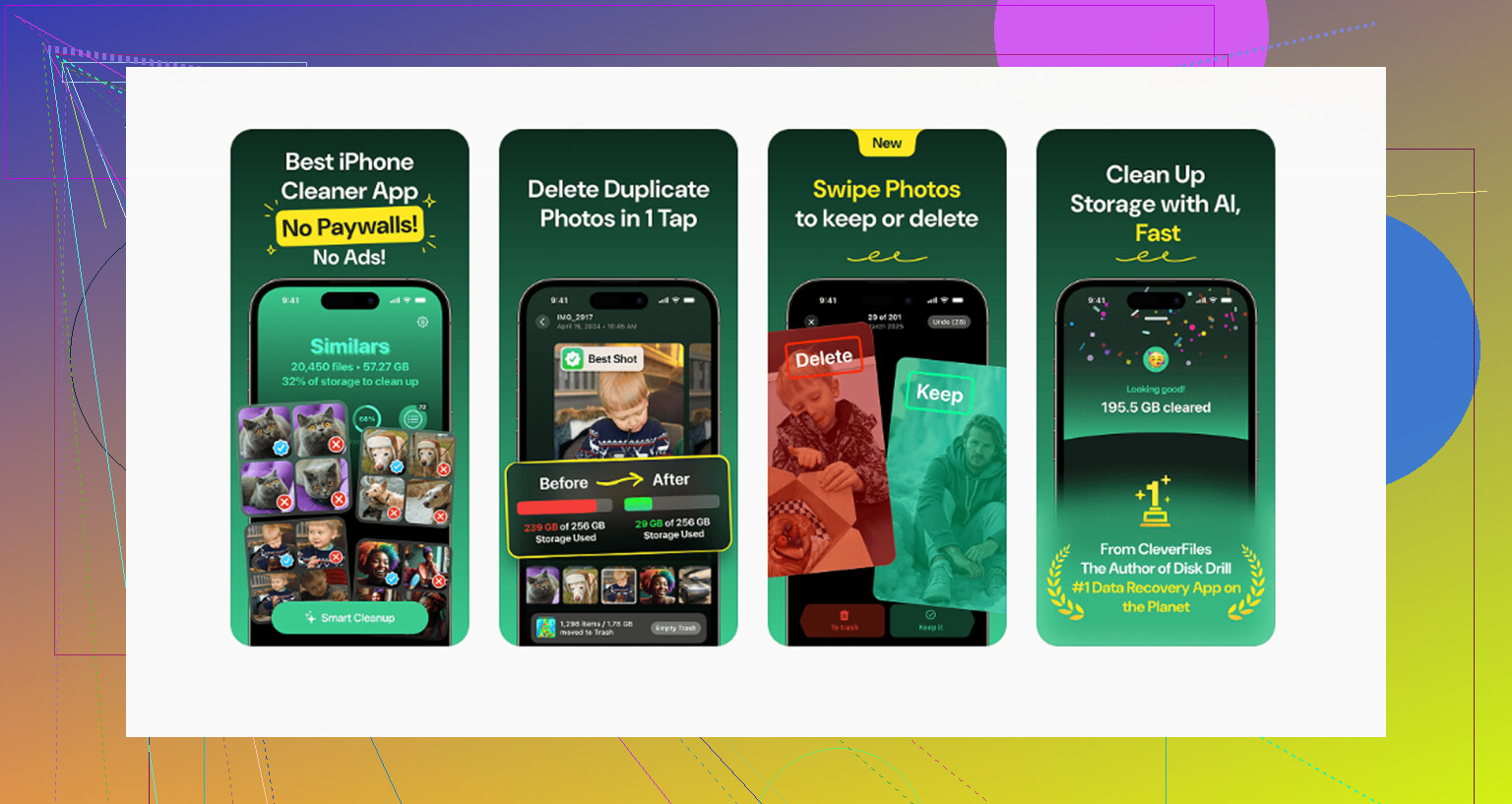
I tried a few cleanup apps, and Clever Cleaner ended up being the one I kept. A few reasons:
- It is free. No ads in my face, no subscription wall, no weird fake scan followed by a payment screen.
- The Heavies section sorts by file size, so you can remove the biggest stuff first instead of guessing.
- The Similars tool helped with duplicate screenshots where I took the same capture two or three times because I missed part of the screen on the first try.
- It works on-device, so your photo library stays on your phone instead of getting pushed to some outside server.
If your storage is close to full, this kind of view is easier than poking around inside Photos blind.
Watch out for iCloud Photos
If iCloud Photos is on, deleting a screenshot from your iPhone removes it from your other Apple devices too, and from iCloud. In my case it synced fast, usually within seconds.
If the trash icon is gray and nothing deletes, there is a decent chance those images were synced from an older computer by cable. I had this once with old albums. The fix was not on the phone. I had to reconnect to the original computer and remove them from the sync source there.
The last step is the one people skip
Deleting screenshots does not free space right away. They move to Recently Deleted for 30 days. So if your goal is storage, open Recently Deleted under Utilities, tap Select, then Delete All.
This is also the safety net. If you remove the wrong screenshot, you still have time to pull it back before it is gone for good. After that window, or after a bad sync mess, recovery software is usually the only path left.
Once I cleared mine out, Photos felt usable again. Going from thousands of screenshots to none was a bigger relief than I expected.
If you want the fastest route on iOS 18, use search instead of scrolling albums forever.
Open Photos, tap Search, type “screenshot”, then tap the Screenshots result. Hit Select, then tap Select All if your phone shows it. Delete them. This is quicker for some people than hunting through the Photos layout changes in iOS 18. I know @mikeappsreviewer leaned toward the Screenshots album, but search feels faster to me on a cluttered library.
A second option, and this is the one I use when storage is tight, is a cleanup app. Clever Cleaner is solid for this because it groups junk fast and shows large files first. Screenshots pile up hard. If you want a broader cleanup after the screenshots are gone, this list helps: best iPhone cleaner apps for freeing up storage fast.
One thing people miss. After deleting, restart Photos or reboot the iPhone. Storage numbers sometiems lag and look wrong for a bit. Also check Settings, General, iPhone Storage after 5 to 10 minutes. If free space still does not move, your trash has not finished processing yet.
If your phone is almost full full, I would not try deleting 5,000 at once. Do 1,000 or so per pass. Less risk of lagging out the app.
One thing I’d add to what @mikeappsreviewer and @boswandelaar said: if your goal is speed, the easiest “delete all screenshots” method on iOS 18 is sometimes not inside Photos at all. Use the Files app only if your screenshots were saved there manually, because a lot of people assume every image clogging storage is in Photos when some of it is actually in Downloads or app folders too. Worth checking before you spend 20 mins nuking the wrong stuff.
Also, I kinda disagree with using Search first as the main route. It works, sure, but in iOS 18 Search can be a little janky with giant libraries and indexing lag. The Media Types > Screenshots section is usually more reliable once Photos finishes loading.
What I’d do:
- Plug in iPhone and disable Low Power Mode for a bit
- Open Settings > General > iPhone Storage
- Wait for storage categories to fully calculate
- Delete screenshots in Photos
- Then stay on Wi-Fi and power for 10 to 15 mins so iOS can recalculate actual free space
If Photos is being slow or half-frozen, this is one of the few cases where a cleaner app is actually usefull. Clever Cleaner is decent for mass photo cleanup because it helps surface junk fast instead of making you babysit Photos forever.
Important part people skip: after deletion, check whether Photos is still syncing with iCloud. If sync is paused, storage may not update right away and it looks like nothing happend.
If you want a related read on safe cleanup apps and privacy stuff, this thread is solid:
which iPhone cleaner app is safer for freeing up storage
And yeah, if you have thousands, don’t try to be a hero and delete 8,000 in one tap. iPhones get weird when they’re almost full.
One more angle nobody’s really stressing: use a Mac or Windows Photos import view if the iPhone itself is choking. I actually disagree a bit with doing everything on-device when storage is critically low. Sometimes Photos gets laggy enough that bulk selection becomes the problem.
If you connect the iPhone to a computer, screenshots usually stand out by aspect ratio and bursts of similar dates, and deleting in larger batches can feel less painful. Not ideal, but sometimes smoother.
Also, before mass deletion, check Settings > Camera and turn off anything that keeps creating extra image clutter for the future, like saving certain captures twice through apps. That prevents the same mess from rebuilding.
On the app side, Clever Cleaner is useful if Photos is too slow.
Pros
- fast at surfacing junk
- easier overview than Photos
- helpful when storage is nearly full
Cons
- still another app handling your library permissions
- may be overkill if you only want one-time screenshot deletion
- Apple’s own Photos app is safer if you hate third-party access
So I’d combine what @boswandelaar, @espritlibre, and @mikeappsreviewer said with this rule: if iPhone is responsive, delete inside Photos. If it’s crawling, offload the job to a computer or use Clever Cleaner for faster triage. Also do not forget to empty Recently Deleted, or you freed basically nothing.
Use iCloud Photos in a desktop browser. This avoids slow iPhone scrolling and cable imports.
Go to iCloud.com, open Photos, then search for “Screenshot.” Select the first result, hold Shift, and click the last result to mark the full range. Press Delete.
Then open Recently Deleted and remove them there to reclaim storage. Keep the browser open while deletion syncs. With thousands of files, remove 500 to 1,000 per batch if the page gets laggy. This method needs iCloud Photos enabled, but it’s quick and requres no extra app.
Don’t bother deleting anything until you turn off iCloud Photos sync for the session, or at least know it’s on. People here keep saying delete in chunks, which is right, but the reason your Photos app freezes on huge batches is usually that every single deletion is trying to push to iCloud in real time. If sync is churning while you’re mass selecting, the app chokes harder. @devcache’s browser method sidesteps this nicely since the heavy lifting happens on Apple’s end, not on a phone that’s already gasping for storage.
The thing nobody’s flagged: the Screenshots filter only catches actual screen captures. Screen recordings, images you saved out of Messages, and photos apps dumped into your library do not carry the screenshot tag. So you can nuke every screenshot and still be sitting on a pile of junk taking up space. If your goal is storage and not just tidiness, the screenshot filter alone won’t get you there.
I’d push back a little on the whole ‘do it on a computer’ idea from @mike34. It works, but for most people the cable import view is more confusing than the phone, and you risk deleting from the import list without it actually clearing the phone. If your iPhone is responsive enough to select, just stay on device.
On Clever Cleaner, the part that won me over wasn’t the sorting, it was that it starts scanning the second you open it without making you register an account or sit through a setup wizard. For a one-off cleanup that matters, because half these cleaner apps want an email before they’ll do anything. Just don’t expect it to magically find the non-screenshot clutter I mentioned above, that part is still on you to eyeball.
Last thing, and it’s the boring one people skip: Recently Deleted. Clear it, or you moved the problem, you didn’t solve it.