My iPhone storage is almost full and it’s slowing everything down. I’ve already deleted a few apps and photos, but it barely made a difference. What are the best ways or settings to clear space safely without losing important photos, videos, and messages, and how can I prevent this from happening so often?
iOS storage is a mess, but you can squeeze a lot out of it without losing anything important. Here is what usually works best.
-
Check what eats space
Settings > General > iPhone Storage.
Look at biggest sections. Apps, Photos, Media, System Data. Tackle them in that order. -
Offload unused apps
In iPhone Storage, tap any big app you rarely use.
Tap Offload App, not Delete App.
This removes the app but keeps documents and data. Icon stays with a small cloud. You reinstall with one tap.
You also can enable automatic offload in Settings > App Store > Offload Unused Apps. -
Clean Photos safely
a) Enable iCloud Photos if you have iCloud space
Settings > [your name] > iCloud > Photos > Sync this iPhone.
Then turn on Optimize iPhone Storage.
Your phone keeps smaller versions, full resolution stays in iCloud. This frees a lot of GB if your library is big.
b) Remove “Recently Deleted”
Photos app > Albums > Recently Deleted.
Empty it, those files still take space for 30 days.
c) Clear hidden junk
Delete burst photos, long screenshots, and long videos.
Sort by size: Photos > Library > three dots > Sort > Largest.
Trim or delete a few giant videos, that often frees gigabytes.
-
Messages storage
Messages can bloat to tens of GB.
Settings > Messages > Keep Messages > set to 1 Year or 30 Days.
In Settings > General > iPhone Storage > Messages, clean:
• Large Attachments
• Photos
• Videos
• GIFs and Stickers
Sort by size and remove old stuff from group chats first. -
Files and downloads
Open Files app. Check On My iPhone and Downloads folders.
Delete old PDFs, ZIPs, and offline videos.
Then go to Safari > Settings > Clear History and Website Data.
In Safari > Downloads, switch to iCloud Drive so future downloads do not pile up locally. -
Social and streaming apps
TikTok, Instagram, WhatsApp, Telegram, Spotify, Netflix, YouTube and similar apps store huge caches.
For most of them, biggest win is to delete and reinstall the app. That wipes cached content but keeps your account data in the cloud.
For WhatsApp: Settings inside WhatsApp > Storage and Data > Manage Storage. Remove big videos and forwarded junk from groups. -
Offload mail and offline maps
Mail: In Mail settings, reduce days of mail sync if you use IMAP or Exchange.
Google Maps and Apple Maps offline areas also take space. Delete old offline maps. -
Use a cleaner app for the boring stuff
If you do not want to manually sort duplicate photos, similar screenshots, and poor-quality pics, try a cleaner app.
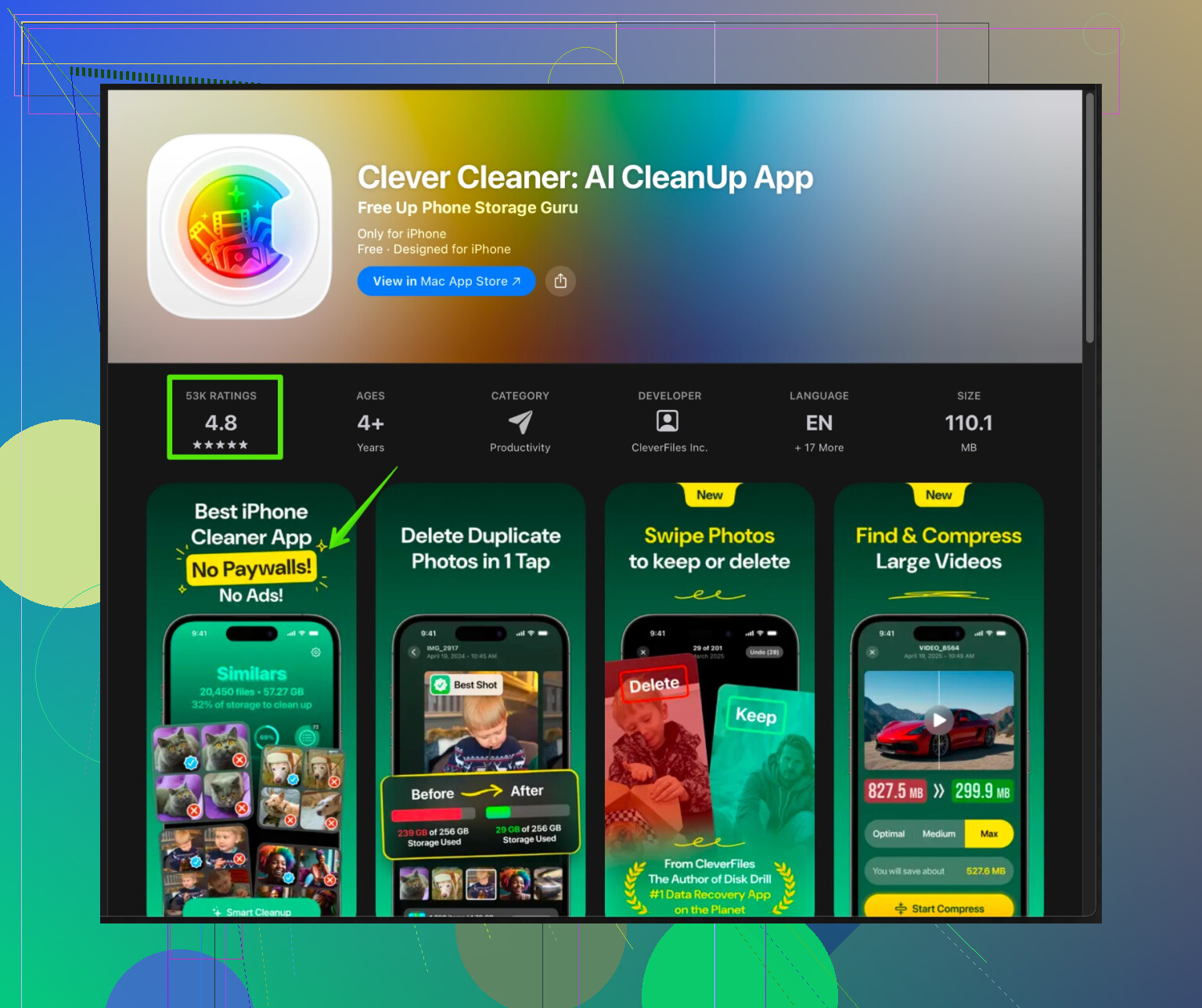
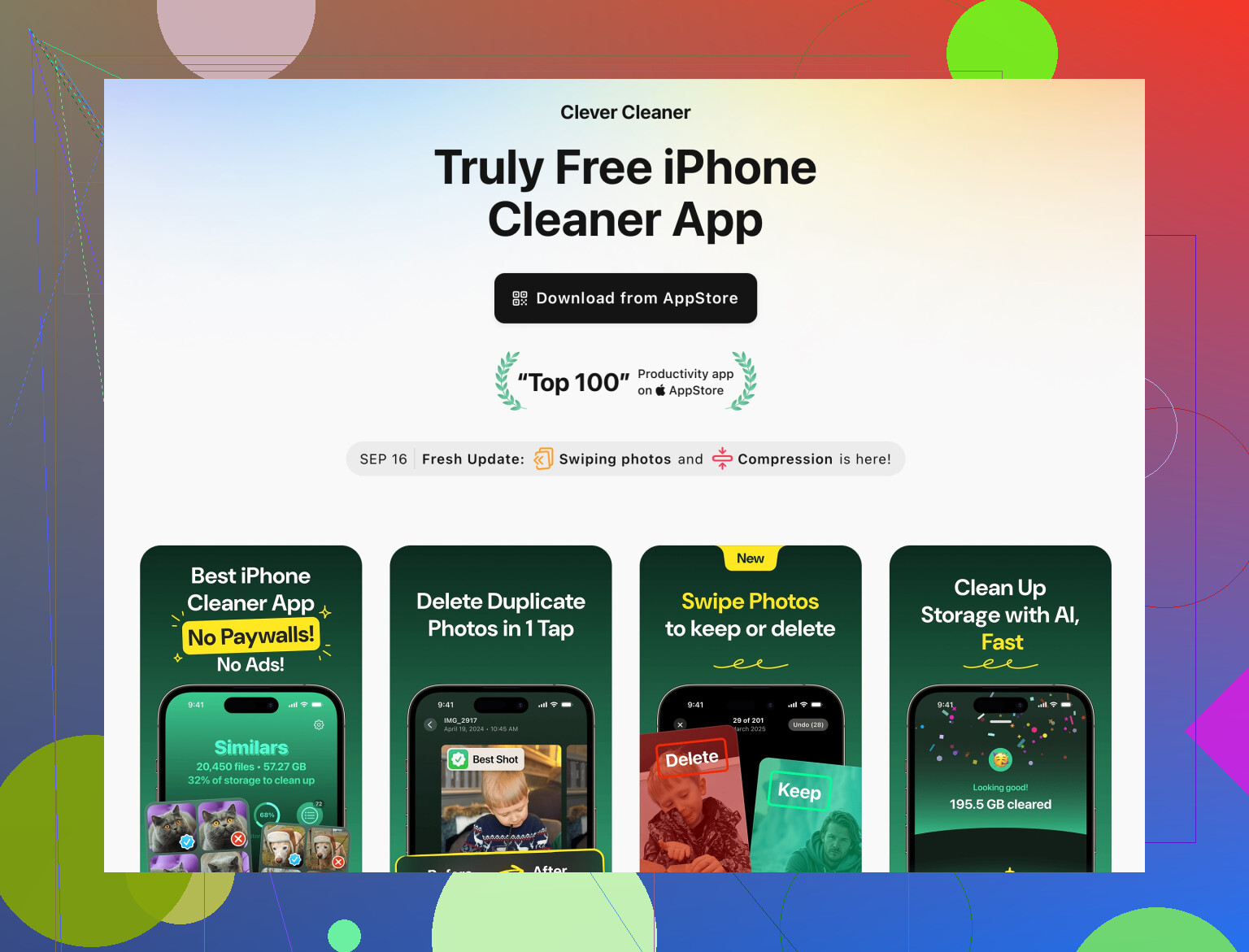
The Clever Cleaner App for iPhone helps remove duplicate photos, similar selfies, and large videos, and also organizes contacts and junk files.
You install it from here:
Clever Cleaner smart storage optimizer for iPhone
Run a scan, review suggestions, then confirm. Always double check before deleting, but it saves a lot of time if your gallery is a mess. -
Last resort tricks
• Restart your iPhone after big cleanups, iOS sometimes recalculates storage after a reboot.
• If System Data looks huge, back up to iCloud or computer, then do Settings > General > Transfer or Reset > Erase All Content and Settings, then restore from backup. That often shrinks System Data by several GB.
Do a mix of iCloud Photo optimization, Messages cleanup, app offload, and one pass with Clever Cleaner. For most people that frees 10–30 GB without losing anything important.
Skip deleting random apps for a sec. That usually feels satisfying and frees like… 300 MB. The big wins are in stuff that silently hoards data.
I’ll try not to repeat what @ombrasilente already covered (they hit the basics pretty hard), and focus on extra tricks and some stuff I slightly disagree on.
1. Tame iCloud settings so they don’t secretly eat local space
Weirdly, iCloud can increase local storage use if set wrong.
- Go to Settings > [your name] > iCloud > iCloud Drive
- Turn off any apps you don’t need constantly syncing (big offenders: design apps, scanners, note apps that store PDFs, etc.).
- In Settings > [your name] > iCloud > iCloud Backup
- Tap your iPhone name, see what’s included.
- Turn off backups for huge apps that already keep stuff in the cloud (like streaming services or games that sync progress).
That doesn’t free space on the phone directly, but it stops “Other” / “System Data” from ballooning after each backup/restore combo.
Disagree a bit with the “erase and restore” suggestion being casual. That can help, but I treat it as nuclear option only after everything else, because it costs time and is easy to mess up if your backup situation is shaky.
2. Tweak app behavior so they stop refilling your storage
Not just deleting data once, but preventing the re‑bloat:
- WhatsApp / Telegram / Messenger auto-downloads
Inside those apps, turn off auto-download of photos/videos or at least limit to Wi‑Fi only. If you clean them once and keep auto-download on, you’ll be full again in a month. - Podcasts / Music
- Apple Podcasts: Settings inside Podcasts app > turn off automatic downloads for shows you barely listen to.
- Spotify / Apple Music: In the app settings, disable “download over cellular” and manually review offline playlists. A few giant playlists offline can be 5–10 GB by themselves.
- Reading / manga / comic apps
These can stash huge offline libraries. Look for any “offline” or “downloaded issues” tab and clear old stuff you already finished.
3. Attack “System Data” and weird cache build‑ups
iOS hides a lot of junk under “System Data” in Settings > General > iPhone Storage. Some realistic ways to shrink it without a full reset:
- Big iOS updates
If you recently updated, the installer sometimes sits there for a while.
Settings > General > iPhone Storage > look for an iOS update file near the top and delete it if it shows as downloaded. - Mail & Calendar
If you use Exchange/IMAP, changing sync limits can shrink cached data:- Settings > Mail > Accounts > [your account] > Mail Days to Sync, set to something shorter like 1 month or 3 months.
Background: that reduces index and attachment caching.
- Settings > Mail > Accounts > [your account] > Mail Days to Sync, set to something shorter like 1 month or 3 months.
- Force‑quit storage hog apps and restart
Not magic, but some apps dump extra temp files only when fully closed. After a big cleanup session, do a restart so iOS recalculates storage. Sometimes you suddenly get 1–2 GB “back.”
4. Move “important but not needed daily” stuff off the phone
If you want to not lose data but also not keep it all on-device:
- Offload full-resolution media to computer or external drive
- Plug into a Mac/PC, copy your original full‑res videos and photos that you truly want to keep long term.
- After double‑checking the backup, delete the local copies from the iPhone, then empty “Recently Deleted.”
- Use cloud but smartly
If you are tight on iCloud space, use Google Photos / OneDrive / Dropbox as an archive for old photos & videos.
Upload via their app, confirm they are there, then delete the originals from Photos. This is more manual than Optimize Storage but gives you more control.
This does introduce “my data lives in multiple places,” which some people hate, but it’s one of the most effective ways to reclaim tens of GB while still keeping everything safe.
5. Deep clean your photo library without scrolling for hours
Here’s where I actually like a good helper app. If your camera roll is chaos with duplicates, similar shots, old screen recordings, etc., you can either spend a weekend cleaning manually or use something built exactly for that.
A solid option is the Clever Cleaner App. It focuses on:
- spotting duplicate and similar photos
- identifying huge videos that are wasting gigabytes
- grouping screenshots, blurred shots, and other junk
- cleaning contact list mess (dupes and partial matches)
You can scan, review, and then only confirm what you’re comfortable deleting. It is way faster than hunting through Photos album by album. If you want to read more or install it, here is a pretty clear overview:
smart iPhone storage optimizer and photo cleaner
Unlike @ombrasilente, I would not rely purely on iOS Photos tools if your library is a disaster. iOS is decent, but still pretty barebones at finding duplicates and near-duplicates.
6. Check “hidden” offline content in random apps
Some sneaky things people forget:
- Language learning apps: Offline lesson packs can be big.
- Bible / dictionary / encyclopedia apps: Sometimes they download full offline data sets.
- Travel apps: Offline travel guides and content.
Open each, look for “downloaded content,” “offline content,” “local data,” then delete older things.
7. Prioritize by impact vs effort
If you want to be efficient and not spend all day:
- Photos & videos (biggest win per action)
- Messaging apps (WhatsApp, Messages, Telegram)
- Media apps (Spotify, Netflix, YouTube, Podcasts)
- Random downloads in Files / Safari
- Then, if still needed, cache-heavy apps: delete + reinstall
Combine a one-time deep cleanup (maybe with something like Clever Cleaner) plus 2 or 3 behavior tweaks so things stop ballooning again, and you should see a very real difference in both free space and how snappy the phone feels.
1 Like
Skip what’s already covered by @cacadordeestrelas and @ombrasilente for a moment: they nailed the built‑in settings. I’ll focus on what to do when those “official” tricks are not enough.
1. Free space without touching your “real” data
These are things you can delete aggressively because they are 100% recreateable:
-
Keyboard dictionaries & language packs
Go to Settings > General > Keyboard > Keyboards.
Remove languages you never type in. They keep offline data and suggestions.
Not huge, but it is safe. -
Siri & dictation junk
Settings > Siri & Search > Siri & Dictation History > Delete Siri & Dictation History.
This can trim hidden voice data with zero risk to your stuff. -
Background app data for news / feeds
Apps like news aggregators, RSS, some shopping apps cache tons of images.
Inside each app, disable offline reading or “preload images” where possible.
Then delete and reinstall that app once to flush old cache.
These usually nibble away a few hundred MB at a time, but combined they matter.
2. Target “semi‑important” space hogs instead of random small apps
I slightly disagree with deleting and reinstalling every big app as a primary move. It works, but it is a bit shotgun. I’d rather identify specific semi‑important chunks:
-
Games with optional offline content
Open each big game, go into its settings and see if it has downloaded resource packs or language packs you do not need. Removing only the unused packs lets you keep your progress while still reclaiming space. -
Document scanner apps
Many keep high‑res scans locally forever. Export old scans as a single PDF to a cloud drive or computer, then delete the originals in the app.
This often gives back gigabytes if you scan a lot.
3. Archive strategy: “Cold storage” vs “Daily use”
Think of your iPhone as “hot storage” only:
-
Cold storage on external drives
Use a computer or Lightning/USB‑C external drive to offload:- Old 4K videos
- Long screen recordings
- Project files from editing apps
Verify they are readable on the external device, then remove them from the phone.
-
Secondary cloud archive
If iCloud is full or pricey, archive to a second cloud like Google Drive or similar, specifically for old videos and projects.
I disagree a bit with relying entirely on iCloud Photos for everything. It is convenient, but having a second independent archive for very old stuff gives you freedom to be more aggressive in cleaning the phone.
4. Where a cleaner app actually helps
You can do all of this manually, but if your photo and file chaos is serious, manual cleanup is torture. That is where a tool like the Clever Cleaner App can make sense, especially when you combine it with the settings the others mentioned.
Pros of Clever Cleaner App:
- Finds duplicate and similar photos faster than you will by scrolling.
- Highlights very large videos so you can nuke a few and instantly free gigabytes.
- Groups screenshots, blurred shots and other “low quality” images for quick review.
- Helps clean contacts (duplicates, partial entries) which is tedious by hand.
Cons of Clever Cleaner App:
- You still need to review results carefully. One tap mistakes are on you.
- It cannot magically know your emotional value for a photo, only technical similarity or size.
- Some features are more useful for messy galleries; if you are already organized, the gain is smaller.
Compared to just using Photos alone, it gives you a “priority list” of what hurts storage the most, which is the real value.
@cacadordeestrelas leaned more into long‑term behavior tweaks inside apps, which I agree with.
@ombrasilente focused heavily on Apple’s built‑in tooling and a one‑time clean. Those are good foundations. Layering Clever Cleaner App on top is useful when your gallery is already a disaster and you want to skip a weekend of manual sorting.
5. What I would do in your situation
If your storage is already “almost full” and performance is suffering:
- Do the standard passes suggested by them: iPhone Storage review, Messages, Photos optimization.
- Run something like Clever Cleaner App to hit duplicate/similar photos and big videos in one go, but review suggestions slowly.
- Identify two or three apps that store big offline content (games, scanner, or media editors) and move older projects to cold storage.
- Change habits inside messaging and media apps so the same junk does not rebuild in a month.
That combo usually frees a meaningful chunk of space without sacrificing anything important, and you only have to do a deep clean like this a few times a year.