My phone storage is almost completely full and it’s slowing everything down. I’ve deleted a bunch of photos, apps, and files, but I still keep getting low storage warnings. I’m worried about deleting something important by mistake. What are the best safe ways, tools, or settings to free up space on my phone without losing important data, and what should I back up first?
Yeah, phones love to scream “storage full” even after you delete a ton of stuff. Here is what usually fixes it fast without losing data.
-
Check what is actually using space
• On iPhone: Settings > General > iPhone Storage
• On Android: Settings > Storage
Look at “System data”, “Apps”, “Media” and “Other”. Most people are surprised how much cache and offline junk sits there. -
Clear app junk and cache
Focus on:
• Social apps: Instagram, TikTok, Facebook, Snapchat, Reddit
• Streaming: Spotify, Netflix, YouTube, Podcasts
Steps:
• Inside each app, look for “Downloads”, “Offline content”, “Cache”, “Storage” and remove old stuff.
• Clear app cache where the OS allows it. On Android you do it in App info. On iPhone some apps have “Offload” inside Settings > General > iPhone Storage. -
Offload, do not delete
On iPhone, Settings > General > iPhone Storage:
• Tap “Offload App” for big apps you rarely use.
Your data stays, icons stay, the app reinstalls when you need it.
Target games, rarely used social apps, old video editors, etc. -
Move photos and videos out
These eat the most space.
Do this before deleting anything:
• Use iCloud, Google Photos, OneDrive, or a laptop.
• Plug your phone into a PC or Mac and copy DCIM / Photos.
After backup, you can safely delete local copies.
On iPhone with iCloud Photos on, enable “Optimize iPhone Storage” so full‑res files stay online. -
Delete “Recently Deleted”
• Photos app has a “Recently Deleted” album. Clear it.
• Some file managers and gallery apps have a trash folder. Empty it.
Until you empty trash, files still take space. -
Clean big message threads
• iMessage, WhatsApp, Telegram, Messenger save photos, videos, voice notes.
• Open your top 5 chats, delete big media or entire old threads you do not need.
• On iPhone: Settings > Messages, set Keep Messages to 1 Year or 30 Days so old stuff clears automatically. -
Remove offline files
• Spotify / Apple Music / YouTube Music offline playlists.
• Netflix / Prime / Disney+ downloaded episodes.
Clear shows you already watched. Some people free multiple GB from here alone. -
Use a cleaner app to speed this up
If you do not want to dig through every menu, a cleaner can help.
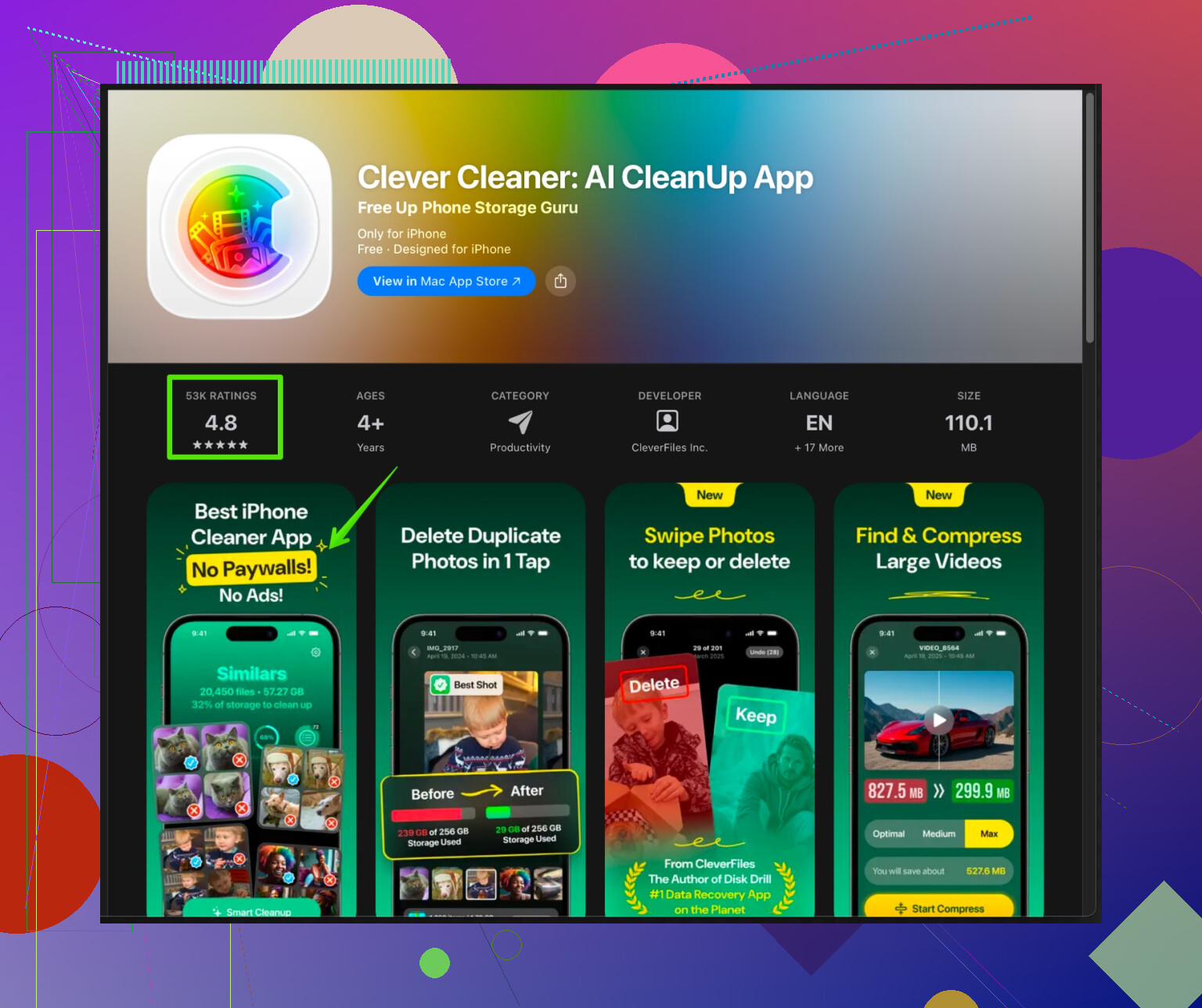
For iPhone, something like Clever Cleaner is made for this type of problem.
It helps you:
• Detect duplicate and similar photos.
• Remove old screenshots and blurred pics.
• Clean big videos and large files.
• Sort stuff by size so you attack the worst offenders first.Check this link for Clever Cleaner App, it is tuned for quick iPhone cleanup:
clean up and speed up your iPhone storageDo a full scan, review what it wants to remove, then confirm. Do not skip the review step.
-
Tidy “Files” and downloads
• Open Files (or your Android file manager).
• Clean the “Downloads” folder, old PDFs, zips, installers.
• Sort by size and remove the biggest useless stuff first. -
System updates and free space
Sometimes the OS needs breathing room.
• Install any pending system updates after you free 5 to 8 GB.
• Restart the phone after a large cleanup so temporary files clear.
If you feel nervous about losing something important, do this in order:
- Backup photos and videos.
- Backup chats you care about.
- Then start deleting large media, downloads, and app caches, not documents or work files.
Most people get back 5 to 15 GB by hitting photos, video, social app caches, and streaming downloads in one go.
If you’ve already rage-deleted photos and apps and it’s still yelling “storage almost full,” you’re probably stuck with hidden junk and system clutter more than obvious stuff. @himmelsjager covered a lot of the basics, so I’ll avoid rehashing the same list and hit some things people usually miss (and I’ll disagree with one point too).
1. Check for “phantom” storage & bugged system data
Sometimes the OS misreports space or holds onto it:
-
On iPhone
- Go to: Settings > General > iPhone Storage
- Wait 1–2 minutes for it to recalc. If “System Data” or “Other” is huge (like 20+ GB), that’s often log files, failed updates, or corrupted cache.
- In that case, a full backup to iCloud or computer, then:
- Settings > General > Transfer or Reset iPhone > Erase All Content and Settings
- Restore from backup.
This is extreme but can instantly free a ton of invisible junk if nothing else works.
-
On Android
- Settings > Storage > tap your internal storage details.
- If “System” / “Other” is abnormally large, same deal: backup, factory reset, restore.
- Also check if your OEM has a “Storage cleaner” or “Device care” tool. Some of those actually do clean OS-level caches that individual apps can’t touch.
I know that sounds overkill, but when you’re stuck at 0.5 GB free no matter what you delete, a clean slate is often the only real fix.
2. Stop your phone from refilling space automatically
This is the part most people skip. You clean once, it fills again.
-
Turn off auto-downloads in messaging apps
- WhatsApp: Settings > Storage and data > Media auto-download. Disable “when using mobile data” and “when connected on Wi-Fi” or limit to photos only.
- Telegram, Messenger, etc: same idea.
Otherwise they instantly refill your storage with every meme and video your friends send.
-
Email apps
- Some email apps cache massive attachments offline.
- In Gmail or Outlook, look for “Sync” or “Download attachments” settings and limit the period (e.g. 30 days) or disable auto attachment download.
-
Browser downloads
- Open your browser’s download list and nuke old PDFs, APKs, zips.
- Also clear browser cache from inside the browser settings instead of only relying on OS storage tools.
3. Be smarter than “just clear cache”
I actually half disagree with the idea of leaning hard on cache clearing like it’s the main solution. Yes, clear it if you’re desperate, but:
- Clearing app cache on Android frees space, but many apps just rebuild it quickly. It’s a short‑term hit, not a real fix.
- A better approach:
- Remove huge offline data (downloaded maps, videos, playlists) inside apps.
- Log out of old accounts in apps you never use, then uninstall or offload them. That kills both cache and their stored user data.
Think “stop the leak” more than “mop the floor.”
4. External or semi-external storage tricks
If your phone supports any of these, they help a lot:
-
Android with SD card support
- Move media folders (Camera, WhatsApp, Screenshots) to SD card where possible.
- Some phones let you format the SD card as “internal” storage, but that can slow stuff down, so I’d use it mainly for media, not apps.
-
Use a USB flash drive with OTG
- You can plug in a USB stick (with a USB-C or micro USB connector or a cheap adapter).
- Move big video files, movies, old camera clips there.
- This is perfect for stuff you don’t want to delete but also don’t need daily.
-
iPhone + Lightning/USB‑C external flash
- There are drives that plug right into your iPhone. Use them to offload big videos and keep your main storage lean.
5. Dig into “hidden” heavy stuff most people ignore
Some less obvious spots:
-
Offline maps
- Google Maps: your profile icon > Offline maps. Delete old trips / cities you don’t need.
- Waze / other GPS apps may also store big map packs.
-
Old video editing projects
- CapCut, InShot, VN, etc often keep:
- Original imported clips
- Rendered exports
- Open each app, go through Projects / Drafts / Exports and delete old ones. This can free several GB fast.
- CapCut, InShot, VN, etc often keep:
-
Document scanners & PDF apps
- Scanner apps keep every PDF in their own storage. Check their internal “Documents” list and export + delete old scans.
-
Voice memos & screen recordings
- These are sneaky large.
- On iPhone: Voice Memos app, and Photos > Albums > Screen Recordings.
6. Use a dedicated cleaner, but don’t blindly trust it
Here I actually agree with @himmelsjager, with a small twist: cleaners are useful, but only if you review carefully.
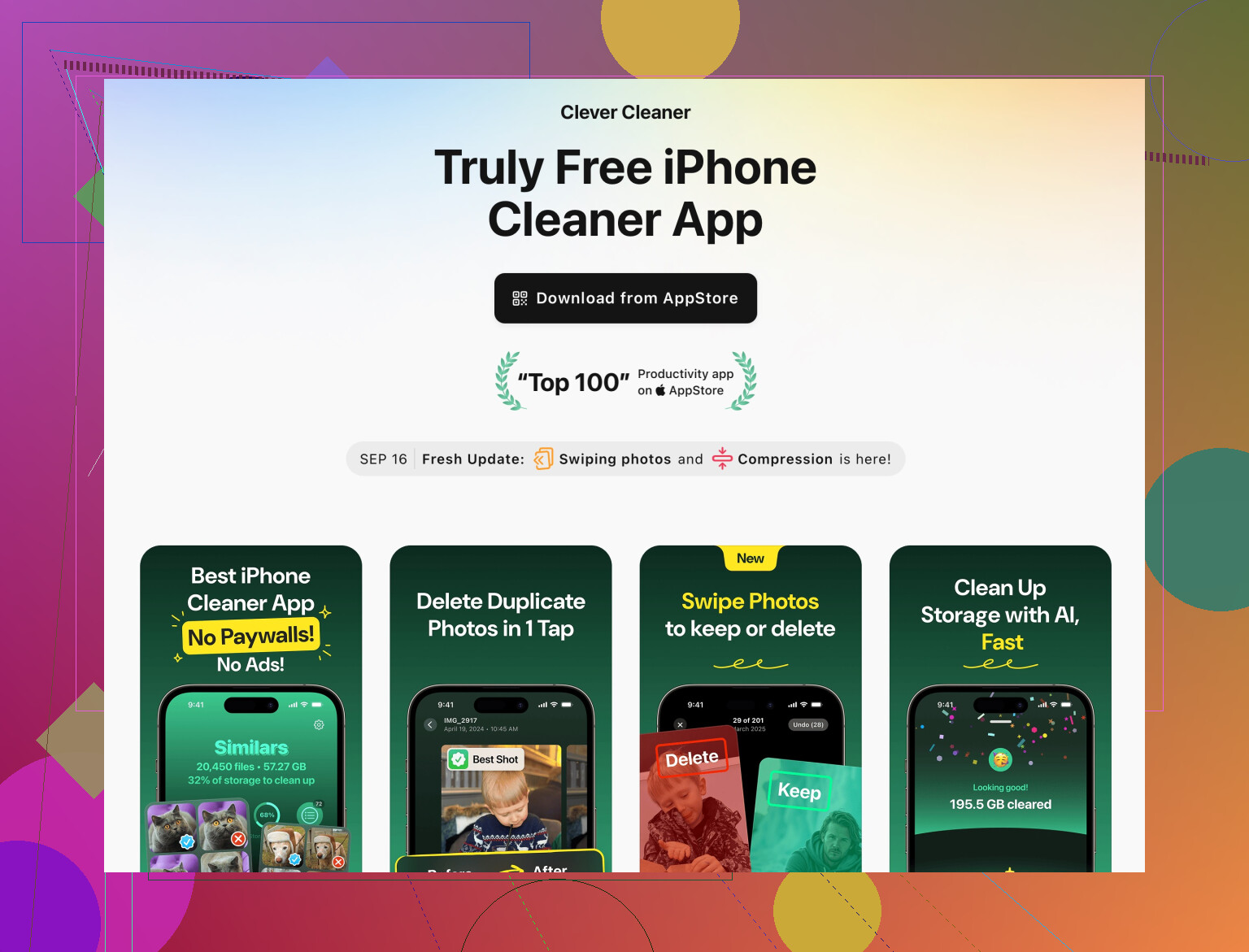
For iPhone specifically, something like the Clever Cleaner App can make this whole mess a lot easier. Instead of digging through a thousand albums and folders, it scans for:
- Duplicate or near-duplicate photos
- Old screenshots and similar junk
- Extra‑large videos and unused files
- Media sorted by size so you can kill the biggest hogs first
If you want an SEO‑friendly version to check it out, this page explains how the Clever Cleaner App for decluttering and speeding up your iPhone storage works and what exactly it targets. Run a scan, review everything, then remove. Do not just tap “clean all” like a maniac and hope for the best.
7. Make your next cleanup the last “emergency” one
If you don’t want to be back here soon:
- Aim to always keep at least 10–15% of total storage free. Phones freak out when they’re nearly full.
- Set auto-delete on messages (30 days or 1 year).
- Offload big games or apps you don’t regularly use instead of deleting your photos repeatedly.
- Every month or so, do a quick sweep of:
- Downloads
- Messaging media
- Offline videos & playlists
Do one serious cleanup now (with backup first), then put those guardrails in place and the “low storage” spam should chill out a lot.
You’ve already hit the obvious stuff, and @caminantenocturno / @himmelsjager covered most of the “standard” tricks. I’d tackle what they missed or only hinted at, focusing on stubborn storage that survives normal cleaning.
1. Hunt down “orphaned” app data
Sometimes apps leave data behind even after you delete or offload them.
iPhone
- Go to Settings > General > iPhone Storage.
- Scroll all the way down: if you see apps with 0 KB or that you’re sure you uninstalled, tap them and remove any remaining data.
- Also look for apps where “Documents & Data” is way bigger than the app itself. Delete & reinstall those. It often nukes gigabytes of leftovers.
Android
- Settings > Storage > Apps. Sort by size.
- Uninstall apps with huge “user data,” then reinstall only what you actually need.
- On some phones, a file manager like “Files by Google” will show leftover folders from uninstalled apps. Manually delete those app folders.
I actually prefer the delete & reinstall method over constantly “clear cache” on Android. Cache returns; zombie folders don’t.
2. Fix bloated backups & syncs
Everyone talks about photos, but backups and syncs are silent killers.
iPhone
- Settings > [your name] > iCloud > Manage Account Storage > Backups.
- Check old device backups. Delete backups from phones you no longer use.
- Under iCloud Drive, turn off backup for apps you don’t care about, so future backups stay smaller.
Android / Google account
- Go to Google Drive > Storage.
- Clean out huge app backups or WhatsApp backups from devices you no longer use.
- In WhatsApp itself: Settings > Chats > Chat backup. Reduce video backup if it is massive, or set it to manual. Otherwise your phone keeps churning space preparing backups.
This doesn’t always free local storage instantly, but it prevents weird half-synced, half-failed backup junk from building up.
3. Look for “invisible media” inside apps
Photos that don’t show in your gallery can still eat space.
-
Social media “saved” folders:
- Instagram / TikTok / Facebook often keep “saved” or “drafts” videos locally.
- Open each app’s profile / drafts area and delete old drafts and reels you never posted.
-
Messaging app caches that the OS page doesn’t show cleanly:
- In WhatsApp: Settings > Storage and Data > Manage storage. Sort by size and kill big chat media piles.
- Same idea in Telegram: Settings > Data and Storage > Storage Usage.
I partly disagree with the idea that cleaners alone are enough here. Many app-specific caches are only fully visible from inside the app itself.
4. Use a cleaner, but treat it like a power tool
You mentioned fear of deleting something important, which is valid. This is where a specialized cleaner helps, if you are methodical.
Clever Cleaner App is decent specifically for iPhone storage management because it:
Pros
- Groups similar and duplicate photos so you can quickly keep the best shot and ditch the rest.
- Flags screenshots, blurred photos, and accidental shots that are obvious junk.
- Shows largest videos and files first so you get big wins fast instead of wasting time deleting tiny stuff.
- Gives you a structured review step before confirming deletions, which is safer if you are anxious about losing data.
Cons
- It cannot magically clean data that Apple restricts, like certain system caches or app-private data that iOS does not expose.
- If you rush and accept all suggestions, you may delete photos you might have wanted to keep, especially “similar” ones.
- It is yet another app that takes some space itself, so you should run it, clean aggressively, then decide if you want to keep or temporarily uninstall it.
Compared with what @caminantenocturno and @himmelsjager suggested, the Clever Cleaner App is best as a surgical strike on photos and videos, not a complete system fix. Use it to clean media first, then deal with system storage and backups the manual way.
Competitors in this space tend to be either very aggressive and risky or too superficial. The main reason I’d pick Clever Cleaner over just any random “phone cleaner” is that it focuses on visual clutter instead of promising to “boost RAM” or other nonsense.
5. If nothing works, consider the nuclear option correctly
If you are stuck with a giant “System / Other / System data” block that will not shrink:
-
Backup everything:
- Photos & videos to a cloud service or computer.
- Chats using built-in backup tools.
- Important files via Files / Google Drive / similar.
-
Factory reset or “Erase all content and settings.”
-
On restore, be selective:
- On iPhone, instead of restoring from a very old backup, you can start as new and just re-enable iCloud Photos, Messages in iCloud, etc. That avoids carrying old system bloat.
- On Android, restore only essential apps from Play Store and let cloud services pull data back in, instead of cloning the whole old system.
This is the step everyone avoids, but if your phone is permanently stuck low on storage, it is often the only way to clear broken logs and update leftovers.
If you want the least risky path:
- Backup media and chats.
- Use Clever Cleaner App to trim photos, similar pics, giant videos.
- Manually clean app-specific media (WhatsApp, Telegram, social apps) from inside each app.
- Remove orphaned app data & bloated backups.
- Only then decide if a factory reset is worth it.
That sequence usually frees a surprising amount of space without you sacrificing anything important.