I accidentally deleted important files on my Windows 11 PC and emptied the Recycle Bin before I realized they were gone. I need help finding the best way to recover deleted files in Windows 11 because some of these documents and photos are really important for work and personal use. Are there any safe recovery steps or tools that actually work?
Don’t write the file off yet. I’ve deleted stuff in Windows, assumed it was gone, then found out the data was still sitting there. The first move is simple. Stop using the drive as much as you can.
What Windows usually does after deletion is remove the file’s record from the file system and mark the space as free. The bits often stay put until new data lands on top of them. So if you keep downloading files, installing updates, or saving random screenshots, you lower your odds.
SSDs make this mess worse. Most Windows 11 machines run on SSD storage, and many SSDs use TRIM. Once TRIM kicks in, deleted data gets wiped in the background. I wouldn’t sit on it.
Things I’d check first
- Recycle Bin
- OneDrive Recycle Bin, if your desktop or documents sync there
- File History backups
- Previous Versions on the folder where the file lived
- Any cloud backup service tied to your PC
I’ve seen “permanently deleted” files turn up in one of those spots more than once. It happens.
If none of those have it, I’d move to recovery software right away. When there’s no backup, this is usually your best shot.
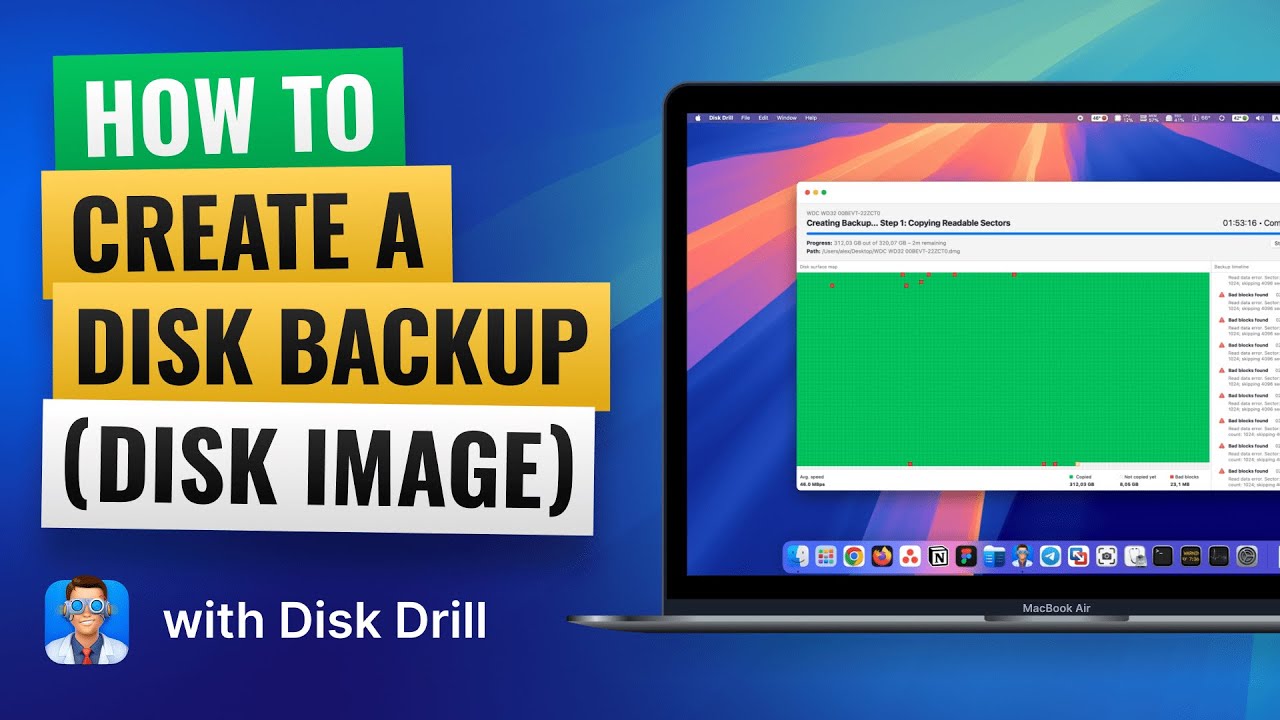
I’ve had solid luck with Disk Drill. It scans for deleted files, pulls data from formatted or damaged volumes, and in some cases keeps the original filenames and folder layout if the file system info is still there. The part I liked most was its option to make a byte-to-byte backup of the drive first, then scan the copy instead of hammering the original disk. If the drive looks shaky, that matters.
On Windows, the free version gives you unlimited scanning, file preview, and up to 100 MB of recovery. That cap is small, sure, but it’s enough to tell whether your file is still recoverable before you pay for anything.
There’s also Microsoft’s own tool, Windows File Recovery. It’s free. I tried it once and it worked, but it runs through Command Prompt. No graphical interface, less hand-holding, more room to mistype something if you’re in a rush.
What I’d do, in order
- Stop using the drive.
- Check Recycle Bin, OneDrive, and any backups.
- If the file still isn’t there, run recovery software fast.
- Save anything recovered to a different drive, not the one you’re scanning.
Time matters here. The sooner you start, the better the odds.

If the files were docs, pics, or PDFs, I’d check Windows Search indexing before I went full recovery mode. Sounds dumb, but I’ve seen people “lose” files after moving folders, OneDrive sync conflicts, or saving to a diff account profile. Search the filename, file type, and modified date. Also check C:\Users\YourName\AppData\Local\Temp if the file was open in Word or Excel before deletion.
I partly agree with @mikeappsreviewer, but I’d put OneDrive version history ahead of some local checks if Office files are involved. Word and Excel files often leave more recovery paths there than people expect.
If search turns up nothing, use Windows File Recovery first if you’re okay with terminal commands. It’s free, and for recently deleted files on NTFS it works decently. Example:
winfr C: D: /regular /n \Users\YourName\Documents*.docx
Send recovered files to another drive, USB, external SSD, anything except C:. If Windows File Recovery feels like a pain, Disk Drill is easier to work with and faster for sorting results by file type and previewing what still exists. That saves time when you need specific files fast.
Also worth a look:
attrib -h -r -s /s /d C:*.*
This sometimes reveals files you thought were gone but were hidden instead. Old trick, still works on some messed up folders.
For a step guide, this helped:
Windows permanently deleted file recovery tutorial for Windows 11
One more thing, if your drive is an SSD and TRIM already ran, recovrey odds drop a lot. So move fast, dont keep using the PC.
Emptying the Recycle Bin is bad, but not always game over. I agree with parts of what @mikeappsreviewer and @yozora said, but I’d add one thing they didn’t really stress enough: check whether the files were copied anywhere by apps themselves, not just by Windows.
For Office docs, look in:
%AppData%\Microsoft\Word%LocalAppData%\Microsoft\Office\UnsavedFiles- the folder where the file originally lived for temp files starting with
~ - recent files inside Word/Excel itself
A lot of people assume “deleted” means one copy existed. Nope. Sometimes there’s an autosave, temp cache, or synced draft hanging around.
Also, don’t keep rebooting the PC over and over. People do that while panicking and it can make recovery worse on the system drive. If the deleted files were on C:, best move is to use another PC to prepare recovery tools on a USB.
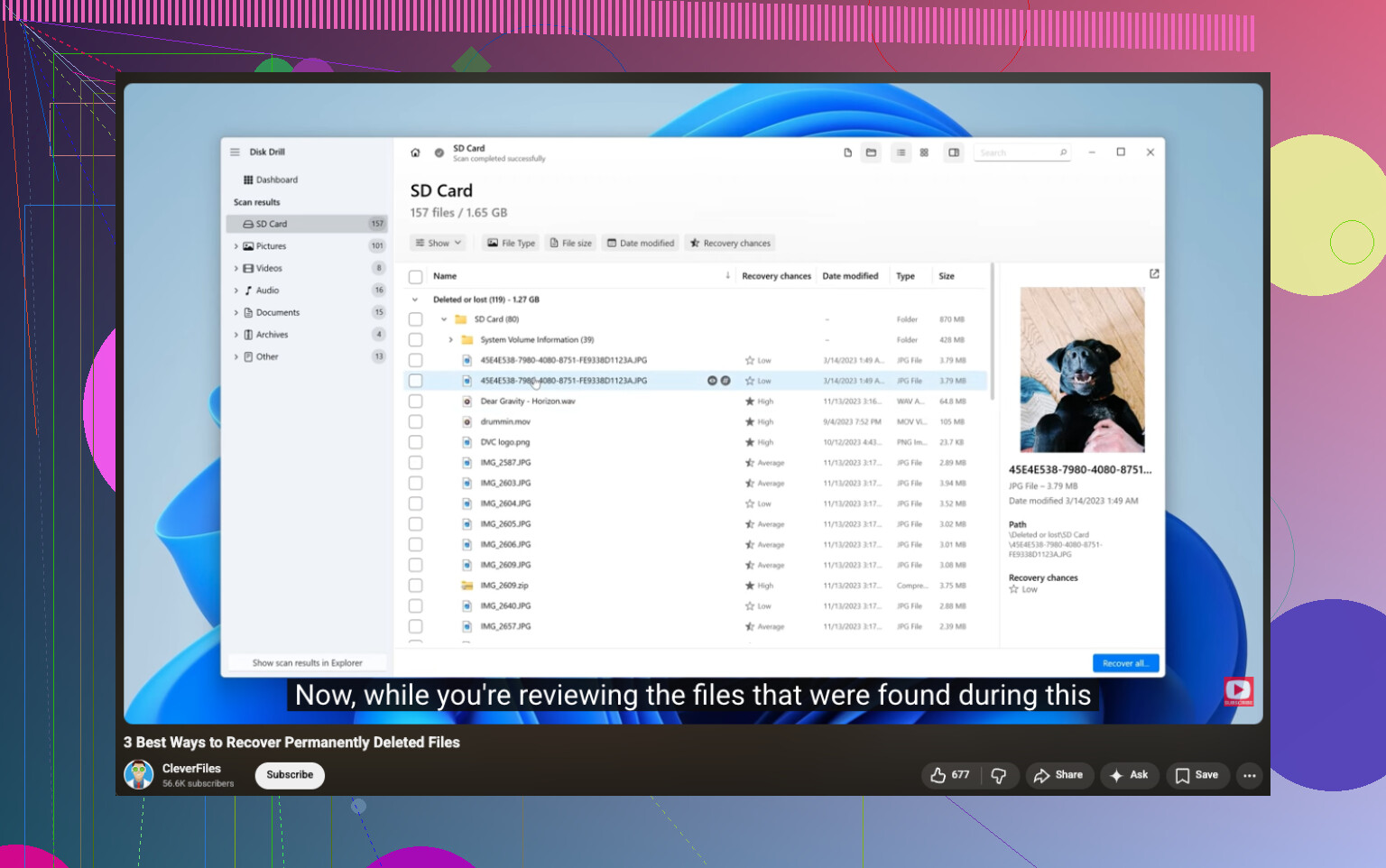
If you need actual file recovery, Disk Drill is probly the easiest route on Windows 11 because you can scan by file type, preview what’s still intact, and recover to another drive. That part matters more than people think. Recovering back onto the same drive is how folks accidentally nuke the very files they’re trying to save.
One place worth reading too if you want more practical steps for deleted hard drive files is best ways to recover deleted files from a hard drive.
My order would be:
- Stop using the PC.
- Check app autosave/temp locations.
- Check cloud account web trash/version history.
- Scan with Disk Drill or another recovery tool.
- Restore files to external storage only.
If it was an SSD, move fast. If it was a regular HDD, odds are a bit better. Not amazing, but better.