My iPhone has become noticeably slower over the past few weeks, with apps taking longer to open, lag when switching between screens, and random freezing. I’ve already tried basic things like restarting and closing background apps, but it still feels sluggish. What are the best proven ways to speed up an iPhone, boost performance, and possibly free up system resources without causing other issues or losing important data?
Had the same issue on my iPhone a few months ago. Lag everywhere, apps taking ages, random freezes. Here is what helped, in order of impact.
-
Check storage first
- Go to Settings → General → iPhone Storage.
- If you are above 85 percent used, iOS slows down.
- Delete big videos, offline Netflix/Spotify, old photos, voice memos.
- Offload unused apps from that screen instead of deleting if you want to keep data.
-
Clean photos and junk
- Duplicate and burst photos eat space fast.
- In Photos, use Albums → Duplicates to merge.
- Clear Recently Deleted too.
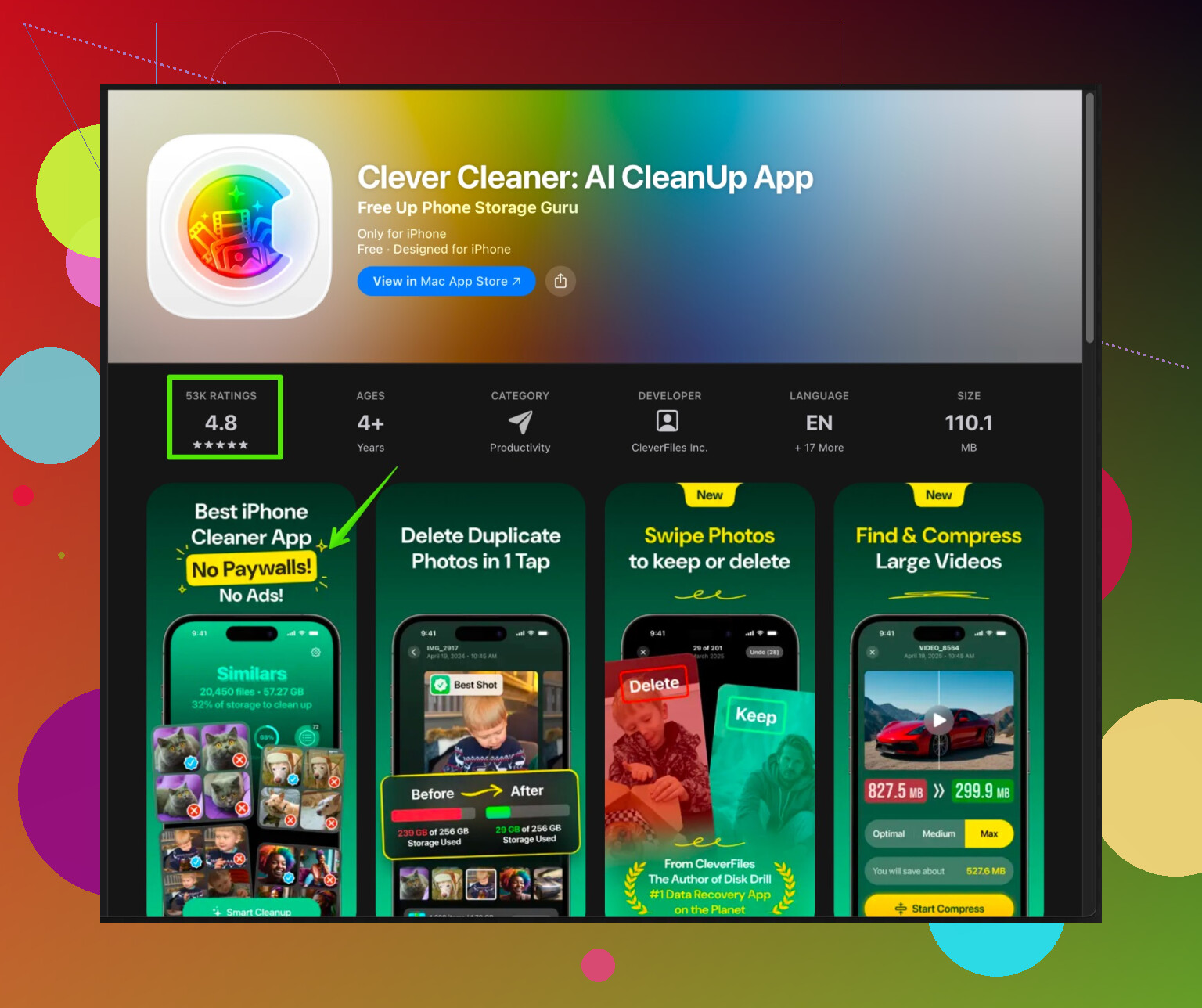
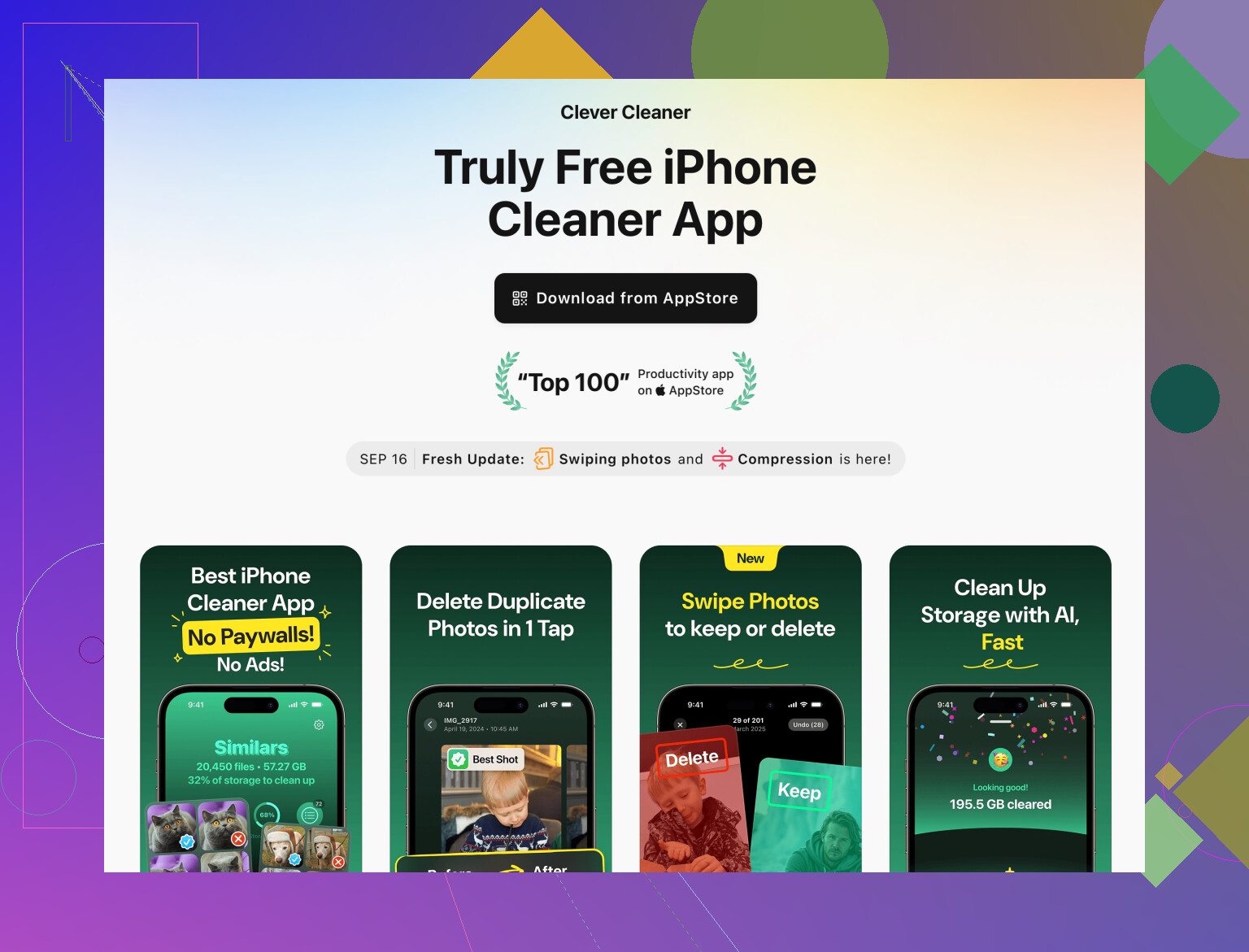
- For quicker cleanup, a tool like Clever Cleaner App helped me a lot. It finds similar photos, screenshots, and huge files fast. If you want an easy photo cleaner for iPhone with extra tools for large files and contacts, check this link:
smart iPhone storage cleaner with AI tools
-
Turn off heavy background stuff
- Settings → General → Background App Refresh → Off for social apps or everything.
- Settings → Privacy & Security → Location Services → set most apps to While Using or Never.
- Settings → Siri & Search → disable Suggestions for apps you never use.
-
Reduce system load
- Settings → Accessibility → Motion → Reduce Motion → On.
- Settings → Accessibility → Display & Text Size → Reduce Transparency → On.
- Settings → Battery → check Battery Health and look at apps under “Last 10 Days”.
If one app uses way more battery than the rest, either update it or reinstall.
-
Clear Safari and app cache
- Settings → Safari → Clear History and Website Data.
- For apps like Facebook, TikTok, Instagram, log out and reinstall if they feel slow. Their cached data gets bloated.
-
Check iOS updates
- Settings → General → Software Update.
- Install the latest stable iOS. Some builds slow older phones, but bug fixes usually help performance and battery.
-
Free RAM without full restart
Little trick that worked on my iPhone 11:- Press volume up, volume down, then hold side button until power slider shows.
- Release side button.
- Press and hold the Home button if you have one, or use AssistiveTouch virtual Home, until the screen flashes and returns to Home.
This clears RAM. On Face ID iPhones you need AssistiveTouch.
-
Turn off automatic downloads
- Settings → App Store → disable App Updates and Automatic Downloads, at least while you are testing.
- Large background downloads slow everything.
-
Check for low storage system bugs
If system data is abnormally high in iPhone Storage, like tens of GB, a backup and restore helps.- Backup to iCloud or Finder.
- Factory reset.
- Restore from backup.
This takes time but gave me the biggest speed jump.
-
When nothing helps
- If Battery Health is under ~80 percent and you see “Performance management applied” under Peak Performance, the phone throttles CPU.
- In that case a battery replacement from Apple often restores speed more than any setting tweak.
Try 1 to 4 first. If your storage drops under 80 percent used and background stuff is limited, you should see less lag and fewer freezes.
Couple of extra things you can try on top of what @byteguru already covered, without just rehashing the same checklist:
-
Figure out if it’s new slowness or thermal / throttling
- Use the phone normally for 10–15 minutes, then touch the back near the camera.
- If it’s getting hot with just light use (social apps, messages), iOS will silently throttle.
- Try:
- Take the case off for a while.
- Avoid using it while charging.
- If you use wireless charging, test a day just on cable. Some cheap chargers overheat the phone.
-
Check if a single app is poisoning everything
- You mentioned freezes and lag between screens. Often it’s one badly behaving app keeping CPU busy in the background.
- Go to Settings → Battery → Last 24 Hours / Last 10 Days.
- If you see one random app with absurdly high “Background Activity,” delete it completely, restart, then reinstall only if you really need it.
- I’d be more aggressive here than @byteguru: even big names like Facebook or Snapchat can wreck performance. Temporarily remove them and see if the whole phone suddenly feels snappier.
-
Dial back widgets & lock screen junk
- iOS widgets and fancy lock screens look cool, but they cost RAM and CPU.
- Remove extra Home Screen widgets you don’t use daily.
- In Settings → Lock Screen, switch to a simpler wallpaper (no depth effect, no stacks of widgets).
- Disable Live Activities for apps you don’t care about in Settings → Face ID & Passcode → Allow Access When Locked.
-
Focus mode & notifications cleanup
- Constant notification storms keep the system awake and juggling processes.
- Go to Settings → Notifications and:
- Set noisy apps to Deliver Quietly or turn off entirely.
- Kill off any “Time Sensitive” and “Critical” junk that is not actually critical.
- Add a Focus (like “Work” or “Chill”) that only allows a few key apps. Less background wakeups, smoother feel.
-
Storage, but smarter
- If you’re trimming storage and still close to the limit, move heavy stuff off the phone:
- In Photos settings, turn on Optimize iPhone Storage.
- For big video projects, offload to iCloud Drive, Google Drive, or a computer and actually remove them from the device.
- An app that actually helps here is Clever Cleaner App. It’s good for:
- Quickly detecting duplicate and similar photos.
- Finding massive forgotten videos and old files.
- Cleaning up old contacts and junk data.
- For an easy way to deal with junk files and streamline storage, this page is helpful:
smart iPhone cleanup & storage boost tool
The main win is less manual hunting around in Photos and Files and more targeted cleanup.
- If you’re trimming storage and still close to the limit, move heavy stuff off the phone:
-
Settings reset without wiping your data
- If slowness started “a few weeks ago” after an update or random tweak, corrupt settings can be a thing.
- Go to Settings → General → Transfer or Reset iPhone → Reset → Reset All Settings.
- This keeps your apps and data but resets Wi‑Fi, layout, privacy permissions, etc.
- Mild pain to re-enter Wi‑Fi passwords, but often fixes weird lag and UI stutters.
-
Spot check for iCloud sync overload
- When iCloud is stuck syncing, the phone can feel like molasses.
- In Settings → Apple ID → iCloud, look at:
- iCloud Photos
- iCloud Drive
- Messages in iCloud
- If you just enabled one of these recently and it’s uploading thousands of items, leave the phone plugged in on Wi‑Fi for a few hours (screen off) and let it finish. While that’s happening, performance can be meh.
-
Keyboard & input lag
- If the lag is worst when typing or searching:
- Go to Settings → General → Keyboard.
- Turn off Predictive, Smart Punctuation, and any third-party keyboards you don’t truly need.
- Remove extra language keyboards you never use.
- Weird, but a bloated keyboard setup can absolutely make an older iPhone feel sluggish.
- If the lag is worst when typing or searching:
-
Be realistic about age
- If this is like an iPhone 8 / X or older, and your battery is under ~80%, performance management kicks in and you will feel it.
- I’ll go a bit harder here than @byteguru: if you’re seeing regular freezing and the phone is 4–5 years old, a battery replacement is not optional, it’s basically the “performance upgrade” for iPhones.
- After a fresh battery, the same phone often feels like a new device for another year or two.
-
Quick triage order
If you want a simple test path: -
Uninstall any heavy social / video apps for 24 hours.
-
Remove most widgets and fancy lock screen junk.
-
Run a deep storage cleanup with something like Clever Cleaner App and iPhone Storage tools.
-
Let iCloud finish any big syncs while plugged in.
-
If still slow, Reset All Settings.
-
Check battery health and seriously consider a replacement if it is low.
If you try steps 1–4 and the phone still lags badly with lots of free storage and decent battery health, that’s when I’d start suspecting either a very buggy iOS version or early hardware issues. At that point, backup, full restore, and testing it as a “fresh” phone is worth it, but that’s the nuclear option.
Try Reduce Motion before deleting apps or resetting your phone.
Open Settings > Accessibility > Motion, then turn on Reduce Motion. This replaces zooming and sliding transitions with simpler effects, including dissolves.
Use your usual apps for a few minutes and compare switching between screens. Pay attention to whether the lag happens during transitions or while apps load.
Give it a quick test befroe making bigger changes. If you dont notice an improvement, switch it off again. Treat this as a test for transition-related sluggishness, rather than a fix for random freezing.
That RAM-clearing button combo in the first reply doesn’t really do what people think on newer iPhones. On a Face ID phone, holding power until the slider and then messing with AssistiveTouch isn’t a reliable memory flush, it’s mostly placebo. If you actually want the app you’re in to reload fresh, swiping it out of the app switcher does the same thing. And honestly, iOS manages RAM fine on its own. Chasing ‘free RAM’ tricks is time you could spend on the stuff that moves the needle.
Here’s the angle nobody’s hit yet: lag that appeared ‘over the past few weeks’ with no new behavior on your end is usually tied to a specific trigger, so try to remember what changed. Did you update iOS right before it started? Did you turn on iCloud Photos or Messages in iCloud? Did some app push a big update? Pin down the timing and you often skip half this checklist. @bytehackerpoint has the right instinct too, test one change, judge it, move on. Reduce Motion is a clean example because you can toggle it and feel the difference in seconds.
On storage, yeah, after you’ve trimmed the obvious videos and run something like Clever Cleaner App to clear the photo clutter, don’t expect a free-space number alone to fix freezing. Freezing is more often a bad app or a dying battery than a full disk. So if you clear space and it still stutters and locks up, go straight to Battery Health and the Battery usage list before you nuke and restore. A restore is hours of your life, and if the real problem is an 80-percent battery, you’ll be right back here in a month.