My iPhone storage keeps filling up even after I delete photos, apps, and old messages. System data and other storage seem to grow back, and now I can’t install updates or take new pictures. I need help figuring out what’s using my iPhone storage and the best way to free up space for good.
I ran into this on a couple iPhones, mine and one from a family member. It looked like storage exploded overnight, but when I checked closer, it was usually an old category crossing a line and iOS finally throwing the low storage warning. The phone felt sudden. The storage growth usually was not.
Start here: Settings > General > iPhone Storage. Wait for the list to load, then look at what sits at the top. The usual space hogs I saw were Photos, apps, message attachments, Downloads, and System Data.
If Photos is high, I'd deal with that first. This fooled me the first time, because I did not have many exact duplicates. The bloat came from other stuff:
- near-matching shots from burst photos
- edited copies of the same picture
- screenshots you forgot existed
- old videos, especially long ones
- Live Photos
This was the part where I got the best results. The iPhone Duplicates album only catches exact copies. For a lot of people, that means almost nothing gets flagged. What took up space on my phone was a pile of similar photos Apple never grouped together.
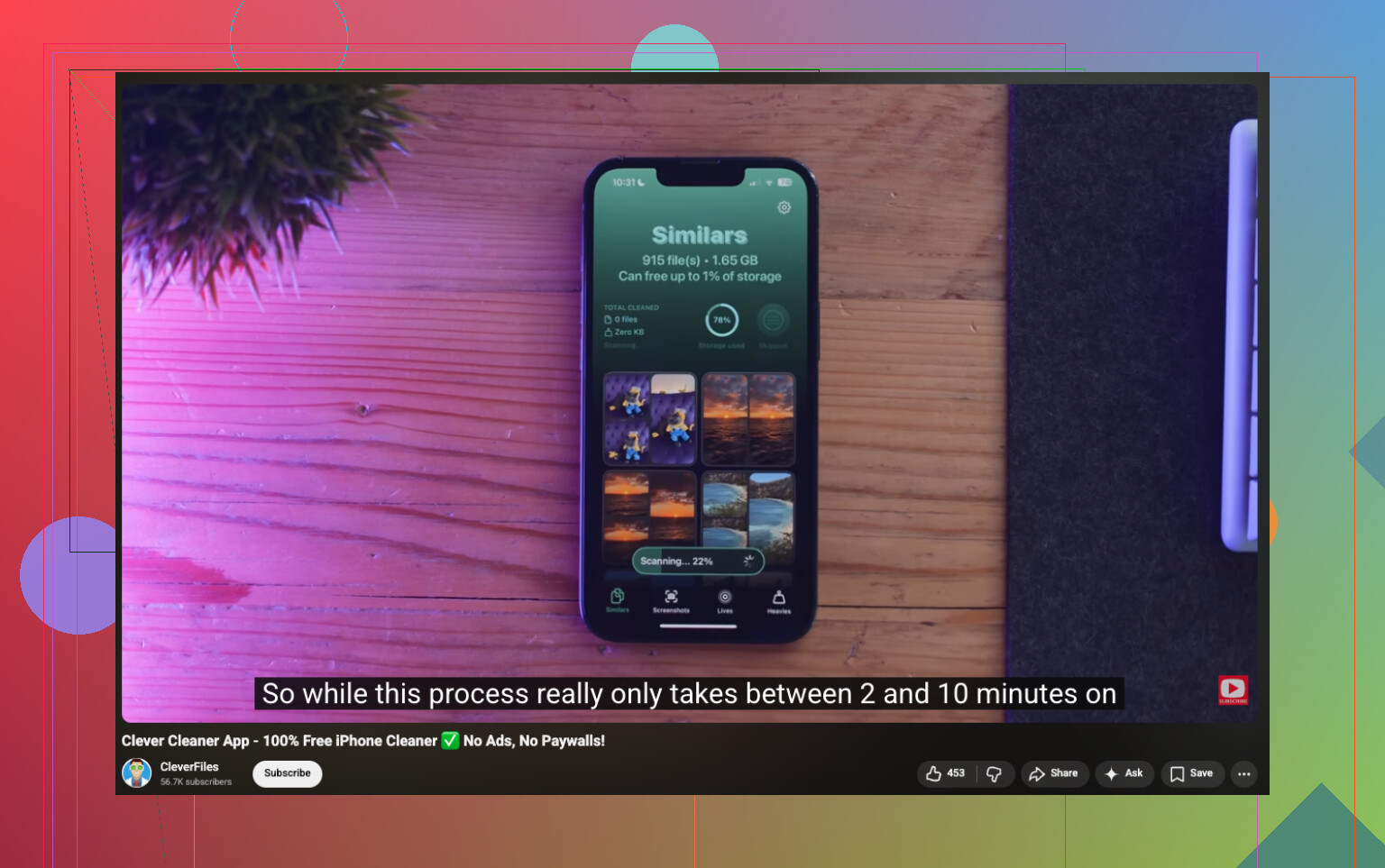
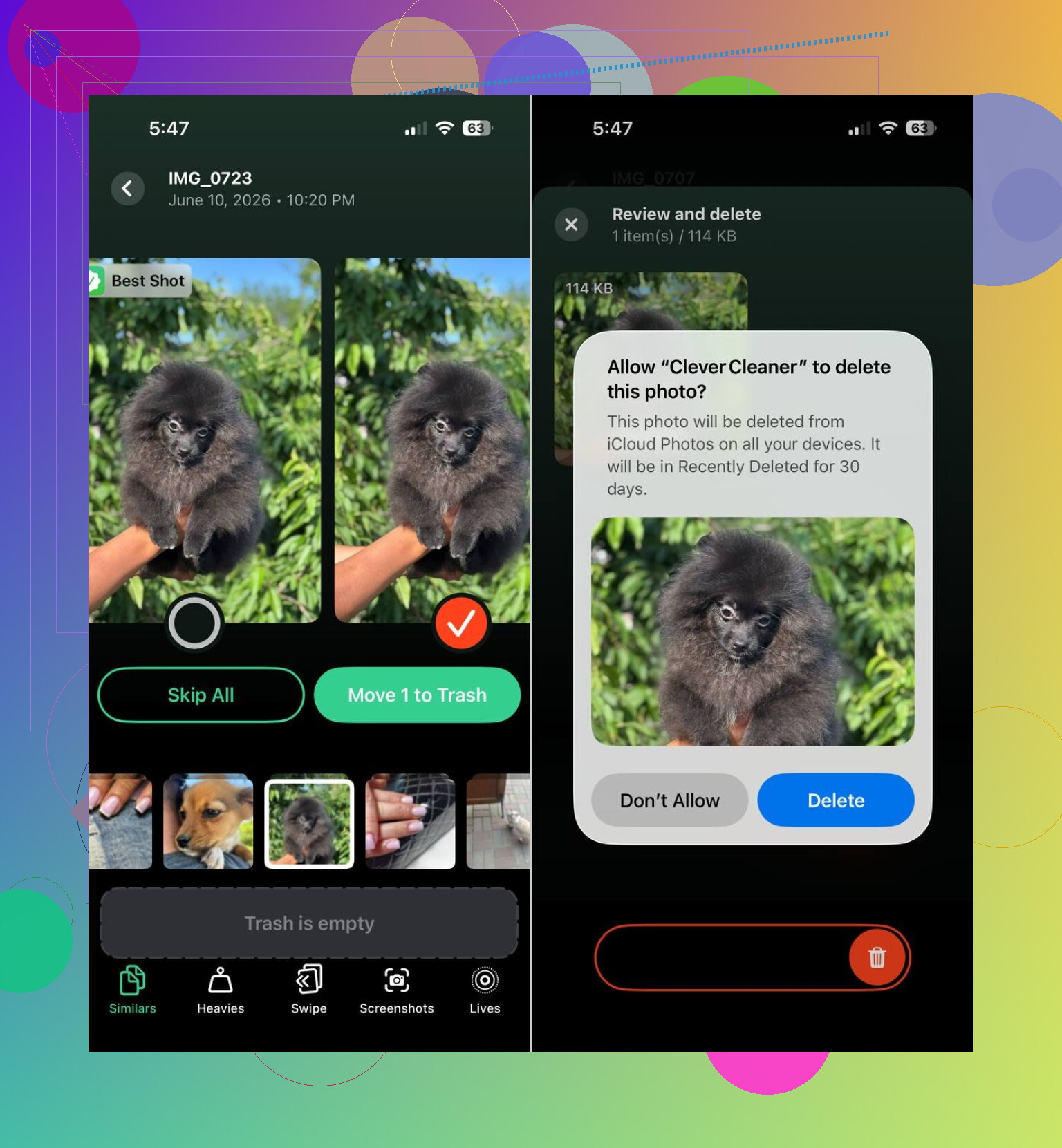
I’d begin with Clever Cleaner. I used it because Photos was the main problem on the phones I checked. It sorts through similar images, rounds up screenshots, surfaces the biggest files, and lets you turn Live Photos into still images so they eat less storage. In user reports I saw, some people cleared about 10 GB. Others got closer to 30 GB after trimming similar photos, screenshots, and Live Photos. Mine was somewhere in the middle, not magic, but enough to matter.
The parts I’d check first:
- Similars, for groups of near-identical shots
- Heavies, for the largest videos and photos
- Screenshots, for easy bulk deletion
- Lives, for shrinking Live Photos into regular ones
One thing I liked, you still review everything before removing it. Nothing gets wiped blindly. I was a bit skeptical at first, same as other people I read, but the suggested picks were better than I expected once I went through them by hand.
After Photos, I’d check apps. Social apps, video apps, and browsers tend to pile up cache files quietly. I’ve had cases where deleting and reinstalling one bloated app freed more space than cleaning out a bunch of photos. Look for downloaded media inside apps, offline files, and Safari website data too.
If the number still keeps climbing and nothing obvious explains it, check System Data. iOS does a bad job here. There is no clean button for it. Most of the time it settles down on its own, but I’ve seen cases where a backup, full reset, and restore was the only fix thta made a real dent.
So if your iPhone storage looks like it filled up out of nowhere, I’d put Photos at the top of the suspect list, app cache next, and System Data after that. I’d do one cleanup pass in Clever Cleaner, then go app by app and check downloads. Every time I chased this problem, the missing space was usually sitting in one of those spots.
I’d look at one thing people skip. Sync loops.
If your storage drops, then fills back up, iCloud Photos, Messages in iCloud, Mail, or a streaming app is often re-downloading stuff. Deleting local files does not help if the phone pulls them back. Check Photos sync status at the bottom of the Photos app. Check Messages settings too. Large attachments sit there forever.
I slightly disagree with @mikeappsreviewer on one part. System Data is not always the main villain. On a lot of phones, the bigger issue is app data marked in a vague way, then iOS shoves it into Other later. Same mess, diffrent label.
What I’d do:
- Turn off Background App Refresh for junk apps.
- Remove offline downloads from Netflix, Spotify, YouTube, Podcasts.
- In Safari, clear History and Website Data.
- In Mail, delete and re-add bloated accounts if local cache is huge.
- Restart after cleanup. iOS sometimes reports storage wrong until reboot.
If Photos is the mess, Clever Cleaner is worth a pass for similar pics and large files. This see how to clean up iPhone storage with Clever Cleaner video shows the flow better than Apple’s menus do.
Last step, if storage still keeps creeping up, do an encrypted backup to a computer, erase the phone, restore. Annoying, but it fixes a lot of stubborn cache bloat.
One thing I’d add to what @mikeappsreviewer and @shizuka said: stop trusting the storage graph too much in real time. iPhone storage numbers can lag, and sometimes stuff you deleted is still sitting in a temp state until iOS finishes indexing, syncing, or purging. So if you delete 8 GB and it only shows 1 GB back, that does not always mean it failed.
A few things I’d check that they didn’t really get into:
-
Files app
Open Files > On My iPhone > Downloads. People forget this exists, and it can hold giant zip files, videos, PDFs, and random junk from Safari. -
Voice Memos
These can get weirdly huge if you ever recorded long meetings or lectures. -
Podcasts
Not just downloaded episodes. Sometimes the app keeps old saved episodes and unplayed downloads forever. Apple Podcasts is sneaky like that. -
GarageBand, iMovie, CapCut, Lightroom, etc
Creative apps leave project files behind even after you think you’re done. Those can eat gigs fast. -
Recently Deleted everywhere
Photos, Files, Notes attachments. Deleting isn’t always deleting. Very Apple of them, lol.
I actually disagree a little with the “just reset it” approach unless storage is truly broken. Full restore helps, sure, but it’s kind of the nuclear option and a pain in the neck. I’d only do that after checking hidden local files and app-specific downloads first.
If Photos is the main offender, then yeah, Clever Cleaner makes sense because it catches similar shots, screenshots, Live Photos, and big files faster than digging around manually. Also found this useful thread for best free iPhone cleaner app recommendations from Reddit users.
My rough order would be: Files app, offline downloads, creative apps, then photo cleanup, then only after that worry about System Data. Half the time “System Data” is just iOS being bad at labeling stuff tbh.
I’d check one thing none of them really leaned on enough: mail attachments and message search indexing. @shizuka is right about sync loops, and @vrijheidsvogel is right that “System Data” is often just mislabeled junk, but I slightly disagree with @mikeappsreviewer putting Photos at the top by default. On a lot of phones, the real creep comes from apps that never fully let go of cached data.
What I’d do differently:
- Settings > Siri & Search and disable search for apps you barely use. Indexing can balloon after lots of deletes.
- Settings > Messages > Keep Messages and switch from Forever if you do not need ancient threads.
- Notes app can hide huge scans, PDFs, and attachments.
- Books app often keeps downloaded audiobooks and PDFs people forget about.
- If you use WhatsApp/Telegram, check their internal storage managers. Those apps can hoard media outside the obvious Photos total.
Also, if you use Optimize iPhone Storage for Photos, remember it helps only when iCloud has room and syncing is healthy. If iCloud is full, the phone may stop optimizing well.
For photo cleanup, Clever Cleaner is decent if your library is the main issue.
Pros
- good at finding similar shots, screenshots, big files
- easier than digging through Apple albums manually
- useful for trimming Live Photo clutter
Cons
- you still need to review results carefully
- less helpful if your problem is app caches, mail, or downloads
- “similar” does not always mean safe to delete
My order: message attachments, mail, chat apps, Notes, Books, then Photos with Clever Cleaner, and only then consider reset/restore. That usually finds the sneaky stuff faster than chasing the storage graph.