I’m trying to move a large number of files from my FTP server directly to Google Drive but I’m not sure what’s the easiest way. I don’t want to download them to my computer first due to storage limitations. What tools or methods can I use to do this efficiently?
Heads Up: Moving Files from Your Computer to Google Drive (the Roundabout Way)
Okay, so here’s the deal—if you’re trying to upload stuff to Google Drive via FTP, it’s not as straightforward as tossing files onto an old-school FTP server. Google Drive just doesn’t speak “FTP.” But! There’s a cheat code: apps that slap an FTP-ish layer on top of Drive. You might want to check out something like CloudMounter (yeah, it’s on the Mac App Store). This doesn’t actually turn Google Drive into a real FTP endpoint, but it does let you mess with files on Google Drive as if they’re sitting on your local hard drive. Say goodbye to that clunky browser upload.
TL;DR How to Get Rolling
- Grab CloudMounter and Fire It Up
- Hit Up the Google Drive Icon: You’ll have to sign in with your Google creds and agree to the usual pile of permissions. No way around that.
- Your Drive Shows Up Like Magic: For Mac, it’ll be in Finder, for Windows, File Explorer. Looks local, feels local.
- Do Your Thing With Any FTP Client: Thanks to the “mount,” you point your FTP tool to this drive like it’s any old folder. Boom.
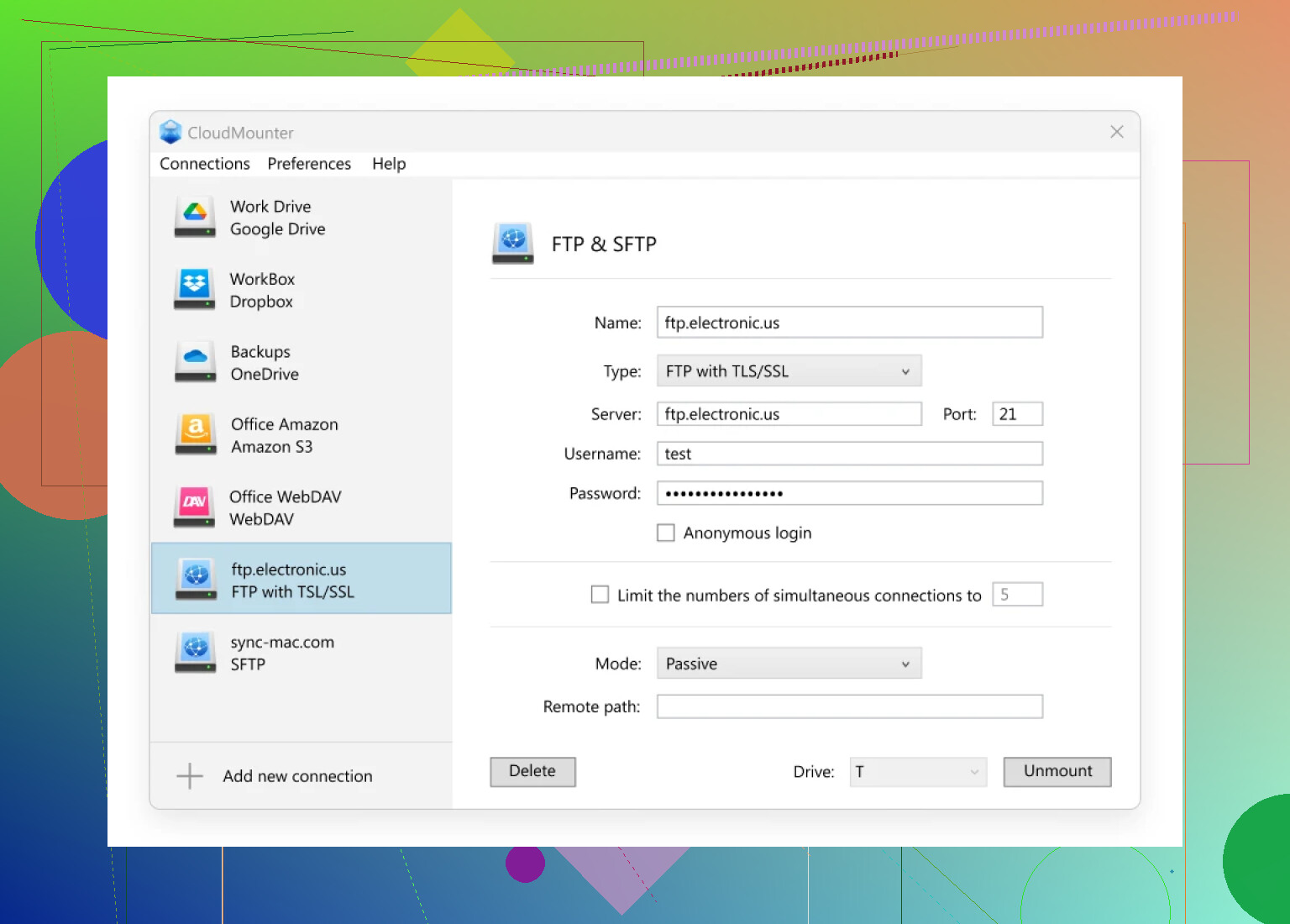
Real Talk: What’s in It for You?
- No more tab-hopping between browser and desktop. Google Drive lives right along your usual folders. Nice.
- Love FileZilla, Cyberduck, or whatever FTP tool you cling to? Doesn’t matter. You can drag and drop directly to the mounted drive.
- Got more than one Google account? CloudMounter can juggle ‘em all at the same time. Cluttered, but efficient.
My Experience (Take It or Leave It):
I literally set up my freelance video backlog this way. I mounted three different Drives—one for work, one for clients, one for personal junk. Drag, drop, organize, repeat. Just wish Google gave us a true FTP option natively—this workaround is as close as we get for now.
Is it perfect? Nope. (Sometimes there’s a delay if Google’s servers are sleepy.) FTP purists might scoff, but honestly, if you’re desperate to ditch the web UI and treat Google Drive like a part of your machine, this does the job well enough.
So in short: No, you can’t go straight FTP-to-Google-Drive. But with CloudMounter (or something similar), you can make your setup act like it. If you’ve found a better workaround, share below—still hunting for that unicorn solution…
Not gonna lie, Mike’s advice with CloudMounter is clever for desktop users, but it kinda sidesteps the main issue: you don’t wanna funnel traffic through your computer at all. CloudMounter helps by making Google Drive feel “local,” but the files still route through YOUR machine. That’s a no-go if you’re tight on drivespace or doing this from a potato laptop.
What you want is straight cloud-to-cloud transfer, FTW. Check out tools like MultCloud or CloudHQ. These services connect your FTP server and Google Drive directly—so the files move on THEIR infrastructure, not yours. No download/upload cycle choking your bandwidth or filling up your SSD. Just sign both services into your MultCloud, set up a transfer job from your FTP directory to the Google Drive folder you want, and hit GO. Depending on your plan you can even schedule, automate, or filter which files to move. (MultCloud has a free tier, but big jobs might need a paid plan—just DON’T trust them with super sensitive data unless you’ve read their policies.)
I ran a similar FTP-to-Drive move last year for a nonprofit with like 68,000 images. CloudMounter worked for a handful, but I caved and went with MultCloud when things got nutty—literally saved us days and a bunch of swearing.
TL;DR: CloudMounter = good for “I wanna drag-and-drop stuff and don’t care about local storage hit.”
MultCloud/CloudHQ = great if you want a TRUE cloud-to-cloud transfer and your own computer is out of the way.
BTW, anyone still waiting on Google to announce FTP support for Drive in 2024… how’s that lottery ticket working out?
Bold take: neither mounting Google Drive locally (sry @mikeappsreviewer) nor ninja-grade cloud-to-cloud upstarts (lookin’ at you, @nachtschatten) are flawless if you care about speed AND privacy. Sure, MultCloud/CloudHQ totally win for not touching your harddrive, but you’re still trusting someone else’s random server with your sweet, unencrypted FTP chaos. CloudMounter rocks if you just wanna feel like GDrive is another folder, but, yeah—the files flow thru YOUR rig.
Here’s what no one says: For max privacy and no “oops, I filled my C: drive” disasters, try rclone. Open-source, free, works on basically any platform, and can move stuff from FTP→Google Drive directly, streaming via YOUR connection but NOT writing whole files locally (unless you want temp space for speed, but symlink magic exists). Setup’s a bit nerdier, but it’s a straight mover—not a cloud-broker, not a mount. Plus: can encrypt in transit if you’re slightly paranoid.
If football stats help: CloudMounter = easiest for desktop, MultCloud = easiest for giant jobs, rclone = king of the sysadmin hill if you wanna own every step (and know what a CLI is). Your storage are belong to you.
Pro tip: whatever method you use, check Google’s transfer quotas… exceeded them once and got locked out for 24hrs. #procrastinationpunished
Hope that adds some flavor instead of the same old shill for paid tools. Cross-check your needs: speed, privacy, budget, technical patience. Curious what you end up using?
Let’s slice through the noise. Cutting out the middleman computer step is what everyone wants here, but the universe doesn’t make it simple. A few clever routes have cropped up. The “cloud-to-cloud” squads like MultCloud/CloudHQ get props for no-local-file drama, but trusting all your FTP downloads to someone else’s backend feels like inviting a vampire across your digital threshold, right? Speed is dope, but it’s still YOUR data that’s detouring through whatever anonymous datacenter.
Now, CloudMounter’s a nifty trick if you want Google Drive in your Finder/File Explorer looking like it’s just another folder. That’s comfort. Here’s the breakdown for CloudMounter:
Pros:
- Files “feel” local—Finder or Explorer, take your pick.
- Can juggle multiple Drives/accounts—neat if you’re living the digital nomad dream.
- Plays nice with any FTP/SFTP client, so drag-and-drop keeps things old-school simple.
Cons:
- You still eat your own bandwidth for every file. If you’re on slow or metered home internet, that’s a drag.
- Transfers do pass through your hardware. Yes, technically it streams, but storage-constrained folks might hit a speed bump if the temp cache balloons.
Comparing to rclone (which the sysadmin contingent swears by—hey, respect for rolling your own), the CLI scares plenty off, but there’s zero bullshit: no commercial middlemen, direct point-to-point traffic, total transparency.
For the tab-hoppers who like browser-based dashboards (wave at MultCloud, CloudHQ), I get the appeal. It’s as lazy as it comes. But if privacy and speed fight for your loyalty, where you land depends: rclone for tech-heads, CloudMounter for those craving a desktop-native vibe, browser-based for set-and-forget minimalists.
Bottom line: No “perfect” method if you chase privacy, speed, and zero-latency. CloudMounter is excellent if you dig that local feeling and already shelled out for the Mac/Win version. Just don’t get ambushed by bandwidth limits or Google’s quirks, and you’ll be shuffling files without filling up your own drive (well, mostly). Crossing fingers Google someday just adds FTP, but until then, we make do in the wild west.