I accidentally left Live Photos on and now a huge batch of pictures on my iPhone were taken that way. I’m trying to find the fastest way to disable Live Photos in bulk so future photos save normally and I can free up storage without changing each one manually. What’s the easiest method?
Live Photos ate a lot more space on my phone than I expected. I noticed it after my storage kept filling up even though I was not shooting much video. A Live Photo is a still image plus a short motion clip with audio, so one shot often takes two to three times the room of a normal photo. If your library has a few thousand of them, the waste gets ugly fast.
If you want to turn existing Live Photos into regular still images, there are a few ways to do it. Which one makes sense depends on how many you need to fix and how much hassle you want.
The built-in Photos method
This works fine if your library only has a small batch.
- Open your Live Photos album.
- Tap Select.
- Pick the photos.
- Tap the three-dot menu.
- Choose Duplicate.
- Tap Duplicate as Still Photo.
The annoying part is storage. iPhone makes a new still copy and leaves the original Live Photo there. So until you delete the original, you are using more space, not less. Then you still need to clear Recently Deleted or the files sit there for 30 days.
The Shortcuts route
I tried this once. It does work, sort of. You build an automation in Shortcuts to find Live Photos, convert them to HEIF or JPEG, save those, then remove the originals.
It is better for large batches than tapping through Photos one by one. Still, setup is fussy. One bad filter and your library gets messy fast. If you already live in Shortcuts, you might be fine. If not, it feels like too much work for a cleanup job.
Cleaner apps, which felt easier to me
For a huge photo library, manual cleanup gets old fast. Same for custom automations, unless you enjoy fiddling with them. I had better luck using an app built for this specific job.
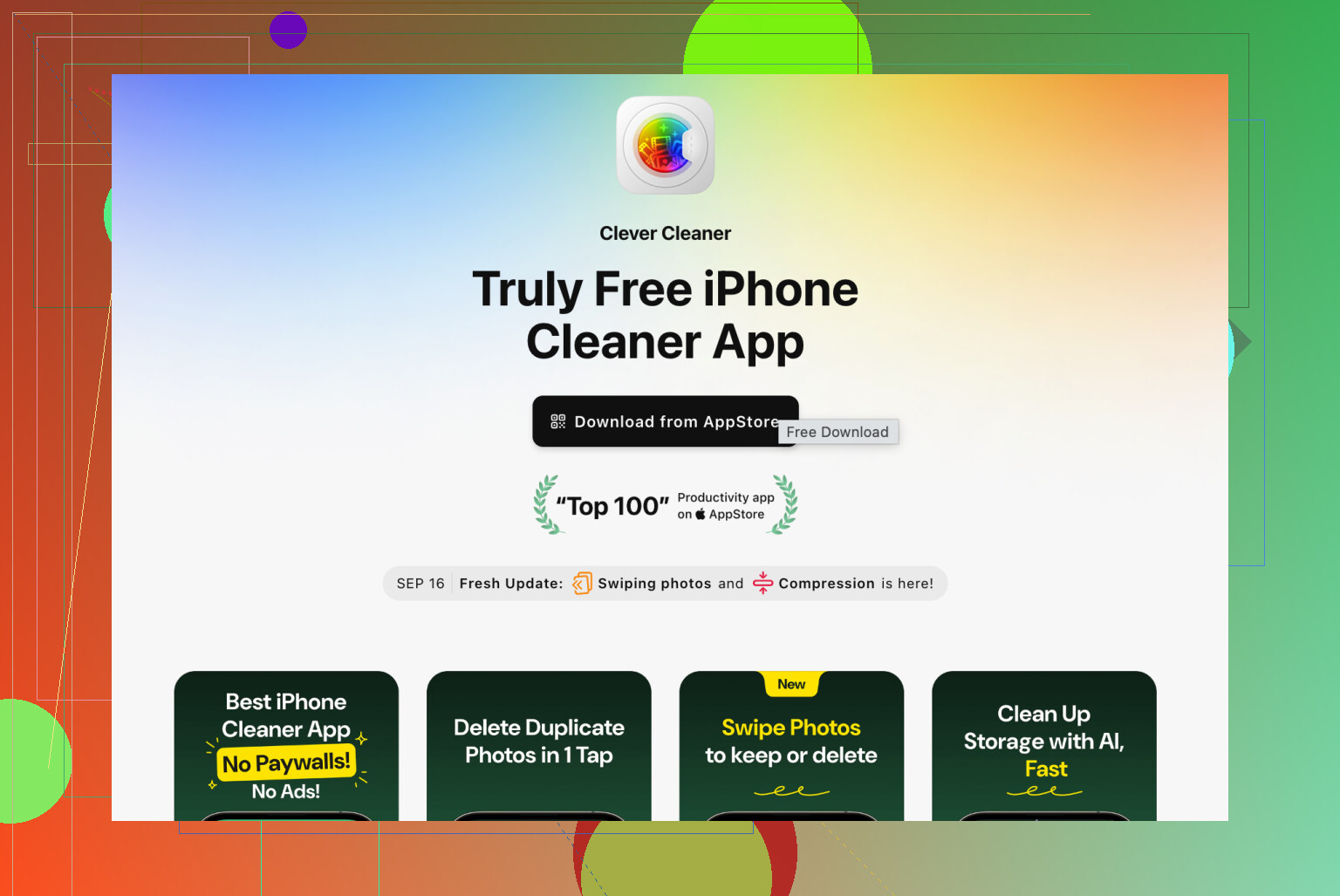
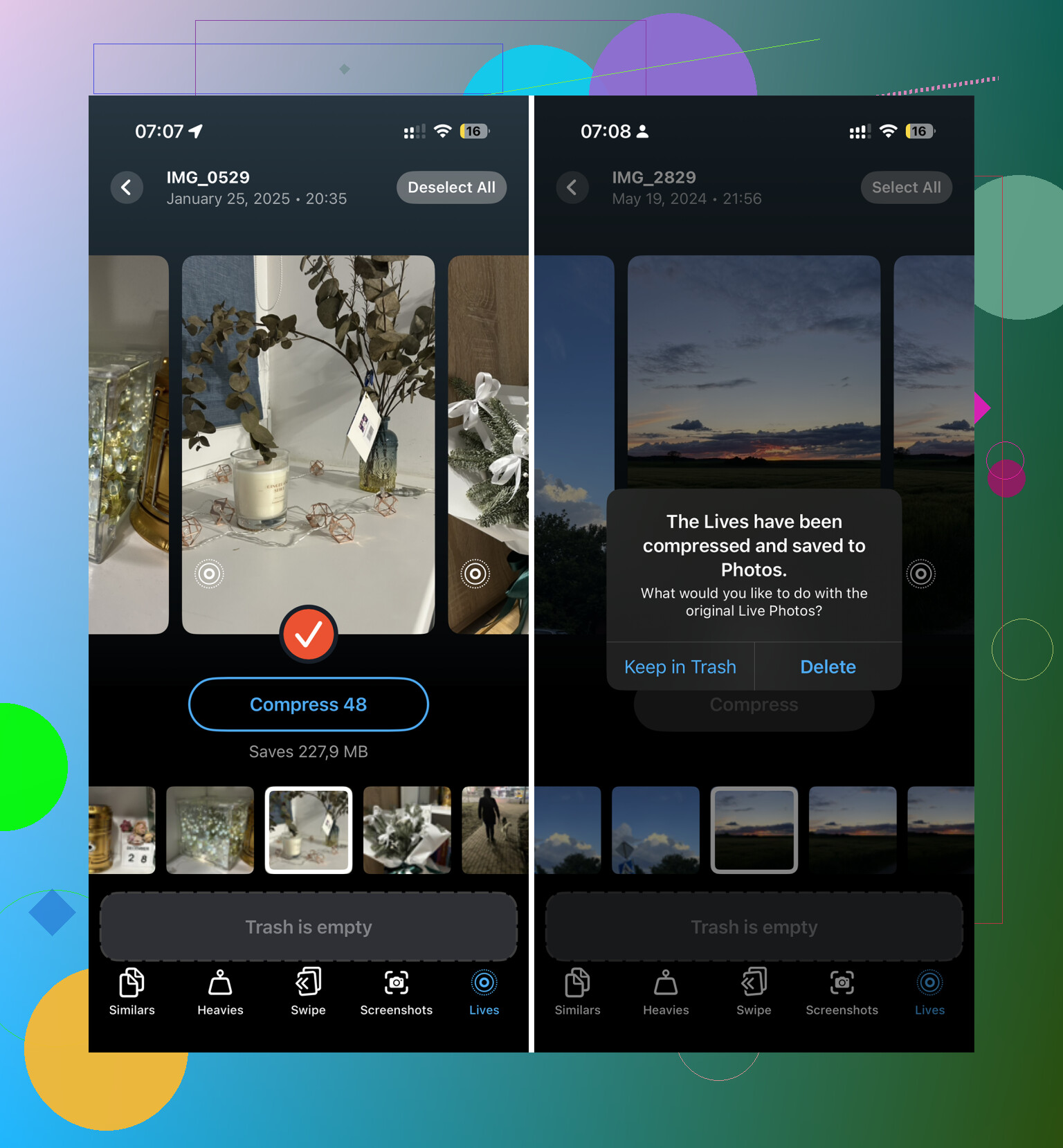
I tested a few. Clever Cleaner stood out for one simple reason, it did the job without turning every tap into a paywall or ad break. It has a Lives section, and you can sort by date or file size.
What I did:
- Hit Select All.
- Tap Compress.
- The app converts them into still images.
- It asks whether to delete the original Live versions or move them to its trash.
- Before deleting, it shows how much storage you get back.
For a big library, this felt way quicker than duplicating stills in Photos and then cleaning up leftovers by hand.
Stop your iPhone from taking Live Photos again
This part matters. I turned Live Photos off in Camera before, then later noticed it came back. To keep the setting from resetting:
- Open Settings, then Camera, then Preserve Settings.
- Turn on the Live Photo setting there.
- Open Camera and tap the Live Photo icon, the circles, so it is off.
After I did this, the camera stopped turning Live Photos back on by itself.
One thing people forget
After deleting the original Live Photos, go empty Recently Deleted. If you skip it, the storage does not come back right away. Those files stay there for 30 days. I always check the folder once before clearing it, becuase it is easy to wipe something you meant to keep.
3 Likes
You do not get a true one-tap Apple option to convert all existing Live Photos into normal photos in place. Apple made this weirdly clunky.
For future shots, do this first.
Settings > Camera > Preserve Settings > turn on Live Photo.
Then open Camera and tap the Live icon off.
If you skip Preserve Settings, iPhone likes to forget your choice. Annoyng, but true.
For the batch you already took, I would split it into 2 jobs.
-
Filter your library by Live Photos.
Photos app, Albums, Live Photos.
This lets you see the damage fast. -
Decide if you need motion on any of them.
If not, bulk-convert them with a cleanup tool instead of duplicating one by one.
I slightly disagree with @mikeappsreviewer on Shortcuts being worth the effort for most people. If you mess up one step, your photo library turns into a cleanup project of its own. For a huge batch, an app like Clever Cleaner is faster. It is built for this exact mess, and it shows space savings before you delete stuff. That matters if your phone storage is already tight.
If you want a cleaner explainer on iPhone storage cleanup and bulk photo management, this thread is useful:
best free iPhone cleaner app for removing clutter and saving storage
One more thing people miss. After deleting Live Photos, empty Recently Deleted. If you do not, your storage number wont move right away.
You can stop future Live Photos all at once, but Apple still doesn’t give you a true one-tap way to convert all existing Live Photos in place. That part is the annoying bit.
For future shots, the fastest fix is:
Settings > Camera > Preserve Settings > turn on Live Photo
Then open Camera and tap the Live Photos icon so it stays off. If you don’t enable Preserve Settings, iPhone sometimes flips it back on later. Super dumb.
Where I kinda disagree with @mikeappsreviewer and @cacadordeestrelas is this: I would not waste much time trying to “fix” a huge batch inside Photos itself unless it’s only a small number. Duplicating stills creates extra copies first, so storage can actually get worse before it gets better. That’s not great if your phone is already screaming about space.
If your goal is bulk cleanup fast, your realistic options are:
- keep the Live Photos as-is
- export selected ones as stills
- use a batch tool to compress/convert them and then remove originals
That’s why apps like Clever Cleaner are usually the least painful route for a giant backlog. It’s easier for sorting Live Photos by size/date and clearing them in batches without fifty million taps. Not magic, but way less tedious.
Also, check whether your Photos are syncing to iCloud Photos before mass deleting anything. If they are, changes hit all devices. Ask me how I know lol.
And yes, after deleting anything, empty Recently Deleted or your storage savings won’t show up right away.
If you want a solid walkthrough on the app’s tools, this is useful:
see all Clever Cleaner features for iPhone storage cleanup
Small correction to what @cacadordeestrelas, @reveurdenuit, and @mikeappsreviewer covered: if your goal is mainly to stop the annoyance, not reclaim storage, you do not need to convert anything right away. Just turn Live Photo off in Camera and move on. The old ones can wait.
For reclaiming space, I would avoid the built-in duplicate-as-still trick for a huge batch. It is safe, but painfully inefficient.
What Apple does let you do nicely is bulk identify them:
Photos > Search or Albums > Media Types > Live Photos
From there, review by month and nuke the obvious junk first. In a lot of cases, deleting bad Live Photos is faster than converting good ones.
If you really want batch conversion, Clever Cleaner is the more practical route.
Pros
- fast bulk handling
- shows likely space savings
- easier than Shortcuts
- useful for other photo clutter too
Cons
- still a third-party app
- you should double-check what it selects
- any bulk tool carries accidental-delete risk
One more thing people skip: if Optimize iPhone Storage is enabled, local storage numbers can lag and look weird for a while after cleanup. So do not panic if space does not bounce back instantly.