I lost my Samsung Smart TV remote and need to control the TV with my iPad. I tried finding the right settings and apps, but I’m not sure how to connect them or if my TV model supports it. Looking for help using an iPad as a remote for a Samsung Smart TV.
Yep. I used my iPad as a remote for a Samsung smart TV, and the main thing was simple. The iPad and the TV had to be on the same Wi-Fi network. Once I fixed that, the rest took about a minute.
If you want options, these are the ones worth trying.
1) TVRem – Universal TV Remote
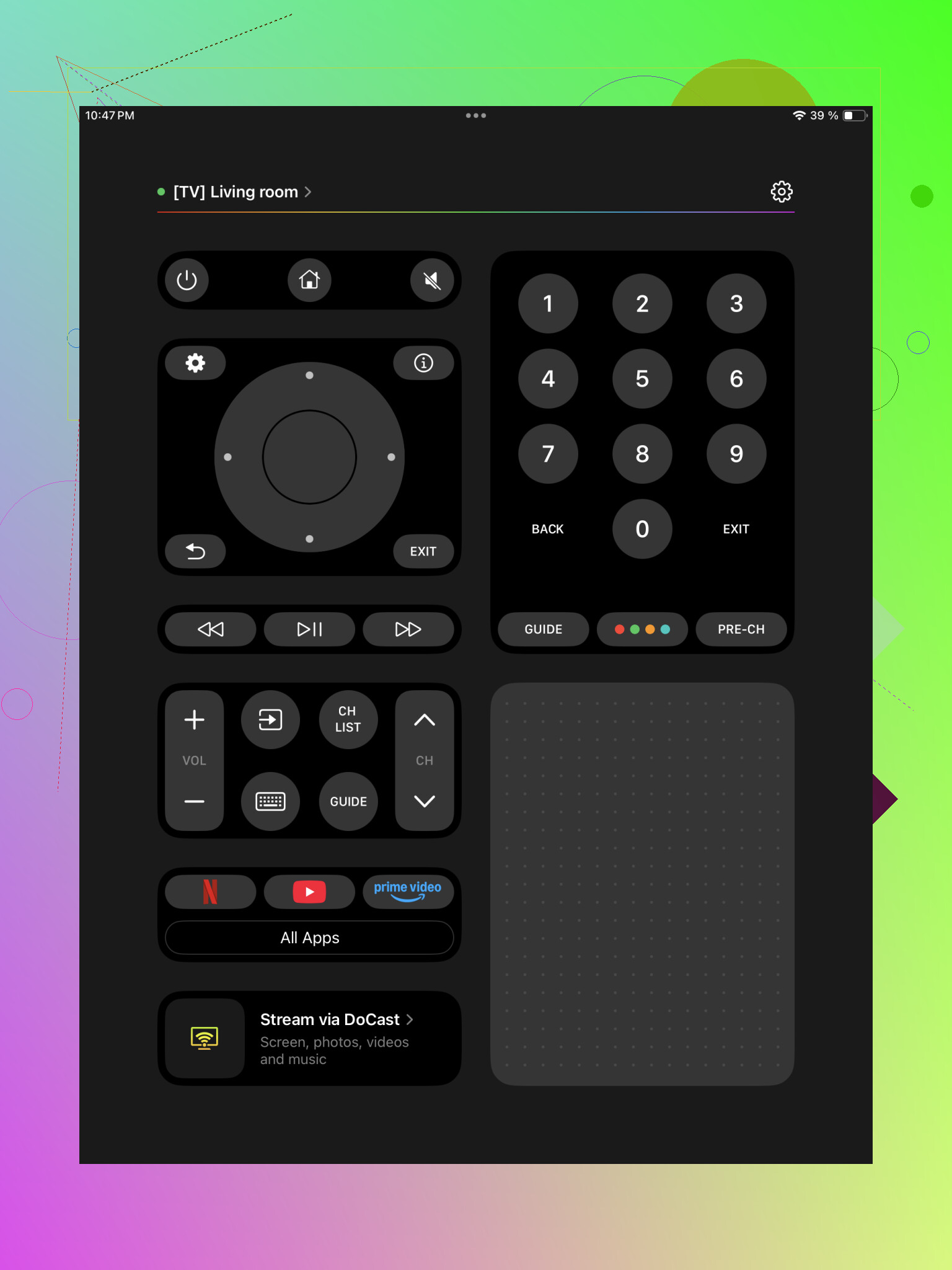
I started here first. It felt like the least annoying setup out of the bunch. You install it, open it, let it scan your network, tap your TV, then approve the pairing request on the Samsung screen. Done.
After pairing, I got the usual stuff, volume, channels, playback, navigation, keyboard input, and a touchpad. It also has quick app buttons, which saved me a few taps. The part I liked most was support for other devices too. It works with Samsung, LG, Roku, Fire TV, Android TV, Google TV, and Apple TV. So if your living room setup is a mess like mine was, you keep one app instead of juggling four.
2) Universal Remote Smart TV
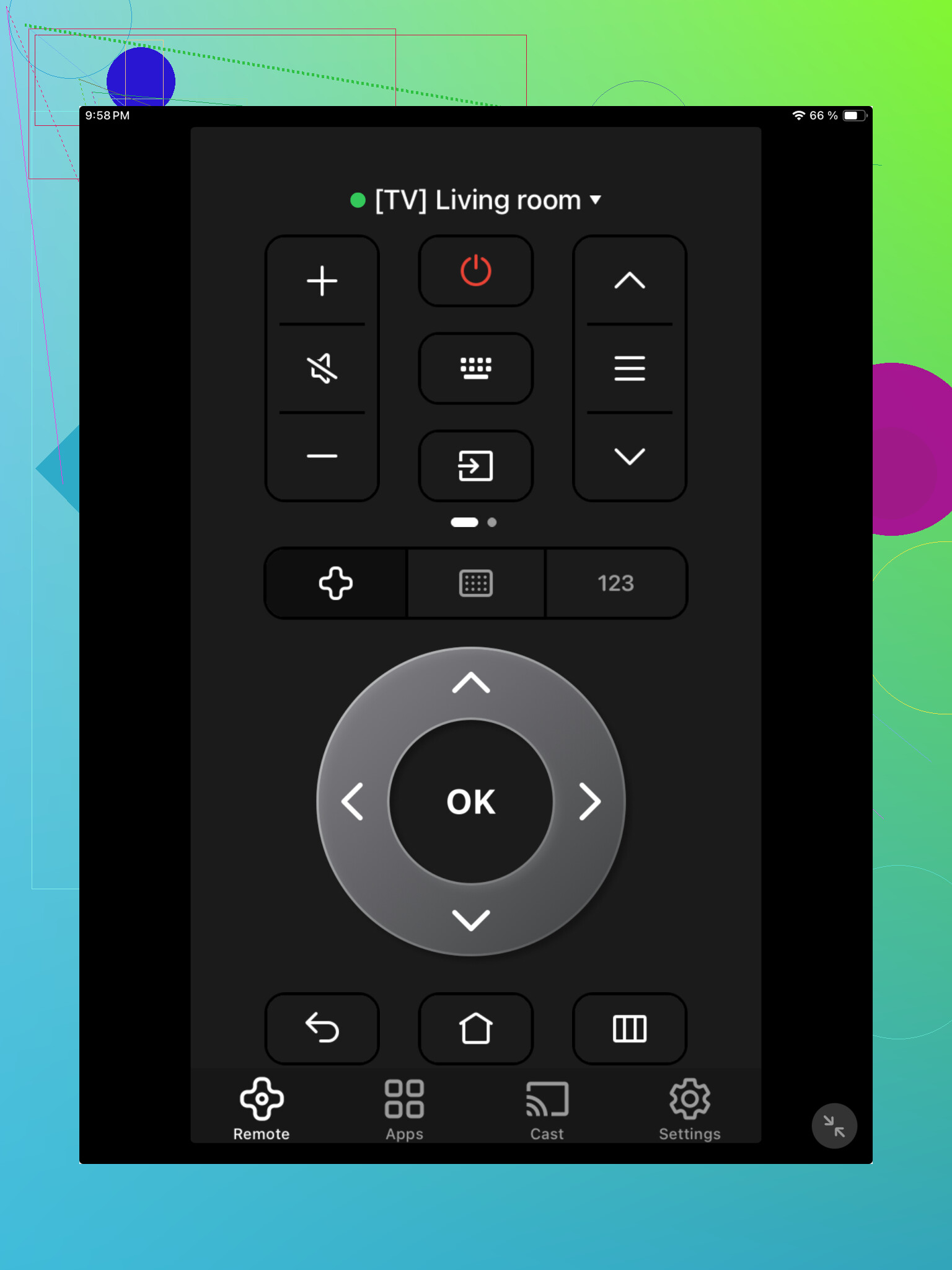
This one follows the same pattern. Put both devices on the same Wi-Fi, launch the app, wait for it to find the TV, then pick your Samsung set from the list. I saw standard controls here, playback buttons, and menu navigation. Nothing fancy, but it covers the basics fine.
3) Samsung Smart TV Remote Plus
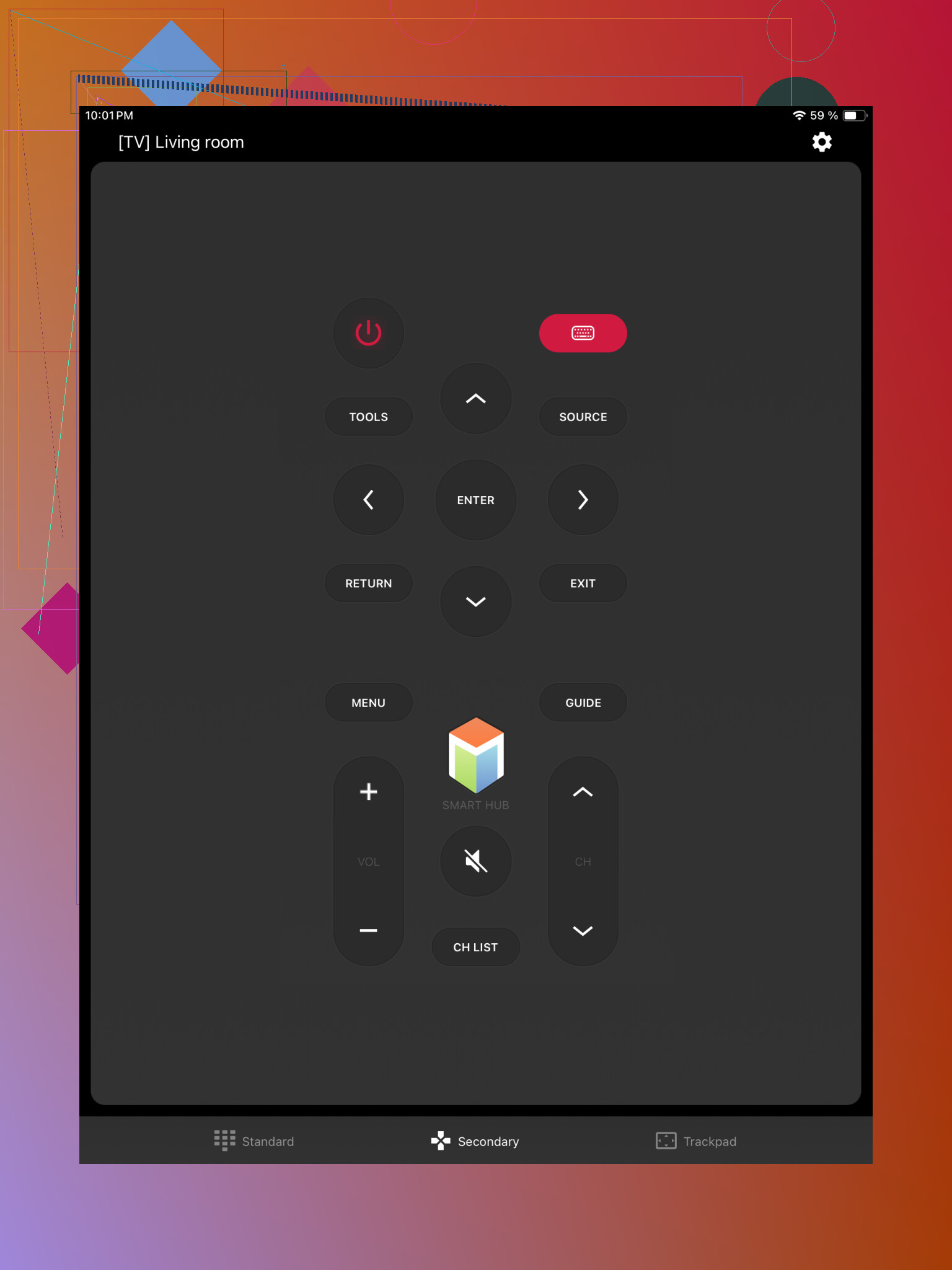
This app stays in its lane and focuses on Samsung TVs. If you don't care about other brands, this route makes sense. The layout looked closer to a normal Samsung remote, so I didn't have to poke around trying to find mute or input. Setup was easy from what I saw.
4) Remote for Samsung TV Smart
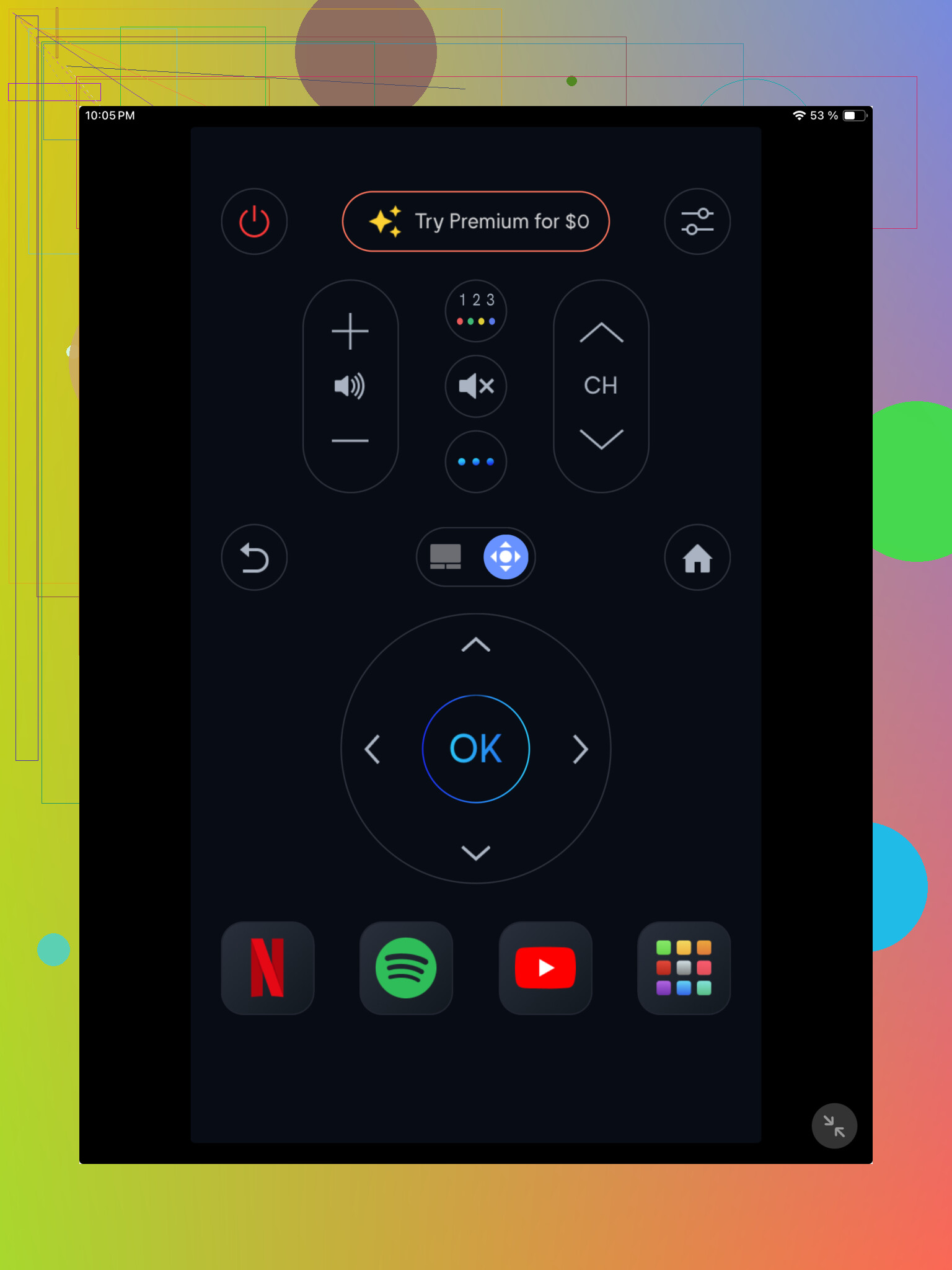
Another Samsung-only pick. It handles the common stuff, volume, channel changes, directional controls, and media playback. If your TV is already on the same network as the iPad, pairing is quick. Mine took less than a minute, give or take.
If I were doing this from scratch, I'd begin with TVRem. It was the smoothest one for me, and I liked not being boxed into Samsung only. If you swap TVs later, or you've got a Roku in one room and a Fire TV in another, you won't need to start over with a different remote app.
First, check if your Samsung TV supports network remote control. Most Samsung Smart TVs from around 2016 and newer do. Older sets are hit or miss.
Fast test.
- On the TV, open Settings, General, Network.
- Make sure the TV is connected to Wi-Fi.
- On your iPad, connect to the same Wi-Fi.
- Install Samsung SmartThings on the iPad.
I’d start with SmartThings before the third-party apps @mikeappsreviewer listed. Reason is simple. It’s Samsung’s own app, so pairing tends to be less flaky on Samsung TVs.
Once SmartThings is open:
- Tap Devices.
- Add your TV.
- Enter the PIN if the TV shows one.
- Open the remote tab.
If your TV does not appear, two common reasons:
- The TV is too old for IP remote support.
- “Mobile Device Manager” or external device access is off in TV settings.
One more thing people miss. If the TV is off, the iPad app often won’t wake it unless Wake on LAN is supported and enabled. So if the TV is already off and you have no remote, you might need the power button on the TV itself first. Kinda annoyng, but yep.
If SmartThings fails, then try one of the remote apps mentioned above. If you post your Samsung TV model number, it’s easier to say if your set works with iPad control or not.
One extra angle nobody mentioned much: if your Samsung is an older model or the network pairing keeps failing, you can still use the iPad to control it indirectly through HDMI-CEC.
If you have an Apple TV box, Roku, Fire TV, or even some soundbars connected to the Samsung, turning on Anynet+ on the TV can let that device handle some TV controls. Then your iPad controls the Apple TV or Roku app, and that device passes volume/navigation/input behavior back to the TV. It’s a workaround, but honestly sometimes it’s less flaky than direct Samsung pairing.
Also, I slightly disagree with starting with random third-party remote apps unless SmartThings already failed. A lot of those apps work, sure, but some are ad traps or lock basic buttons behind a subcription, which is annoying as hell when all you want is volume down.
A few things to check that save time:
- If the TV has Ethernet plugged in and your iPad is on guest Wi-Fi, they may look connected but still not see each other
- Disable any VPN on the iPad
- Restart the router if the TV never appears
- Some hotel/apartment Wi-Fi setups block device-to-device control
If you can’t even get to menus because the TV is stuck somewhere weird, try a USB keyboard. Seriously. On some Samsung TVs, a basic USB keyboard lets you navigate enough to reconnect Wi-Fi or enable device access. Kinda janky, but it works more often than people think.
So yeah, besides what @mikeappsreviewer and @vrijheidsvogel said, I’d test:
- Same network but no VPN
- Anynet+ enabled
- USB keyboard fallback
- Then SmartThings or one remote app
Post the exact TV model if you want a more exact yes/no on iPad support.
Model number matters more than people think. I slightly disagree with the “just try apps first” approach from @mikeappsreviewer and part of what @vrijheidsvogel mentioned, because if your Samsung is pre-2016, you can waste 20 minutes testing apps that were never going to pair.
Quick reality check:
- 2016+ Samsung Smart TVs usually work with iPad control over Wi-Fi
- Older Samsung TVs may only support Samsung’s old app ecosystem, or none at all
- If the TV is offline right now, the iPad cannot magically discover it
A couple of methods nobody really spelled out:
- Use the physical TV controls
Most Samsung sets have a tiny joystick/button under the center logo or near the lower right edge. You can use that to:
- open menu
- reconnect Wi-Fi
- switch inputs
- accept pairing prompts later
-
Try Control Center only if you use Apple TV hardware
If your “Samsung Smart TV” setup includes an Apple TV box, the iPad can control that from Control Center, and HDMI-CEC may handle some TV functions. Not full Samsung control, but enough for playback and navigation. -
Check whether your TV is in a blocked network state
Even on the same Wi-Fi, device isolation can stop discovery. Common with:
- mesh guest networks
- dorm/apartment Wi-Fi
- carrier routers with “client isolation”
About ':
Pros
- can improve readability if you want one app option discussed clearly
- useful if it supports broad TV brands
- may have a simpler layout than Samsung’s app
Cons
- third-party remote apps often gate basic controls behind ads or subscriptions
- privacy can be worse than official apps
- pairing reliability varies a lot by Samsung model
So my order would be:
- Find TV model
- Use TV’s physical button to confirm network
- Test official Samsung control path
- Only then try ’ or other third-party remotes
@cacadordeestrelas had a good point about USB keyboard fallback too. Weirdly effective on older Samsungs.