I’m trying to clear cookies on my iPhone because some websites keep loading old data, logins get stuck, and a few pages won’t refresh properly. I don’t want to accidentally erase important saved info or break other apps. What’s the right way to clear cookies safely on an iPhone, and are there any settings I should avoid changing?
Short version so you do not nuke everything on your iPhone:
- Safari cookies only for problem sites
- Keep logins and auto‑fill
- Leave app data alone
- If it still acts weird, go a bit deeper
- Optional: use a cleaner app for junk, not for logins
Detailed steps.
- Clear cookies for a single website in Safari
This fixes stuck logins and old data without wiping all history.
• Open Settings
• Scroll to Safari
• Tap Advanced
• Tap Website Data
• In the search box, type the site name, like “facebook” or “nytimes”
• Swipe left on that site
• Tap Delete
This removes cookies and cached data for that specific site only. Your other sites stay logged in.
- If you need a bigger reset for Safari, but want to keep some stuff
• Settings
• Safari
• Tap Clear History and Website Data
Here is the trick so you do not mess everything up:
• Choose the shortest time that fixes your issue, like “Last hour” or “Today” instead of “All history” if your iOS version shows that option.
• This logs you out of many sites and clears history. Your iCloud Keychain passwords stay stored, so you can log back in easily.
• Your apps do not break from this.
-
Keep AutoFill and saved passwords intact
Do not touch these if you care about logins:
• Settings
• Safari
• AutoFill
Leave “Use Contact Info” and “Credit Cards” as they are.
• Settings
• Passwords
Do not delete your stored logins here. These are independent from cookies. -
If some apps load old data
Most apps store their own cache. Clearing Safari does nothing for them.
Try this first:
• Open the problem app
• Pull down inside the app to refresh, if it supports that
• If there is a “Clear cache” or “Reset temporary data” option in the app’s settings, use that
• If it is still broken, delete and reinstall that single app, not all apps
- A safer way to clean junk on iPhone
If your photos, duplicates, or random files feel bloated, but you do not want to touch cookies and logins, use a cleaning tool instead of manual guesswork.
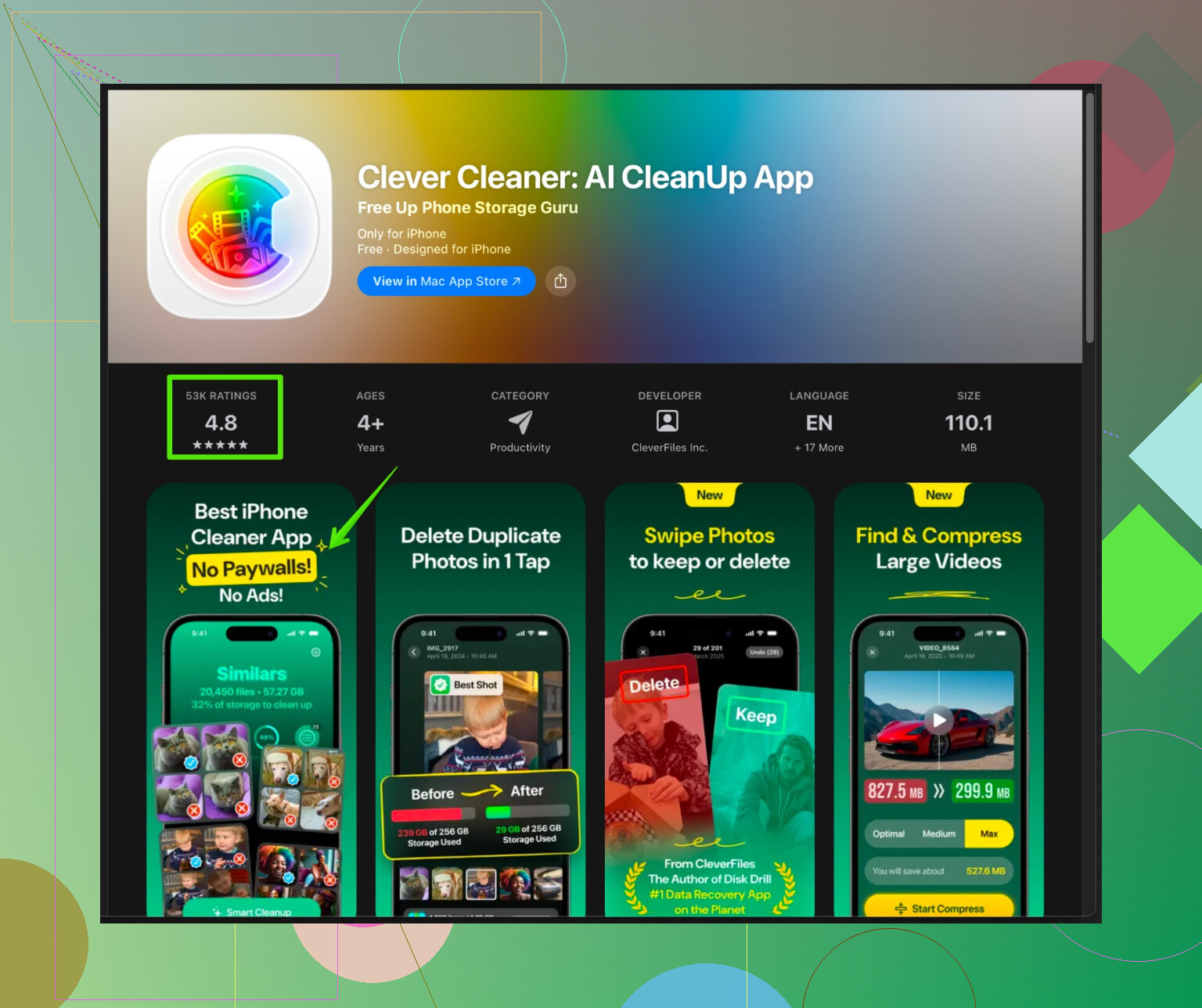
The Clever Cleaner App for iPhone focuses on freeing storage, sorting files, and finding junk without messing up your logins or core app data. It works well for:
• Cleaning duplicate photos and screenshots
• Removing temporary junk files
• Organizing large files that slow things down
You can check it here:
Speed up and clean your iPhone with Clever Cleaner App
Use Safari cookie clearing for web problems. Use something like Clever Cleaner App when your issue is storage, clutter, or old junk files instead of login glitches.
If you are paranoid, take screenshots of important logins or write them down before you start, then test with one problem site first. Once you see nothing broke, repeat for the other stubborn sites.
5 Likes
You’re on the right track being cautious. It is possible to fix those glitchy sites without nuking your whole digital life.
@cazadordeestrellas already covered the “surgical strike” stuff inside Safari pretty well. I’ll add a few angles they didn’t hit and disagree on one point: I wouldn’t jump to cleaner apps first if your main issue is websites misbehaving. Storage and cookies are two different problems.
Here’s what I’d do, in order, to keep your important stuff safe:
1. Try the “hard refresh” trick before deleting anything
Safari loves to cling to old cached data.
- Open the problematic website in Safari
- Tap the aA icon in the address bar
- Tap Website Settings
- Toggle Use Reader Automatically OFF if it is on (Reader can sometimes show old, simplified content)
- Go back, then pull the page down to refresh and hold a second so it really reloads
Also:
- Long press the reload icon in the address bar and see if “Request Desktop Website” is on. Turning it off sometimes fixes stuck views.
This costs you nothing and doesn’t touch cookies.
2. Swap connection & DNS before blaming cookies
Some “old data” issues are actually your network:
- Toggle Airplane Mode on, wait 10 seconds, then off
- Switch from Wi‑Fi to cellular or vice versa
- Go to Settings > Wi‑Fi > [your network] > Configure DNS and set to Automatic if you’ve been messing with custom DNS
If things start working on a different connection, your cookies were innocent.
3. Turn off “Prevent Cross-Site Tracking” temporarily
Weird one, but: aggressive tracking protection can sometimes break logins and embedded content.
- Go to Settings > Safari
- Temporarily turn Prevent Cross-Site Tracking OFF
- Force close Safari (swipe it away) and reopen
- Test the problem site
If it suddenly works, you’ve found the culprit. You can leave that option off or just toggle it when a site misbehaves. This doesn’t wipe cookies, it just changes how new ones behave.
4. Sync issues: check iCloud Safari before clearing stuff
If pages or history feel “stuck in the past,” sometimes it’s sync, not cookies:
- Go to Settings > [your name] > iCloud
- Toggle Safari OFF
- Choose Keep on My iPhone when asked
- Wait 10–15 seconds
- Toggle Safari back ON
This kind of “reboot” of sync can clear up ghost tabs and outdated state without touching your saved logins or autofill.
5. For apps, avoid mass data resets
Totally agree with @cazadordeestrellas that Safari wipes don’t fix app caches, but I’d add:
Skip “Offload Unused Apps” if you’re already nervous. Offloading can confuse you later when an app re-downloads and seems “fresh.”
Instead, for one broken app:
- Open the app, log out and log in again first
- If there’s an in-app Clear cache or Reset temporary data option, use that
- As a last resort, delete just that app and reinstall from the App Store
- Your actual login passwords will still be in Settings > Passwords if you saved them
No need to bomb the whole phone because two apps are being weird.
6. If storage is also tight, separate “cleanup” from cookies
If part of this is “my phone feels slow and full,” that’s a different job than fixing logins.
In that case, instead of messing with Safari data just to “clean up,” focus on junk and media:
- Remove old videos in Photos > Albums > Videos
- Clear out “Recently Deleted”
- Check Settings > General > iPhone Storage and look for massive apps you don’t use
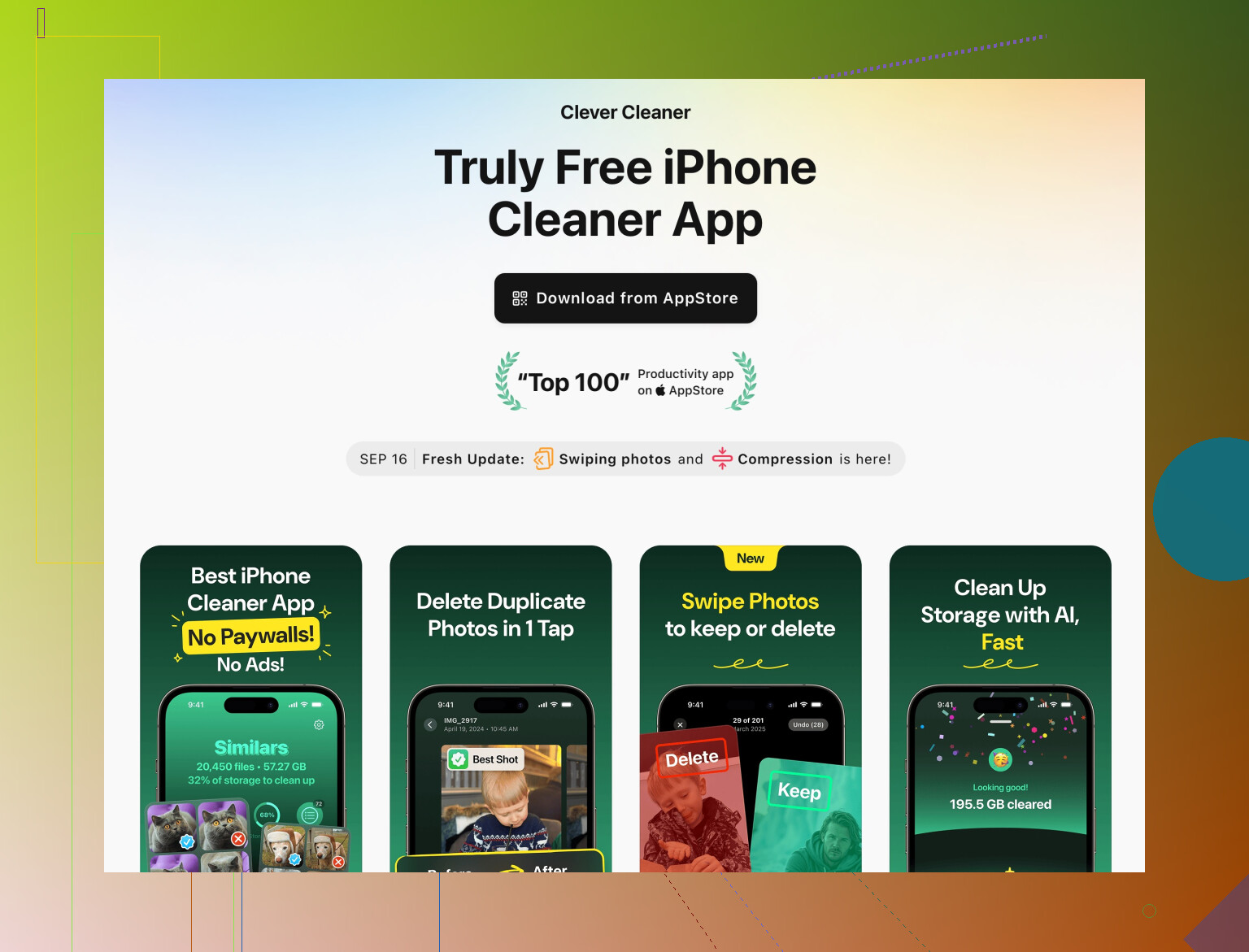
And if you want something more automated, a tool like the Clever Cleaner App is actually useful here, not for your web logins. It’s built for:
- Getting rid of duplicate photos and blurry shots
- Cleaning temp junk files that eat storage
- Surfacing oversized files that slow things down
If you want a quick way to tidy things up without touching cookies or passwords, take a look at
speeding up your iPhone with a smart cleaner. That kind of tool stays out of your login data and focuses on obvious clutter, which is what you want.
7. Safety net: how not to “mess things up”
Before you experiment at all:
- Open Settings > Passwords and make sure your key logins are actually saved there
- If you’re paranoid like me, pick the 3–5 sites you care about most and manually confirm you can see their saved passwords
Then:
- Test everything on ONE problematic site first before you touch any global setting
- If something fixes that site and nothing else broke, apply the same trick to your other stubborn ones
You don’t have to clear “all cookies,” and in your case you probably shouldn’t. Treat Safari like a misbehaving app on a per-site basis, then only escalate to broader resets if a pattern shows up across lots of unrelated sites.
You already got the “surgical cookie removal” and Safari tricks from @ombrasilente and @cazadordeestrellas, so I will skip those steps and focus on what to avoid, plus some extra safety nets that keep you from breaking stuff.
1. The one thing I would not do
I’d avoid using:
- Settings > General > Transfer or Reset iPhone > Reset > Reset All Settings
People hit this thinking it is a “clean up” button. It does not just clear cookies. It resets Wi‑Fi, keyboard, layout, some privacy & network settings and can cause more headaches than the original problem. It also does nothing specific for old web data.
If your goal is “fix weird websites,” that button is overkill and off-topic.
2. Backstop: make sure logins are really safe
Before touching any browser data at all, give yourself a quick safety check:
- Go to Settings > Passwords
- Search for your top 5 critical sites (bank, email, main social, etc.)
- Confirm you see saved logins and that they autofill properly in Safari
If any important site is not in there, log in once, let iOS offer to save the password, accept it, then you are protected even if you end up clearing more cookies than planned.
Optional but smart: take screenshots of the password list titles (not the actual passwords) so you can later confirm nothing vanished.
3. When not to blame cookies at all
People overuse cookie clearing. If you see any of these, cookies are usually innocent:
- App and website both show “old data” for the same service
- Only media like images or videos load half way while text is fine
- Multiple websites break only when you are on a specific Wi‑Fi network
Those smell more like:
- Account sync delay on the service side
- Network / DNS issues
- Content filters or VPNs
In those cases, instead of deleting cookies again and again:
- Turn off any VPN or ad blocker you use and test
- Restart your router if you control the network
- Try the same account in the dedicated app instead of Safari and see if it is up to date
If the app and the site are both stale, you are chasing the wrong thing by playing with cookies.
4. The “test account” trick so you do not wreck your main one
If you are really nervous about breaking an important login:
- Pick a non critical site (forum, newsletter site, or any account you can easily reset).
- Log in, confirm it works.
- Perform the cookie clearing method you want to try.
- Confirm that you can re log in and that autofill still works.
Once you see that your passwords were preserved and only the session was dropped, it becomes less scary to apply the same treatment to your main problem sites.
This is especially nice when you are about to do a larger Safari wipe and want to “simulate” the outcome first.
5. Where I slightly disagree with the others
Both @ombrasilente and @cazadordeestrellas downplay cleaner apps a bit in the context of website issues. I agree they will not fix cookie problems directly, but I disagree that you should never think about them in the same session.
Reason: iPhones that are extremely low on free storage can behave wildly, including Safari refusing to cache or update content properly. If you see:
- Storage down to the last few hundred MB
- Safari randomly reloading tabs and dropping pages while you read
- Apps frequently getting kicked out of memory
Then a storage cleanup before more cookie surgery actually makes sense.
6. Where the Clever Cleaner App fits in (and where it does not)
If storage is tight or your phone feels sluggish, the Clever Cleaner App is relevant, but treat it as a storage and clutter tool, not a browser fixer.
Pros:
- Good at finding duplicate or similar photos and screenshots, which are usually the biggest space hogs.
- Focuses on big files and junk so you free space without wandering through every app manually.
- Stays away from your Safari passwords and logins, which is exactly what you want if you are scared of losing access.
Cons:
- It will not directly repair bad cookies, broken sessions, or weird website logins. You still need the Safari steps that @ombrasilente and @cazadordeestrellas described.
- Any “cleaner” that has wide access to your content requires trust. You should still review what it is about to delete instead of tapping through blindly.
- On very old devices, running an extra cleaner app adds one more thing competing for limited RAM in the short term, so do not leave it constantly open in the background.
So use something like Clever Cleaner App when:
- You are near full storage.
- Photos and videos are crowding the phone.
- You want to speed up the device a bit by removing junk, not touch your login state.
Do not expect it to be a magic solution for login loops or stale web content.
7. Final sanity checklist before you touch anything
Quick rundown to avoid messing things up:
- Confirm key passwords live in Settings > Passwords.
- If possible, try your planned cookie clearing method on a non essential site first.
- Avoid “Reset All Settings” for this kind of problem.
- If your storage is critically low, clean photos / junk first using Photos, iPhone Storage, or a tool like Clever Cleaner App, then revisit Safari.
If you follow that order, even if you make a mistake with cookies, the worst case is you log back in with saved passwords, not that you break your apps or lose critical access.