I synced media to my iPhone a while ago and now it’s taking up storage, but I’m worried deleting it might remove photos I want to keep. I can’t tell what was synced from a computer and what’s safely stored in my Photos app. I need help removing synced media from my iPhone without losing important pictures or videos.
I hit this after iOS 17 too, and the “Synced Media” chunk looked insane. Apple’s storage screen got less clear, not more.
What it is, from what I saw. On iOS 17 and newer, Apple split locally synced stuff into its own category. Years ago, if you copied music or movies from your Mac or PC, it blended into Music or TV storage. Now the phone often labels those files as Synced Media instead. This usually covers songs, movies, shows, audiobooks, and sometimes photos copied over through Finder or iTunes.
The ugly part is the number often looks wrong. A bunch of people noticed the same file count showing twice. Once under the app, once again under Synced Media. So your phone looks stuffed even when the math feels off. I saw this with music first. It made my storage page look broken, and maybe it was.
How I removed it
- Sync from the computer again
Plug the iPhone into your Mac or PC. Open Finder on Mac, iTunes on Windows. Pick the device, then check the Music, Photos, or related tabs. Uncheck the content you want gone, then sync again. If the phone still treats your computer as the source, this is the clean route. - Use an empty folder for synced photos
This one felt dumb, but it worked for me. I made a new empty folder on my computer. Then I told Finder to sync photos from that empty folder. The phone replaced the old synced photo set with nothing, which cleared the space. - Delete and reinstall the app tied to it
I saw people fix leftover Synced Media storage by removing the Music app or Apple Books, then installing it again. It seems to flush cached junk in some cases. Not elegant. Still worth a shot.
If your cleanup plan involves photos, watch iCloud Photos first. If iCloud Photos is on, deleting a photo on the phone deletes it from iCloud too. If you want it off the device but kept in the cloud, turn off iCloud Photos and choose “Remove from iPhone.” I’d back up first. I learned not to trust my memory on stuff like this.
Once my storage got close to full, the phone got ugly fast. App launches dragged. Animations skipped. “Storage Full” kept popping up. The whole phone felt older than it was. Clearing space helped more than any settings tweak I tried.
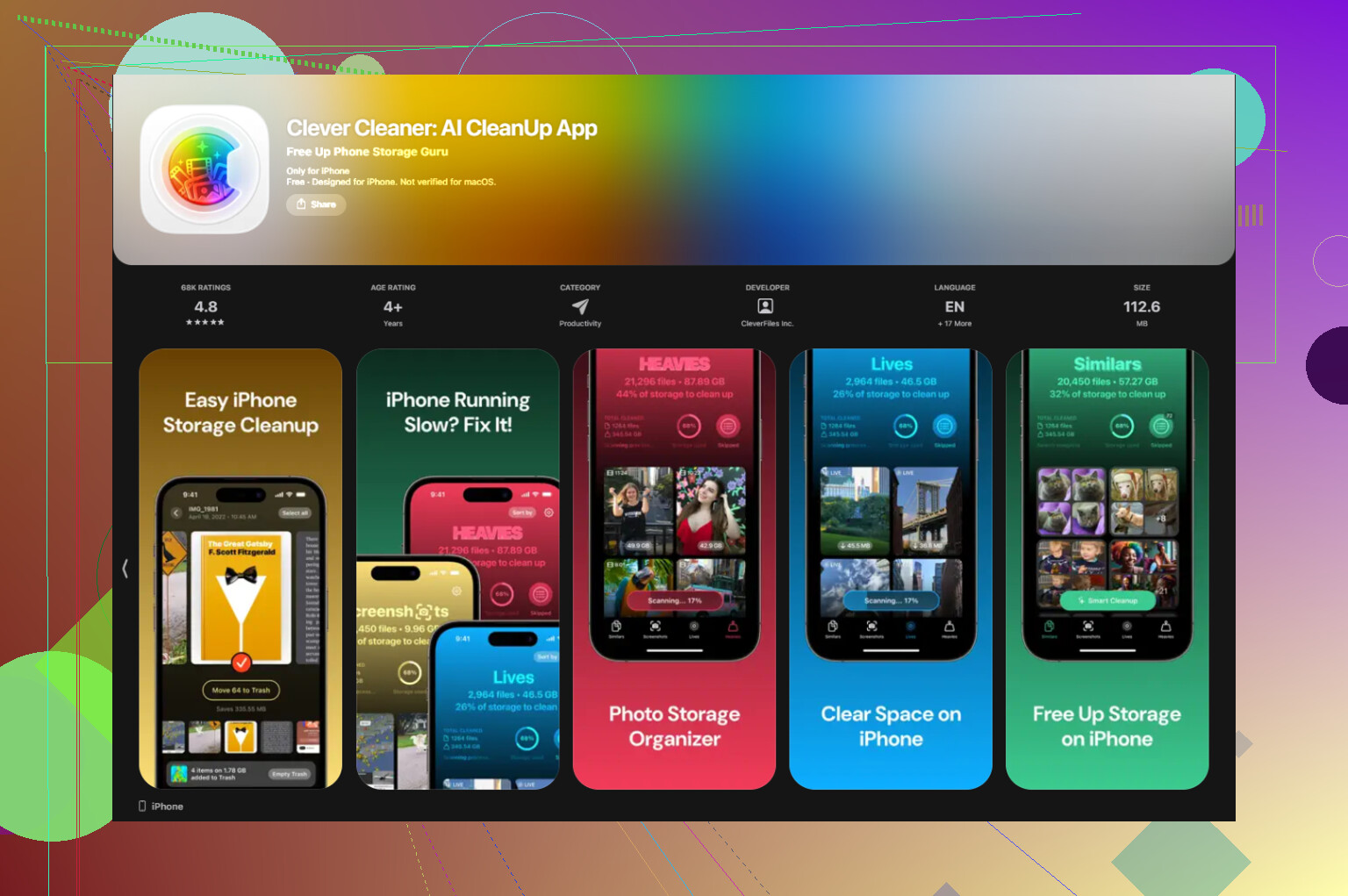
After I dealt with Synced Media, I noticed the rest of my storage mess was plain old junk. Screenshots, duplicate shots, blurry pics, giant videos I forgot about. So I cleaned the library too. I tested a few apps and kept Clever Cleaner on my phone because it did the boring sorting without making me fight subscriptions.
What I liked was simple. No paid wall every two taps. No ad spam. The scan stayed on the device, which mattered to me since I wasn’t into shipping my photo library off somewhere.
The useful parts were the duplicate and similar photo sorting, plus a section for large files. I found repeated burst photos fast, and it flagged a best shot often well enough. The large file view was better for me, honestly. I found a couple huge videos eating gigabytes for no good reason. It also showed screenshot sizes clearly, which made it easy to dump a pile of them.
My phone went from nearly full, around 99%, down to about 60%, and the lag stopped. If Synced Media is the big mystery block on your storage page, I’d start with the empty-folder photo sync trick or a fresh Finder/iTunes sync. After that, check your local photo mess too. In my case, both problems were happening at once.
First, check where your photos live. This matters more than the storage label.
Do this on your iPhone.
Settings, your name, iCloud, Photos.
If iCloud Photos is on, your photos are part of your iCloud library.
If it is off, some photos might be old synced photos from a computer.
The fastest way to tell:
Open Photos, Library, tap a photo, swipe up.
If it shows info like shared from iCloud or normal camera metadata, it is part of your library.
Synced albums from a computer often show up in Albums and feel separate. You usually cannot delete single photos from those albums on the phone. That is the giveaway.
I disagree a bit with @mikeappsreviewer on one point. I would not start by deleting apps like Music or Books. That fixes cache issues sometimes, but it does not help you identify photo risk first.
Safer order:
-
Back up your photo library.
Use iCloud, Mac Photos, or copy to a drive. -
Check for synced albums.
Photos app, Albums, scroll down.
If you see albums that were imported years ago, those are often the ones tied to Finder or iTunes sync. -
Save any keeper photos from synced albums.
Open the photo and use Share, Save to Files, or AirDrop to yourself.
If needed, screenshot in a pinch. Not ideal, but beter than losing it. -
Turn on iCloud Photos if you want one merged library going forward.
Once your wanted photos are in your main library, old synced sets are easier to remove. -
Then remove the synced set from the computer source.
If your storage is still messy after that, scan your local library for duplicates and large videos. Clever Cleaner is decent for this. It helps sort what is safe to delete from your own Photos library, which is a seperate problem from Synced Media. For a quick walkthrough, this Clever Cleaner storage cleanup demo is easy to follow.
Short version. Identify synced albums first. Save keepers into your main library. Back up. Remove synced media after. That order keeps you from nuking old photos by accident.
What I’d do first is not trust the Storage graph too much. @mikeappsreviewer is probly right that iOS can label old computer-synced stuff weirdly, but I also agree with @espritlibre that the real danger is mixing up synced albums with your actual Photos library.
Big clue: if you can’t delete individual photos from an album on the iPhone, those are usually old Finder/iTunes synced photos. They are not the same as photos you shot on the phone or saved into your library.
My safer test:
- Pick 3 to 5 photos you care about
- Tap Share
- Save them to Files or send them to yourself
- Then check if they appear in Recents afterward
If they only live in a synced album, export them first. Once your keepers are in Recents or backed up elsewhere, you can remove the synced batch with way less stress.
Also, check this on iPhone:
Settings > General > iPhone Storage > Photos
If your real photo library size looks normal, but “Synced Media” is huge, that usually means the removable stuff is separate.
One more thing people skip: restart after removing sync content. iOS storage numbers can lag and look totaly wrong for a while.
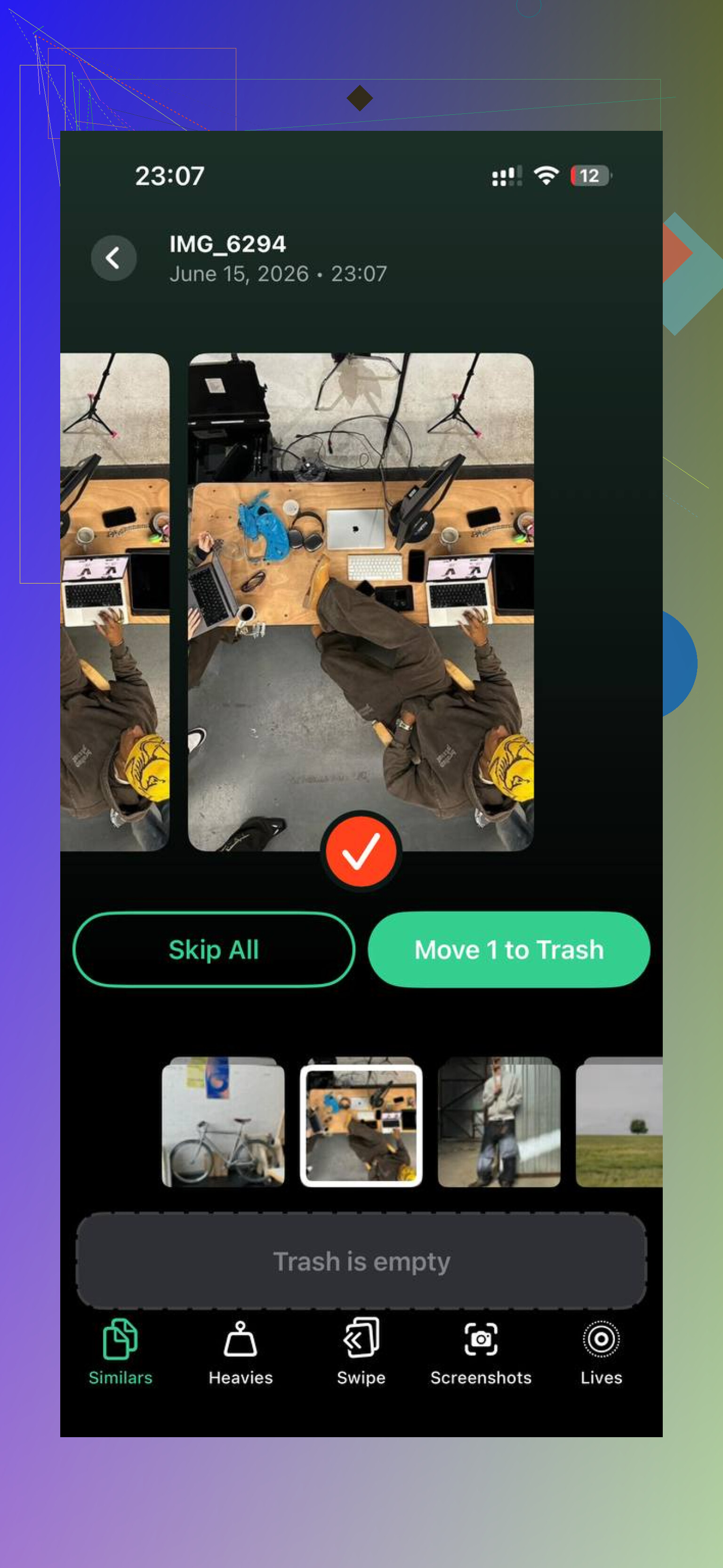
After that, if your actual Photos app is still bloated, use Clever Cleaner to find duplicate pics, large videos, and screenshots. Different problem, same storage pain. If you want a quick outside take, this see why Clever Cleaner is considered a truly free iPhone cleaner writeup is pretty useful.
One thing I’d add to what @espritlibre, @viajantedoceu, and @mikeappsreviewer covered: use a Mac/PC-side inventory check before deleting anything.
If you ever synced from a computer, open the device in Finder or iTunes and look at the Photos tab source folder. That tells you exactly which folder was being pushed to the phone. I prefer this over guessing from the iPhone storage graph, because that graph is flaky and sometimes stale.
My slight disagreement: I would not rely on “Save to Files” as the main rescue method for lots of photos. Fine for a few keepers, annoying for hundreds, and it can strip your library organization. Better move is importing the synced set into Photos on Mac first, then re-adding only what you want into your real library.
Another low-risk test:
- Turn on Airplane Mode
- Open one of the suspect photos
- If it still opens instantly at full quality and behaves like a separate synced album, it’s probably local synced media, not something streaming from iCloud
Also check Settings > Photos > Transfer to Mac or PC and set it to Keep Originals before exporting anything important. That avoids weird conversions.
If you clean up the actual library afterward, Clever Cleaner is useful for duplicates and large videos.
Pros: free feeling, easy large-file sorting, good for screenshots
Cons: not really for removing computer-synced albums, “similar photo” suggestions still need manual review
So my order would be: identify the source folder on computer, import keepers properly, remove sync, then use Clever Cleaner only for leftover photo clutter.