My iPhone suddenly started showing a memory is full message, and now I can’t take photos, download apps, or install updates. I’ve already deleted some pictures and apps, but the storage warning keeps coming back. I need help figuring out what’s actually using my iPhone storage and the best way to clear space without losing anything important.
I kept seeing the “iPhone Storage Full” alert even after I spent half an hour deleting stuff. The confusing part is this, iOS often keeps counting files you thought were gone. So the warning comes back and it feels broken.
What the alert is talking about
On iPhone, this message is about storage space. It is not about RAM.
People mix those up all the time. RAM is the short-term working space your phone uses while apps are open. Storage is the long-term space where your photos, videos, apps, downloads, and message attachments sit. If iOS says it is full, it means storage.
Why deleting photos sometimes changes nothing
This tripped me up the first time. In Photos, deleting an item does not remove it right away. iOS moves it into Recently Deleted and leaves it there for 30 days. During those 30 days, it still takes up the same amount of storage.
If you want the space back now, do this:
- Open Photos
- Tap Albums
- Scroll to Recently Deleted under Utilities
- Tap Select, then Delete All
Until you clear that folder, your phone is still holding those files.
Other places where space gets eaten
I usually check Settings, then General, then iPhone Storage. Wait a bit for the storage bar to finish loading. If you see a big section called System Data or Other, it is often cached app junk, temporary files, Siri voices, and leftovers iOS hangs onto longer than you would expect.
A restart helps more often than people think. I have seen System Data shrink after a reboot, no joke.
A few other spots worth checking:
- Messages. Open iPhone Storage, tap Messages, then check Review Large Attachments. Old videos in text threads pile up fast.
- Safari. Go to Settings, then Safari, then Clear History and Website Data. This clears cached browser files.
- Unused apps. In iPhone Storage, use Offload Unused Apps if you want the app removed but want its data kept for later.
One thing I would not trust
If you get a storage warning inside Safari while browsing, or while watching some random video, and it says your SIM is damaged or gives you a countdown timer, ignore it. That is not an Apple alert. It is a scam page.
A real iPhone storage warning shows up as a normal iOS system alert or inside Settings. If it comes from a webpage, do not tap it.
When built-in tools stop being useful
This is the part I found annoying. Apple shows how much space each app uses, but not which exact files are wrecking your storage. You do not get a clean way to sort your library by file size. You also do not get much help finding near-duplicate photos unless you scroll forever.
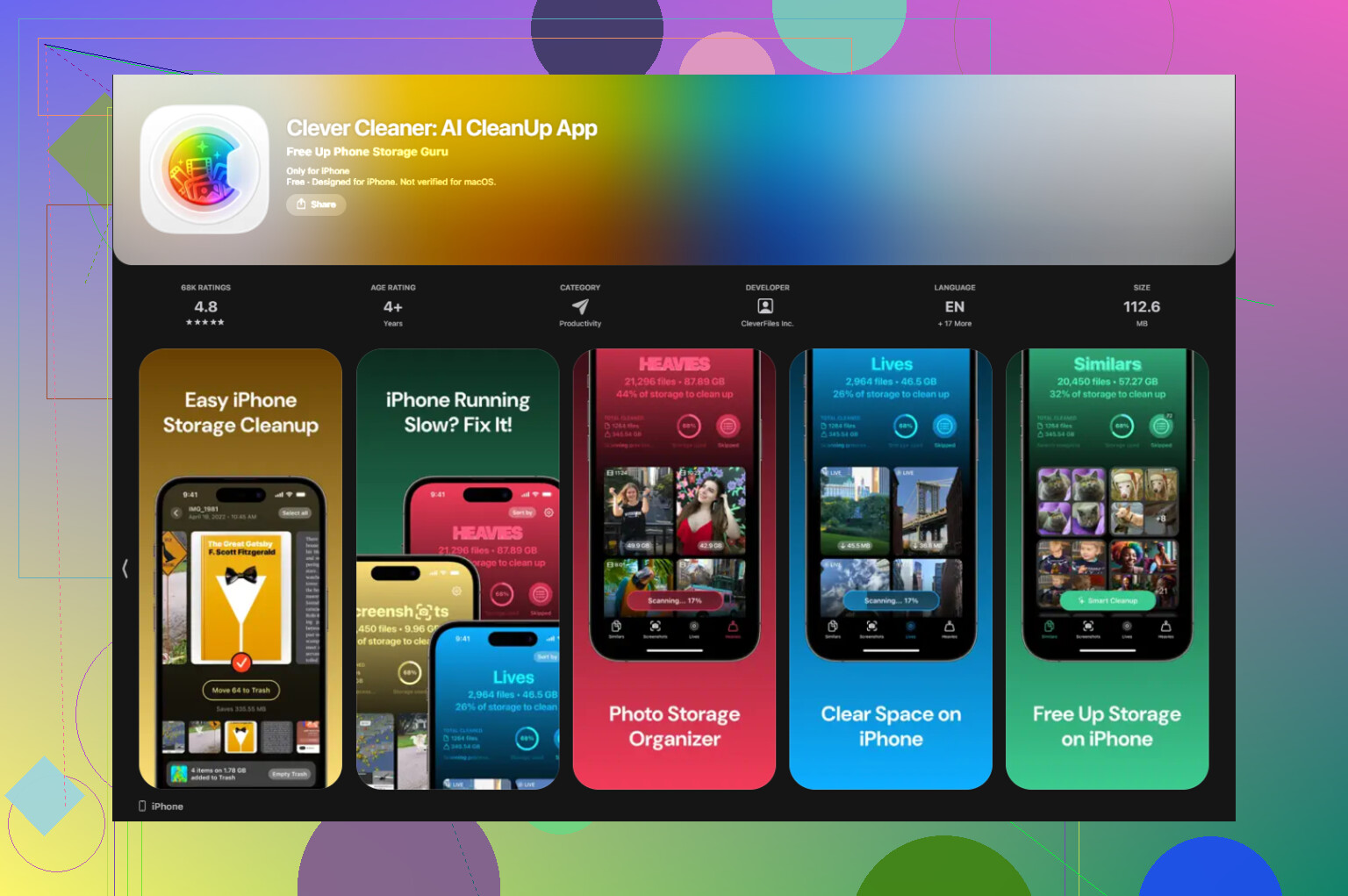
Clever Cleaner filled that gap better than I expected. I used the Heavies section first. It put the largest media files at the top, so the giant screen recordings and 4K clips showed up fast instead of being buried in years of camera roll mess. Then I checked Similars, which grouped near-matching photos and picked a Best Shot from each set. That saved me from sorting through burst shots one by one. It shows file sizes before deletion, which I liked, and the processing stays on the phone.
After I cleared about 12GB there, then emptied Recently Deleted, the warning stopped popping up. My phone felt less sluggish too, wich I was not expecting.
If the alert still shows even when space is free
I have seen cases where Settings shows free storage and the warning still hangs around. When that happens, it looks more like a sync or reporting glitch than a real storage shortage.
The fix is annoying, but it tends to work:
- Make a full backup to iCloud or your computer
- Erase the phone
- Restore from the backup
That forces iOS to recalculate storage from scratch. I would leave this for last, but if nothing else fixes the ghost warning, this is the step I would try.
If the warning keeps coming back after deleting stuff, I’d check two things people miss a lot.
First, your iPhone needs working room, not only free space. iOS updates, photo processing, and app installs often fail when you have less than 3 to 5 GB open. If you only cleared 500 MB or 1 GB, the alert often returns fast.
Second, synced data takes time to settle. iCloud Photos, Messages in iCloud, and apps like WhatsApp often re-download or re-index data, so the number in storage jumps around for a while.
A few fixes I’d try, different from what @mikeappsreviewer listed:
- Turn off and back on iCloud Photos sync for a minute, then check storage again. Sometimes the library index gets stuck.
- Check Mail. The Apple Mail app stores big attachments and offline copies. Remove old mail accounts if one is dumping tons of data.
- Delete downloaded content inside apps, not the apps themselves. Netflix, Spotify, YouTube, Podcasts, and map apps store gigs quietly.
- Check Files app, Downloads, On My iPhone, and iCloud Drive. ZIPs, PDFs, and video edits hide there.
- Open Voice Memos, GarageBand, iMovie, CapCut, or similar apps. Those projects eat space fast.
- If you use WhatsApp or Telegram, clear media from inside the app settings. Deleting the app is overkill for most poeple.
I sort of disagree with the usual “delete a few photos and reboot” advice because it often frees too little space to matter. You need a bigger cut, fast.
If your photo library is the main problem, Clever Cleaner is worth a look for finding large videos, duplicates, and similar shots faster. This review covers it well: see why Clever Cleaner is a top free iPhone cleaner app
One more thing. If Settings shows space free but updates still fail, sign out of App Store, restart, then sign back in. I’ve seen update downloads get stuck and fake a storage issue. Annoying, but it hapens.
I’d add one thing to what @mikeappsreviewer and @viajantedoceu said: sometimes the problem is not the stuff you deleted, it’s the stuff iOS is trying to create.
When storage gets critically low, the phone can’t make temporary files for camera shots, app installs, or update prep. So even if you freed “some” space, it may still act full. In my expereince you usually need to free a decent chunk at once, not nibble around the edges.
A few extra things to try that weren’t really covered:
- Turn off Live Photos for now. Each shot is bigger than people realize.
- In Camera settings, switch recording from 4K to 1080p if you’re constantly near full storage.
- Check if Podcasts auto-downloaded a ton of old episodes. That app is sneaky.
- Look in Notes for notes with scans or attachments. Those can get weirdly huge.
- If you use iCloud Drive, make sure big files aren’t kept downloaded locally.
- Try syncing the iPhone to a Mac or PC once. I’ve seen storage numbers refresh after a wired sync, oddly enough.
I kinda disagree with the “just erase and restore” move unless nothing else works. That’s a pain, and for most people the real issue is giant videos, downloaded media, or bloated photo libraries.
If photos are the main culprit, Clever Cleaner is honestly one of the faster ways to find large videos, duplicate photos, and similar shots without digging forever in Photos. That’s way more useful than randomly deleting apps you’ll just reinstall later.
Also, if you want a visual walkthrough, this step by step iPhone storage cleanup guide is easier to follow than poking around Settings blind.
And yeah, “memory full” on iPhone almost always means storage, not actual memory. Apple really could label that beter.

I’d check one thing none of the others really stressed: corrupted local caches from failed updates. If an iOS update or App Store download got interrupted, the phone can keep reserving storage badly.
Try this path:
- Settings > App Store > turn off automatic downloads
- Delete any partially downloaded iOS update in iPhone Storage
- Force restart
- Connect to power and Wi-Fi
- Wait 15 minutes, then recheck storage
I slightly disagree with jumping to erase-and-restore too early. Usually the “ghost full” issue is cached update files, not total system failure.
Also check:
- Books app for downloaded PDFs/audiobooks
- Music app for lossless downloads
- Third-party camera apps storing their own libraries
- Shared albums exports in Photos settings
@viajantedoceu, @sternenwanderer, and @mikeappsreviewer covered the usual big stuff well. My angle is that failed downloads can fake a storage crisis.
If your library is the main mess, Clever Cleaner is useful for spotting oversized videos and duplicates fast.
Pros:
- quick visual cleanup
- good for duplicate/similar photos
- easier than digging through Photos manually
Cons:
- less helpful for app caches
- still requires you to review before deleting
- won’t fix deeper iOS storage bugs by itself
If none of that works, sync once with a computer before doing a full reset. That sometimes forces storage recalculation.