I’m running into issues uploading large files to Amazon S3—my uploads keep failing with timeouts or errors when the files are over a few gigabytes. I need advice or best practices for successfully uploading big files to S3. Has anyone found a reliable method or tool that works well for this kind of use case?
I’ve dealt with moving some hefty files to S3 (we’re talking multi-gig monsters) and stumbled on a couple of strategies—Amazon’s own “multipart upload” (which is basically the boss-level way) and CloudMounter, a third-party app that’s simple but solid. Here’s a rundown with examples and caveats from each route if you’re tackling the ol’ “how do I get these huge files into S3 without pulling out my hair?” question.
AWS S3 Multipart Upload: When You’re Dealing With Absolute Units
Honestly, the day I first tried shoving a 10GB backup to S3 in one go, my connection borked halfway through and I lost everything. Enter S3’s multipart upload. It slices your big file into digestible chunks—think shipping furniture flat-packed instead of as a single, unwieldy table. Mess up one piece? You don’t need to start over, just re-send the busted part.
Why Even Bother With Multipart?
- Parallel processing: Multiple chunks get uploaded simultaneously, so you max out your bandwidth (it’s like having friends help you move boxes instead of doing endless trips alone).
- Error handling: Network goes sideways halfway through? Only that one chunk needs a retry, not the whole file.
- Flexible enough for spotty WiFi at airports and coffee shops.
How Does It Work? Nuts & Bolts
- Kick off the upload: Hit S3’s
CreateMultipartUploadto get an UploadId back. That’s your session ticket. - Slice it up & upload: Break your file into parts, create presigned URLs per chunk (so clients don’t need AWS logins), and let those bits fly up in parallel with
UploadPart. - Seal the deal: Tell S3 you’re done with
CompleteMultipartUploadand it assembles everything server-side, Frankenstein style.
Here’s a quick snippet for step one (Node.js with AWS SDK, pretending you’re coding in Lambda; this one never changes, no matter how many stackoverflow threads you scan):
const multipartUpload = await s3.createMultipartUpload(multipartParams).promise;

return {
 statusCode: 200,
 body: JSON.stringify({
 fileId: multipartUpload.UploadId,
 fileKey: multipartUpload.Key,
 }),
 headers: {
 'Access-Control-Allow-Origin': '*'
 }
};
Even if you lost WiFi after chunk 42 out of 100, you’re covered: just resume after 42. (Heads up, if you’ve got weak mobile data, it’ll still blow through your monthly cap.)
Third-Party Tactic: Mount S3 Like a Freaking Local Drive With CloudMounter
CloudMounter is… well, it basically fakes S3 as a regular folder on your desktop, if you’re not feeling up to battling API calls or don’t want to script stuff before your first coffee. Drag, drop, done. Feels like cheating.
What It’s Like
Totally straightforward:
- Supports all AWS regions I’ve tried (handy if you’re messing with buckets from different continents).
- Lets you juggle public/secure URLs for sharing—no need to poke around AWS console just to copy a link.
- Only catch: Instead of email/password combo, you’ll have to paste your AWS key/secret key pair. Find those in your AWS IAM settings—don’t use your primary root credentials (seriously, don’t).
Here’s literally what you see (not kidding, the UI is this chill):
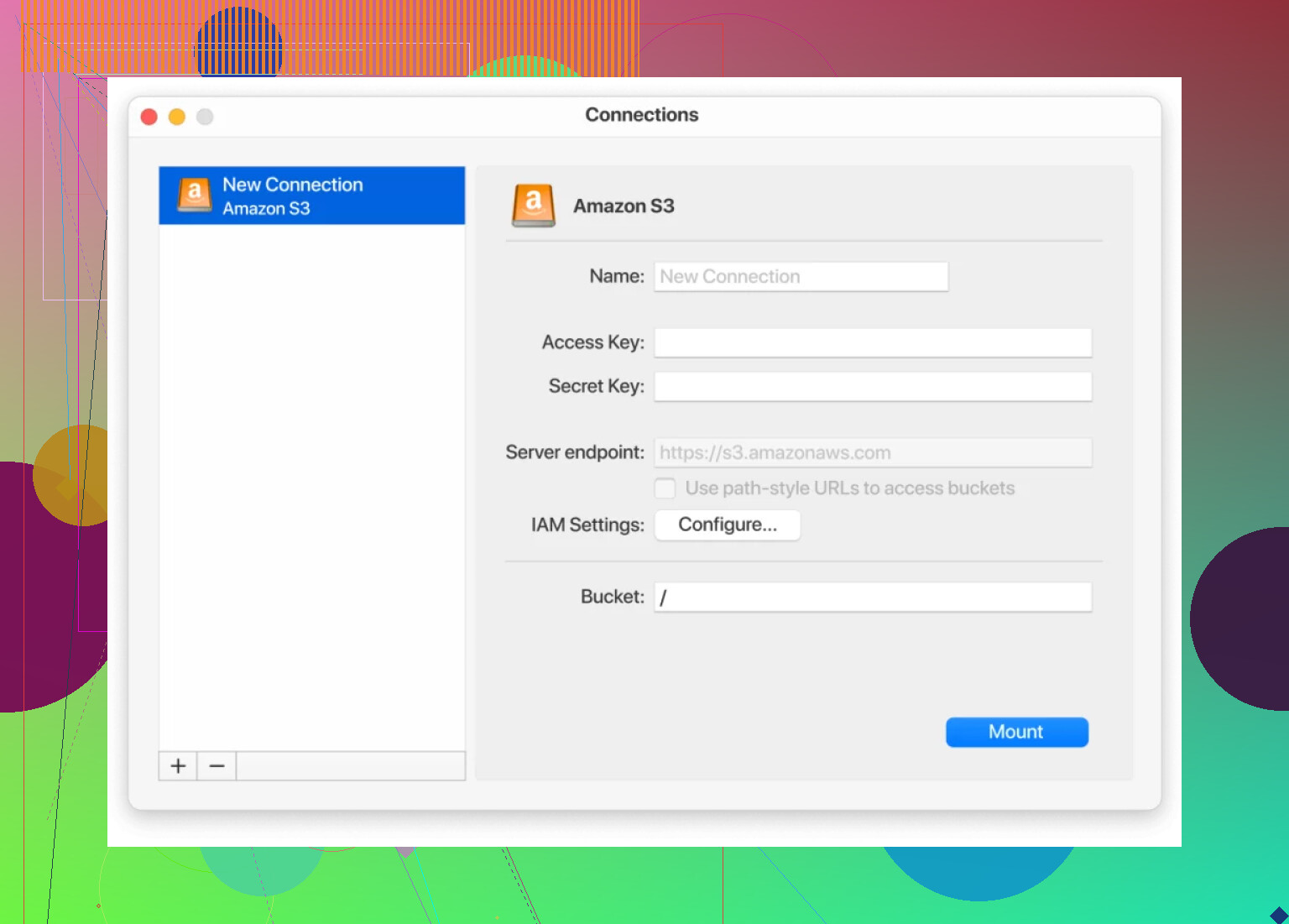
The Steps (Barebones Guide So You Don’t Get Lost)
- Open CloudMounter, spot the Amazon S3 icon, click it.
- Name your connection; call it “archive_boy” or whatever makes sense.
- Enter your AWS Access Key + Secret Key.
- Choose either path-style or virtual-hosted-style URLs (most folks can just go with the recommended/default).
- Name your bucket or type ‘/’ for the root. You can get granular if you want subfolders.
- Hit that Mount button and, boom, that S3 bucket shows up as if it’s another hard drive.
You get uploads, downloads, even copy-paste for URLs. For backups, moving media files or snatching logs—it’s as drop-dead simple as it gets.
The Short Version
- Got mega files? Use S3 multipart upload and let parallel chunks do the heavy lifting.
- Prefer dragging and dropping stuff like it’s 2009? CloudMounter takes care of the wiring.
Which one’s best? Depends: If you automate a lot, go native S3. If you just want things to work like any other folder and you’re on a Mac, CloudMounter never let me down.
Both links here: CloudMounter for MacOS
If anyone else has weird failures with multipart on shoddy WiFi, hit me up. I have tales.
No fluff—hope this saves someone from rage-uninstalling S3 CLI for the umpteenth time.
Let me just throw this out there: everyone always preaches about using S3 multipart upload (and no shade to @mikeappsreviewer—it IS AWS best practice), but what blows my mind is how few people realize just how much further you can bulletproof your uploads with a few, less “mainstream” tweaks. Multipart upload alone is NOT a magic eraser for timeouts or failures if your network is acting up or your app croaks during a huge file move.
Some overlooked things that actually matter for those monster uploads:
- Tweak your chunk size. Default chunk sizes are kind of a joke when you’re moving 5GB+ files. Sometimes, setting a larger part size (like, 50MB–100MB instead of 5MB) reduces the chance of death by a thousand tiny network cuts, especially on semi-flaky connections.
- Throttling/Rate Limiting. Most scripts/apps just go full throttle. If you’re behind a VPN, on hotel WiFi, or your ISP sucks, try uploading fewer parts in parallel. Sometimes less is more, especially if your router cries under stress.
- Retries & Exponential Backoff. People half-ass this ALL. THE. TIME. Bake in aggressive retry logic, doubling cooldowns after each failure, and even randomising retry intervals. S3 SDKs “help,” but they don’t always go far enough.
- Resume sessions after disconnect. Multipart will let you ‘resume,’ but only if your code saves the uploadId and part numbers somewhere. If your script dies, and you didn’t log that stuff, better hope you like reuploads.
- AWS CLI tweaks. If you’re CLI gang (not as pretty as CloudMounter, sorry), run aws s3 cp with
--multipart-chunk-size-mband--no-progress(sometimes progress bars slow things down—who knew?).
Now, about using third-party tools like CloudMounter (shoutout to Mike for not burying this under an avalanche of “just script it!” answers): it’s legit simple, and for regular folks or even impatient power users who don’t have time for JSON configs, it’s a solid fallback. One caveat—these GUI apps sometimes silently fail on drops, or just ‘hang,’ so watch logs, and check integrity if you’re archiving family photos or legal stuff. Don’t trust drag and drop blindly for irreplaceable megadata.
Not to leave you hanging—check out rclone. It’s cross-platform CLI, works with S3 (and tons of other clouds), resumes uploads, and lets you fine-tune retries, chunk sizes, concurrency, the whole shebang. Not as “Mac-like” as CloudMounter and needs a little config, but it’s saved me more than once when official AWS tools choked.
TL;DR: Multipart is table stakes, but tune your chunks, log your sessions, automate retries/timeouts, and don’t ignore the humble CLI warrior apps like rclone. CloudMounter rules for casual file drops, just test with a junk file before trusting it with mission-critical gigs. And for the love of bits, DO NOT use root credentials—best advice @mikeappsreviewer gave, hands down.
Sorry, but honestly, most people way overthink this. Yes, @mikeappsreviewer and @suenodelbosque have it mostly right—multipart is the AWS sanctioned move and tools like CloudMounter or rclone can save you serious pain (CloudMounter is honestly a no-brainer if you just want drag and drop, but don’t go dumping terabytes at once without testing first).
But sometimes these “best practices” are more like “best for AWS bill padding.” If your massive uploads keep dying, have you checked if your local disk is choking (SSD health = critical important) or you’re saturating your upload on Starlink or a potato router? S3’s multipart doesn’t fix a garbage connection. Maxing out parallel chunks might just throttle EVERYTHING on your network. Been there, trashed the workflow.
If you want fewer timeouts:
- Limit parallel chunk uploads if your line is unstable.
- Use a CLI like rclone or aws s3 cp with
--multipart-chunk-size-mbdialed in (experiment!). - ALWAYS script in a resume feature—write the uploadID + which parts succeeded to disk. It’s not automatic magic unless you make it.
- For Mac peeps not living in Terminal, CloudMounter is stupid-easy and gets it done, just don’t trust one-click if you’re shipping up a mission-critical .zip for the boss. Test w/ map drive first.
Personally, I don’t trust the AWS Console for huge stuff (web UIs + fat files = sadness). Bottom line: S3 is industrial-grade, but your setup will fail more than S3 itself. Get your chunks right, automate retry logic, and don’t be lazy about logging. Also, never, ever trust “root” AWS creds in 3rd-party apps, like folks above mentioned. If you must do the drag-and-drop thing, CloudMounter is safer than most, but use IAM keys and audit!
Uploading big files to S3 shouldn’t feel like launching the Shuttle. But YMMV—so, if you want to minimize hair loss, automate: CLI, rclone, or decent scripts with logging. Pretty apps (CloudMounter, etc.) for when you just want the file off your desktop—nothing wrong with that, just don’t go on vacation before confirming that monster .tar is actually up there and not half-uploaded toast.
Okay, I’ll bite: everyone’s hyped on multipart upload and drag & drop tools, but let’s get into the real world where not everyone writes Lambda functions or loves mounting buckets like network drives. The AWS CLI and SDK methods are reliable for sure (and yeah, CloudMounter makes S3 feel like a local drive—props for Mac folks tired of making everything a weekend scripting project). But, a couple missed points and a healthy dash of skepticism are in order here:
First off, S3 multipart is great until you’re somewhere rural, throttling on consumer WiFi, or your ISP drops packets for sport. Parallel chunking does NOT always equal faster or more resilient if your connection stinks—sometimes dropping to just 2-3 streams helps more than cranking it to 10+. This is where tunable tools like rclone or s5cmd still hold the crown for power users who need granularity over just an easy GUI.
As for CloudMounter: super slick, especially for folks who get twitchy around the terminal. It has the least learning curve—just watch out for:
- Pros: Native Finder integration, very low friction, minimal setup, zero AWS config wrangling for most cases, easy public/private URL grabs.
- Cons: You’re trusting a third-party with your credentials (though IAM keys help), error reporting is minimal—good luck diagnosing failed uploads on sketchy networks, and no bulk automation if you need repeatable/scheduled backup jobs.
Unlike the more scriptable tools championed by some (which feel like overkill in many cases), CloudMounter shines for quick one-offs and media workflows but stalls for automation or huge datasets—bank on rclone or even aws-cli if you need real control or job resumability. The folks above praised the easy path and gushed about error-resume on multipart, but unless you’re keeping an eye on the actual transfer logs, it’s easy to think a file’s safely on S3 when it’s actually stuck partway.
TL;DR: CloudMounter for newbie-friendliness and Mac magic, rclone/CLI for scripting and batch sanity, and always—ALWAYS—avoid massive uploads on a flaky coffee shop network, unless frustration is your jam. Test with small files first so you don’t end up rage-googling at 3am.