Facebook Messenger keeps crashing on my iPhone, and I think the app cache might be the problem. I’ve tried reopening the app and restarting my phone, but it still closes unexpectedly. What’s the best way to clear Messenger cache on iPhone or fix the crashing without losing my chats?
If Messenger is crashing or your iPhone keeps yelling about storage, the fix is usually pretty simple, but it’s not as obvious as it is on Android. There isn’t one clean “Clear Cache” button for Messenger on iOS. Apple just doesn’t expose that kind of control the same way.
What you can do is force Messenger to refresh itself through iPhone Storage settings. There are two ways to do it, depending on how aggressive you want to be.
Option 1: Offload Messenger if you want the safer cleanup
Go to Settings > General > iPhone Storage, then scroll until you find Messenger. Tap it and choose Offload App.
This removes the app itself, but keeps its documents and data on your phone. So your login info and local settings should stay there. After that, tap Reinstall App. It gives the app a fresh install without fully wiping everything, and it can clear out some temporary junk that may be causing crashes.
Option 2: Delete and reinstall Messenger if it’s really bloated
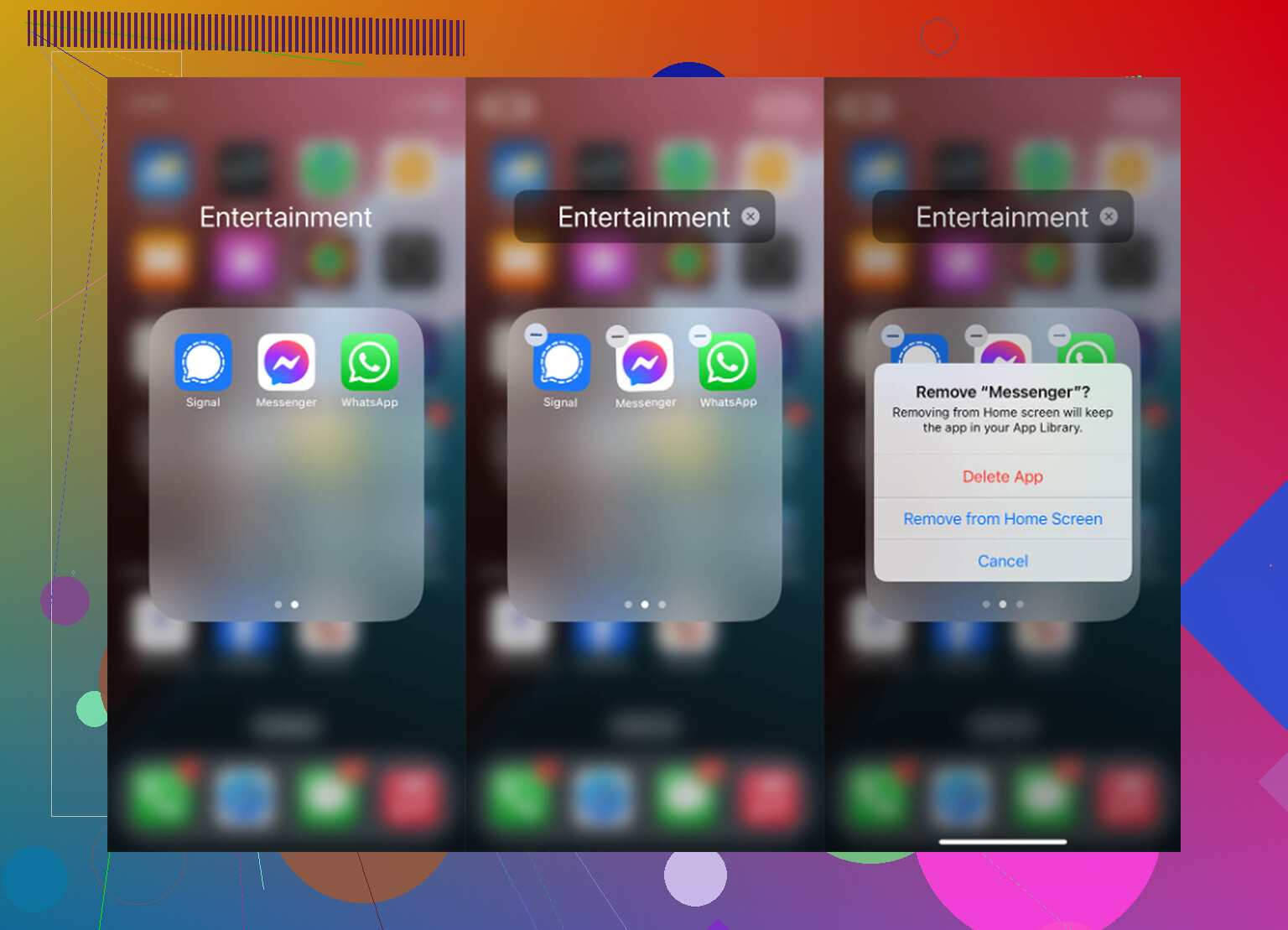
If Messenger is taking up a few gigabytes or keeps breaking even after offloading, delete it completely. You can do that from Settings > General > iPhone Storage > Messenger by choosing Delete App, or just long-press the app icon and remove it from there.
This removes the app, its temporary files, and the local data stored on your phone. You’ll need to reinstall Messenger from the App Store and sign in again.
The important part: deleting the app does not delete your Messenger conversations. Your chats are stored on Meta’s servers, so once you log back in, they should sync back. You may lose some local-only stuff like cached media or files waiting around on the device, but your actual message history should still be there.
What gets cleared is mostly the hidden clutter Messenger builds up over time: photo thumbnails, GIFs, sticker data, bits of watched videos, and temporary files the app keeps so things load faster. That stuff can get huge, and sometimes it gets corrupted enough to make the app crash.
That said, clearing Messenger cache is usually only a short-term fix. Messenger will start rebuilding that cache as soon as you use it again. You might free up a couple of gigabytes today, then see the same problem creep back later.
If your iPhone is still low on space after that, the bigger issue is probably your photo library. That’s where a lot of people have the real storage mess: old screenshots, duplicate shots, burst photos, random videos, and huge 4K clips nobody remembers recording.
What I’d use after fixing Messenger: Clever Cleaner
I used to waste way too much time scrolling through Photos trying to figure out what was eating all my storage. A lot of cleaner apps also look free until you actually try to delete anything, or they’re packed with ads.
Clever Cleaner has been the one I’d actually recommend. To be clear, it does not clear Messenger cache. The iPhone steps above are what handle that. Clever Cleaner is more for cleaning out the photo and video library, which is usually where the serious storage is hiding.
The main reason I like it is that it’s actually free. No 3-day trial trap, no paywall when you get to the useful part, and no constant ad interruptions.
For a deeper cleanup, these are the parts worth using:
- The Heavies Tab: This sorts media by file size. It’s a quick way to find massive videos you forgot about. Deleting a few 1GB videos can free up way more space than messing with Messenger cache over and over.
- The Similars Tab: It groups photos that look almost the same, so if you took ten versions of one shot, you can keep the best one and remove the extras.
- Screenshot Cleanup: Good for clearing out random screenshots from months ago that are just sitting there.
- Privacy First: The processing happens on your iPhone, so your photos aren’t being uploaded somewhere just to be analyzed.
So I’d start with deleting and reinstalling Messenger if the app itself is crashing. But if the real issue is storage, don’t stop there. Clean up your photo library too, because that’s usually where the biggest wins are.
Clearing Messenger’s cache is not really a separate iPhone action. Offloading the app may help a little, but if the crash is being caused by Messenger’s saved local data, offloading can leave the bad part behind because it keeps documents and data.
For a crashing app, I’d skip straight to a full delete and reinstall unless you have a reason not to. Delete Messenger, restart the iPhone, then reinstall it from the App Store. Before doing that, make sure you know your Facebook login and, if you use Messenger’s encrypted chat storage or PIN, make sure that is set up so your protected chats can restore properly. Normal server-synced conversations should come back after login, but it’s still annoying to find out too late that you forgot a password or recovery PIN.
A quick thing to try before deleting: turn on Airplane Mode, open Messenger, and see if it stays open. Sometimes it is crashing while trying to load a bad thread, attachment, call screen, or stuck upload. If it opens offline, back out of the last conversation it was loading, close the app, turn the network back on, and update Messenger. If it still crashes immediately, reinstalling is the cleaner fix. If the phone itself is nearly full, free up space first, because Messenger will keep crashing again if iOS has no room to work.
If you only removed Messenger from the Home Screen, nothing got cleared. On newer iPhones that menu can be a little misleading: “Remove from Home Screen” just hides the icon in the App Library. You need “Delete App” for the local Messenger files to actually go away.
I agree with the delete/reinstall advice here, but I’d add one boring check before doing it: make sure Messenger and iOS are updated, and make sure the phone has some breathing room. If your iPhone has like 500 MB free, reinstalling Messenger might fix it for ten minutes and then the same crashing starts again because the app can’t write temp files properly.
My usual order would be: update Messenger if the App Store lets you, free a bit of storage, then delete Messenger completely from Settings > General > iPhone Storage > Messenger > Delete App. Restart the phone after deleting it, then reinstall. Don’t bother looking for a Messenger cache button on iPhone, because there basically isn’t one. And after reinstalling, open Messenger from a stable Wi-Fi connection the first time so it can sync cleanly instead of trying to rebuild everything on a weak connection.
If Messenger only crashes right when you open a video call, a specific thread, or a link preview, none of the delete-and-reinstall stuff will save you, because the problem is server-side or tied to one corrupted conversation, not local cache. Reinstalling in that case just resets the clock until you land on that same trigger again. So before nuking anything, pay attention to when it dies. That detail tells you more than any cleanup.
The Airplane Mode test that @hoshikuzu mentioned is genuinely the smartest thing in this thread and it’s buried under all the reinstall talk. Try that first. If the app stays open with no network and dies the moment data comes back, you’ve basically confirmed it’s choking on something it’s trying to load, not on junk files. That’s a two-minute check that can save you a full reinstall and re-login.
On @mikeappsreviewer’s offload point, I’d be a bit more blunt about it. Offloading is close to useless for a crashing app because it keeps the exact documents and data that might be corrupted. It’s meant for reclaiming space on apps you rarely use, not for fixing bad local state. If you’re already suspicious enough to be reading a ‘clear cache’ thread, skip offload and go straight to a real delete.
One thing worth checking that nobody flagged: if you’re running a Messenger build from TestFlight or you recently updated iOS and haven’t updated the app to match, that mismatch alone can cause instant crashes on launch. Beta builds expire and start crashing on their own. Look at how you installed it before assuming it’s storage or cache.
The storage angle and the Clever Cleaner mention make sense as a secondary step, not the fix here. Clearing out old videos won’t stop a crash caused by a bad thread or an outdated build. It only matters if your phone is genuinely scraping the bottom and iOS has no room to write temp files. If that’s your situation, sure, trimming the photo library helps more than fighting Messenger over and over. If you’ve got several gigs free already, don’t bother, it’s not your problem.
My order would be: watch when it crashes, run the Airplane Mode test, update or reinstall the app cleanly over Wi-Fi, and only touch storage if the phone is actually near full.