I need to reduce an iPhone photo’s file size for sharing and storage, but the methods I’ve tried make the image look blurry. What’s the best way to compress a photo on an iPhone while preserving its original quality?
For sending a handful of smaller photos, I usually leave the originals alone. Mail gives you the option to reduce image size before sending, and Messages or other messaging apps will often compress uploads automatically.
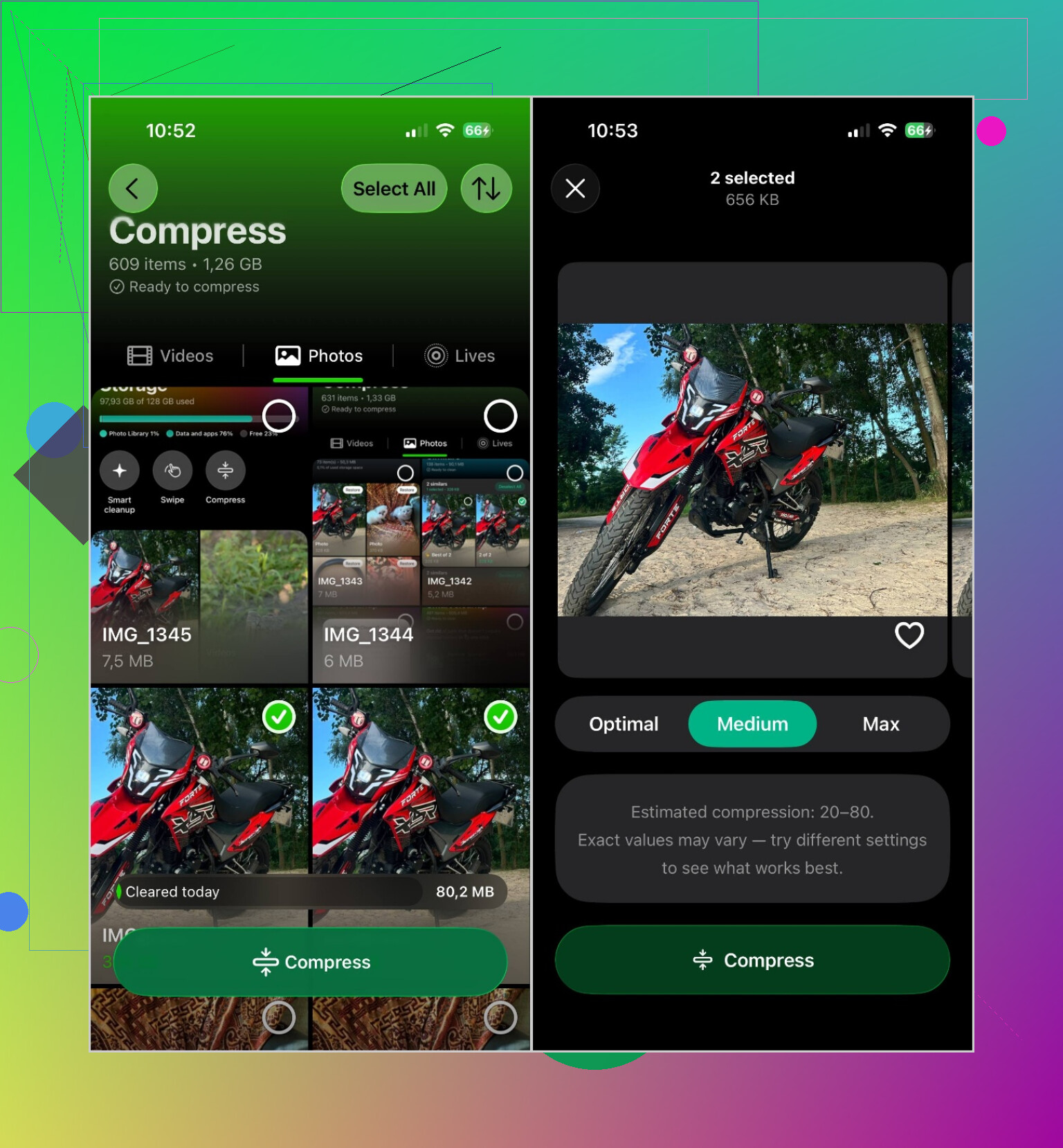
For photos that are already taking up space on the iPhone, I use Clever Cleaner. The main advantage is that it can compress a whole batch instead of making you process every photo separately.
The process is pretty straightforward:
- Open Clever Cleaner and choose Compress.
- Go to the Photos tab.
- Choose the photos you want, or tap Select All.
- Tap Compress and select a level:
- Optimal keeps the best image quality.
- Medium gives you a reasonable mix of quality and storage savings.
- Max is for reducing the files as much as possible.
- Tap Compress again and let it finish.
Medium is usually enough for normal everyday pictures. They still look good, but the files take up noticeably less room.
Compression isn't always the best fix, though. Depending on what's filling your library, you could also:
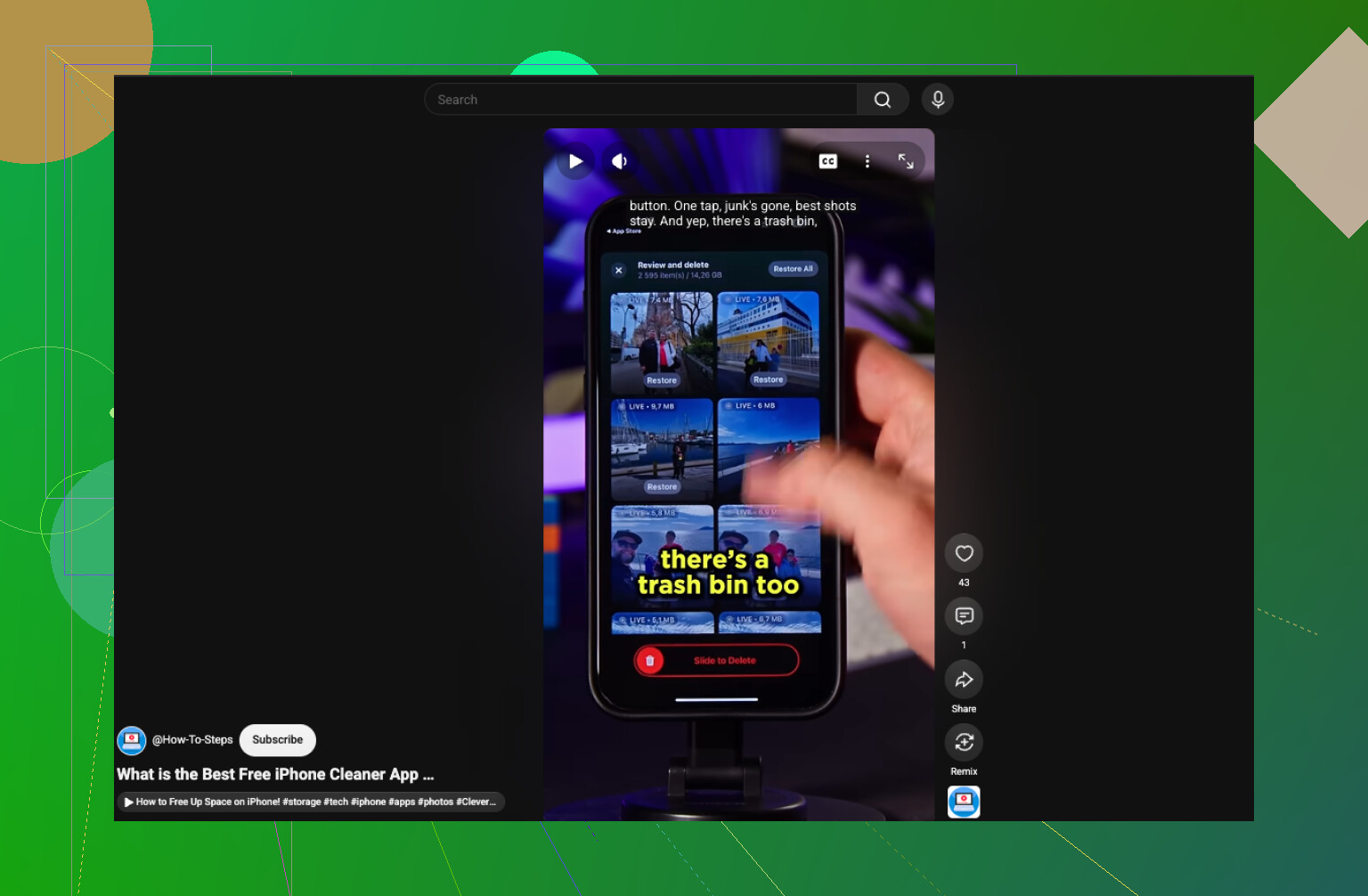
- Delete duplicate and similar photos. This frees up space without affecting image quality. The Similars tool in Clever Cleaner can make sorting through them faster.
- Turn Live Photos into still images. A Live Photo includes a short video clip, so it uses more storage than a regular photo. If you don't care about the motion, converting it can save space.
- Enable Optimize iPhone Storage. If you use iCloud Photos, open Settings > Apps > Photos and turn on Optimize iPhone Storage. Full-resolution copies remain in iCloud, while smaller versions are stored on the phone.
- Resize the image dimensions. This can work better than compression when a website has strict upload limits. Dropping a 48 MP photo to a lower resolution, for example, can reduce the file quite a bit. Most photo-editing apps have a resize option.
Also, check the Recently Deleted album after removing or replacing photos. Until you empty it, that storage may not be returned immediately.
For sharing, keep the original and send it through AirDrop, an iCloud link, or as a file. For saving storage, some quality loss is unavoidable if you want a much smaller image. Use the lightest compression setting, then zoom in on faces and text before deleting the original. Zipping a JPEG or HEIC usually saves almost nothing, since those formats are already compressed.

You can make a photo smaller with no visible difference, but you cannot guarantee identical quality after lossy compression. The safest approach is to keep the original and create a separate copy for sharing.
I would be careful with converting an existing JPEG to HEIC. HEIC is more efficient when the image starts in that format, but converting an already compressed JPEG means encoding it again. It will not restore detail, and the size reduction may be smaller than expected.
For a free built-in method, make a Shortcut using the Resize Image and Convert Image actions, then save the result as a new file. If the photo is only going on a website or being viewed on phones, reducing its pixel dimensions usually looks better than keeping huge dimensions and applying heavy compression. Export once from the original rather than repeatedly editing and resaving the smaller copy. Repeated compression is where text, hair, foliage, and other fine detail start looking rough.
Batch tools such as Clever Cleaner can save time, but check that the compressed files are stored separately before deleting anything. Compare faces and text at 100% zoom, not just in the Photos thumbnail. Keep the full-resolution version for printing or editing, and treat the compressed version as the delivery copy.
Shrinking the file and keeping every pixel intact are pulling against each other once you’re past simple resizing. So the honest answer is that ‘no quality loss’ and ‘much smaller’ rarely happen together unless the original was oversized to begin with. A 48 MP shot has a ton of headroom. A photo you already trimmed down does not.
That’s why I’d flip the whole thing around and ask where the photo is going before touching any tool. If it’s headed into Messages or WhatsApp, the app is going to re-compress it on the way out no matter what you do first, so pre-shrinking it yourself just stacks two rounds of loss. Better to send it as a file or through an iCloud link like @crystaladmin3197 said, or just accept whatever the app does and stop fiddling. For storage on the phone, that’s a different job entirely, and mixing the two up is where people get frustrated.
@alphageek1588lab is right that repeated resaving is the real enemy. Every time a JPEG or HEIC gets opened, edited, and saved again, the fine stuff smears a little. The trick most people forget is exporting once from the untouched original for each destination instead of taking your already-shrunk copy and shrinking it further next week.
On the resolution point from a few replies up, dropping pixel dimensions genuinely looks cleaner than cranking a quality slider down on a full-size image. If nobody’s going to print it, 8 MP is plenty for phones and most websites, and the file drops hard without the mushy look heavy compression gives you.
Clever Cleaner makes sense if your actual problem is a bloated library and you want to hit a lot of photos at once. Just don’t treat it as a fix for the ‘share one photo’ case, and check the compressed copies land somewhere separate before you delete originals. Two different problems, two different tools.
One thing worth doing regardless: pull up the compressed version at full zoom and look at hair, leaves, and any small text. That’s where damage shows first, and the Photos thumbnail will happily lie to you about how good it still looks.