I’m trying to free up iPhone storage by deleting most of my Photos library, but I want to keep all Favorites and avoid losing anything important in iCloud or backups. What’s the safest way to delete all non-favorite photos without removing my saved favorites?
The annoying part is that Apple still doesn’t give you a clean “delete everything except Favorites” option. Favorites in Photos aren’t treated like a real separate folder. They’re basically just marked items inside the same library, so if you select your whole camera roll and delete it, your favorites go with it.
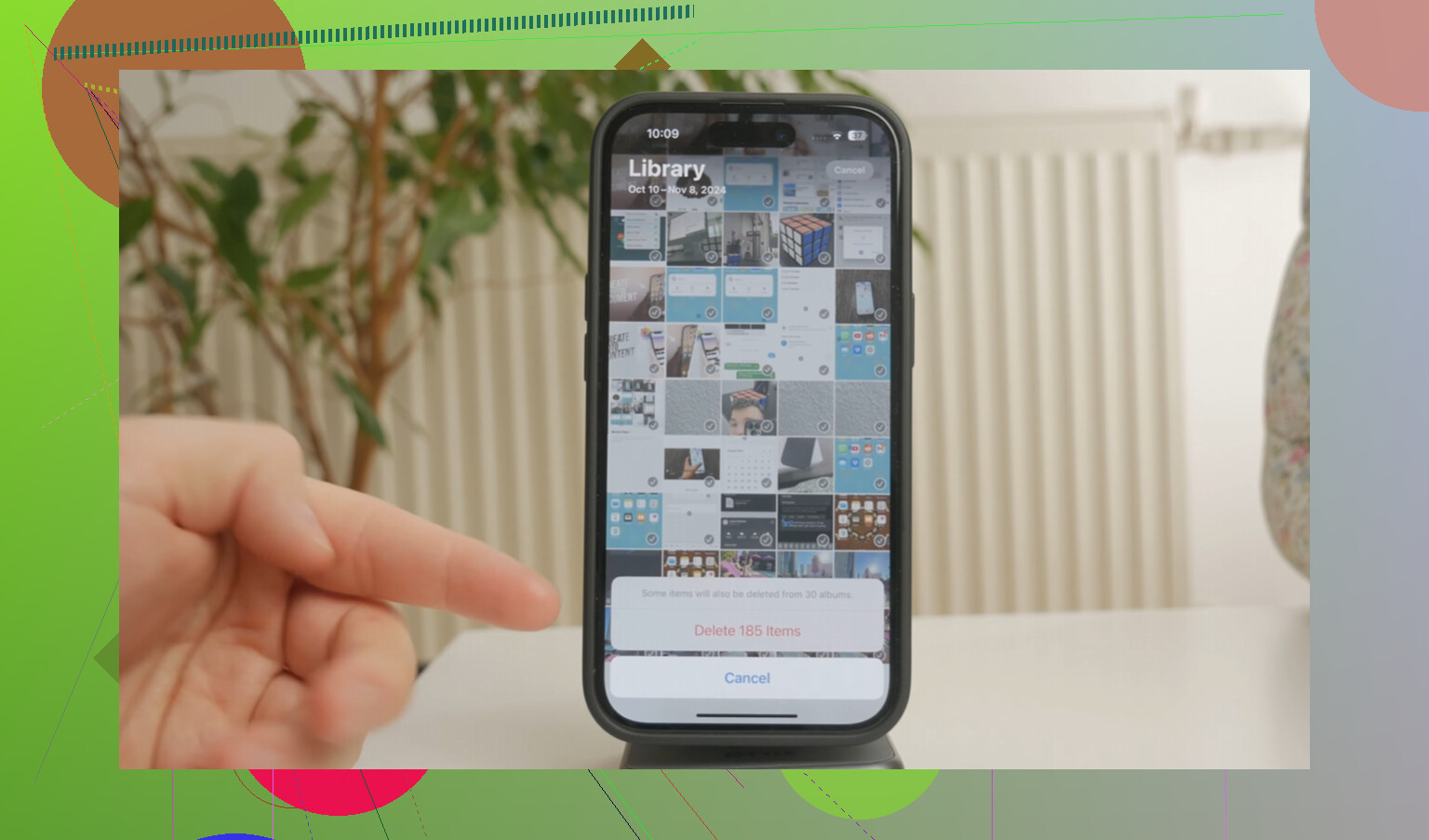
If you want to do this without a computer, the safest built-in workaround is to hide the stuff you want to keep first. Open your Favorites album, tap Select, then Select All. Use the three-dot menu or share menu, depending on your iOS version, and choose Hide. That moves those photos into the Hidden album, so they’re out of the main library view for a bit.
After that, go back to All Photos or Recents and delete everything that’s left. Once you’re done, open Hidden, select those photos again, and unhide them. It’s clunky, but it works because you’re basically moving your keepers out of the blast zone before deleting the rest.
There’s also a newer album/filter trick if you’re on something like iOS 18.4. Put all your favorites into a temporary album, maybe called “Keepers.” Then go back to the main library and use the filter button in the lower-left corner. If “Not in Album” shows up, you may be able to filter down to everything that isn’t in that Keepers album and delete those in bulk. Just double-check before deleting, because that filter can be weird and it may not appear if you’re already inside an album instead of the main library feed.
The Shortcuts app can also do this if you don’t mind setting up a quick shortcut. Use “Find Photos,” add a filter for “Is Not Favorite,” then add an action to create or add them to a photo album named something like “To Be Deleted.” Run it, let it gather the non-favorites, then open that album and delete them from there. This is way less painful than trying to manually scroll through thousands of items.
That said, if your phone is already choking on the library, Apple’s own tools can get miserable fast. When my library was around 15,000 items, Photos would hang, scrolling was awful, and even selecting large batches was a pain. I tried a few of those cleaner apps too, and most of them were either packed with ads or locked the actual deleting behind a subscription.
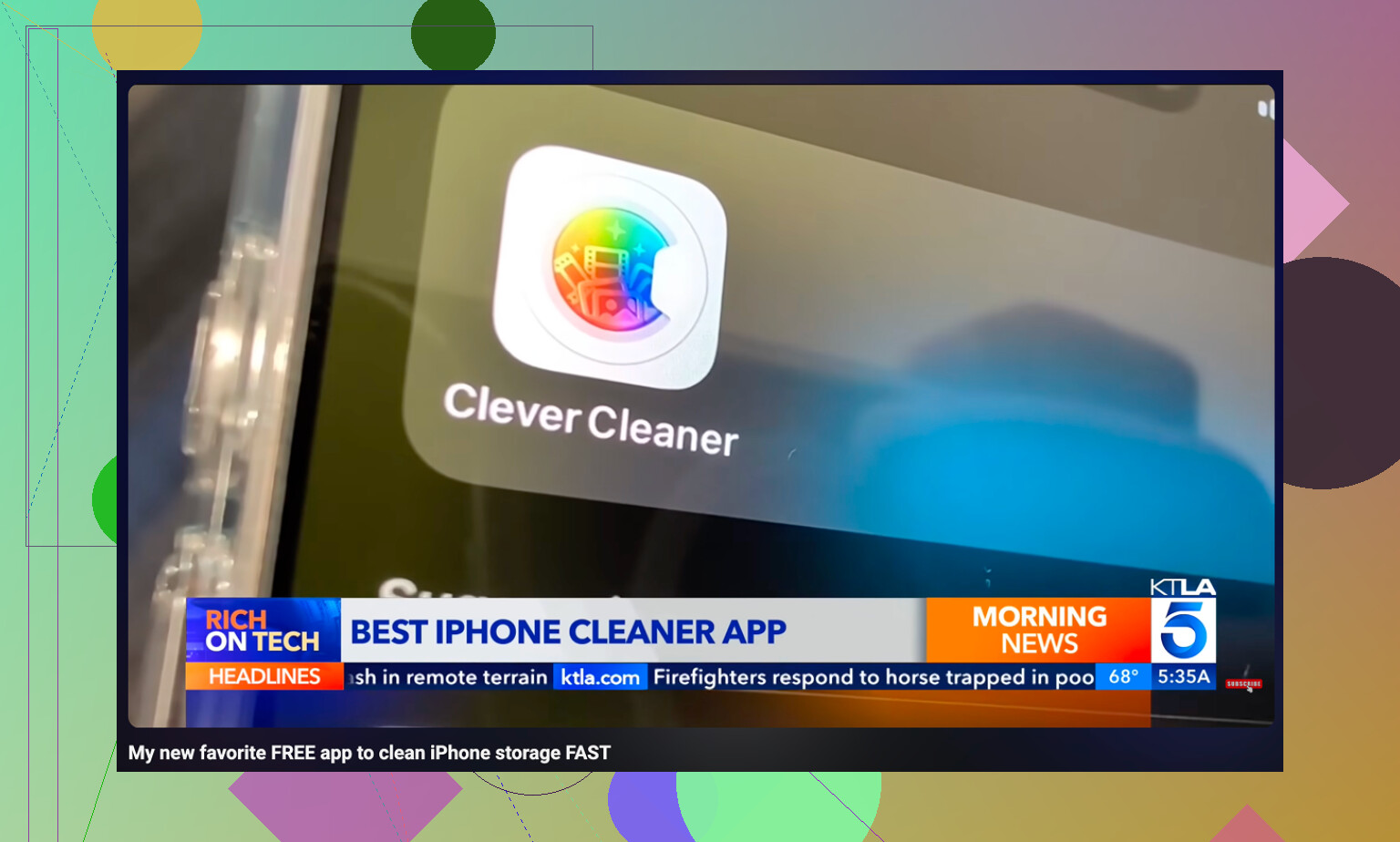
The one I ended up keeping was Clever Cleaner. It’s free, doesn’t have ads, doesn’t push a paid pro trial, and it processes your photos on the device instead of uploading your library somewhere for analysis.
The most useful part for me was the Heavies section. It sorts your library by file size, which is honestly something Photos should already do. A couple of old 4K screen recordings and long videos were taking up more room than a huge pile of regular photos. The Similars tab is useful too, since it groups near-duplicates, like all those almost identical shots you take trying to get one good photo. You can keep the best one and remove the rest without going photo by photo. For screenshots, it shows the file size right on the thumbnail, which makes cleanup a lot less blind.
One thing people miss after doing all this: deleting photos doesn’t immediately free the space. iOS puts them in Recently Deleted for 30 days, and they still take up storage while they’re sitting there. Go to Albums, scroll to Recently Deleted, and use Delete All if you actually want the storage back right away. If the storage number still looks wrong after that, restart the phone. That usually forces iOS to recalculate it.
Turn off iCloud Photos before you do anything if your goal is only to clear space on the phone. If iCloud Photos is still syncing, deleting non-favorites on the iPhone deletes them from iCloud too, not just local storage. For a safer cleanup, first export or download the full library somewhere else, or make sure iCloud backup/Photos is in the state you actually expect. Then work from a temporary “Keep” album or Hidden album like @mikeappsreviewer said. The Favorites flag is not a backup, it is just a label inside the same library, so treat the delete step as permanent unless you have a separate copy outside Photos.
Expect this to take two passes, because Photos has no true “keep Favorites, remove the rest from this phone only” button.
I’d be careful with the “turn off iCloud Photos” advice, even though the warning behind it is right. If iCloud Photos is on, deleting from the iPhone is deleting from the synced library. But if you just flip iCloud Photos off without understanding the prompts, you can end up confused about what is local, what is cloud-only, and what will come back if you turn sync on again later. It’s not a clean device-only storage manager.
If your real goal is just to make the phone usable again, the safer Apple-approved move is usually:
Go to Settings > Apps > Photos > iCloud Photos
Turn on Optimize iPhone Storage
That keeps the library in iCloud and lets the phone shrink local copies when it needs space. It won’t give you the same instant satisfaction as deleting 10,000 photos, but it’s much less risky than manually nuking the library. If you already use iCloud Photos, this is the option I’d try before any mass delete.
If you really want the non-favorites gone, I would not trust Favorites alone as the “only copy” of anything. Make a separate archive first. That can be iCloud download to a computer, Image Capture on a Mac, Windows Photos/import, an external drive, or another cloud service. The important part is that the archive is outside Apple Photos sync. A backup that depends on the same delete-sync behavior is not much comfort.
My safer order would be:
- Confirm whether iCloud Photos is on.
- Make a full copy of the library somewhere outside the Photos app.
- Make a temporary album called Keep or Favorites Export.
- Put all Favorites in that album.
- Export or save that Keep album separately too, if those are the important ones.
- Only then delete the non-favorites.
- Wait before emptying Recently Deleted unless you are 100% sure.
That last step matters. Recently Deleted is your short undo window. If you delete everything and immediately empty Recently Deleted, you’ve removed the easiest recovery path. I’d leave it there for a few days if storage pressure allows, check iCloud.com/Photos and another device, then empty it after you’re sure the keepers survived.
The shortcut/album method mentioned above is useful, but I’d do a small test first. Pick five random non-favorites, move them into a test delete album, delete them, and check what happens on iCloud and any other Apple devices. That tells you more than any forum answer, because everyone’s setup is slightly different depending on iCloud Photos, shared libraries, optimized storage, imports, and old backups.
Cleaner apps can be useful for finding large videos and duplicates, and Clever Cleaner has been mentioned already for that kind of sorting. I’d still treat it as a cleanup assistant, not as the authority on what is safe to lose. For “delete everything except Favorites,” the danger is not finding things to delete. The danger is syncing that deletion somewhere you didn’t mean to.
So the blunt answer is: safest is not “select all non-favorites and delete.” Safest is archive first, keep Favorites in a separate album/export, test the sync behavior, then delete in batches. If you only need phone storage back, use Optimize iPhone Storage instead of deleting the library.
If iCloud Photos is turned on, don’t count on your iPhone backup to save you from a bad delete. Photos already synced to iCloud usually are not stored inside the normal iCloud device backup, because Apple treats iCloud Photos as the copy. That’s the trap a lot of people miss: “I have an iCloud backup” does not necessarily mean “I can restore all my deleted photos later.”
I agree with the general warning above, but I’d be even more boring about it: make a real export before touching delete. Not an album. Not Favorites. Not Hidden. An actual copy of the photo files somewhere else. A Mac Photos export, Image Capture, iCloud.com download, Windows import, external SSD, whatever. Then open a few of the exported files and make sure they’re real photos/videos, not tiny placeholders or empty imports.
The other awkward bit is that Favorites is a tag, not a container. So the safe workflow is more like:
- Export everything first.
- Export Favorites separately if those are the ones you care about most.
- Make sure iCloud Photos behavior is understood before deleting.
- Delete non-favorites in chunks, not one giant purge.
- Leave Recently Deleted alone for a while unless you desperately need space immediately.
I’m a little skeptical of the “hide Favorites, delete the rest” method as the main safety plan. It can work, but it depends on you selecting exactly the right set and not forgetting that Hidden is still part of the same synced Photos library. It is a selection trick, not a backup trick. If you make one bad selection, iCloud will happily sync that mistake.
Clever Cleaner or any similar app can be useful if the real goal is just finding giant videos, duplicate bursts, screenshots, and junk faster. But for this specific job, I wouldn’t let any cleaner app be the final decision maker. Use it to reduce the pile if you want, then handle the “keep all Favorites” part through Photos after you have an offline copy.
The cleanest answer is: you can delete all non-favorites, but you can’t do it safely by trusting Favorites alone. Treat the delete as library-wide and permanent until you have a separate archive outside Apple Photos sync.
For your storage goal, I’d skip deleting and use Optimize iPhone Storage instead.
Open Settings > your name > iCloud > Photos. Enable Sync this iPhone, then select Optimize iPhone Storage. Your originals stay in iCloud while your phone keeps smaller copies as space runs low. Favorites stay in your library too.
Check you have enought iCloud space for your full library first. This reduces local storage use without removing non-favorites, though savings arent immediate or a fixed amount.
Two people can run the exact same delete and get opposite outcomes. If your photos only live on the phone and iCloud Photos is off, a bulk delete just frees local space and nothing leaves a cloud. If iCloud Photos is on, that same delete rewrites your library everywhere. So before any of the album tricks, the only question that actually matters is which of those two you are, and half the thread is answering for both at once.
The point I’d push back on a little: a cleaner app won’t save you from the sync problem either. Whatever you remove through Clever Cleaner still lands in Recently Deleted and still syncs out if iCloud Photos is on, same as deleting by hand. It’s good for hunting down the fat video files you forgot about, but it deletes through the normal system path, not around it. So use it to shrink the pile, not to make the ‘is this safe’ decision for you.
Honestly, if the whole goal is breathing room on the phone, @scriptengineer1545 and @sognonotturno have the least painful answer with Optimize iPhone Storage. Mass deleting favorites-or-nothing is a lot of risk for a storage problem that a toggle usually fixes.