My Facebook app cache on iPhone keeps building up and taking storage even after I delete some app data. I’m trying to free up iPhone storage without losing my account or important settings. What’s the safest way to clear the Facebook cache and stop it from filling up again?
If Facebook is taking up 10GB or 15GB on your iPhone, the annoying part is that iOS does not give you a simple “clear cache” button like Android does. So the fix is basically either a partial reset or a full reset of the app.
The quicker option is Offload App. Go to Settings > General > iPhone Storage, find Facebook, then tap Offload App. This removes the app itself but keeps its documents and data. After you reinstall it, some temporary junk usually gets cleared out, and you normally stay signed in because your login info is still there.
That said, offloading is not always enough when Facebook has grown into some ridiculous 15GB monster. Most of that size is usually sitting in Documents & Data, which includes cached videos, images, scripts, and all the other stuff Facebook has saved while you scroll.
For the real cleanup, use Delete App from that same iPhone Storage screen, then reinstall Facebook from the App Store. This removes the app, its local data, and the cache.
And yes, deleting it will log you out. You’ll need to sign back in after reinstalling. But it will not delete your Facebook account, posts, friends, photos, or anything like that. That stuff is stored on Facebook’s servers. You’re only removing the local copy sitting on your phone. This is usually the fastest way to knock Facebook back down from many gigabytes to a much smaller size.
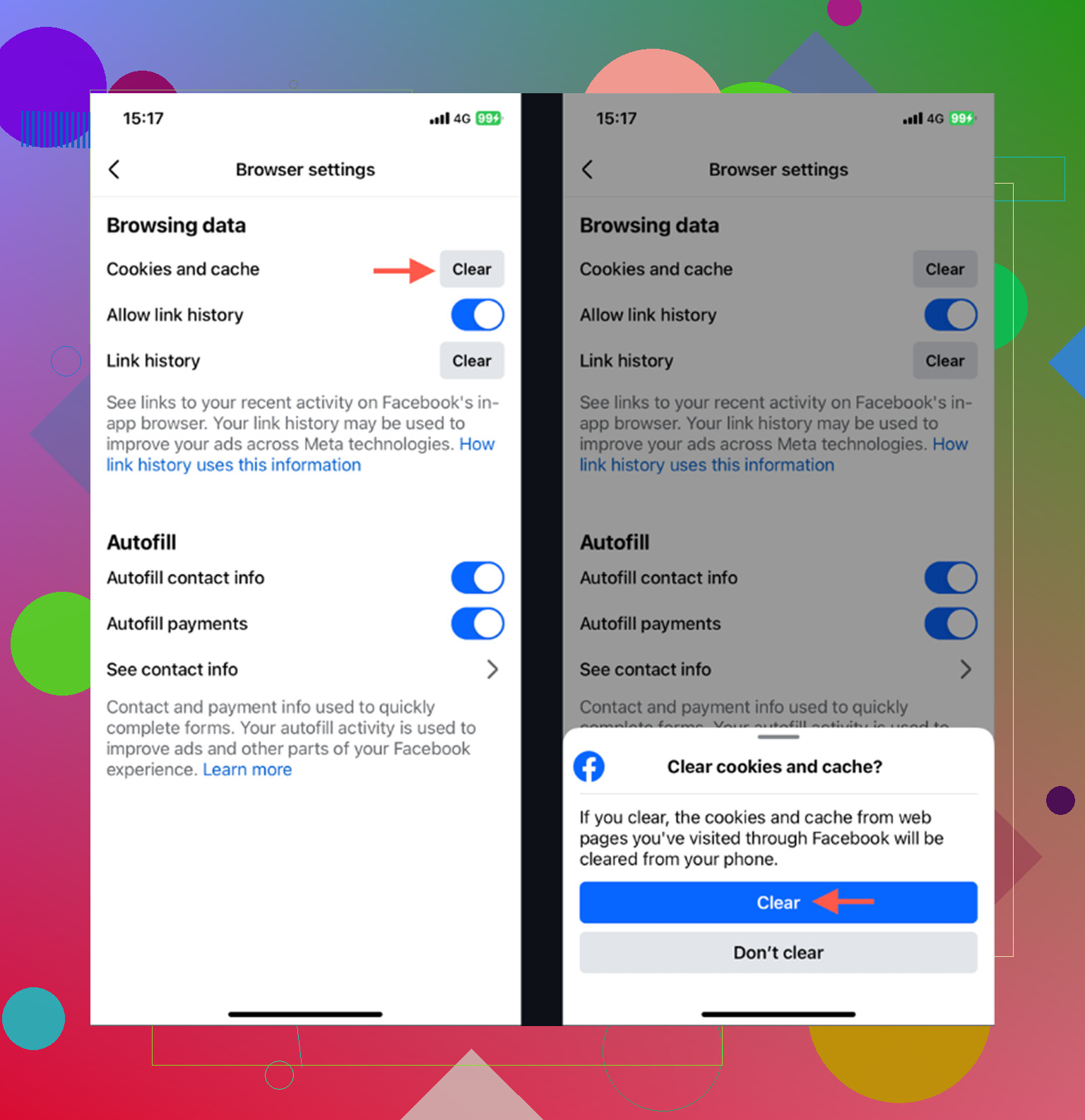
There is also a smaller cleanup option inside Facebook itself. Open Menu with the three lines, then go to Settings & Privacy > Settings > Browser and clear the in-app browser’s cookies and cache. It can help a little if you open a lot of links through Facebook, but it is not going to fix the huge storage problem by itself.
The catch is that this is temporary. Facebook will start rebuilding its cache again as soon as you use it. Watch Reels for a while, scroll through videos, open a bunch of posts, and the storage number will creep back up.
What finally helped me was checking whether Facebook was really the main problem. In my case, I kept obsessing over app cache, but the bigger storage hog was actually my Photo Library. I had tons of duplicate-looking pictures, old screenshots, and giant 4K videos I had forgotten about.
That’s when I tried Clever Cleaner. It does not clear Facebook’s cache, because iOS does not really let cleanup apps do that automatically. What it does help with is finding the stuff in your photo library that is actually eating storage.
The Heavies section shows your largest photos and videos, so it is easy to spot the massive files. The Similars section groups near-duplicate shots, like when you took ten versions of the same photo and only needed one. It also shows file sizes for screenshots, which is useful because those pile up faster than you think. Another plus is that it processes things on-device, so your photos are not being uploaded somewhere else for analysis.
So if Facebook is sitting at 15GB, delete and reinstall it first to get some space back fast. But if your phone keeps running out of storage, check your photos next. Cleaning up the big videos, duplicates, and forgotten screenshots usually makes a much bigger difference than chasing app cache every few days.
Don’t start by deleting Facebook until you know you can get back into the account. That is the boring step people skip. Make sure you know the password, have access to the email or phone number on the account, and that two-factor authentication is working if you use it. Deleting the app will not delete your Facebook account, but it can turn into a headache if your login is saved only in the app and nowhere else.
I agree with the basic advice above that deleting and reinstalling is the cleanest way to shrink Facebook on iPhone. Offloading is safer, but it often leaves too much behind because iOS keeps the app’s documents and data. If your goal is to clear the pile of cached videos and other local junk, offload may disappoint you.
A small thing to check before reinstalling: Facebook can re-download a lot quickly if background activity and video autoplay are left alone. After reinstalling, go into Facebook’s settings and reduce autoplay if you don’t need it, and in iPhone Settings you can turn off Background App Refresh for Facebook. It will not stop cache forever, but it slows the storage creep a bit. If the app balloons again after normal use, that is mostly Facebook being Facebook, not something wrong with your phone.
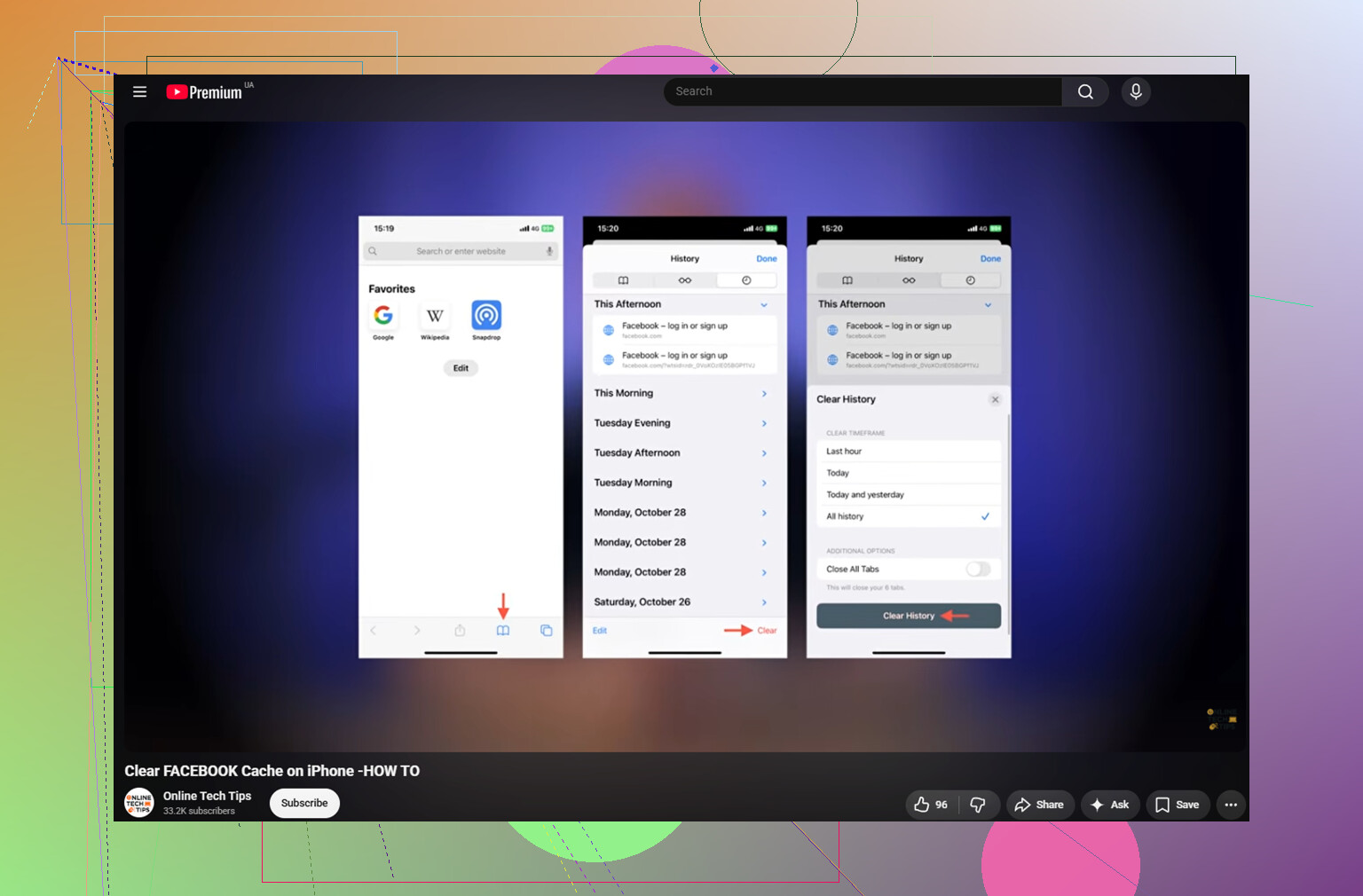
The hidden downside of the delete-and-reinstall method is that it may reset local app stuff you forgot existed, like notification preferences, saved login state, in-app browser cookies, draft posts, or Marketplace/location prompts. Your account is safe, and I agree with the others that deleting the app is the closest thing to a real Facebook cache clear on iPhone, but don’t do it in the middle of writing a post or managing something time-sensitive. Close out anything unfinished, confirm your login and 2FA first, then delete Facebook from Settings > General > iPhone Storage instead of only removing the icon from the Home Screen. After reinstalling, turn off autoplay and Background App Refresh if the storage creep bothers you. It will still come back, just usually not as fast.
Don’t use Offload if the goal is to erase the cache.
Offload is fine when you want to save the login and keep the app’s local data, but that is exactly why it often does a bad job with Facebook bloat. If the Facebook line in iPhone Storage shows most of the space under Documents & Data, offloading is basically keeping the part you are trying to get rid of.
The safer clean reset is: make sure you can log in, then go to Settings > General > iPhone Storage > Facebook > Delete App. Not Remove App from the Home Screen. Delete App. Then reinstall from the App Store. Your Facebook account, posts, friends, groups, pages, and photos are not deleted by doing this. You are just removing the copy of the app and its local files from the phone.
A small thing people miss: if you use Messenger, that is a separate app with its own storage pile. Deleting Facebook will not necessarily shrink Messenger. Same idea with Instagram if you use Meta apps heavily. Check each app in iPhone Storage instead of assuming Facebook is the only one eating space.
After reinstalling, expect the number to grow again. Facebook caches images and videos because that makes scrolling feel faster. You can slow it down by reducing video autoplay, avoiding endless Reels scrolling, and turning off Background App Refresh for Facebook in iPhone settings, but you cannot make the app stay tiny forever.
And don’t install a “cache cleaner” expecting it to wipe Facebook’s cache. iOS does not really allow third-party apps to clean another app’s private storage. Something like Clever Cleaner may be useful if your Photos library is the real storage hog, but it is not a Facebook cache eraser. For Facebook itself, delete and reinstall is still the closest thing to a real clear-cache button on iPhone.
Deleting and reinstalling every couple of weeks is a chore, and that’s the part nobody here is saying out loud. It works, sure, but if you’re doing it monthly just to reclaim space, you’re treating a symptom.
Here’s the thing people miss about that Documents & Data number: iOS actually purges app caches on its own when the drive gets tight. So if your phone isn’t screaming about low storage yet, a giant Facebook cache is mostly cosmetic. It looks alarming in the storage list, but the system will dump a chunk of it when it needs room for something real like an update or a photo. Chasing that number down manually can be a waste of effort unless you’re genuinely out of space right now.
I’m with @mike34 on skipping Offload if your goal is actually clearing the junk. It leaves the Documents & Data behind, which is the whole point of the cleanup. And the reminder about Messenger and Instagram being separate piles is the most useful bit in this thread, honestly. People delete Facebook, see 12GB come back over a week, and never notice Messenger sitting there quietly hoarding voice clips and downloaded media.
On Clever Cleaner, it came up fair and it does what @mikeappsreviewer said, but keep the expectation straight: it touches your photo library, not Facebook. If your storage panic is Facebook, that tool won’t do anything for you. If it’s photos and you just assumed Facebook was the villain, then yeah, worth a look. Check the actual breakdown in iPhone Storage before deciding which problem you’re even solving.