My iPhone storage is almost full, and I need to delete files to free up space without accidentally removing photos, documents, or app data I still need. I’m not sure which files are safe to delete or the best way to back up important data first. Looking for help with the safest steps to clean up iPhone storage without losing anything important.
I always found iPhone file cleanup a little clunky. Once I figured out where Apple hides stuff, it stopped feeling random.
Deleting files from the Files app on iPhone
The Files app is where I usually find PDFs, ZIP archives, downloads from Safari, and attachments I saved from Mail.
If you want to remove one file or one folder:
- Open the Files app, then go to the item.
- Press and hold the file or folder.
- Wait for the menu. On iOS 18, I noticed Delete tends to sit near the bottom in red with a trash icon.
- Tap Delete.
If you're clearing a bunch at once:
- Tap the three-dot button in the upper right.
- Choose Select.
- Tap each file you want gone.
- Hit the trash icon at the bottom.
Deleting a folder in Files
Folders work the same way. I press and hold the folder, scroll down, then tap Delete. If you want the folder to stay but want it emptied out, open it first, use Select All, then delete the contents inside.
When a file refuses to delete
I’ve run into this more than once. A file still shows up, but it’s already been moved or synced away through iCloud. The Files app just hasn’t caught up yet, so you’re looking at an old entry.
- Close the Files app fully, then open it again.
- If the file still sits there, restart the iPhone.
- After rebooting, iOS usually refreshes what is stored on the phone.
Removing local files without erasing them from iCloud
If you see a cloud icon next to a file, it lives in iCloud too. If you tap Delete, it disappears from all devices using your Apple ID. I learned this the annoying way.
If your goal is storage space on the phone, look for Remove Download instead. That keeps the file in iCloud Drive and removes only the local copy from the iPhone. Later, you tap it and it downloads again.
Why storage space doesn’t drop right away
This part trips people up. iOS keeps deleted files in Recently Deleted for 30 days. Until you clear that out, the storage often still counts against you.
What I do when I need space now:
- Open Files.
- Go to the Browse tab.
- Find Recently Deleted under Locations.
- Tap the three dots.
- Choose Select, then Delete All.
Photos does the same thing. Deleted pictures and videos move into its own Recently Deleted section, so you have to empty that separately too.
Why cleaning the Files app often barely helps
From what I saw on my own phone, documents were almost never the main problem. Videos were. One old 4K clip took more room than a pile of PDFs. Burst photos were another mess. You think you're deleting junk files, then storage barely moves. Kinda irritating tbh.
The built-in Duplicates album in Photos only catches exact copies. Clever Cleaner checks further and doesn’t charge anything. No ads, no subscription wall from what I saw.
I liked two parts most. Heavies sorts the biggest items first and shows file sizes, so the worst offenders show up fast. Similars groups near-matching photos and picks a Best Shot, which helped me wipe out those accidental burst runs without sorting each image one by one. There’s also a swipe view where you sort month by month, left to delete, right to keep. Processing stays on the device, so nothing gets uploaded elsewhere.
One last bit, because this got me once. If you delete stuff in Files and then clean out photos with Clever Cleaner, your storage total still might not change until you empty both Recently Deleted folders, one in Files and one in Photos.
Start with a backup. If you skip ths part, you risk deleting the wrong thing.
Best low-risk order:
-
Sync photos and files first.
Use iCloud, Google Photos, OneDrive, or copy to a Mac or PC.
For photos, check if sync finished before deleting anything.
For files, confirm they open from the cloud or computer. -
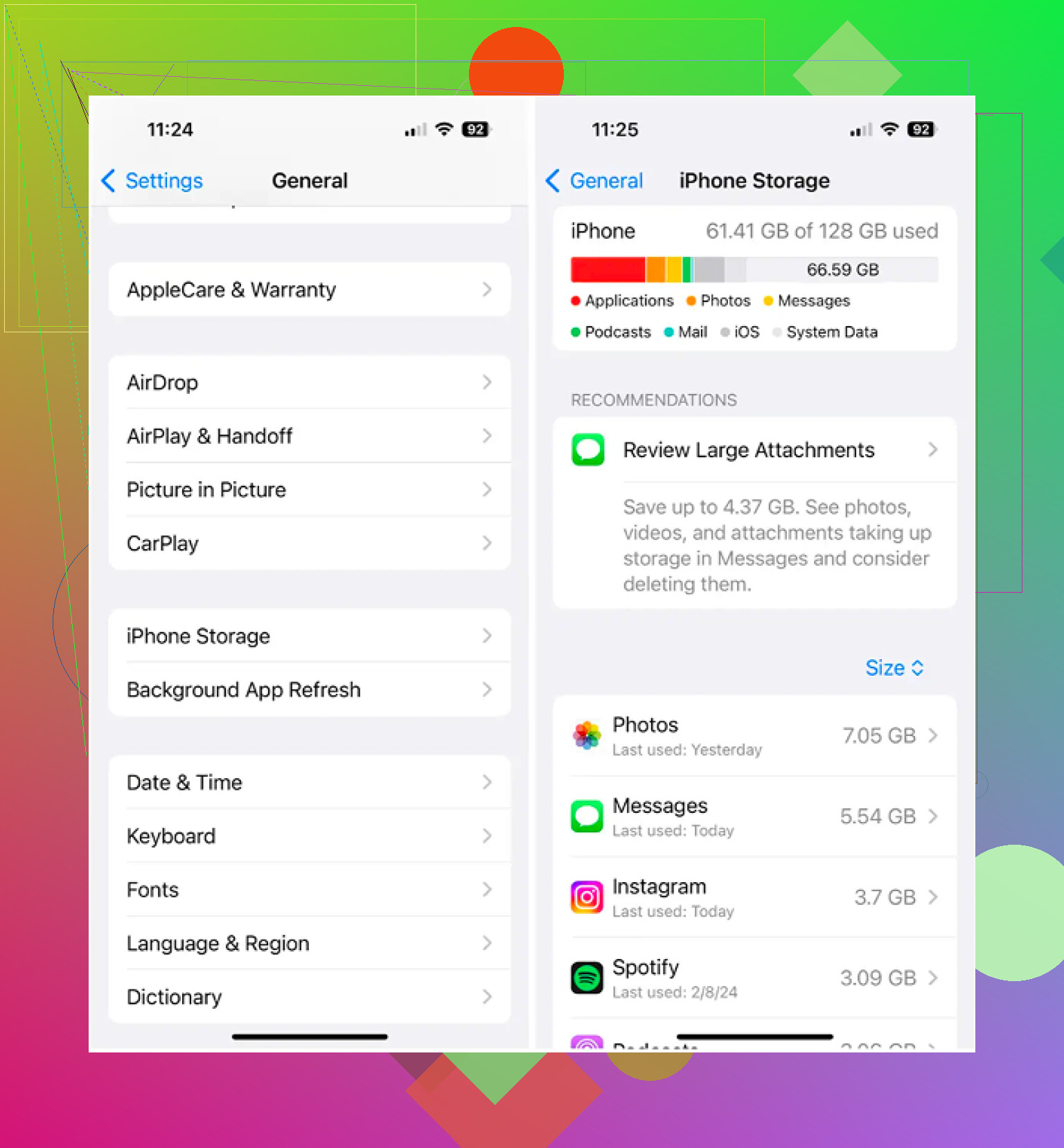
Check iPhone Storage.
Go to Settings, General, iPhone Storage.
This shows what is eating space. On most phones, Photos, Messages, apps, and media beat Files by a mile. I agree with @mikeappsreviewer on that part. -
Delete safe stuff first.
Good targets:
Safari downloads
old PDFs you already backed up
large message attachments
offline videos from Netflix, YouTube, Spotify, Podcasts
Safari website data
These hurt less if removed. -
Offload apps, don’t delete them.
This is the safest trick. Settings, General, iPhone Storage, tap an app, then Offload App.
You keep documents and app data. The app itself goes away until you reinstall it. This saves a lot if you have big apps. -
Review Messages.
Settings, General, iPhone Storage, Messages.
Delete large videos and attachments there. One 2 minute 4K clip is often 300 MB to 700 MB. A few of those fills storage fast. -
For photos, sort by size first.
I don’t love deleting from Files first unless you know your docs are the problem. Photos and videos are usualy the main issue.
Apple’s storage cleanup tips are here:
best ways to free up iPhone storage safely
If your library is messy, Clever Cleaner helps spot large videos, duplicates, and similar shots faster. That’s safer than random deleting, since you see what takes the most space first.
- Empty trash areas.
Files Recently Deleted.
Photos Recently Deleted.
If you don’t, storage won’t come back right away.
Big rule. If it has a cloud icon, deleting it removes it from iCloud too unless you choose remove download. People miss tht all the time.

I’d add one thing to what @mikeappsreviewer and @voyageurdubois said: before deleting anything, figure out whether the problem is real files or system bloat. People go hunting through Files and end up saving 200 MB, while cached junk from apps is eating 8 GB. That’s the part iPhone makes annoyngly vague.
What’s usually safe to remove without losing important data:
- Safari Reading List downloads
- browser cache/history data
- downloaded maps
- podcast episodes
- music you saved offline
- streaming app downloads
- old voice memos you already exported
- app caches, if the app lets you clear them
What I would not mass-delete:
- anything in Files you didn’t open and verify
- Notes attachments
- WhatsApp/Telegram media unless backed up
- GarageBand, iMovie, or CapCut project files
- anything with a cloud symbol unless you know the difference between delete and remove local copy
Also, small disagreement with the “just offload apps” advice. Offloading is useful, yes, but some apps re-download extra data later, so the storage win can be temporary. Better than deleting blindly, but not magic.
Best backup move in my opinion:
- plug into a Mac or PC and make a full encrypted backup
- then separately copy irreplaceable stuff like photos/docs to iCloud Drive, Google Drive, or OneDrive
That way, even if you mess up, you’re not cooked.
If photos/videos are the main culprit, use Clever Cleaner to sort the biggest files, duplicates, and similar shots before deleting. That’s safer than tapping around half-asleep. This also helps: see how to clean up iPhone storage fast
My rule: delete downloads first, optimize media second, touch documents last. That order causes the fewest regrets.
One angle missing from @voyageurdubois, @vrijheidsvogel, and @mikeappsreviewer: check Mail and voice/video project apps. Those are sneaky space hogs.
What I’d do before touching personal files:
- In Mail, remove giant attachments or old downloaded messages from accounts you can re-sync later.
- Open apps like iMovie, CapCut, GarageBand, Lightroom, Canva, or podcast editors. Their exported files and project caches can be huge.
- In Photos, review screen recordings separately. They’re often forgotten and absurdly large.
- In Books or Kindle-type apps, delete downloaded books/PDFs you can re-download.
I slightly disagree with the “Files app usually barely helps” idea. If you use Safari downloads a lot, Files can absolutely be the main culprit.
About Clever Cleaner:
Pros: fast size-based sorting, useful for similar photos, easier than manual hunting.
Cons: best for photo/video cleanup, less helpful for app cache cleanup, and I still would not trust any cleaner blindly without reviewing selections.
So my order would be:
- Backup
- Check app-specific downloads/projects
- Kill screen recordings and media
- Use Clever Cleaner for photo clutter
- Touch Files documents last unless you know they’re junk
Safest rule: if you can’t identify it in 2 seconds, don’t delete it yet.
The replies cover deletion, but try Optimize iPhone Storage first if photos take up most space.
Open Settings, tap your name, then iCloud, Photos. Enable Sync this iPhone and select Optimize iPhone Storage. Your phone keeps smaller versions while iCloud stores full-resolution originals. You need enough iCloud space for your library.
Dont delete photos afterward to free space. With iCloud Photos, deletion syncs across devices. Keep a seperate copy of irreplaceable pictures before cleanup.
Half the panic in these threads is about the wrong category. Check what shows up as System Data in iPhone Storage before you start deleting photos. That bucket can swell into several gigs of cache and logs you can’t touch directly, and no amount of clearing Files or Photos moves it. Sometimes a restart or a full backup-and-restore is the only thing that knocks it back down.
On the cleaner people keep pointing at, I’d push back a little on treating it as just a photo-clutter tool. What actually makes it worth a spot for me is that it doesn’t ask you to sign into anything or create an account to look at your library, which is more than I can say for most of the ‘cleaner’ apps that bury you in subscription prompts. Clever Cleaner is fine for finding the heavy media fast, but it won’t do a thing for that System Data problem, so don’t expect it to be the whole fix.
My rule is simpler than the long lists above: look at the storage breakdown first, deal with the biggest named category, and only go file-hunting if Files is actually near the top. Most of the time it isn’t.