My iPhone storage is almost completely full, and now apps are crashing, photos will not save, and updates keep failing. I think temporary files, cache, or system data are taking up too much space, but I am not sure what is safe to delete. I need help figuring out the best way to clear temporary files on an iPhone without losing important data.
I went into this thinking there would be one trash bin for temp files on iPhone. There isn’t. iOS spreads junk across apps, browser caches, and system storage, so cleanup feels weirdly indirect. Still works, though, if you hit the right spots.
Does this make the phone faster?
From what I saw, yes. The speed drop usually shows up when free storage gets cramped. iOS needs open space for background tasks, updates, app switching, and random temporary writes. When storage gets squeezed, apps hesitate, keyboards lag, scrolling gets choppy, and the whole phone feels off. Freeing temp data helps because you’re giving iOS room to breathe again. On my phone, the change showed up right away, not hours later.
Where the temporary stuff sits
It’s scattered. No master folder. No clean 'delete all cache' button.
- Safari and Chrome keep site assets, cookies, images, and scripts locally so pages reload faster later.
- Apps like Instagram, TikTok, Reddit, and YouTube stash media fragments and feed data for smoother loading.
- The iPhone Storage screen lumps a lot into System Data, including caches, Siri files, logs, and background leftovers.
- Each app keeps its own pile of temporary data, and iOS does not give you one central control panel for all of it.
iOS does some self-cleaning when space gets low. In theory. In practice, I’ve seen apps leave garbage behind after crashes or failed updates, and it just sits there.
What I’d do first if you want space back without deleting your apps
-
Restart the iPhone.
Old advice, still useful. A reboot clears some temporary system cache and resets memory use without touching your apps or personal data. If your buttons are acting up, open Settings, then General, then Shut Down. I started doing this once a week and the phone stayed smoother.
-
Clear your browser cache.
For Safari, go to Settings, Apps, Safari, then tap Clear History and Website Data. This wipes cached website data, though you’ll get signed out of a lot of sites. Chrome does it inside the app under Privacy and Security.
-
Turn on Offload Unused Apps.
Path is Settings, General, iPhone Storage. This removes the app itself but keeps its documents and settings. Your home screen icon stays there with a cloud symbol. Tap it later, the app comes back. If you want storage back without nuking your setup, this is one of the better options built into iOS.
When temp files are a side issue, not the main one
Here’s where I wasted time at first. Cache was not my biggest problem. Photos and videos were. Duplicates, burst shots, screen recordings, giant clips you forgot to trim, all of it. Once storage gets low because of media, temp files start hurting more because iOS has less room left for its own housekeeping.
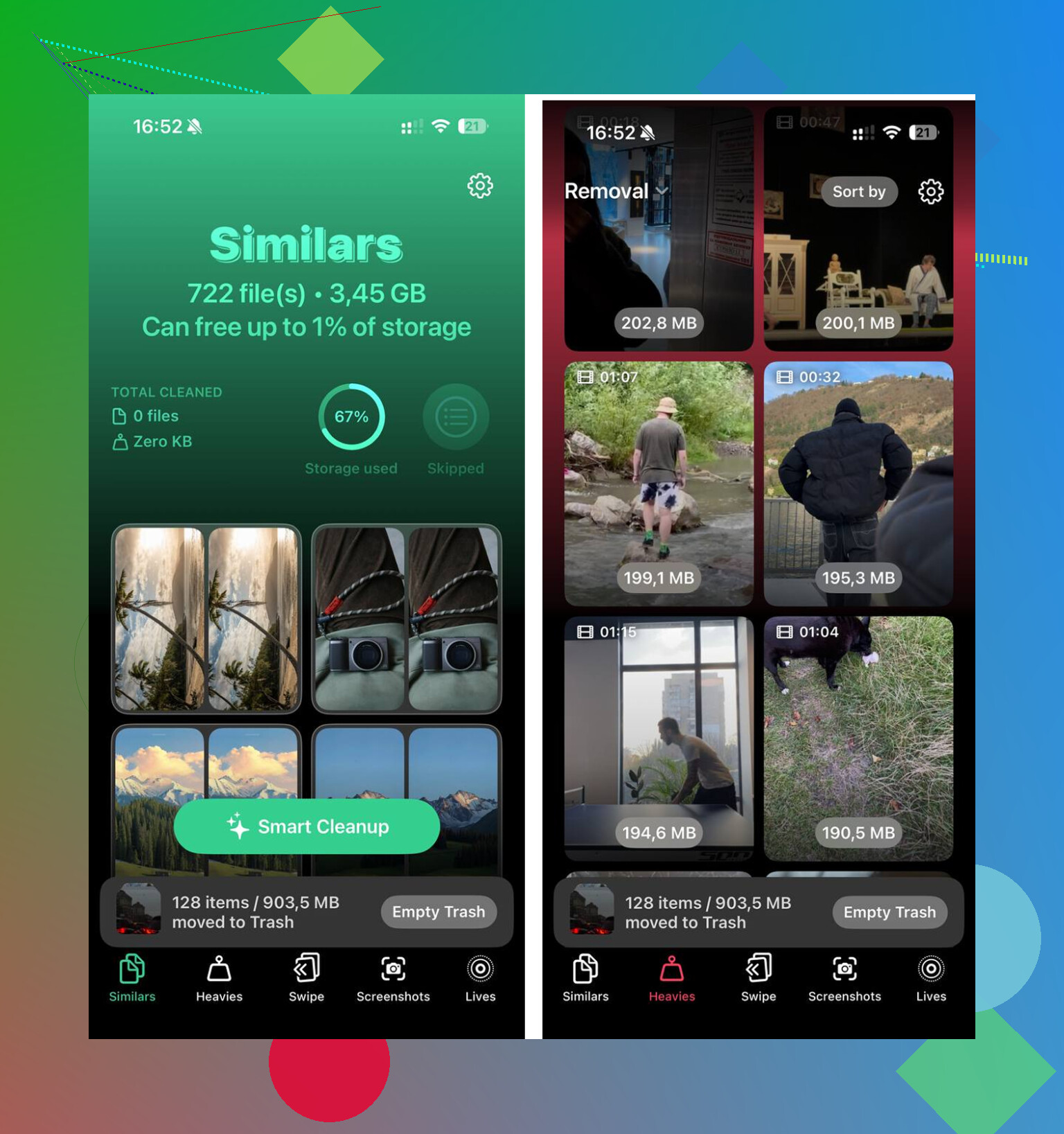
Doing photo cleanup by hand gets old fast if your library is big. I used Clever Cleaner for this part. What stood out to me was the simple sorting. The Heavies section puts the largest files first, so you see what’s eating space right away. The Similars section groups near-duplicate photos and picks a Best Shot, which helped with burst runs and those five nearly identical pictures of the same thing. It shows file sizes before deletion. The processing stays on the device.
After I cleared about 12GB from photos and videos, plus the browser and reboot cleanup, the lag stopped. Not fully scientific, no benchmark chart, but the phone quit stalling and apps opened normally again.
One last check worth doing
After cleanup, open Settings, then General, then iPhone Storage, and wait a minute. The storage bar takes a bit to recalculate. If System Data still looks bloated even after a restart, I’d look at the apps using the most storage. Social apps are frequent offenders. Deleting and reinstalling those forces a fresh local cache, which helps when old temp files got corrupted or grew out of control.
Skip the idea of a hidden temp-files folder. iPhone does not work like that.
What I’d do, in this order.
-
Delete failed downloads.
Go to Settings, General, iPhone Storage. Look for an iOS update file near the top. If you see one, delete it. Failed update packages eat gigabytes. -
Clear Messages junk.
Settings, General, iPhone Storage, Messages. Review Photos, Videos, GIFs, Stickers, and large attachments. This is one of the fastest ways to free 2GB to 10GB on crowded phones. People forget old video threads. -
Empty app downloads.
Netflix, Spotify, YouTube, Podcasts, Maps. Remove offline content inside each app. Cached media here gets huge fast. -
Fix bloated mail.
If Mail is huge, remove the account and add it back. Mail cache gets dumb when storage is low. I disagree a bit with @mikeappsreviewer on one point, browser cache is rarely the main hog. Media, messages, and downloads usually are. -
Remove old voice notes and GarageBand files.
Both hide large files. Check Files app too, especially Downloads and On My iPhone. -
Let Photos optimize storage.
Settings, Photos, turn on Optimize iPhone Storage. If iCloud Photos is on, full-res files get swapped for smaller local copies over time. -
If one app is absurdly large, delete and reinstall it.
Offloading keeps documents. Deleting nukes the junk. Better for apps like TikTok, Instagram, Discord.
If your photo library is the main problem, Clever Cleaner is worth a look. It helps find duplicate shots, similar pics, and heavy videos faster than doing it by hand. Saved me a ton of time, tbh.
Also, this video on how to clear iPhone storage and temp files fast is easy to follow.
One more thing. Keep 5GB to 10GB free if you want iOS updates and apps to stop failing. Below that, stuff starts breaking and gets anoying fast.
Temp files are part of it, but when an iPhone is this full, I’d stop chasing cache first and go after the stuff iOS hides badly.
A couple things I’d add to what @mikeappsreviewer and @kakeru said:
- Check Settings > Accessibility > Spoken Content > Voices and Translate. Downloaded voices/language packs can be weirdly huge.
- In Files app, sort by size. A lot of people forget ZIPs, PDFs, video exports, and downloaded junk sitting in Downloads.
- If you use Safari Reading List, saved offline pages can take space too.
- WhatsApp/Telegram can be monsters. Their in-app storage managers are way better than iPhone’s generic view.
I slightly disagree with the “restart helps a lot” angle. It helps some, sure, but if you’re down to like 1GB free, a reboot is basically putting a band-aid on a leaking pipe.
What usually works fastest:
- Delete one or two giant videos first.
- Remove app downloads/offline media.
- Delete and reinstall the worst offender apps, not just offload them.
- Clear message attachments from old chats.
- Then check storage again after 5 to 10 mins.
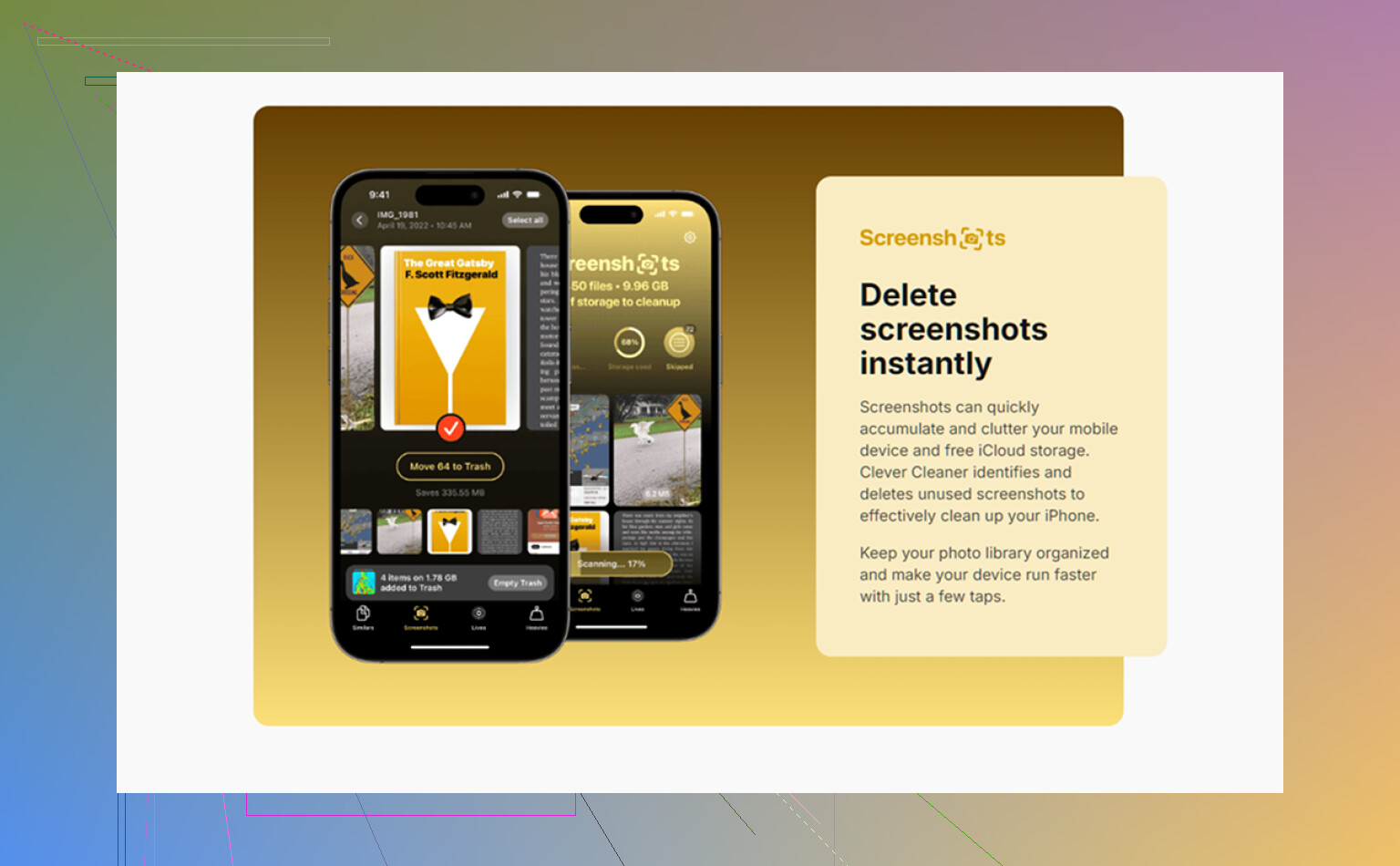
If photos are the main clog, Clever Cleaner is probly the easiest shortcut for finding duplicates, similar pics, and heavy videos without digging forever. Also worth reading this Clever Cleaner for iPhone review and cleanup guide.
Real fix though: keep at least 8GB free. Below that, iOS starts acting kinda feral.