I’m trying to remove the Hidden album from my iPhone Photos app completely, not just hide it or turn it off in Settings. I want to make sure the photos and album are fully gone for privacy reasons, but I’m not sure what iOS actually allows. What’s the best way to delete or disable the Hidden album on iPhone?
You don’t have to move photos out of Hidden before deleting them. If anything, deleting them from inside the Hidden album is the cleaner way to do it, since they never pop back into your regular library view.
Open Photos, then go to 'Albums' at the bottom. On newer iOS 18 layouts, you may see 'Collections' instead. Scroll down to 'Utilities' and open 'Hidden.' Since iOS 16, Apple locks that album by default, so you’ll need Face ID, Touch ID, or your passcode to get in.
Once you’re inside Hidden, tap 'Select' in the top right. If you want to wipe the whole thing, hit 'Select All,' then tap the trash icon. That removes those items from the Hidden album right away.
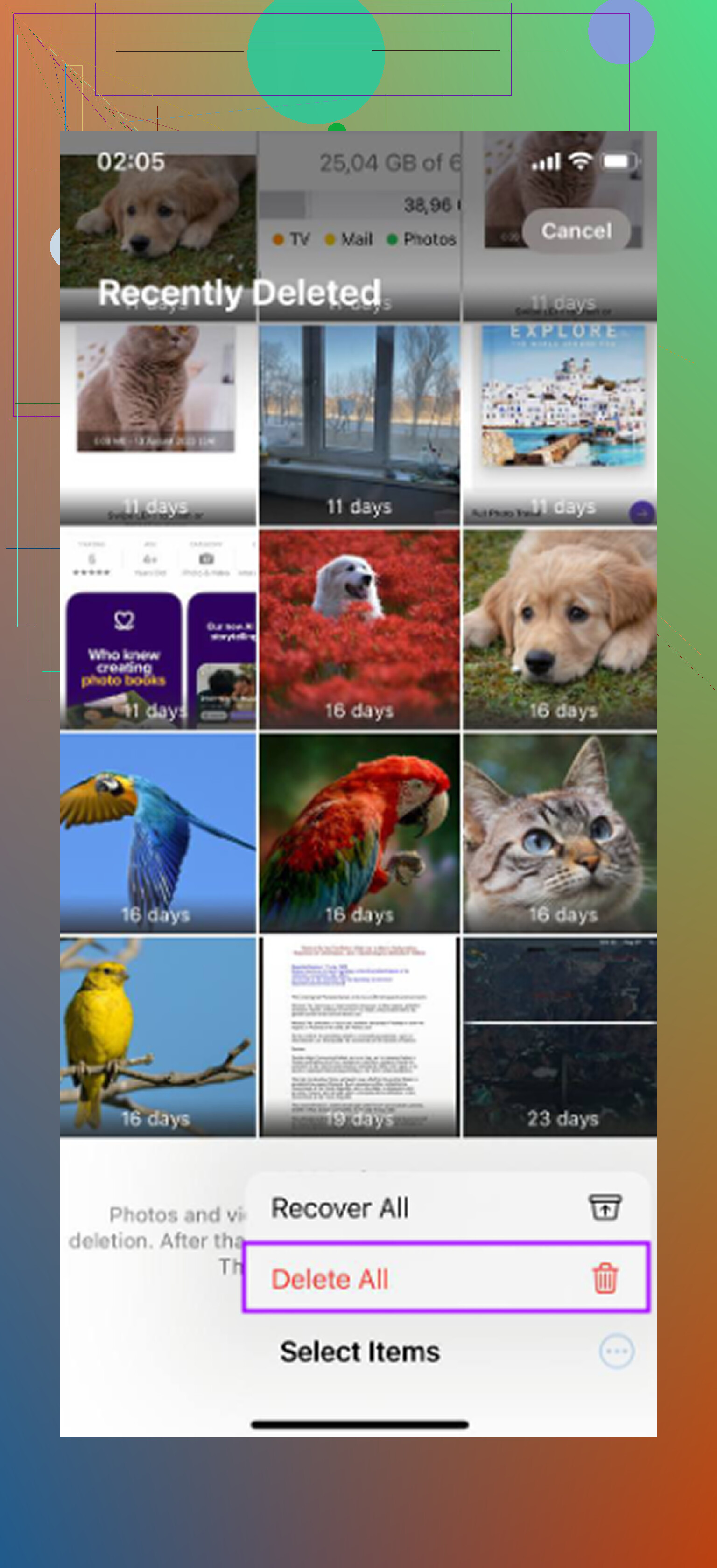
The part people miss is that this still doesn’t permanently erase them immediately. They get moved to 'Recently Deleted,' where they normally sit for 30 days. If you want them gone now, go back to the Albums or Collections view, open 'Recently Deleted' under Utilities, unlock it, tap 'Select,' then choose 'Delete All.' That’s the extra step that actually clears them from the phone for good.
And yes, if iCloud Photos is turned on, deleting hidden photos also deletes them from iCloud and your other synced Apple devices. Hidden isn’t a separate storage area. It’s still part of your photo library, just tucked behind a filtered and locked album. So if you delete something from Hidden on your iPhone, that change syncs to your iPad, Mac, and anything else using the same iCloud Photos library.
If your goal is just to stop the Hidden album from showing up, you can hide the album itself too. You can’t remove the feature, but you can go to Settings -> Photos and turn off 'Show Hidden Album.' The photos stay hidden and saved, but the Hidden folder won’t appear in Photos again until you turn that setting back on.
After you clean that up, it’s probably worth looking at the rest of your library too. A packed Hidden album is usually only part of the storage problem. Most photo libraries are full of duplicate-ish shots, old screenshots, huge videos, random screen recordings, and stuff you forgot was even there.
For cleaning up everything outside the Hidden album, I’d use Clever Cleaner. I’ve tried a bunch of photo cleanup apps, and this one is the best free option I’ve found. No ads, no paywall right when you’re about to delete something, which is usually where these apps get annoying.
It’s especially useful for finding what’s actually taking up space. Screenshots show their exact file sizes, so you can quickly spot the big ones. The 'Heavies' section sorts your media by size, which makes it easy to find giant 4K videos. The 'Similars' section looks for near-duplicate shots, like all those burst photos or five versions of the same picture, and lets you keep the best one while clearing the rest.
One important catch: because of Apple’s privacy restrictions, Clever Cleaner can’t access or clean the Hidden album directly. You still need to delete Hidden items manually through Photos using the steps above. But for the rest of your library, especially the stuff quietly eating storage, it’s very useful.
If by “completely” you mean the Hidden album feature itself disappears forever, that part isn’t really possible. It’s a built-in Photos album, so you can empty it and hide it from view, but you can’t uninstall or delete the album category from iOS like you would delete a normal folder you created.
The privacy cleanup is really about deleting the photos everywhere they might still exist. Delete the items from Hidden, then delete them again from Recently Deleted. After that, check the less obvious places: iCloud Photos, other Apple devices signed into the same account, shared albums, Messages attachments, Files app saves, and any old iPhone/iCloud backup that may still contain the photos. If you restore from an older backup later, deleted photos can sometimes come back because the backup predates the cleanup.
Apple’s own Photos guide is worth checking if your menus look different on your iOS version: Apple’s iPhone Photos guide. The short version is: you can erase the contents, you can hide the Hidden album switch in Settings, but you cannot remove Apple’s Hidden album feature from the Photos app itself.
Change your passcode if privacy is the reason, especially if anyone else already knows it. The Hidden album being locked sounds stronger than it is, because Face ID/Touch ID/passcode access can open it, and someone with your passcode can usually turn “Show Hidden Album” back on in Settings. So yes, delete the items from Hidden, empty Recently Deleted, and don’t expect to delete the album feature itself. But if this is about keeping something away from a person who has used your phone before, the cleanup isn’t finished until they no longer have the unlock code or biometric access.
You’re not going to delete the Hidden album as a built-in iPhone feature, so don’t spend time looking for a “remove album” button that isn’t there. The closest clean result is: empty Hidden, empty Recently Deleted, then turn off Show Hidden Album so it no longer appears in Photos.
The sync timing is the bit I’d be careful with. If iCloud Photos is on, make the deletions while the phone is online and let it finish syncing before you sign out of iCloud, turn iCloud Photos off, erase the phone, or start deleting things on another device. Otherwise you can end up with one device showing the deletion and another device still holding the old copy because it never got the change yet. I’d check Photos on any iPad/Mac using the same Apple ID, and if you use iCloud in a browser, check Recently Deleted there too.
After that, treat the empty Hidden album like the Camera Roll or Favorites album: it’s part of the app, not a personal folder you created. If it bothers you that the name exists at all, hide it in Settings, but the privacy work is deleting the media and making sure the deletion reached every place your library syncs.
Deleting from Hidden and Recently Deleted won’t touch the copies sitting in old iCloud or computer backups, so if you ever restore one, the photos walk right back in. @himmelsjager already flagged this, but I’d treat it as the main risk, not a footnote. Empty both albums, then actually delete or overwrite the backup that predates the cleanup, otherwise the privacy part isn’t really done.