Twitter/X is taking up a lot of storage on my iPhone, but I don’t want to delete and reinstall the app because I’m trying to avoid signing back in or losing settings. Is there a reliable way to clear the Twitter cache on iOS without reinstalling the app?
Clearing the Twitter cache on an iPhone is weirdly hidden. You do it inside the Twitter/X app, not from iPhone Settings.
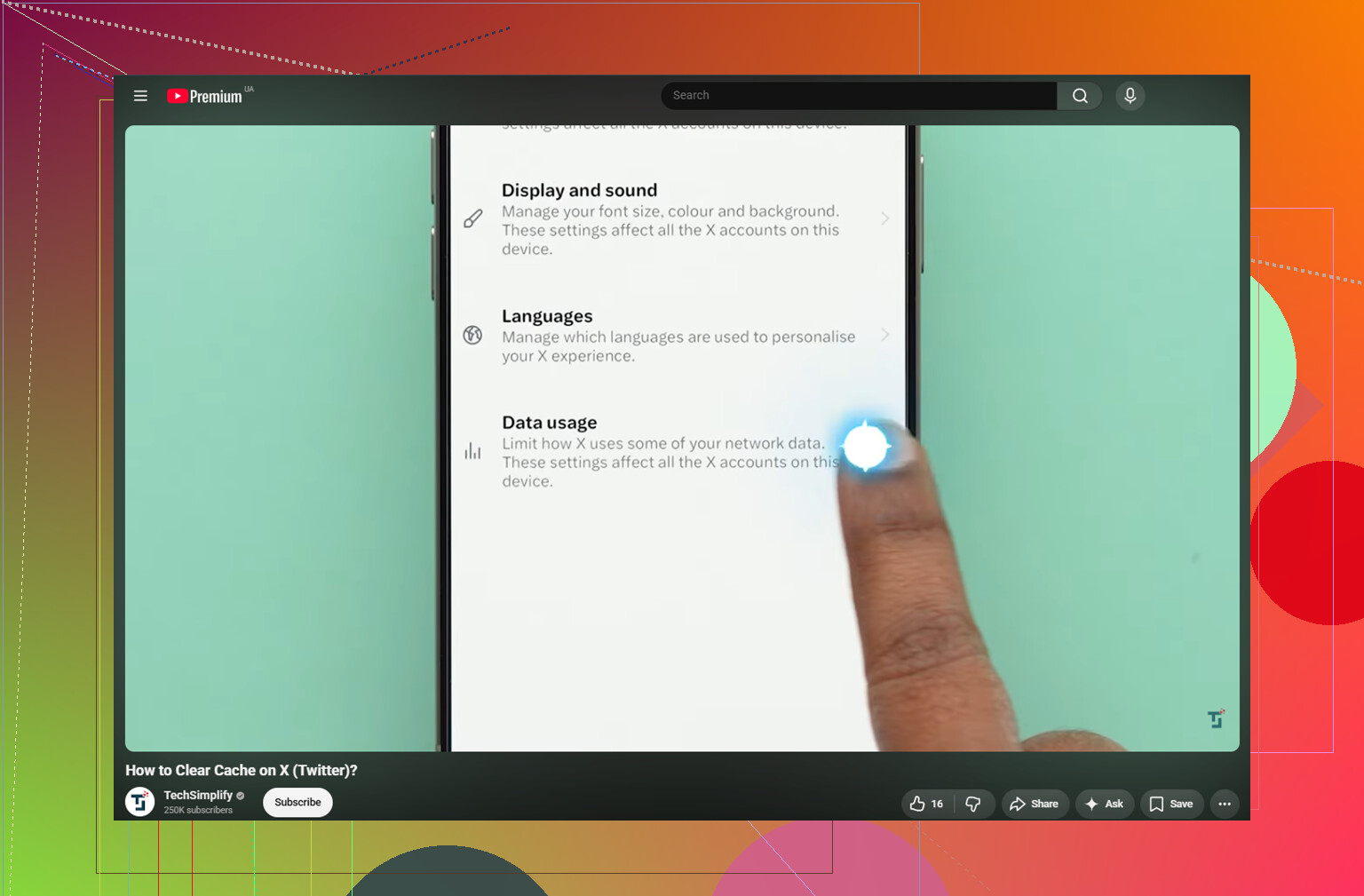
Here’s the path:
- Open Twitter/X and tap your profile icon in the top-left
- Go to Settings and Support, then Settings and Privacy
- Tap Accessibility, Display, and Languages
- Open Data Usage
- Scroll down to Storage
You’ll see two cache-related options there.
Media storage is the safer one to clear. That’s where the app keeps cached images, GIFs, thumbnails, and bits of video it loads while you scroll. Deleting it won’t remove your account, saved posts, or anything important.
Web storage is different. That’s tied to websites opened inside Twitter/X, including cookies and cached web pages. If you clear all web storage, you may get logged out, so don’t do that unless you know your password. If you just want to free a little space without messing with logins, clearing only web page storage is the safer choice.
Also, this does not clear your search history. That’s under Settings and Privacy, then Privacy and Safety, then Clear Search History.
Clearing Twitter/X cache can help for a bit, especially if the app has been eating storage. It’s pretty common to get back 1 to 3GB depending on how much you use it. The annoying part is that the cache comes back after a few days of normal scrolling, so it’s more of a temporary fix than a real cleanup.
That was basically the issue here too. Clearing the Twitter cache freed some space, but the storage warning came back about a week later. The real problem wasn’t Twitter. It was the photo library: old screenshots, repeated burst shots, huge videos, and random screen recordings that had been sitting there for years.
When an iPhone is almost full, clearing one app’s cache usually won’t make the phone feel normal again. iOS needs free space for temporary system files. If storage is still close to maxed out, the phone can stay slow no matter which app cache you just cleared. A single 4K screen recording can take more space than a huge pile of Twitter cache.
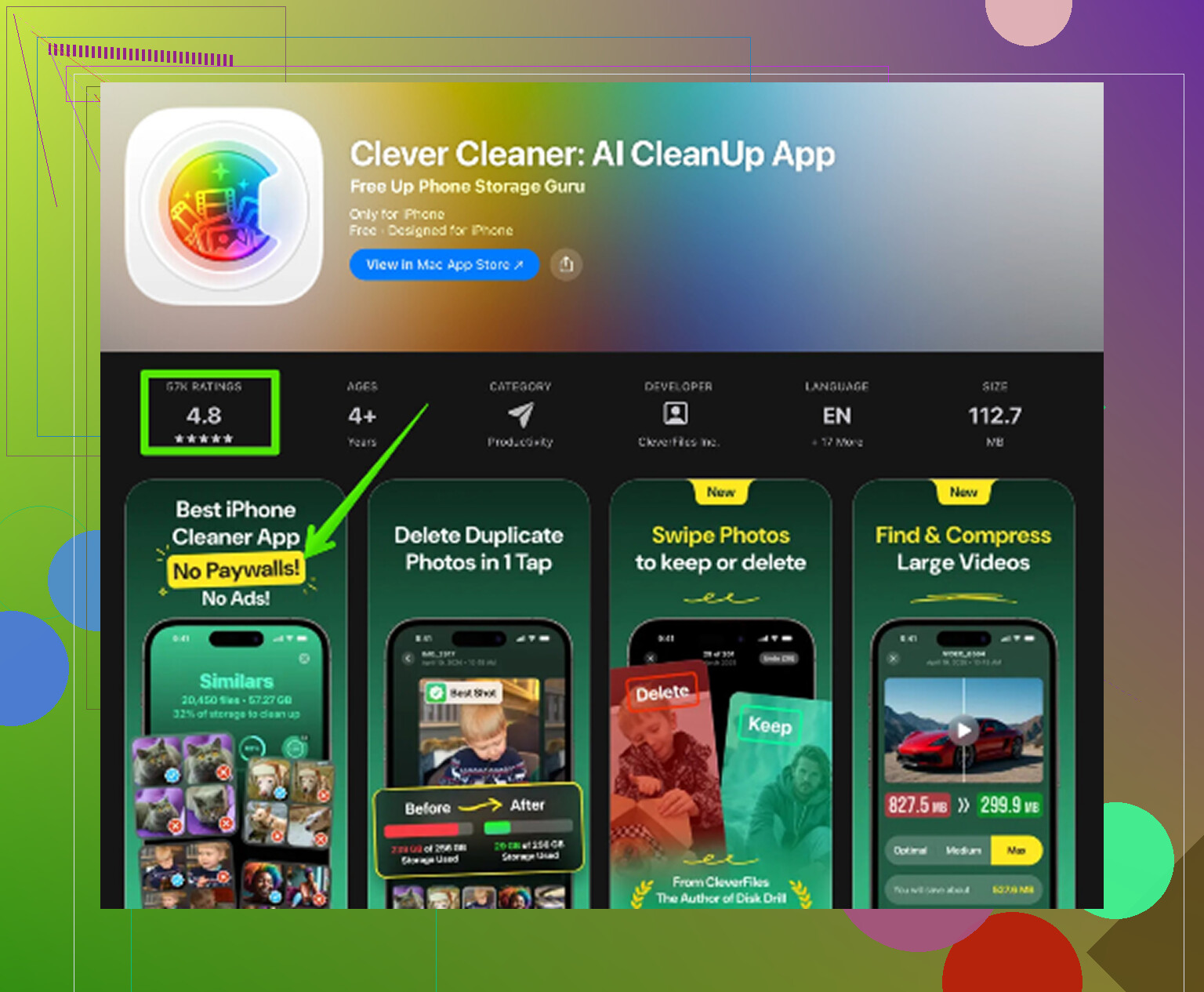
What actually made the cleanup manageable was using Clever Cleaner. It doesn’t clear Twitter cache or app data, so you still have to do the steps above manually. Its job is finding the stuff in your Photos app that is actually taking up space.
The Heavies tab sorts files from biggest to smallest and shows the exact size on each one, so large videos and screen recordings show up right away.
The Similars tab groups near-duplicate photos and suggests a Best Shot, which is much faster than checking ten nearly identical pictures one at a time.
It also shows file sizes before you delete screenshots, so you’re not guessing. Everything runs on the device too, so the photos aren’t being uploaded somewhere else.
The order that makes the most sense is: clear Twitter/X media storage first if you need quick breathing room, then clean up the photo library with Clever Cleaner. The cache clear buys you time. The photo cleanup is usually where the real storage comes back.
One last thing: after deleting photos or videos, open Photos, go to Recently Deleted, and choose Delete All. Otherwise the storage number may not change right away.
If the space is listed under X as “Documents & Data,” don’t bother with iPhone’s Offload App button expecting a real cleanup. Offloading mostly removes the app itself and keeps its data, which is often the exact pile of cache you’re trying to shrink. @mikeappsreviewer’s in-app cache path is the right first move, especially Media storage. After clearing it, I’d force-close X and give iOS a few minutes before checking Settings > General > iPhone Storage again, because that number can lag. If it still shows huge storage after that, then reinstalling is usually the only full reset, annoying as that is.
Don’t use “Clear all web storage” unless you’re ready to deal with logins, cookie prompts, and possibly 2FA again. The safer cleanup is the media cache inside X, like @mikeappsreviewer said, but I’d treat it as a pressure valve, not a repair. After clearing it, restart the phone before judging the storage number, because iOS can hang onto the old total for a while. If X still shows a giant Documents & Data number after that, there isn’t some hidden iPhone button that will surgically delete only Twitter junk. At that point you either live with it, clear more in-app data, or do the reinstall. Offload App sounds tempting, but for this specific problem it usually keeps the mess you wanted gone.
Turn on Data Saver and change video autoplay before you clear the media cache, otherwise X will just start filling the same bucket again the next time you scroll for ten minutes.
The cache-clearing steps already posted are the right ones, but I wouldn’t treat them as a one-time fix. In X, go into the same Data Usage area and look for settings like video autoplay, high-quality images, and data saver. Set autoplay to Wi‑Fi only or off if the option is available. Video previews are usually what make the app balloon, especially if you follow accounts that post a lot of clips.
Small caveat: the iPhone Storage screen is not a perfect live meter. Clear the media storage, close X, restart the phone if you want, then check later. If X still shows a huge Documents & Data number after that, there probably isn’t a clean “delete only the junk” button left. At that point the choices are basically limit how fast it comes back, clear web storage and risk login weirdness, or reinstall when you’re ready to deal with signing in again.
Reinstalling doesn’t wipe your settings, and that fear is the main thing steering this whole thread in the wrong direction. Almost everything you configure in X lives on the account, not on your phone. Your handle, muted words, notification preferences, privacy toggles, saved posts, following list, all of it comes back the moment you log in again. The only real cost of a reinstall is typing your password once, and if it’s saved in iCloud Keychain that’s basically autofill. So the ‘I can’t reinstall because I’ll lose my setup’ premise is shakier than it sounds.
That said, I get wanting to avoid it. The in-app Media storage clear that @mikeappsreviewer laid out is the correct first move, and it does reduce the Documents & Data number, which a few people here seem unsure about. Cached video and images are counted inside that blob, so clearing them in-app is not some separate untouchable thing.
Where I’d push back a little is on treating this as a mystery. If X keeps ballooning, it’s almost always autoplay video, full stop. @waldgeist already nailed the actual fix and it’s getting buried under the cache talk. Turn autoplay off or Wi-Fi only, drop high-quality media, and the cache stops refilling nearly as fast. Clearing cache without changing those settings is like emptying a bucket under a running tap.
On the storage number lagging: yeah, it lags, but restarting the phone is overkill for most people. Force-quit X, wait, reopen Settings. If you deleted anything from Photos in the same session, empty Recently Deleted or the number won’t budge, which is the trap most folks hit.
The Clever Cleaner suggestion makes sense if your storage panic is really coming from Photos, and honestly for a lot of iPhones it is. Old screen recordings and burst shots dwarf any app cache. Just don’t expect it to touch Twitter at all. It’s a Photos tool. Use it to clean the library, use the in-app steps for X, and keep the two problems separate in your head instead of hoping one app cache clear fixes a nearly full phone.
Short version: clear Media storage for quick relief, kill autoplay so it stays cleared, and stop dreading the reinstall because your settings aren’t stored where you think they are.
A simpler workaround for everyday use: browse X in Safari instead of the app. X supports browser access, though you might need a seperate browser login.
Open the X website in Safari, tap Share, then Add to Home Screen for easy access. Keep the installed app untouched if preserving its settings matters most.
This isn’t a cache cleanup, and it won’t reclaim the app’s existing storage. Treat it as an alternative for daily browsing, not a fix for space you need immediatly.