I’m trying to free up iPhone storage and want to permanently delete trashed items from Photos, Messages, and the Files app in one step. I cleared a bunch of stuff, but it still seems to be sitting in Recently Deleted or trash folders. Is there a way to empty everything at once, or do I have to do each app separately?
The confusing part is that iPhones don’t really have one “trash can” like a PC. There isn’t a recycle bin sitting on the home screen where everything goes. Apple handles deleted stuff app by app, so you end up with a bunch of separate Recently Deleted folders. And until those are emptied, the files are often still taking up space.
If your storage is almost full, I’d start with Photos. That’s usually where the biggest files are hiding. Open Photos, go to Albums or Collections, then scroll down to Utilities and open Recently Deleted. On newer iOS versions, you’ll probably need Face ID or your passcode to get in. From there, tap Select, hit the three-dot menu, and choose Delete All. Otherwise those “deleted” videos and photos can sit there for about 30 days still using storage.
Messages is another one people miss. Since iOS 16, deleted conversations have their own Recently Deleted area too. Open Messages, tap Edit in the upper-left, then choose Show Recently Deleted. If you’ve got old threads with photos, videos, or other attachments, that folder can be way bigger than you’d expect. You have to select the messages and delete them again if you want them gone for real.
Also check Files and Notes. In Files, go to Browse and look under Locations for Recently Deleted. In Notes, back out to the main Folders screen and look for Recently Deleted there. Same general idea: deleted items hang around for a while unless you manually clear them.
I ran into this with my iPhone 13 Pro a few months ago. It started lagging, apps were crashing, and even opening the camera felt slow. Turns out being nearly out of storage can make the whole phone feel awful because iOS still needs room for cache, temporary files, and normal background stuff.
I tried cleaning everything manually at first, but jumping between Photos, Messages, Files, Notes, and other apps got old fast. It felt like I’d clear one thing and then find another hidden pile somewhere else.
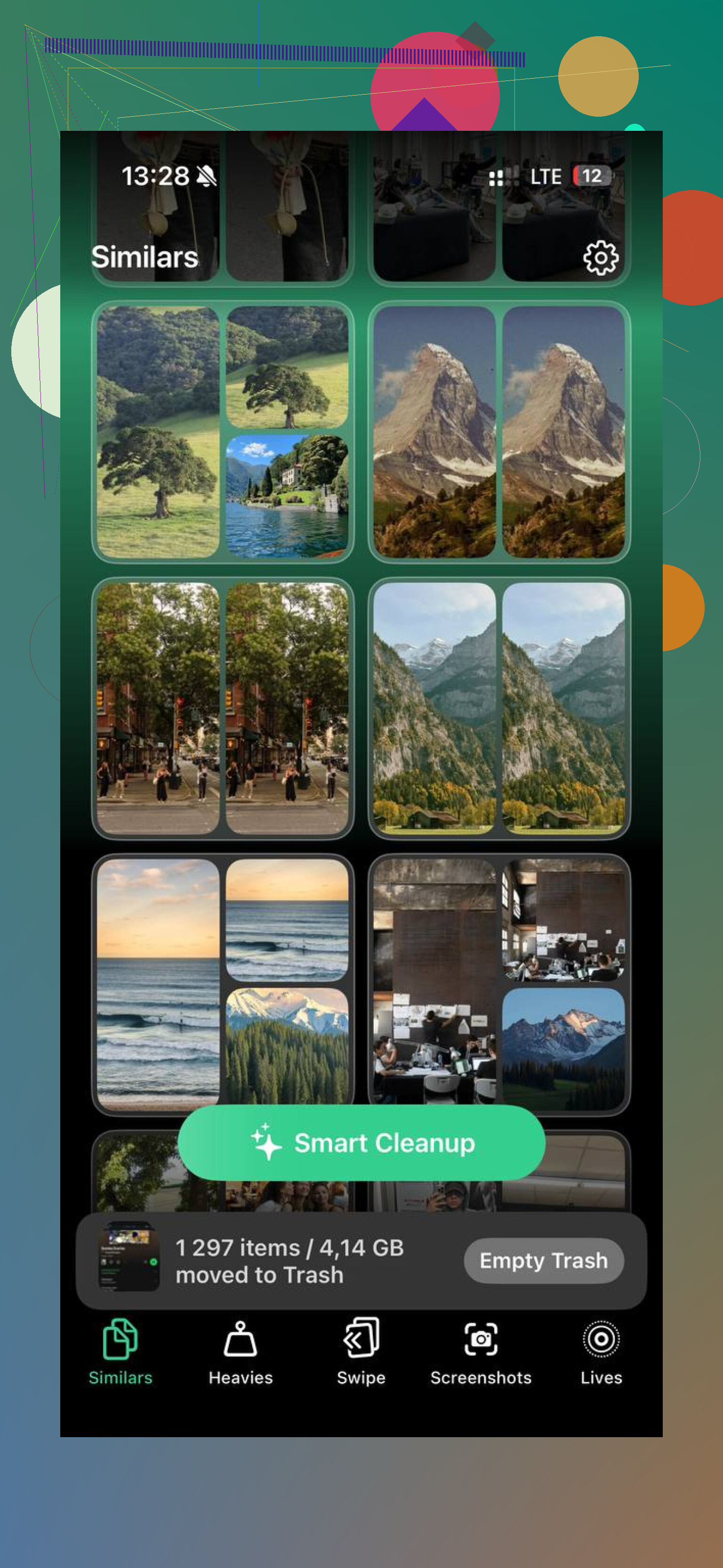
If you don’t want to dig through all those menus, Clever Cleaner is the free cleanup app I ended up using. No ads, no subscription, no paywall. The useful part for me was that it showed actual file sizes, so I could see what was worth deleting instead of guessing.
The “Heavies” tab sorts your largest videos and photos by size, which makes it easy to find the stuff eating the most space. The “Similars” tab is good too if you take a bunch of almost-identical shots and forget to clean them up later. It groups similar photos so you can keep the best one and delete the extras. It also processes everything on the phone instead of uploading your photos somewhere, which matters if you care about privacy.
After clearing around 15GB, my phone felt normal again. So yeah, you can empty all the Recently Deleted folders yourself, but if you’ve got a lot of media and attachments, a cleanup app is just less annoying.
One more thing: if System Data still looks huge after you’ve cleared everything, do a forced restart. Sometimes iOS needs a reboot before old cache files and logs actually clear out. Good luck, hope you can get your space back.
Storage may not drop right away, especially if iCloud Photos is syncing or the phone is still recalculating the storage screen. The others are right that there’s no master “empty all trash” button on iPhone, but I’d be careful with cleanup apps here too: they can help find big duplicate photos or videos, but they usually can’t permanently empty every app’s Recently Deleted folder for you because Apple keeps those areas separated. For the actual “delete forever” part, you still have to clear Photos, Messages, Files, Notes, and any other app’s own trash manually. After that, restart the phone and check Settings > General > iPhone Storage again later, not instantly.
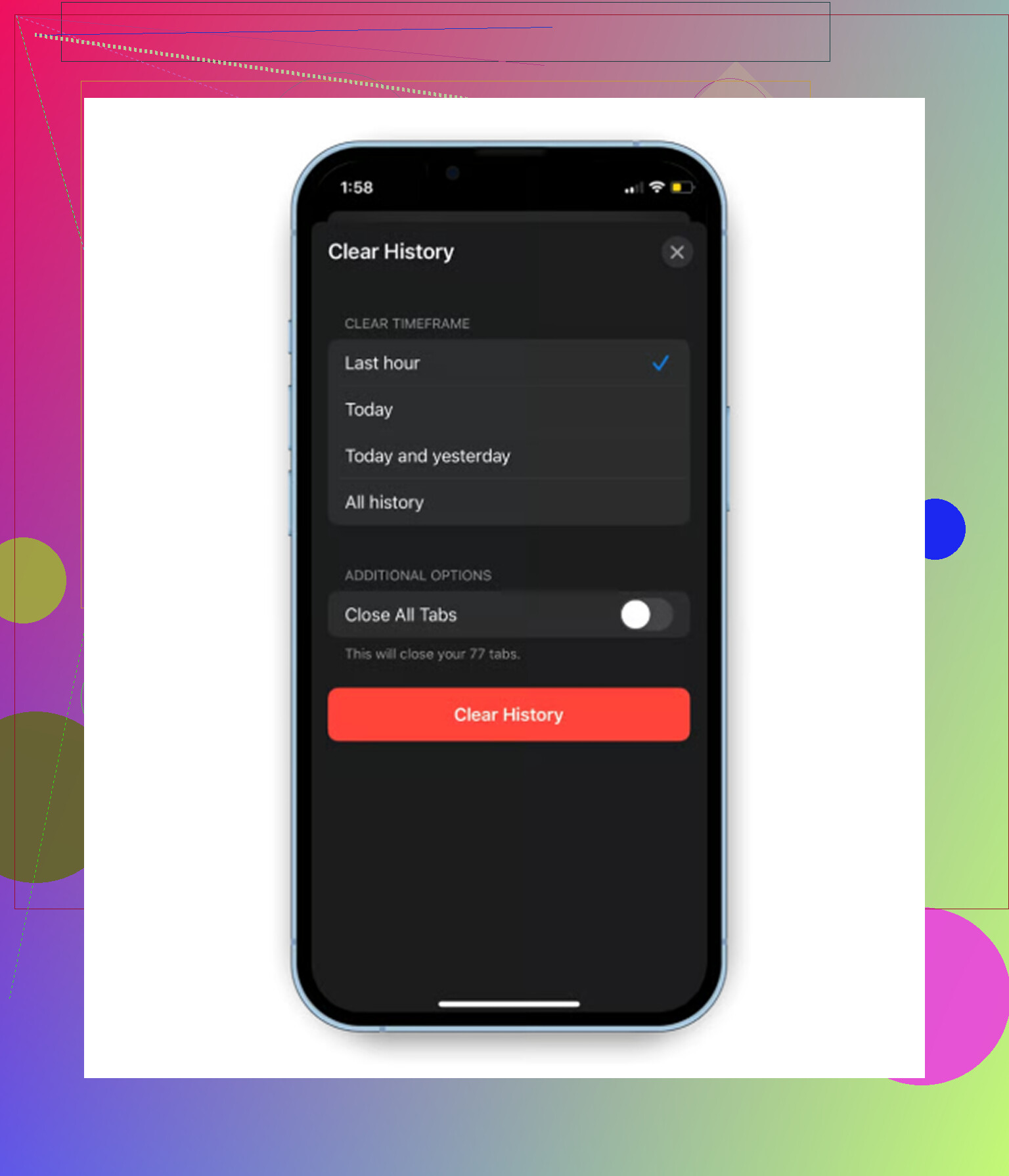
Don’t erase Recently Deleted until you’re sure you don’t need anything back, because that second delete is the real one.
There’s no all-at-once button for Photos, Messages, and Files, so the closest “fast” route is to clear the biggest one first, usually Photos videos, then restart and give iPhone Storage time to update. If the number still looks bad, check Settings > General > iPhone Storage for app data, because sometimes the space problem is app cache or downloaded media, not trash.