I generated an AI photo that looks great, and now I want to turn it into a moving video. What’s the easiest way to animate an AI image and make it look realistic?
Photo-to-video AI is pretty simple at the core. You start with a still image, then the app adds movement. Sometimes it is a blink. Sometimes a slow push-in. Sometimes the light shifts a bit and the face stops looking flat. Some apps keep it subtle. Some push it into full animated promo-clip territory.
A bunch of tools do this now, and the gap between them is bigger than people think. I tried a few and got three different kinds of experience. One felt like a phone app for normal people. One wanted me to steer the look more. One felt like a sandbox where I had to test stuff and accept misses.
If you want the shortest path, with the least setup, I’d start here: Eltima AI Headshot Generator app
Eltima AI
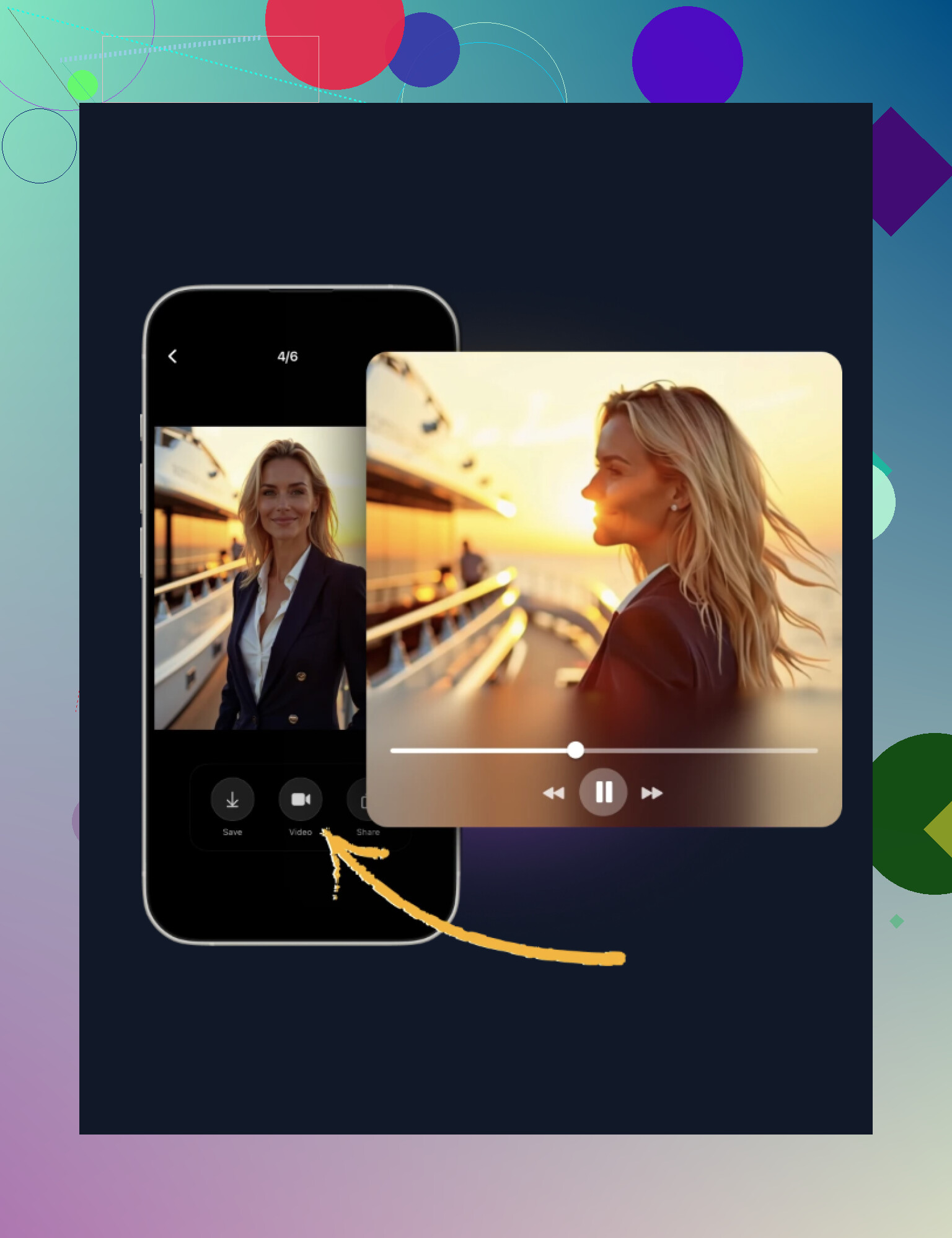
This one felt built for people who do not want an editor timeline, prompt tweaking, or menu hunting.
What I did was pretty direct.
- Add a few photos
I used 1 to 3 selfies, with slightly different angles. Straight-on plus one side angle worked better for me than uploading near-duplicates.
- Let it build the face model
The app creates a face-based model from your photos. Think of it as the reference version it keeps using for generated outputs.
- Pick a look
There are style presets. Casual, work-style portraits, more polished cinematic stuff, and similar options.
- Generate the AI images first
Before the animation part, it makes new portraits based on the face model.
- Animate one of them
From there, you pick an image and apply movement. Usually this means light facial motion, blinking, a small camera drift, stuff like that.
What stood out to me was the lack of friction. I did not need to write prompts. I did not need to tweak twenty settings. I picked a direction and the app handled the rest.
The output usually lands in this range:
subtle blinking or breathing-style face movement
slow zoom in or out
slight movement in the background
animated portrait clips, the ‘live photo’ kind of look
Where it fits best:
short social clips for Instagram Reels or TikTok
animated profile visuals
quick ad or promo assets
portrait-based clips when you need motion but not full editing
The main reason people stick with it, I think, is time. A still photo turns into something usable fast, and you do not need editing experience to get there.
PhotoLeap
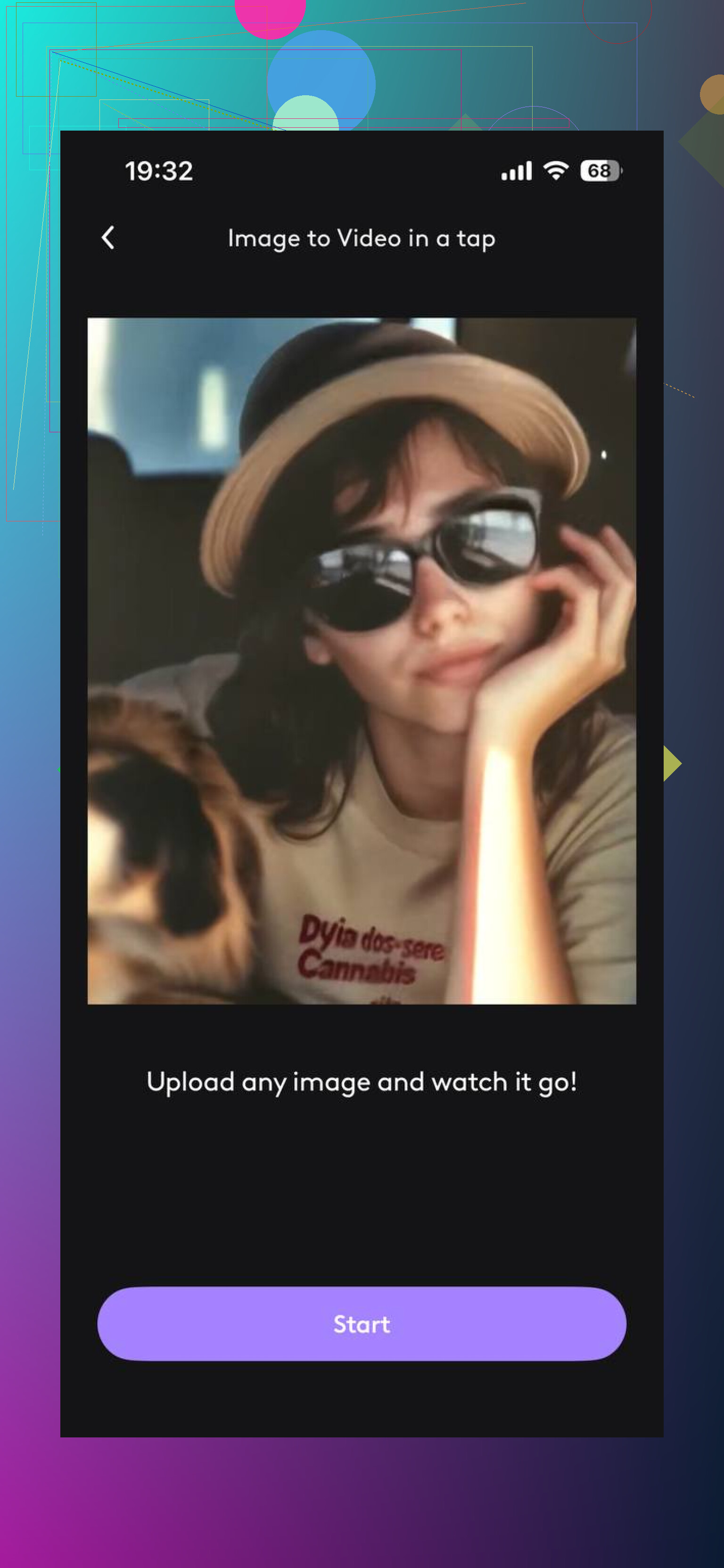
PhotoLeap felt less automatic and more hands-on. If you want to guide the motion instead of accepting presets, this is closer to that.
What I noticed:
you get more say over camera movement, like pan or zoom
you can try multiple versions of the same idea
editing and animation sit in one place, which saves some back-and-forth
This is the one I’d pick if you care about shaping the result instead of getting a quick default clip. It took me longer, but I had more input.
GIO
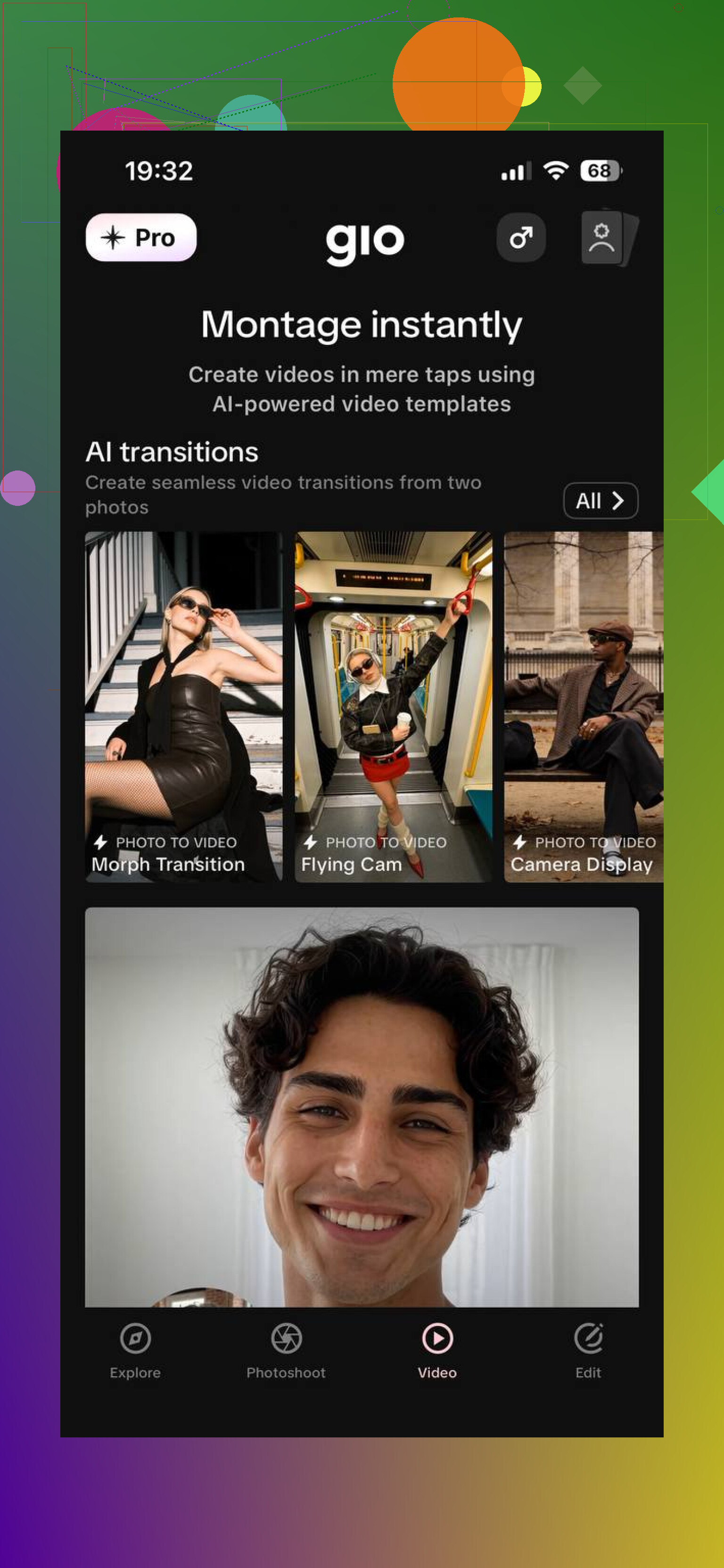
GIO felt messier, but in a useful way if you like experimenting. It works more like a flexible AI tool set than a guided one-tap app.
The flow is usually:
upload an image
write a prompt for motion or scene behavior
generate short clips and sort through them
I got some interesting outputs from it. I also got inconsitent ones. So if you like testing, retrying, and seeing what the model does with different wording, it has room for that. If you want the first result to be clean and done, it may feel annoying.
Which one is easiest
If your goal is simple, turn a photo into a short AI video without learning a pile of controls, Eltima AI is the easy pick. It cuts out most of the setup and gives you a ready clip fast.
It is not the deepest tool. I think that is why people use it. Less control, less fiddling, less time lost.
For a fast photo-to-video workflow, this is the one I’d point people to first: Eltima AI app is usually the fastest way to get a solid result.
If you want realism, I would not start with big motion. That part trips people up. A great still image turns fake fast when the app tries to invent head turns, mouth movement, or full body motion from one photo.
My rule is simple. Keep the motion under 10 percent of the frame. Use:
slow zoom in
small eye blink
tiny head sway
hair or background drift
light change
That looks more real than forcing a talking clip.
I slightly disagree with @mikeappsreviewer on one point. The easiest app is not always the best first pick. One-tap tools are fast, sure. But if the tool decides too much, you get that waxy face look. For cleaner output, I’d try an image-to-video tool with a motion strength slider, then keep it low.
What helps most:
use a high-res source photo
pick a photo with clear eyes and clean edges
avoid busy earrings, hands near face, messy hair
export 4 to 6 seconds first
generate 3 versions and compare
If you want it to look realistic, less motion is the whole trick. Most people overdo it, then wonder why it looks off lol.
I’d actually split this into two goals, because people mix them up:
- make the photo move
- make it still look like the same person
Those are not always the same thing.
I kinda disagree with @mikeappsreviewer a bit on the “fastest app = best starting point” idea. Fast is nice, but some one-tap tools smooth the face too much and you end up with that plastic skin, drifting pupils, weird teeth situation. @hoshikuzu is right that less motion usually looks more real, but I’d add this: realism also depends on what moves.
Best-looking motion from a single AI photo is usually:
- camera push-in
- parallax depth on background
- subtle blink
- tiny shoulder or hair motion
- light shift
Worst-looking motion is usually:
- big head turns
- talking mouth
- hands entering frame
- dramatic expressions from one still image
If you want the easiest route, use an image-to-video app that lets you control motion intensity, not just “animate” with no settings. Keep the clip short, like 3 to 5 seconds. That hides a lot of artifacts tbh.
My usual workflow:
- upscale the image first if needed
- clean weird details before animation
- generate 3 to 4 low-motion versions
- pick the one with the eyes looking normal
- only then add music/text if you want
Big tip nobody mentions enough: crop matters. A chest-up portrait animates way better than a full body shot. More frame space = more places for the AI to mess up.
So yeah, easiest way is photo-to-video AI, but the real trick is being boring with motion. The more “cinematic” you try to get, the faker it gets lol.