My iPhone has been running slow and apps are taking longer to open, but I don’t want to delete photos, apps, or reset the whole phone. Are there iPhone Settings changes that can improve performance, reduce lag, and make it faster without losing my data?
Before you write the phone off, I’d check a few boring things first. Older iPhones can feel painfully slow when storage is packed, the battery is worn down, or iOS is wasting effort on animations and background activity. I had this happen with an old SE and an 11 Pro, and they both got a lot more usable without buying anything.
The first easy wins are in Settings. Go to Settings > Accessibility and turn on Reduce Motion under Motion. Then go to Display & Text Size and turn on Reduce Transparency. Those little blur effects, animations, and floating icon effects look nice, but on older hardware they can make the whole phone feel heavier than it needs to.
I’d also look at Background App Refresh under Settings > General. Either turn it off completely or leave it on only for stuff that actually matters to you. A lot of apps don’t need to keep refreshing in the background, and it can drag down both speed and battery life.
Battery health matters too. Check Settings > Battery > Battery Health. If the maximum capacity is under 80%, or you see a message saying performance management has been applied, that can explain a lot of the slowdown. And if you keep Low Power Mode on all the time, turn it off when you care more about speed than saving battery. It is meant to reduce performance to stretch battery life.
The biggest thing for me, though, was storage. If your iPhone is sitting near full, it can crawl. iOS needs free space to move things around and keep the system running normally. I try to keep at least 10% to 20% free. On a 64GB phone, that means roughly 10-12GB open if you can manage it.
You can start with Settings > General > iPhone Storage and offload apps you don’t use anymore. Clearing Safari data can help a little too. But usually the real space hog is photos and videos. Manually sorting through thousands of blurry shots, duplicates, screenshots, and old videos is miserable.
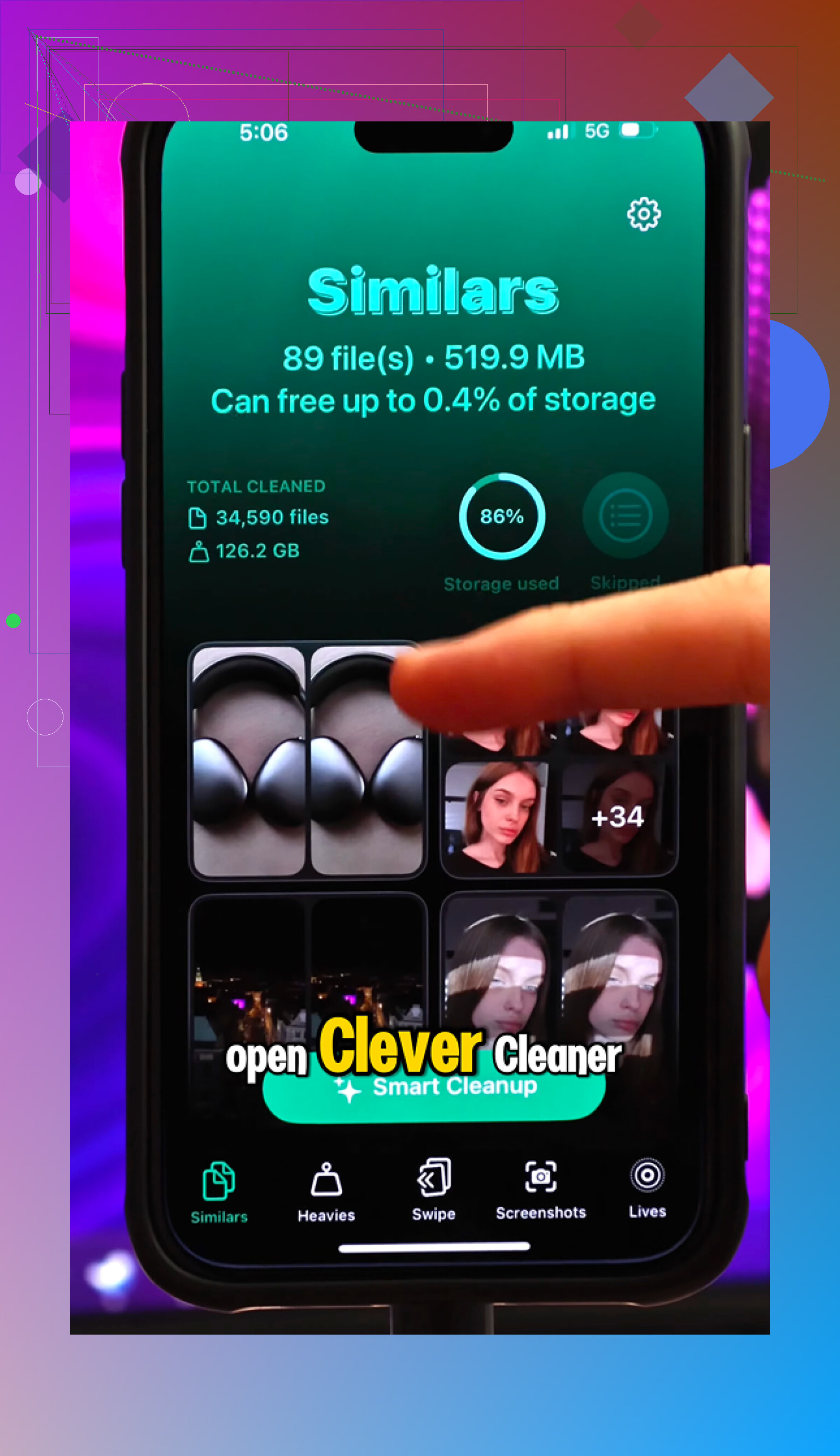
That’s where Clever Cleaner helped me. I’m usually not into “cleaner” apps because a lot of them are stuffed with ads or push subscriptions, but this one was actually free, with no paywall, no premium nagging, and no ads.
The useful part is how it breaks things down. The Heavies section shows the biggest media files first, which is how I found old 4K videos eating up a ton of space. The Similars section finds near-duplicate photos, like when you took ten versions of the same picture, and helps you keep the best one. There’s also a Screenshots tool that shows file sizes, so it’s easier to see what’s worth deleting.
I also liked that the cleanup happens on-device, so your photos aren’t being uploaded somewhere else for processing. After clearing out around 30GB of old media and restarting the phone, the difference was obvious. The camera opened normally again, swipes stopped feeling delayed, and the overheating calmed down.
So I wouldn’t jump straight to a factory reset or a new phone. Turn down the visual effects, limit background refresh, check the battery, then free up a serious chunk of storage. For me, Clever Cleaner was the part that made the biggest difference.
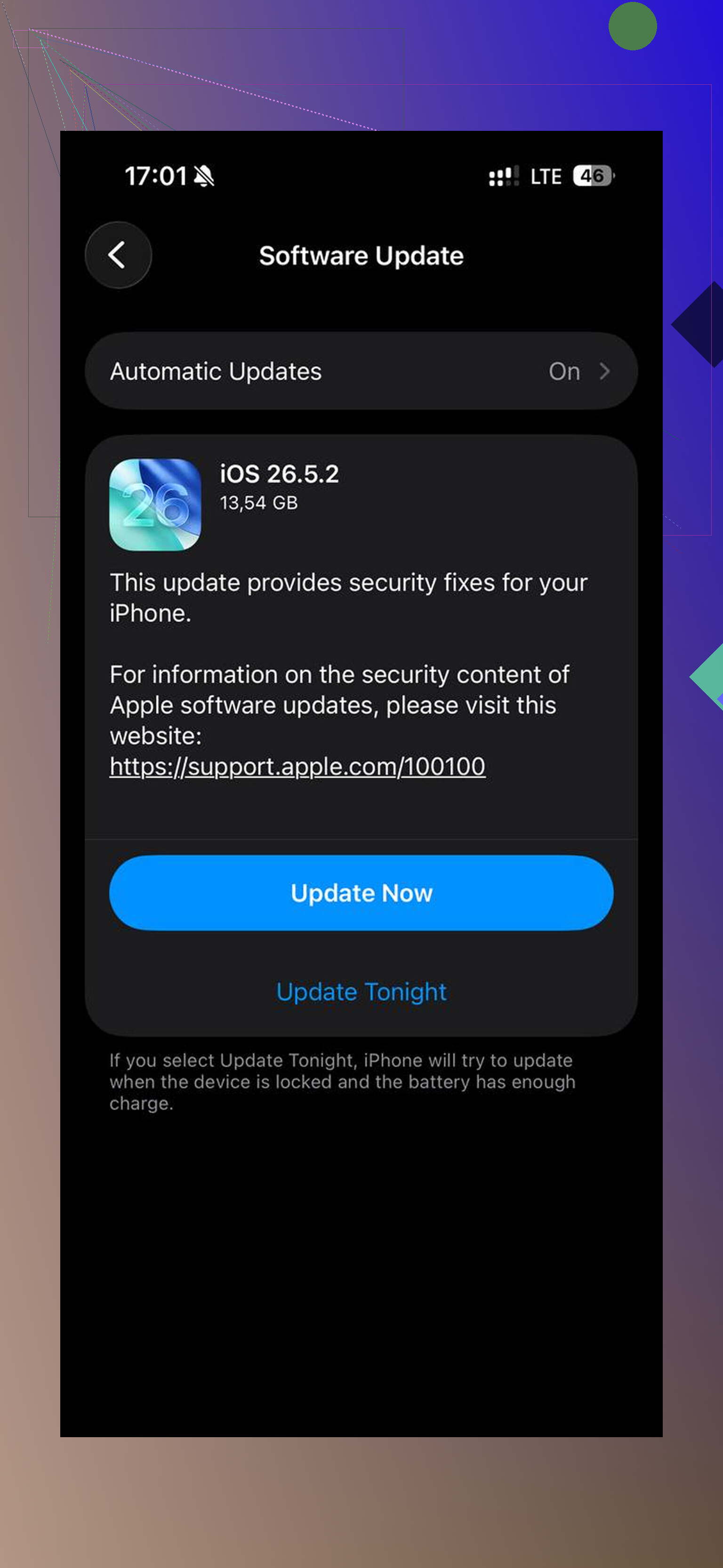
Your iPhone model and iOS version matter, because some “speed up” tricks only hide the problem. I agree with turning off extra motion/background refresh, but don’t expect miracles if the phone is on a very new iOS version with an older chip. The fastest low-risk settings check I’d do is Settings > General > Software Update, then App Store updates, then restart the phone after everything finishes. Half-updated apps can feel laggy too. I’d be careful with clearing Safari history if you rely on saved tabs or logins, since that can be more annoying than helpful. And don’t constantly swipe-close every app, since reopening them from scratch can make the phone feel slower, not faster.
Do not ignore heat while you are changing settings, because a warm iPhone will slow itself down no matter how many toggles you flip.
If the phone feels laggy after ten minutes of use, take the case off for a bit, stop charging while using it, and don’t test performance in direct sun or while it’s doing a big iCloud sync. People often chase storage and animations, but heat throttling can make a perfectly normal phone feel broken. This is especially obvious with maps, camera, video calls, games, and anything using cellular data hard.
I agree with the earlier advice on Reduce Motion and Background App Refresh, but I’d be more selective than “turn off everything.” Some switches save almost nothing and just make the phone annoying. The settings I’d check first are the ones that constantly wake the phone up or keep rebuilding stuff in the background.
Try this order:
Go to Settings > Battery and look at the last 24 hours and last 10 days. If one app is sitting at the top with a bunch of Background Activity, deal with that app first. Turn off its background refresh, location access, notifications, or reinstall it if it is acting weird. A single badly behaved app can make the whole phone feel slow.
Then go to Settings > Privacy & Security > Location Services. Leave location on, but change unnecessary apps from Always to While Using or Never. I would especially check shopping apps, weather apps you don’t use much, social apps, and random store apps. Don’t mess with things like Find My if you rely on it.
Next, check Settings > Notifications. This sounds unrelated, but a phone getting hammered by lock screen alerts, badges, live updates, and notification previews all day can feel sluggish. Turn off notifications for apps you do not care about. It makes the phone feel calmer too, which is a bonus.
If the Home Screen is laggy, remove some widgets rather than deleting apps. Big photo widgets, weather stacks, news widgets, battery widgets, and smart stacks all refresh visually. Long press a widget and remove the ones you don’t need. Same with Lock Screen widgets. It’s a small thing, but on older iPhones it can matter.
Another setting people forget is Siri search. Go to Settings > Siri > Apps, then pick apps you barely use and turn off things like Learn from this App, Show App in Search, and Show Content in Search. I would not do this for Messages, Mail, Notes, or anything you search often. But for games, shopping apps, food apps, and one-off apps, it can cut down on background indexing and clutter.
For Safari, I wouldn’t rush to clear all history like it’s a magic speed button. If Safari itself is slow, first close ridiculous tab piles, disable extensions you don’t need in Settings > Apps > Safari > Extensions, and clear website data only if Safari is the problem. Clearing everything can sign you out of sites and wipe convenience for a tiny gain.
The storage point is still real, though. “Without deleting everything” does not mean “with 500 MB free.” If iPhone Storage shows you are almost full, settings tweaks will only go so far. Offloading apps is the least painful option because it keeps documents and data while removing the app itself. For photos, a cleaner app can be useful for finding huge videos or duplicates, but treat it as a sorting tool, not a miracle repair button. Review before deleting anything.
One more boring fix: restart after changing all this. Not every five minutes, not daily as a ritual, just once after updates and settings cleanup. Then give the phone a little time if you recently updated iOS, because Photos, Spotlight, and app data can keep indexing for a while in the background.
Realistic expectation: these settings can reduce stutter and make the phone feel less loaded down. They will not turn an old iPhone into a new one, and they won’t fix a worn battery or failing storage. But if the slowdown is from background activity, heat, widgets, notifications, or one noisy app, you can often make it noticeably better without wiping the phone or deleting your stuff.
Do a full power-off before you touch a single toggle. Not the quick restart everyone mentions, an actual hold-the-button, slide-to-power-off, leave it dead for a minute, then boot it. A restart and a cold shutdown aren’t the same thing, and a phone that’s been up for three weeks straight can shake off a surprising amount of lag just from that. Cheap, takes two minutes, costs you nothing.
@mike34 is right that heat is the sneaky one, and I’d put it above the animation stuff honestly. Reduce Motion and Reduce Transparency are fine, but they shave milliseconds. If your phone is throttling because it’s warm or the battery is worn, no accessibility toggle saves you. The storage advice from @mikeappsreviewer holds up too, and Clever Cleaner is reasonable for hunting down the giant 4K videos and duplicate bursts without paying for the privilege. Just don’t expect deleting photos to fix lag that’s actually coming from a bad battery. Different problem.
The one middle-ground option nobody brought up is Settings > General > Transfer or Reset iPhone > Reset > Reset All Settings. That wipes your preferences, network settings, and layout back to defaults without deleting a single photo or app. It’s not a factory reset. I’d try it after the boring stuff fails, because sometimes the slowdown is a corrupted setting or a stuck config, not storage or heat. You’ll have to redo your Wi-Fi passwords and some toggles afterward, so weigh that against how annoyed you are. If it’s still crawling after all this, the honest answer is battery or age, and that’s a hardware bill, not a settings fix.