I’m trying to combine two pictures side by side on my iPhone and save them as one image, but I can’t find a built-in option in Photos. I need this for a quick post and don’t want to lose image quality. What’s the easiest way to do this on iPhone?
I ran into the same mess. You take six sunset shots, or three group pics where one person looks fine in each frame but never all at once, then the Photos app gives you no clean way to compare them side by side. So you end up flicking back and forth, trying to remember details from the last image. I did this for way too long. It gets old fast, and most people end up keeping everything. Then your phone starts nagging you about storage.
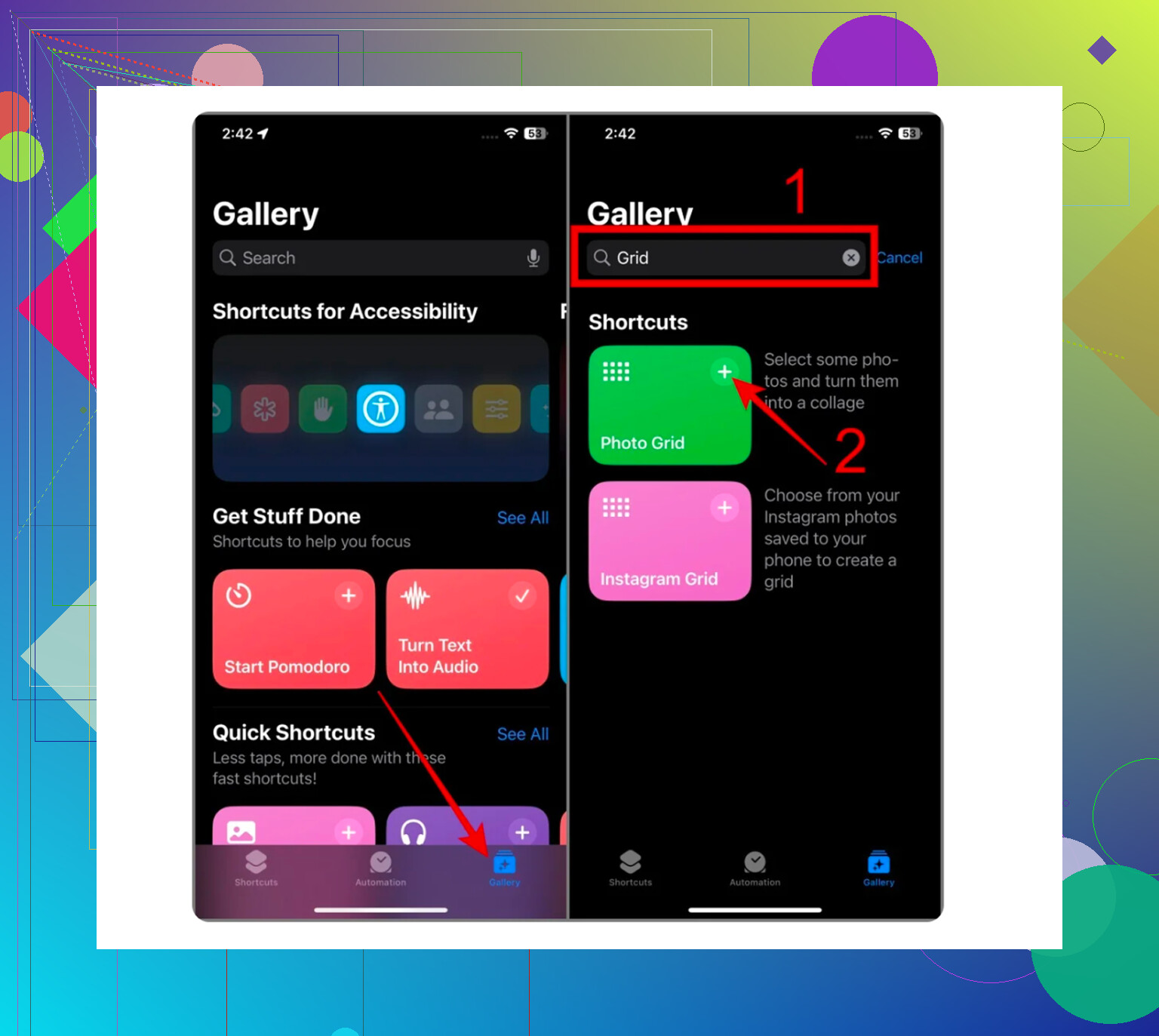
If you want to stay with Apple’s built-in tools, there is a workaround, though it feels buried on purpose. You need the Shortcuts app. I tried it, and it works, sort of.
Open Shortcuts. Tap the plus button. Add ‘Select Photos’ and turn on ‘Select Multiple.’ After that, add ‘Combine Images.’ Pick horizontal or vertical. Then add ‘Save to Photos.’ Run the shortcut, choose two photos, and it saves one combined image back to your library.
For a quick before-and-after, it does the job. For sorting through a big camera roll, nah. It feels slow and awkward. I wouldn’t use it for bursts or cleanup.
I avoided cleanup apps for years because most of them felt shady. You install one, it says free, then the paywall shows up right when you try to delete anything. Or it loads full-screen ads every few taps. Same pattern, over and over. Annoying stuff.
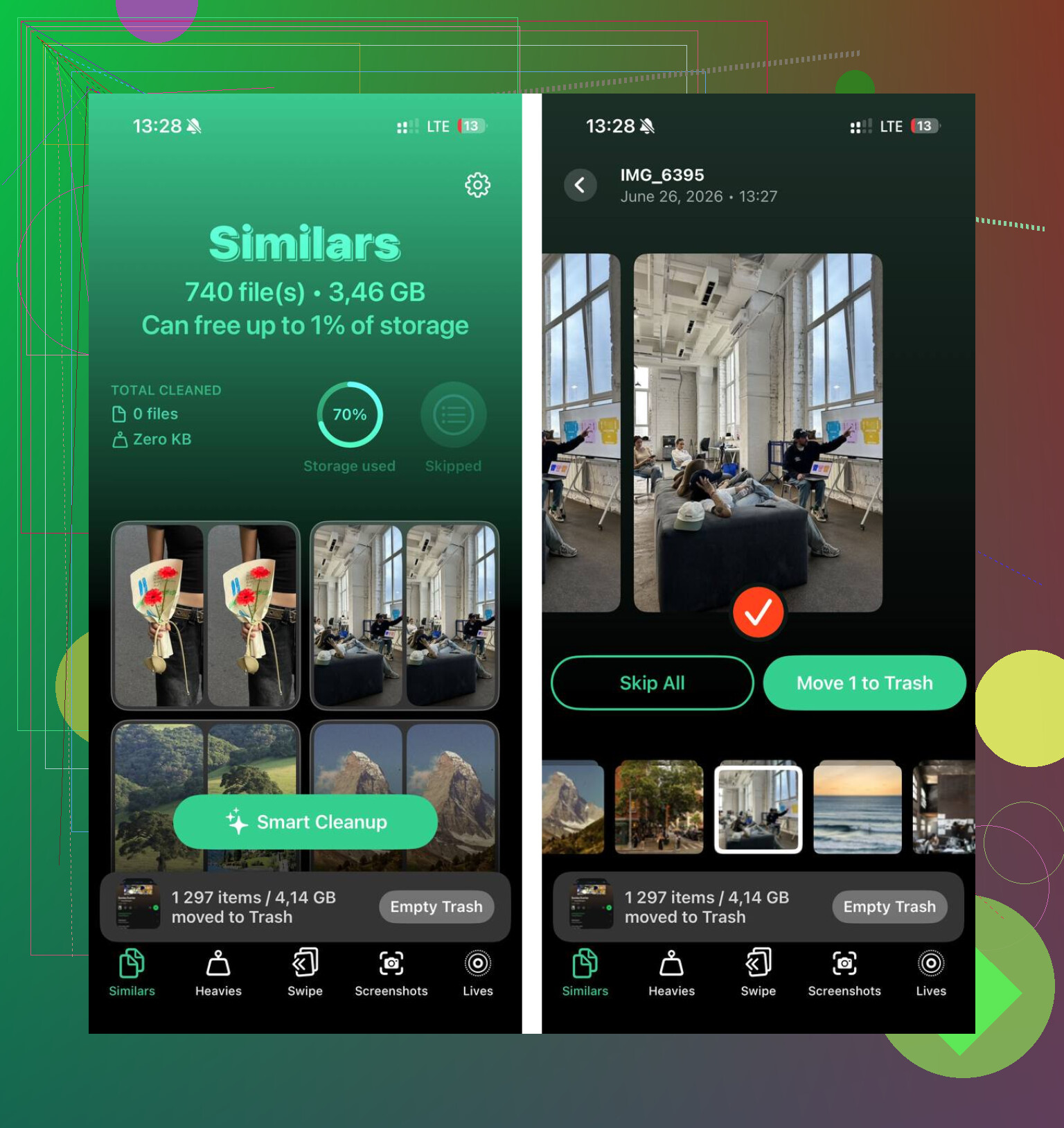
A while back I found Clever Cleaner, and this is the first one I kept on my phone. What sold me was simple. No ads. No subscription trap. No locked button after a scan. I used it because I needed a faster way to compare similar photos and clear space without fighting the app itself.
The useful part is the Similars section. It groups near-duplicates, not only exact copies. So if you took five cat photos in a row, or a bunch of shots from the same second, it pulls them together. It also marks a Best Shot. I didn’t agree with it every single time, but most of the time it picked the one I would’ve kept anyway. Felt right around 95 percent from what I saw.
What made it easier for me:
-
Heavies
It lists the biggest files first. This helped more than I expected. I found old 4K clips sitting there at 1GB to 2GB each, stuff I forgot existed. -
Swipe mode
If you don’t want the app deciding for you, this mode is better. You go through your library and keep or delete with a swipe. Dumb simple, but good. I used it while waiting in line one day and cleared a pile of junk. -
Exact file sizes
It shows the size for screenshots, videos, and other files in MB or GB. I like seeing the real number before deleting anything. -
Privacy
This mattered to me more than the cleanup part, if I’m honest. The photo analysis stays on the iPhone. My library wasn’t being shipped off to some random server.
One thing I didn’t expect to use was its Live Photo cleanup. Those tiny motion clips add up. I forget to turn Live Photos off all the time, and the app lets you convert them to still images. Same photo, less space wasted. On a big library, the savings are not small.
So, if you need to place two photos next to each other one time, use Shortcuts. It’s clunky, but it works. If your goal is sorting duplicates, comparing near-matches, and getting storage back without spending your evening swiping through the Photos app, I’d go with Clever Cleaner. It’s the only cleanup app I tried where I didn’t feel tricked five minutes in.
Use Pages. It’s faster than messing with Shortcuts if you only need one clean image.
- Open Pages, start a blank doc.
- Insert your first photo.
- Insert the second photo.
- Tap one image, choose Arrange, then turn off Move with Text.
- Resize both pics and drag them side by side.
- Take a screenshot if speed matters most.
If you want the full image saved without screenshot crop loss, export the page as PDF, then save it as an image from Files or screenshot the full page after fitting it cleanly. A little clunky, yeah, but less annoying to me than the Shortcuts route @mikeappsreviewer mentioned.
For a quick guide, this helps: best way to put two pictures side by side on iPhone
If your bigger problem is sorting similar shots before posting, Clever Cleaner is worth a look. It’s better for finding dupes and near-dupse than for making collages, though.
Honestly, the easiest way for a quick post is probably Canva or Layout instead of fighting iPhone workarounds. Photos still weirdly doesn’t have a simple “put 2 pics side by side” button, which is peak Apple logic.
What I’d do:
- open Canva
- start an Instagram post or custom canvas
- add both photos
- use a 2-column grid
- save/export as PNG if you want better quality
That’s less clunky than the Shortcuts method @mikeappsreviewer mentioned, and cleaner than the Pages trick from @sonhadordobosque if you care how it lines up. Screenshotting works in a rush, sure, but it’s not my favorite if you’re trying not to lose quality.
If your real issue is also cleaning up all the almost-identical shots before posting, Clever Cleaner is actually useful for that part. It can scan your iPhone for similar photos and group matching shots fast, which saves a ton of time when your camera roll is a mess.
So yeah, for combining: Canva.
For cleaning duplicates/similar pics after: Clever Cleaner.
Kinda dumb that this still isn’t built in, tbh.
If you want full quality and no extra app, I’d actually skip screenshots, Pages, and even Canva for this one. Easiest clean method on iPhone is PicCollage or any basic collage editor that lets you set a simple 2-photo layout and export at original/high resolution. That avoids the slight quality hit and crop weirdness people run into with rush methods.
What I’d do:
- Open a collage app
- Pick a 2-photo horizontal layout
- Turn off borders if you want a seamless side-by-side
- Export in highest quality or PNG
- Save back to Photos
Why I don’t totally love the other suggestions:
- @sonhadordobosque’s Pages trick works, but it feels like using a word processor as an image editor
- @mike34 is right that Canva is easy, but it can be overkill for just two photos
- @mikeappsreviewer’s Shortcuts method is smart, but not my favorite if you want control over spacing and alignment
If your bigger issue is choosing between 8 nearly identical shots before combining them, Clever Cleaner helps more on the library-management side than the collage side.
Clever Cleaner pros:
- finds similar and duplicate photos fast
- good for decluttering before posting
- simple interface
- useful if your camera roll is chaos
Clever Cleaner cons:
- not really for making side-by-side images
- “best shot” picks may not match your taste
- cleanup-focused, not a design tool
So: for combining, use a collage app. For cleaning the mess first, use Clever Cleaner.