I deleted all my photos to free up space on my iPhone, but my storage still shows as almost full. I already checked the Photos app, but the used storage didn’t really change. Is this caused by Recently Deleted, iCloud Photos, cached files, or something else? I need help figuring out why my iPhone storage is still full and how to clear it safely.
The first thing I’d check is the Recently Deleted album. A lot of people miss this part. Deleting photos from your main library doesn’t actually remove them from the phone right away. They get moved into Recently Deleted and can sit there for 30 to 40 days, still taking up the same space.
Open Photos, go to Albums, scroll down to Recently Deleted, then delete everything from there. Until that folder is emptied, your storage bar may look like nothing happened.
I get why this is so annoying, though. You can spend forever cleaning out your camera roll, then go back to Settings and it still says your iPhone is full. I’ve been stuck in that loop before, and when it got bad, the whole phone felt broken. Apps would crash, typing lagged, and basic stuff took longer than it should. iOS needs some free space for temporary files and background tasks, so when storage is completely packed, performance can fall apart pretty fast.
If Recently Deleted is already empty, restart the phone. Sometimes iOS just doesn’t refresh the storage numbers right away. The space might technically be free, but Settings keeps showing the old total because the storage report is cached. A normal restart can fix it, and in some cases people have had to restart more than once before the storage page finally updates.
Also check whether iCloud Optimize Storage is turned on. If it is, your phone may already be storing smaller versions of your photos locally while the full-size originals live in iCloud. So if you delete 1,000 optimized photos, you may only be deleting thumbnails, not huge files. That’s why you might expect to free up several GB and only see a few hundred MB come back.
Photos are not always the real problem either. Messages and app caches can eat a ton of space without being obvious. Old group chats can have years of videos, GIFs, memes, and random attachments sitting there. Deleting stuff from Photos won’t touch any of that. Apps like TikTok, WhatsApp, and Instagram can also build up large caches. TikTok alone can end up using 5-10GB just from temporary files.
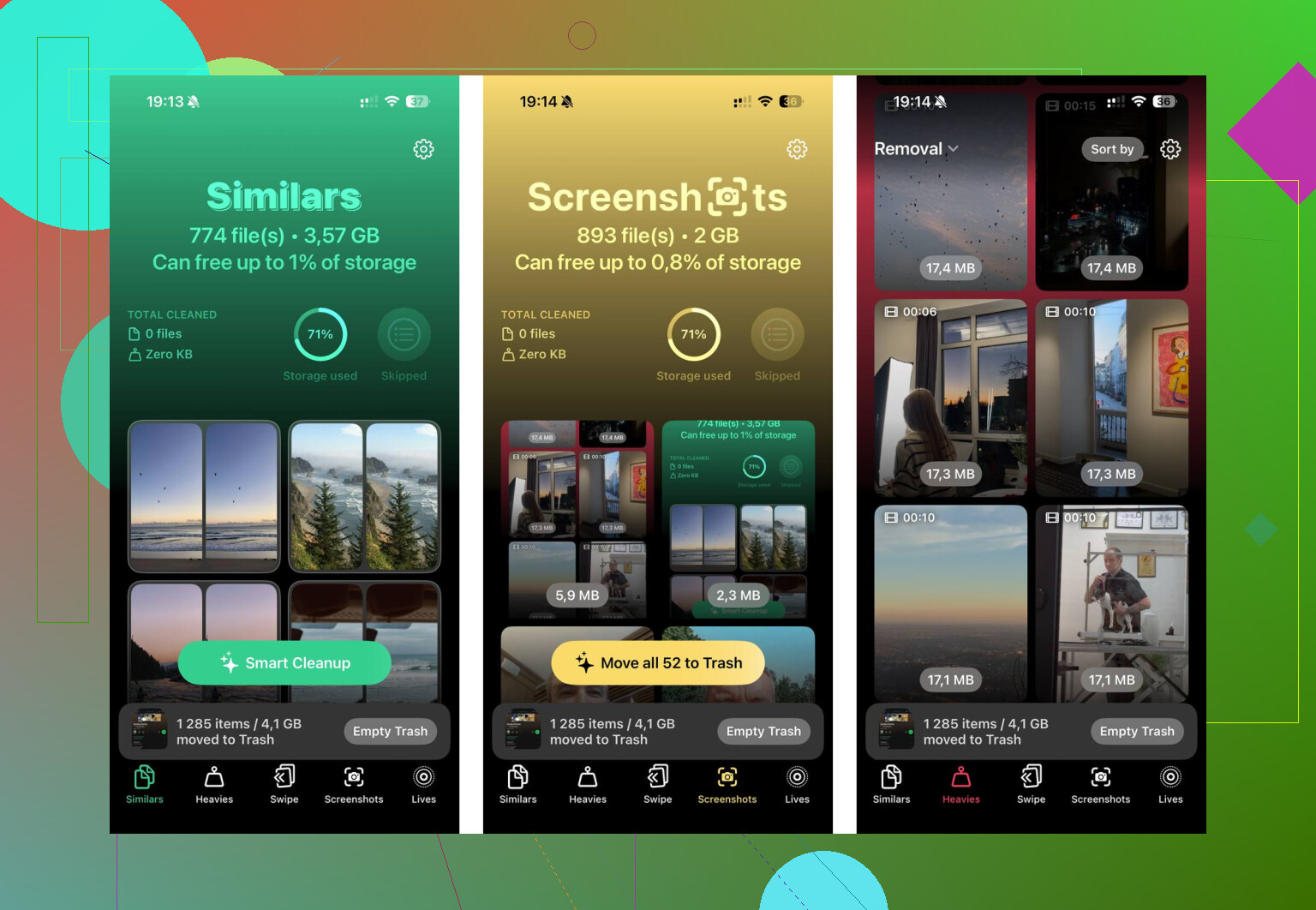
When I was trying to fix this on my own phone, manually hunting for giant videos, duplicate screenshots, and random junk was just too slow. The built-in Photos tools don’t make it easy to sort by file size or find similar shots. I ended up using Clever Cleaner. I’m usually pretty suspicious of cleaner apps because a lot of them are basically trial traps or ad machines, but this one was actually free for me, with no paywall, ads, or subscription stuff.
The useful part was the Heavies tab, since it sorts your photo library by file size. That makes it much easier to find the huge 4K videos you forgot about. The Similars tab is also handy if you take a bunch of nearly identical shots, like 10 versions of the same sunset, because it helps group them and pick one to keep. It also processes the scan on the device, so your photos are not being uploaded somewhere else. After clearing around 40GB of stuff I didn’t realize was there, the lag on my phone went away.
If the phone still refuses to show the freed space, there’s also the weird date trick. Go into Date & Time, turn off “Set Automatically,” move the date about two years back, open Photos, wait a bit, then set the date back correctly. For some people, that forces iOS to clean up old cached photo data or “ghost” files that are stuck.
If none of that works and System Data, which used to be called “Other,” is sitting over 20GB and won’t shrink, then a backup and factory reset may be the only thing left. It’s annoying, but it can clear corrupted cache files that regular cleanup won’t touch. Just make sure everything is backed up to iCloud or a computer first. I’d still try Recently Deleted, restarts, Messages cleanup, app caches, and a proper photo cleanup before going that far.
Don’t expect the storage number to drop the second you delete a huge photo library, especially if iCloud Photos is involved. @mikeappsreviewer is right about Recently Deleted, but I’d be careful with the iCloud side: deleting photos on the phone can also delete them from iCloud and your other Apple devices if sync is on, so make sure you actually have a backup before emptying anything permanently. After that, leave the phone plugged in on Wi-Fi for a while, then check Settings > General > iPhone Storage again. Sometimes iOS is still processing deletions, thumbnails, sync changes, and local photo database cleanup in the background. If the Photos number stays high after a day and a restart, then I’d start suspecting cached “System Data” or Messages attachments rather than the photos themselves.
Don’t start deleting iCloud backups or random system files to “force” the space back, because that can make the situation worse and still not fix the full-storage warning. Go to Settings > General > iPhone Storage and tap the Photos line itself, not just the colored bar at the top. If Photos is no longer the big number, then the space has already moved out of Photos and something else is filling it, often Messages, downloaded music/video, offline maps, app documents, or a pending iOS update file. If Photos is still huge after Recently Deleted is empty, plug the phone in, turn off Low Power Mode, leave it locked on Wi-Fi for a few hours, then restart. iOS cleanup is not always instant, especially when the phone is nearly out of space and barely has room to process the deletion.
Whether iCloud Photos was turned on before you deleted them matters a lot here. If it was on, the phone may be waiting to sync the deletes, update the local database, and clear cached previews. If it was off, then it’s more likely a local cleanup/indexing problem or storage being used somewhere else.
The annoying bit is that an iPhone with almost zero free space sometimes can’t clean itself up properly because the cleanup process needs working room. So before jumping to factory reset, I’d make a little temporary space in a boring way: delete a large app you can easily reinstall, remove downloaded Netflix/Spotify/YouTube content, or delete an offline map. Then restart the phone and leave it charging on Wi-Fi. That can give iOS enough room to finish clearing the photo database and recalculate storage.
I’d be more cautious with the date-changing trick mentioned above. It has worked for some people over the years, but it can also make sync, messages, app logins, and certificates act weird for a bit. I wouldn’t make that my first move unless everything normal has failed.
And if you already deleted the whole photo library, a cleaner app probably won’t fix the “storage number won’t update” part by itself. Something like Clever Cleaner is more useful before deleting everything, when you’re trying to find huge videos, duplicates, and similar shots without manually scrolling forever. After the deletion, the issue is usually Recently Deleted, sync delay, stale storage reporting, or System Data.
Check the actual list under Settings > General > iPhone Storage, not just the colored bar. If Photos is still huge, wait after creating some free space and restarting. If Photos dropped but the phone is still full, then the photos weren’t the main culprit anymore. At that point I’d look at Messages attachments, downloaded media inside apps, Files downloads, and any pending iOS update taking space. If System Data is massive and stays massive after a day or two, then backup and restore starts to make more sense.