My iPhone storage is almost full, and the Photos app is using a huge amount of space under Documents and Data. I’m not sure what’s actually stored there or why it grew so much. I need help figuring out what’s in iPhone Photos Documents and Data and how to safely clear some space without losing important pictures or videos.
I ran into the same mess on my iPhone. Storage said apps were small, then “Documents and Data” was sitting there like it owned the place, chewing through 20GB. It looked wrong because the app sizes and the real storage use didn’t match at all.
What sits inside “Documents and Data” is all the extra stuff apps keep around. Not the app itself, the leftovers and working files. Stuff like account sessions, cookies, search history, downloaded previews, cached photos, cached videos, offline bits, temp files. If you use Instagram, Facebook, TikTok, Spotify, or any streaming app a lot, this pile grows fast. I saw Facebook take a few hundred MB for the app, then several GB in stored junk. Same with Instagram after a week of doomscrolling. You scroll, it saves media locally, your storage pays for it.
Apple never made this clean. There is no universal cache wipe switch for most apps. So you end up doing it piece by piece.
For Safari, I went to Settings, then Safari, then cleared History and Website Data. That frees website junk, saved cookies, and local site storage.
For some apps, there’s a built-in cleanup option. Facebook is one of the rare ones where I found browser data controls inside the app. Open the app’s settings, look for Browser, then clear cookies or cache if it shows up. A few other apps hide similar options in their own menus. Most do not. Annoying, yep.
What worked best for me on social apps was the brute-force route. Delete the app. Reinstall it. Sign back in. Offload App is not the same thing. I made that mistake once. Offloading removes the app binary but keeps the stored documents and data. So if your goal is reclaiming storage, offloading barely helps in these cases. Full deletion is what dropped the bloated numbers for me.
Photos is where people get tripped up. I did too. I deleted a bunch of videos and screenshots, then storage barely moved. The reason was “Recently Deleted.” iPhone keeps deleted items there for around 30 days unless you empty it yourself. Until you do, the files are still on the phone. So if Photos says it is huge even after cleanup, check Recently Deleted first. Then check shared albums and older sync features if you use them, because local thumbnails and synced copies still add up.
Once my storage got close to full, the phone turned sluggish in ways I could feel. Camera opened slower. Apps hung for a second before switching. Random storage alerts kept popping up. People blame battery age for everything, but low free space messed with performance on my phone more than I expected. iOS needs breathing room for temp tasks, updates, and background work. When you squeeze it too hard, it gets cranky.
The worst part for me was the photo library. I had too many duplicates, too many screen recordings, too many giant old videos I forgot about. Manual cleanup was rough. I’d start sorting, get ten minutes in, then quit. So I tried Clever Cleaner.
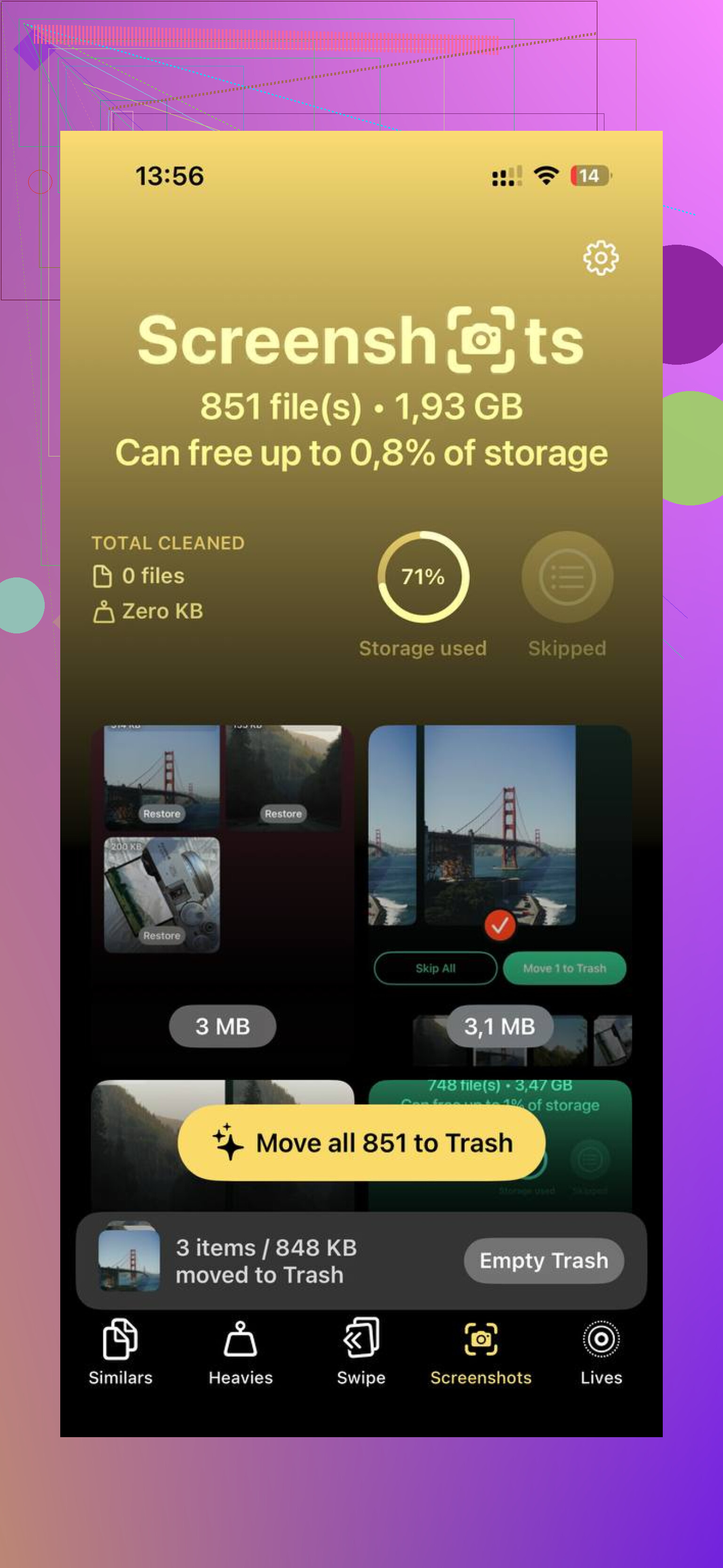
What helped me most was how it surfaced the biggest files first. I didn’t need a cute interface, I needed to see what was eating space. The Heavies section did that. Big videos were right there, sorted by size, no guessing. I found old 4K clips and random long screen recordings I had zero reason to keep. Deleting a handful freed more space than clearing weeks of small screenshots.
I also used the similar-photo grouping. Not perfect, but good enough to catch the usual burst-shot clutter, five nearly identical pics of the same thing, accidental duplicate saves, meme images copied three times, all of it. It showed file sizes clearly, which mattered to me because I wanted to know whether I was freeing 200MB or 6GB before tapping anything.
One detail I paid attention to was photo privacy. According to the app flow and what I saw in use, processing stays on the device. That mattered because I wasn’t interested in uploading my library somewhere for a cleanup pass.
After I removed around 10GB of large videos and duplicate shots, the Photos storage section dropped fast. The phone felt smoother after that. Not magic. Still the same device. But app switching improved, camera launch felt quicker, and the low-space nags stopped.
So yes, clearing this stuff is safe. You might get signed out of some apps. A site might load slower once because cache got wiped. That’s normal. If your iPhone storage looks inflated, here’s the short version I wish someone had given me earlier.
1. Check Safari and clear History and Website Data.
2. Open heavy apps and look for their own cache or browser cleanup option.
3. If an app still shows insane “Documents and Data,” delete it fully and reinstall it.
4. Empty Recently Deleted in Photos.
5. Check Recently Deleted in Files too.
6. Sort your photo library by biggest items first, because large videos do more damage than piles of tiny images.
7. If manual cleanup is taking forever, use a tool like Clever Cleaner to find the worst offenders faster.
I learned the hard way: on iPhone, “Documents and Data” is often not one mystery file. It’s death by a thousand cached scraps.
Photos “Documents and Data” is often Apple’s catch-all bucket. It is not only your photos.
For Photos, it usually includes:
- Local thumbnails and previews.
- Face recognition data and search index.
- Edited photo versions, undo history, temp render files.
- iCloud Photos sync cache.
- Shared Library or Shared Albums cache.
- Recently Deleted items still sitting on device.
- Imported media stuck mid-processing.
I disagree a bit with @mikeappsreviewer on one point. If the bloat is under Photos, deleting social apps won’t move the needle much. Photos storage bloat is often from iCloud syncing, video edits, or deleted items not purged yet.
What I’d check first:
- Settings, General, iPhone Storage, Photos. Wait 2 to 3 minutes. iOS recalculates slowly.
- Photos app, Albums, Recently Deleted. Remove it all.
- Photos app, Albums, Duplicates. Merge them.
- Settings, your Apple ID, iCloud, Photos. If “Download and Keep Originals” is on, your phone stores full files. “Optimize iPhone Storage” cuts local use a lot.
- Look for giant videos. 4K60 clips eat space fast. One 10 minute clip is often 4GB to 6GB.
- Restart the phone after cleanup. iOS sometimes reports old numbers for a while.
If Photos still looks wrong, toggle iCloud Photos off and back on only if your library is fully synced first. If sync is incomplete, don’t do it. You risk a mess.
If sorting this by hand is a pain, Clever Cleaner helps spot big videos and duplicate shots faster. I also found this Clever Cleaner for iPhone review and cleanup guide useful for seeing what it does before installing.
Short version, Photos “Documents and Data” is often previews, sync cache, edits, and deleted stuff. Not some secret file. Apple labels it badly, tbh.

What’s in Photos “Documents and Data” is usually the invisible stuff Apple doesn’t label well, not just your actual pics. @mikeappsreviewer is right about cache bloat in general, and @nachtdromer is right that Photos has its own weird bucket, but I’d push one extra angle: sometimes the number is inflated by indexing jobs that fix themselves only after power + time + Wi-Fi.
A few things people miss:
- Cinematic video data, slo-mo analysis, and edit metadata
- On-device recognition for people, pets, text in photos
- Failed sync residues from low storage periods
- Message attachments saved into Photos but forgotten
- RAW files and ProRes clips, which are absolute storage goblins
Also check whether you have Optimized Storage enabled but no actual free space left. In that case iPhone can’t evict locals cleanly, so it sorta gets stuck. Dumb, but real.
One thing I disagree with a bit: toggling iCloud Photos off/on is not my favorite unless you really know your sync state. Easy way to make a bad day worse.
What I’d do instead:
- Leave phone charging overnight on Wi-Fi
- Make sure low power mode is off
- Open Photos and let it sit
- Check if storage drops after indexing finishes
If your library is a mess, Clever Cleaner is actually useful for finding huge videos, duplicates, and junk screenshots fast. It’s basically a solid free iPhone cleaner app for photo and storage cleanup. Also this watch how to clean up iPhone photo storage faster explians the process pretty well. Apple’s labels are just bad tbh.
A piece I’d add to what @nachtdromer, @andarilhonoturno, and @mikeappsreviewer said: sometimes Photos “Documents and Data” is inflated by the local photo database itself, not just cache. The SQLite library, object detection indexes, and edit manifests can get weirdly large after years of migrations across iOS versions. You usually can’t see that directly, which is why the number feels fake.
I slightly disagree with the “just reinstall other apps” angle if the spike is clearly under Photos. That helps general storage, sure, but won’t explain a Photos-specific jump.
What I’d check that wasn’t mentioned:
- Screen Recordings album. These are easy to forget and often huge.
- Hidden album. People clean Recents and forget Hidden exists.
- Files app > On My iPhone > Downloads. A lot of “saved to Photos” content also exists separately.
- Messages storage. Shared images/videos may exist in Messages and Photos both.
- Third-party camera apps that save edits or RAW sidecars.
If the number stays absurd after cleanup, make a fresh encrypted backup to a Mac or PC first. Then compare storage again after a normal restart and another day on charger plus Wi-Fi. Sometimes iOS only purges stale photo data after background maintenance.
Clever Cleaner is decent if you want the fast route.
Pros:
- good at surfacing large videos
- easy duplicate spotting
- faster than manual hunting
Cons:
- still requires you to review before deleting
- similar-photo grouping is not always perfect
- less useful if your issue is pure iCloud/indexing bloat rather than actual media clutter
So yeah, “Documents and Data” in Photos is often indexes, previews, edit leftovers, local databases, and sync residue. Bad label by Apple more than anything.
The replies focus on cleanup. I’d try archiving older media instead.
Connect a compatible external drive to your iPhone. Select older videos in Photos, tap Share, then Export Unmodified Original, and choose your drive.
Open the exported files to check they work beofre deleting anything. Keep a second copy of anything important.
Then delete those videos from Photos and Recently Deleted. With iCloud Photos enabled, deletion also removes them from iCloud and your synced devices, so keep your seperate archive outside Photos.
Testing those exported clips only on the phone is where @sonicdaemon’s archive plan can bite you. A lot of iPhone video is HEVC or ProRes, and it plays fine on the phone that made it but chokes on an older Windows box without the right codec. Open one on the actual machine you plan to store it on before you trust the backup, not just in the Files app.
On the tool side, I wouldn’t lean on Clever Cleaner the way it keeps getting pitched here as the thing that fixes a Photos number. If your bloat is index and sync residue like @nachtdromer and @andarilhonoturno described, no cleaner touches that, it only removes actual media you choose. Where it earns its spot for me is that it’s free with no paywall creeping in halfway through, so you can scan, see the damage, and bail without getting nagged. Use it to clear real clutter, then give iOS a day on charger and Wi-Fi to settle the rest.