My iPhone is almost out of storage, and deleting apps, photos, and videos hasn’t freed up enough space. I’m trying to figure out if an iPhone storage upgrade is actually possible, or if my only options are iCloud storage, external storage, or buying a new iPhone. What are the real options?
Yeah, the annoying part is that iPhone storage is basically a decision you make up front. Once you buy the 128GB, 256GB, or whatever model, that’s the internal storage you’re living with.
You can’t officially upgrade the storage chip inside an iPhone after the fact. Some repair shops and random guides make it sound possible by swapping the memory chip, but that’s not a normal upgrade. It means micro-soldering, firmware work, and a very real chance of killing the phone. It also wipes out your warranty, and Apple is not going to treat that device like a standard repair case afterward. For most people, it’s just not worth the risk.
The better move is to squeeze more out of the storage you already have. Start with Settings > General > iPhone Storage. Don’t guess. That storage bar will show what’s actually eating the space, which is usually photos, videos, apps, or Messages.
If apps are taking up a lot of room, try Offload Apps before deleting them completely. It removes the app itself but keeps the documents and data, so if you reinstall it later, you can usually pick up where you left off.
Messages can be surprisingly bad too. Years of videos, GIFs, screenshots, and random attachments add up fast. If you don’t need old conversations forever, set Messages to keep history for 30 days or 1 year instead of forever. That keeps it from turning into another storage dump.
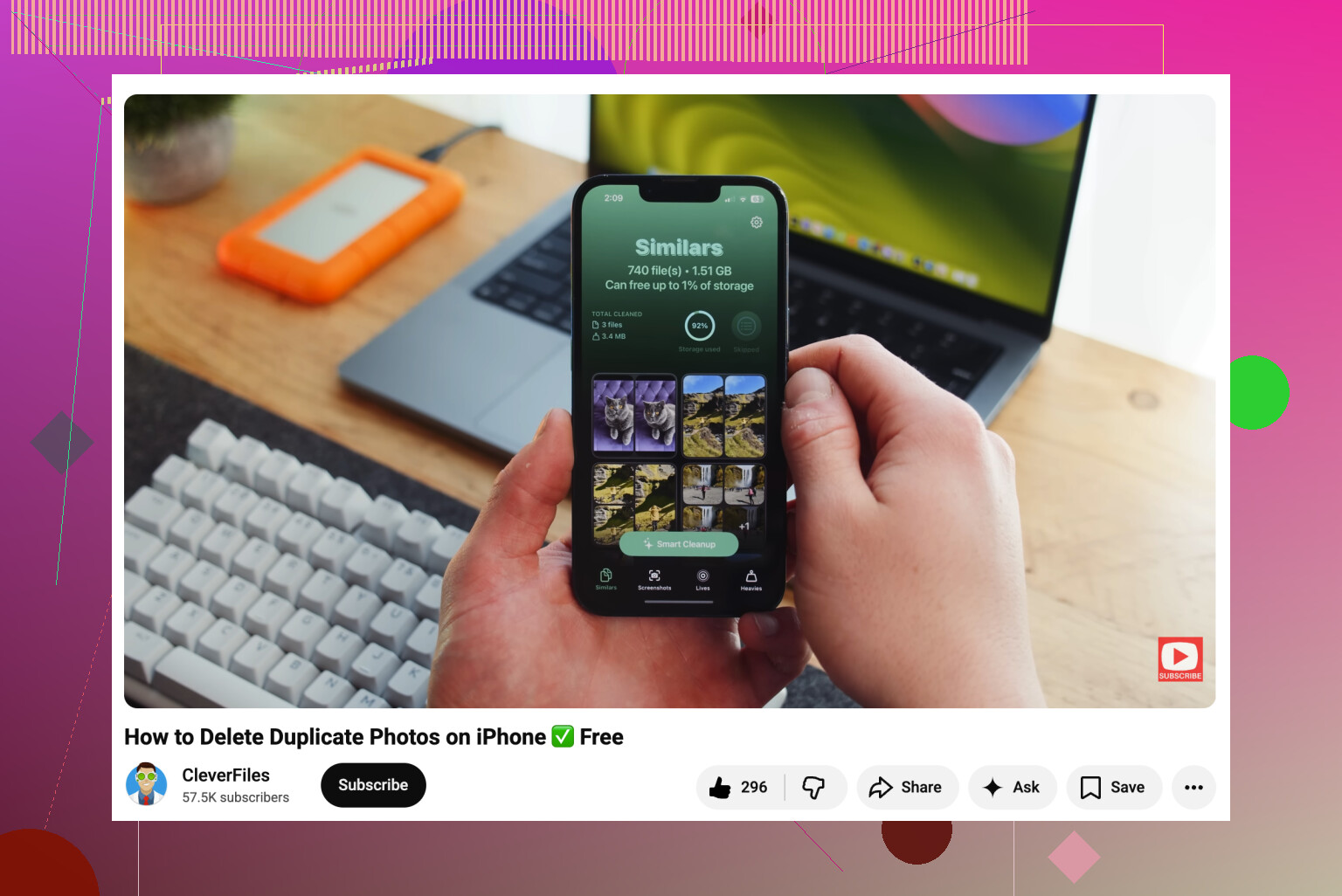
Photos are usually the big one, though. Apple’s duplicate finder helps a bit, but it mostly catches exact copies. I started using Clever Cleaner because it’s better for the messy stuff, like five almost-identical shots of the same thing. Its “Similars” tool groups those together, picks a “Best Shot,” and lets you remove the extras without going one by one. The “Heavies” section is useful too, since it sorts large videos by size. Those random huge clips are easy to miss. It can also turn Live Photos into regular still images, which saves space if you don’t care about the motion part.
If cleaning things up still isn’t enough, then cloud storage is the next practical option. iCloud works the smoothest with iPhone. Turn on Optimize iPhone Storage, and your phone keeps smaller versions locally while the full-resolution photos stay in iCloud. You still see them in Photos, but they don’t take up nearly as much room on the device. Google Drive and Dropbox can work too, especially if you want to use their free storage, but they take more manual organizing.
External drives are also worth considering. There are flash drives made to plug straight into an iPhone, either Lightning on older models or USB-C on newer ones. Some can even record video directly to the drive instead of filling your phone first. Just check that the drive format is compatible, like exFAT or APFS.
It’s a pain to manage storage this way, but it’s still a lot safer than trying some unofficial internal storage swap and hoping the phone survives.
Don’t pay a repair shop for a “storage upgrade” unless you’re okay treating the phone as disposable afterward.
The easier trap is iCloud: if iCloud Photos is syncing and you delete photos from the iPhone, they usually delete from iCloud too, so make a real backup/export first before you start clearing space.
Paying for more iCloud can still leave the phone complaining about storage if the originals or cached files are already sitting locally. It is not a real iPhone storage upgrade, it is more like moving the pressure somewhere else. After turning on Optimize iPhone Storage, give it time on Wi-Fi and power, because it does not always shrink the photo library instantly. If the mystery chunk is “System Data,” that is where cleaning apps and deleting photos often disappoint you. Sometimes the fastest fix is a full encrypted backup to a computer, erase the phone, then restore, since that can clear junk caches Apple does not let you touch directly. Annoying, but still safer than paying someone to swap storage chips.

Don’t erase anything until you’ve checked whether it exists somewhere outside the phone, because “synced to iCloud” and “backed up safely” are not the same thing.
Internal storage isn’t realistically upgradeable, so I’d treat this as a cleanup/export problem: move originals to a computer or external drive, confirm they open there, then delete from the iPhone. Cloud plans help, but they don’t magically turn a 64GB phone into a 256GB one.