I misplaced my Roku remote and can’t find it anywhere, so I can’t turn the volume up or down or switch apps like Netflix or Hulu. My TV has limited buttons and I’m not sure how to pair a new remote or use my phone as one. What’s the best way to control my Roku without the original remote, and are there any cheap replacement options that actually work well?
If your Roku remote disappeared into the couch void or your kid walked off with it, here is what I did and what usually works.
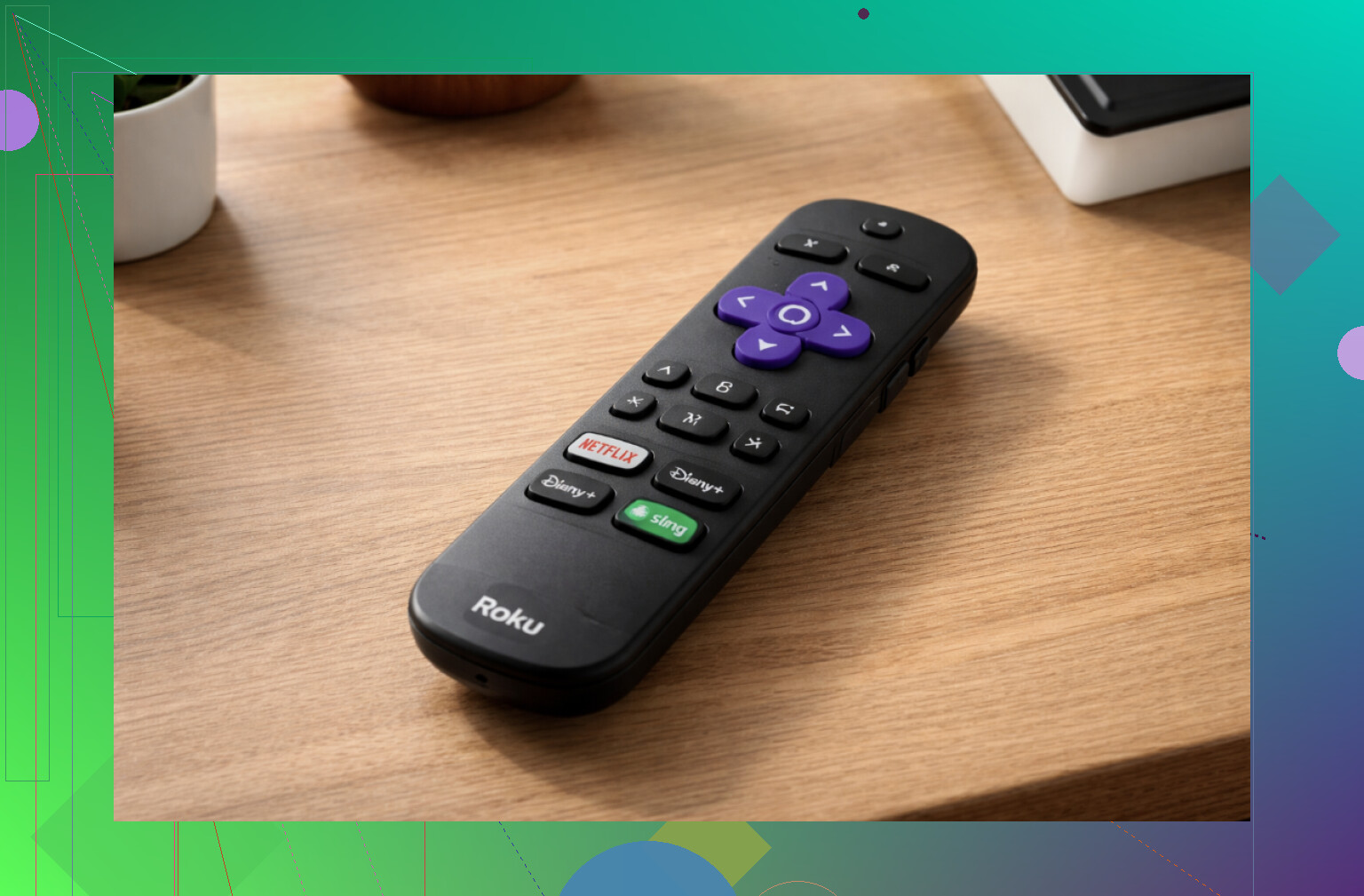
What to try when your Roku remote is missing
- First thing I check now: does your Roku have “Find Remote”
Some Roku boxes and Roku TVs have a little trick that I ignored for years.
If the remote has a small speaker inside, the Roku itself can make it beep. On my buddy’s setup, there were three different ways to trigger it:
- A button on the Roku box
- A “find remote” option in the Roku menu on the TV
- Through the Roku mobile app
Once triggered, the remote starts beeping and you follow the sound. It is not loud enough for a noisy room, but for a quiet living room it works fine. I have found a remote under a blanket and once in the kitchen because of that.
If your remote never beeps no matter what you try, you likely have one of the cheaper ones with no speaker.
- Use your phone as a remote if Roku is already on Wi‑Fi
If the Roku is already connected to your home Wi‑Fi and you have not changed the router or password, your phone can take over.
What I did on my iPhone:
- Joined the same Wi‑Fi network that the Roku uses
- Installed a Roku remote app
- Opened the app and picked my Roku from the list
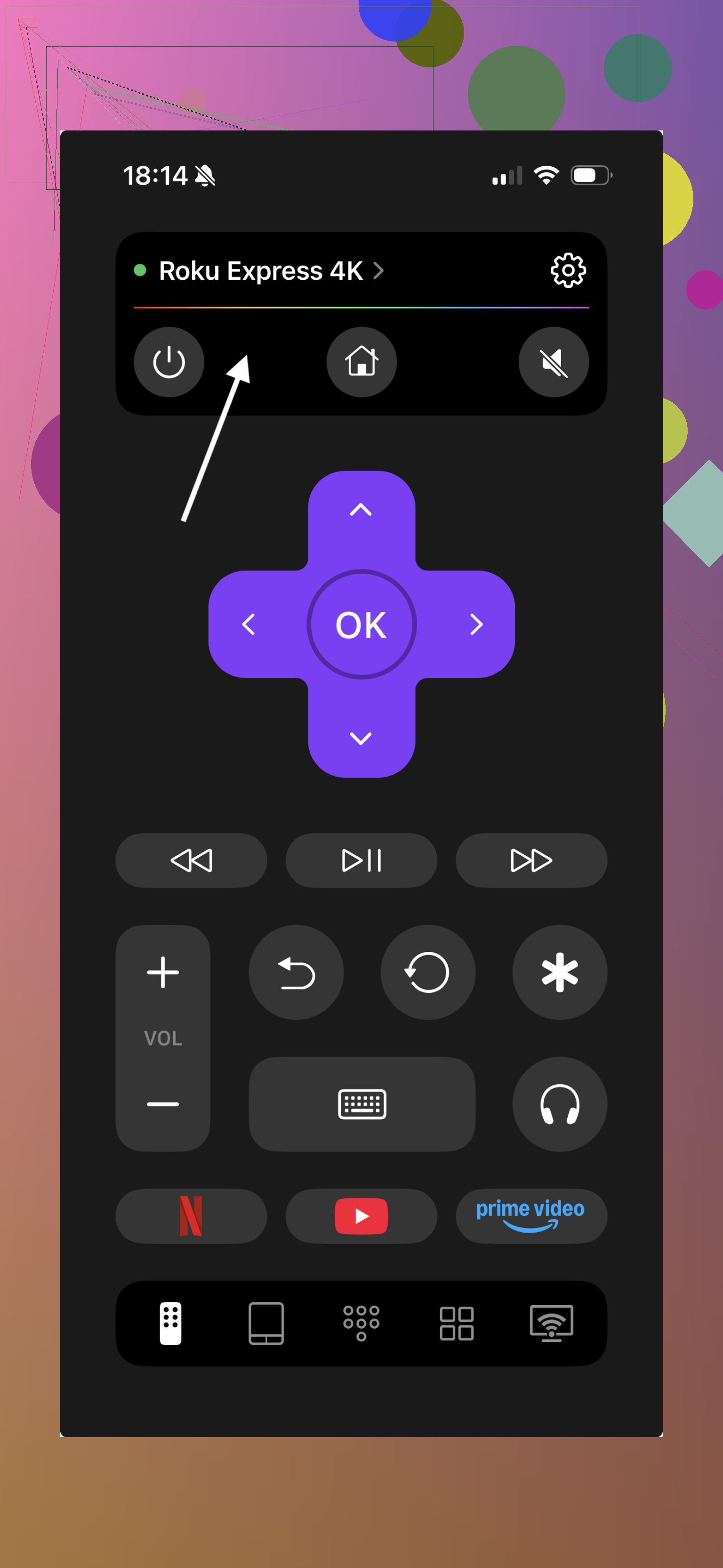
You get a full on‑screen remote. Arrows, OK, back, home, volume, playback. It is not as tactile as a real remote, but for browsing Netflix or YouTube it works fine.
Typing search terms is faster with the phone keyboard than clicking one letter at a time on the TV, so I kind of prefer it for that.
- If the Roku does not show up in the app
This part tripped me up once after I changed routers.
If your phone app does not see the Roku:
- Unplug the Roku from power
- Wait around 10 seconds
- Plug it back in and give it a minute to boot
- Confirm your phone is on the same Wi‑Fi SSID as before
If you changed Wi‑Fi recently or reset your router, the Roku is likely sitting there with old Wi‑Fi details and no way to connect. In that case you need any compatible physical Roku remote one time to go into Settings on the TV and enter the new Wi‑Fi info.
No remote app will help until the box is back on the network.
A solid alternative: universal remote app instead of a new physical remote
If you lose remotes often or you do not want to buy more hardware, a universal remote app helps a lot.
One example that worked for me with Roku is this:
It behaves like a universal remote hub on your phone.
What I liked about using TVRem with Roku:
- It works with Roku TVs and Roku streaming sticks, not only one type
- Full controls: navigation, volume (if supported), play, pause, etc.
- It also supports other TV brands, so you can control the main TV as well
- Text entry uses the iPhone keyboard, which speeds up login and search
- Acts as a backup in case the physical remote dies or gets lost again
Video walkthrough for visual learners
Someone did a walkthrough here if you prefer watching instead of reading:

Long term use
What I noticed, and I am in this camp now, is that people slowly stop caring about the physical remote at all once they get used to a phone remote like TVRem.
You already have your phone in your hand most of the time. You get better typing, quick access, and you do not have to hunt around the living room.
TVRem product page with more detail:
Quick Wi‑Fi note so you do not get stuck
If your Roku is not connected to Wi‑Fi anymore and you do not know the old network details, there is no trick around it.
You need any compatible Roku remote one time to:
- Open Roku Settings on the TV
- Enter the Wi‑Fi network name and password
After that is done and the Roku joins Wi‑Fi, iPhone remote apps start working again and you can throw the old remote in a drawer. Or lose it without stress.
Short version, you have three paths from here that cover almost every Roku setup.
-
Use the TV’s own buttons for basics
Since you said the TV has limited buttons, check these first:
• Look at the bottom or back edge for a tiny joystick or 4‑way button. On many Roku TVs you can:
– Short press: change input or move in menus
– Long press: open Home or power toggle
• Volume: on some Roku TVs, volume is on the side of the TV, not near the main button cluster. Easy to miss.
You will not get full Roku control, but you can at least change volume, switch HDMI, or power cycle. -
Replace the remote the smart way
If you want a new physical remote, do this, in order:
• First check if your current Roku uses:
– IR remote (no pairing button on the remote, sensor on the front of the box/TV)
– Wi‑Fi / Voice remote (pairing button in the battery compartment or under the back cover)
• For Roku TV owners:
– Buy a “Roku TV” compatible remote, not a “Roku player” remote. The packaging will say “for Roku TV” and list brands like TCL, Hisense, Onn, etc.
– Most Roku TV IR remotes work out of the box, no pairing. Point it at the TV’s IR sensor.
• For Roku sticks or boxes with a Wi‑Fi remote:
– Get an official Roku Voice Remote or Voice Remote Pro.
– To pair:
1. Remove power from the Roku.
2. Plug it back in and wait for the home screen.
3. Put batteries in the new remote.
4. Hold the pairing button for about 5 seconds, wait for the on‑screen pairing dialog.
If pairing fails, move closer to the Roku, remove any big metal objects near it, and try once more. These remotes use 2.4 GHz RF, they hate Wi‑Fi congestion and thick walls.
I slightly disagree with @mikeappsreviewer on sticking to apps only. A cheap official Roku remote is usually 15–20 bucks and saves a lot of headache, especially if guests or kids use the TV.
- Use your phone, even when Wi‑Fi is an issue
If your Roku is still on your home Wi‑Fi and nothing changed, Mike’s method with the Roku app or remote app works fine. Where people get stuck is when Wi‑Fi is broken or changed. There are two extra tricks:
A) Phone as hotspot trick
Works if you remember the old Wi‑Fi network name and password your Roku used before.
Step by step:
- On your phone, create a hotspot.
- Set the hotspot SSID and password to exactly match the old router Wi‑Fi.
- Turn on hotspot, then power cycle the Roku.
- Roku should auto connect to your phone hotspot.
- Open a Roku remote app on a second device on that hotspot, control the Roku, then change Roku Wi‑Fi to your new router in Settings.
You need two devices for this, one hotspot, one as remote. This is where people trip up.
B) Ethernet workaround
If your Roku model has an Ethernet port, or you have the official Ethernet adapter for a Stick:
- Plug the Roku into your router with a cable.
- Wait a minute for it to grab an IP.
- Open the Roku app or a universal remote app on your phone on the same network.
- Use that to set Wi‑Fi or control it.
-
Volume control specifics
Since you mentioned volume and Netflix or Hulu:
• Roku TV: volume usually works from any Roku TV remote, or from IR universal remotes programmed for your brand. Phone apps will control volume too on most Roku TVs.
• Roku box or stick on a separate TV:
– Volume on the Roku remote controls your TV via HDMI CEC or IR.
– Phone apps often do not change TV volume in this case, they only control playback in Roku.
So if you have a non‑Roku TV plus a Roku stick, you need either:
– A universal IR remote that controls your TV volume, plus an app for Roku.
– Or a new Roku Voice Remote and set up TV controls again in Roku settings. -
Quick checklist so you do not waste time
• If Roku TV, try a cheap “Roku TV” IR remote from any electronics store.
• If Roku stick or box with Wi‑Fi remote, buy official Roku Voice Remote, then pair.
• If no Wi‑Fi, try hotspot trick or Ethernet to get phone app working.
• If only volume is urgent, find the TV’s physical volume buttons or use a programmable universal IR remote aimed at the TV.
That covers the main paths without tearing your living room apart for the old remote again.
Couple more angles to try that @mikeappsreviewer and @waldgeist didn’t really cover:
-
Check if your TV itself can run Netflix / Hulu
If this is a Roku box/stick on a non‑Roku TV, see if your TV has its own “Smart” apps.
• Hit the TV’s Input or Home button (on the TV or TV remote, if you still have that one)
• If you can launch Netflix directly on the TV, you can ignore the Roku entirely for now and still watch stuff, then sort out a new Roku remote later. -
Borrow or “test‑drive” a universal remote
Instead of instantly buying a Roku‑branded remote, grab any half‑decent universal remote from a friend / neighbor and see what works:
• Program it for your TV brand first so you get volume and power.
• Many universal remotes also have a Roku code set. Even if it only does basic navigation, that is enough to:
– Get into Roku Settings
– Reconnect Wi‑Fi
– Turn on “1‑touch play / HDMI‑CEC” so the TV remote might control it a bit
I actually disagree a bit with both of them on “just buy the official remote” as the auto‑solution. If you already have, or can borrow, a universal remote, you may not need to buy anything, especially if you only use a couple of apps.
-
HDMI‑CEC trick with your TV remote
If it is a Roku box/stick plugged into HDMI:
• Look in your TV settings for HDMI‑CEC (brands call it weird stuff: Anynet+, Simplink, Bravia Sync, Viera Link, etc.)
• Turn that on.
If your Roku had CEC enabled before, your TV remote might suddenly be able to:
• Move around Roku menus
• Hit OK / Back / Home
Sometimes you even get volume passthrough, depending on TV/Roku combo. It is flaky but worth the 2 minutes to try. -
Use a wired keyboard as a temporary “remote”
This is the underrated weird hack. On many Roku TVs and some Roku boxes:
• Plug in a USB keyboard to the TV or Roku (whichever has the USB port)
• Arrow keys = navigation
• Enter = OK
• Esc / Backspace often = Back
It is ugly and non‑couch‑friendly, but it lets you:
• Sign in to apps
• Change settings
• Pair a new remote once you buy it
Way easier than trying to survive with just a power button on the bezel. -
When you actually buy a new remote
Couple small details that often get missed:
• For Roku TVs, a generic Roku TV IR remote is usually enough, no pairing at all. Check that the listing specifically says “for Roku TV” and not only “for Roku player.”
• For players / sticks, if you go third‑party, be ready for:
– No headphone jack
– No voice search
– Occasionally janky pairing
I’d personally spend a few dollars more on an official Voice Remote, just because pairing and firmware updates tend to behave better long term. -
Volume in particular
Since volume is what is really killing you:
• If you have a separate soundbar or receiver, try that remote. Half the time people forget volume is actually going through an AVR, not the TV.
• If volume is on the TV and only the Roku remote ever controlled it, that means it was using IR to the TV or CEC.
– Universal remote aimed at the TV solves it immediately
– Phone apps generally will not change TV volume if you are using a Roku stick on a non‑Roku TV, so do not waste hours troubleshooting that
So, shortest path depends on what you have:
• Roku TV and no Wi‑Fi issues: cheap Roku TV IR remote or even a USB keyboard right now.
• Roku stick/box on a non‑Roku TV: enable CEC and/or use a universal remote for TV volume, phone app for Roku.
• No network and no old Wi‑Fi details: skip the app rabbit hole, just get any compatible physical remote once and fix the Wi‑Fi from the on‑screen menu.
And yeah, your original remote will reappear the second the Amazon box with the new one arrives. That is just physics at this point.
If you are already trying what @waldgeist, @nachtschatten and @mikeappsreviewer suggested and still feel stuck, here are a few different angles to try that do not repeat their steps.
- Try a cheap RF/IR combo remote instead of Roku‑only
A lot of “Roku compatible” remotes on marketplaces are actually RF + IR hybrids that can learn your TV’s power and volume. The nice part is they often work even when the Roku OS is being weird, because volume is sent directly to the TV. Downside:
- Pros: One remote for TV power, volume and Roku navigation. Often under 15 dollars.
- Cons: Build quality is hit or miss, and voice search or headphone jack is usually missing.
- Lean on your TV’s HDMI behavior
If you use a Roku stick or box:
- Turn the TV off, then on, and watch what input it auto selects. Some TVs automatically focus on the active HDMI device and expose “up/down/OK” through their own remote.
- If it half works, you might get basic navigation without diving into the HDMI‑CEC menus that @nachtschatten already covered. It is flaky but zero‑config.
- Use a laptop as your “remote router”
When the Roku is on Wi‑Fi but phone apps still do not see it, the issue is sometimes multicast or client isolation on the router. Quick test:
- Connect a laptop to the same network, run a network scanner and confirm the Roku has an IP.
- If the scanner sees the Roku but your phone app does not, connect the laptop to a temporary hotspot made on your phone, bridge or connect Roku through Ethernet to the same router, and try again. This isolates whether the router is blocking discovery.
Not as simple as the hotspot trick @mikeappsreviewer described, but helps if you are comfortable with a bit of network testing.
- Think about what you really need long term
Since you complained specifically about volume and switching Netflix / Hulu:
- If you mostly live in those two apps, a basic universal IR remote plus a phone Roku app is often enough.
- If you want one tool that handles TV, Roku and maybe a soundbar or receiver, then something like a multi‑device universal is better than buying separate remotes again and again.
About using a universal phone remote like “TVRem universal TV remote app” as your main backup:
Pros:
- Always with you if your phone is near.
- Much faster text entry and search.
- Can control more than just Roku, which helps if your TV and soundbar are supported.
- Reduces “lost remote panic” because it is a standing fallback.
Cons:
- Completely dead if Wi‑Fi is out or the Roku is not on the same network.
- Some devices only allow playback control, not TV volume, especially when Roku is just a stick on HDMI.
- You burn phone battery, and guests or kids still end up needing a physical remote.
Compared to what @waldgeist suggested (very methodical hardware path) and what @nachtschatten offered (lots of HDMI‑CEC and universal remote tricks), using something like TVRem is more of a “soft” safety net than a primary solution. I would not rely on it as the only remote, but I would absolutely set it up now so you are not stuck again the next time the physical Roku remote disappears.