I ran into this on my iPhone more than once. The part that got me was seeing a few gigabytes free, then getting blocked by the update screen anyway. It feels broken, but there’s a reason for it.
The number shown for the update file is not the full space your phone needs. If the update says 2 GB, iOS usually wants a lot more room while it downloads, unpacks, and installs. From what I saw, it helps to think in terms of about 2x the listed size. For a big version jump, like moving to iOS 26, I would want 20 GB to 30 GB free before even trying.
Here’s what worked for me.
Use a cleaner app if your photo library is the mess
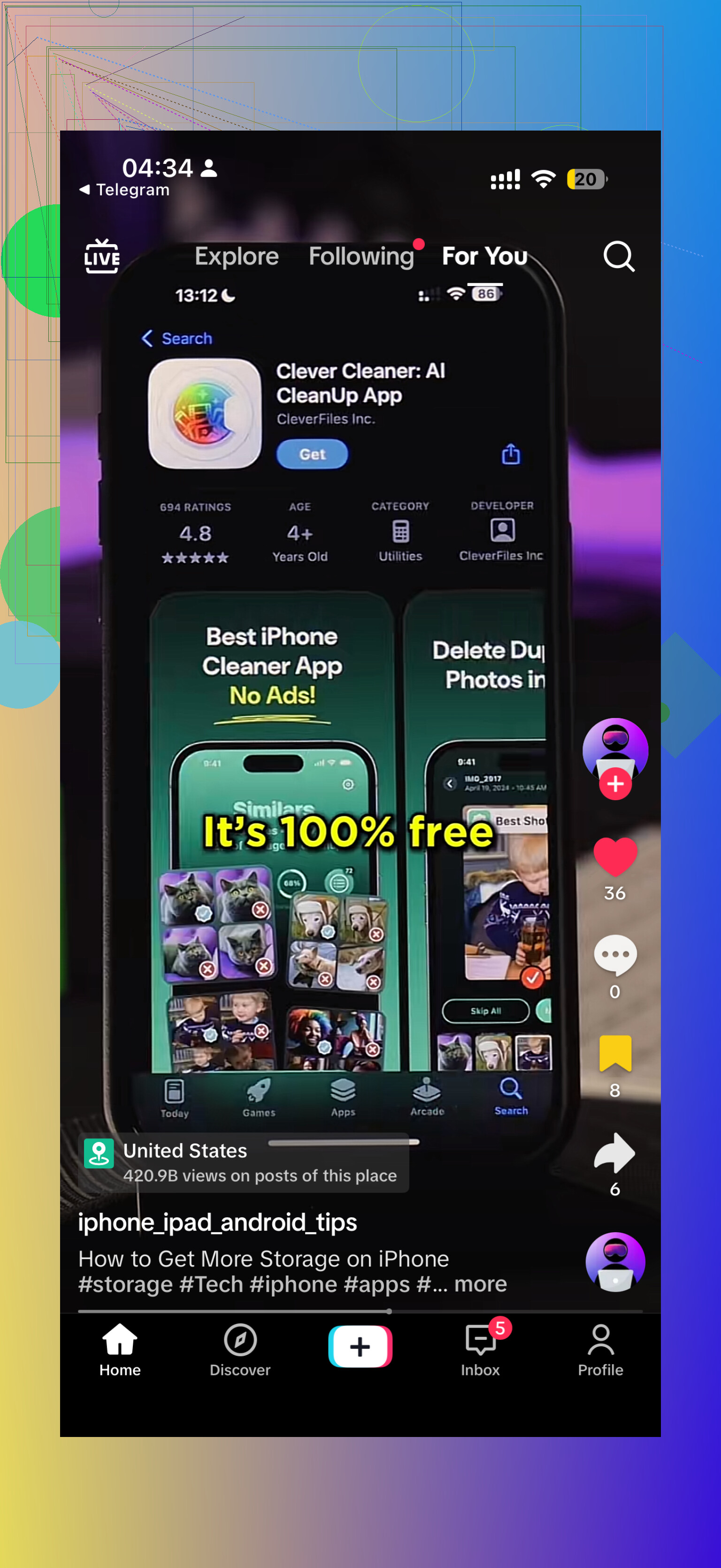
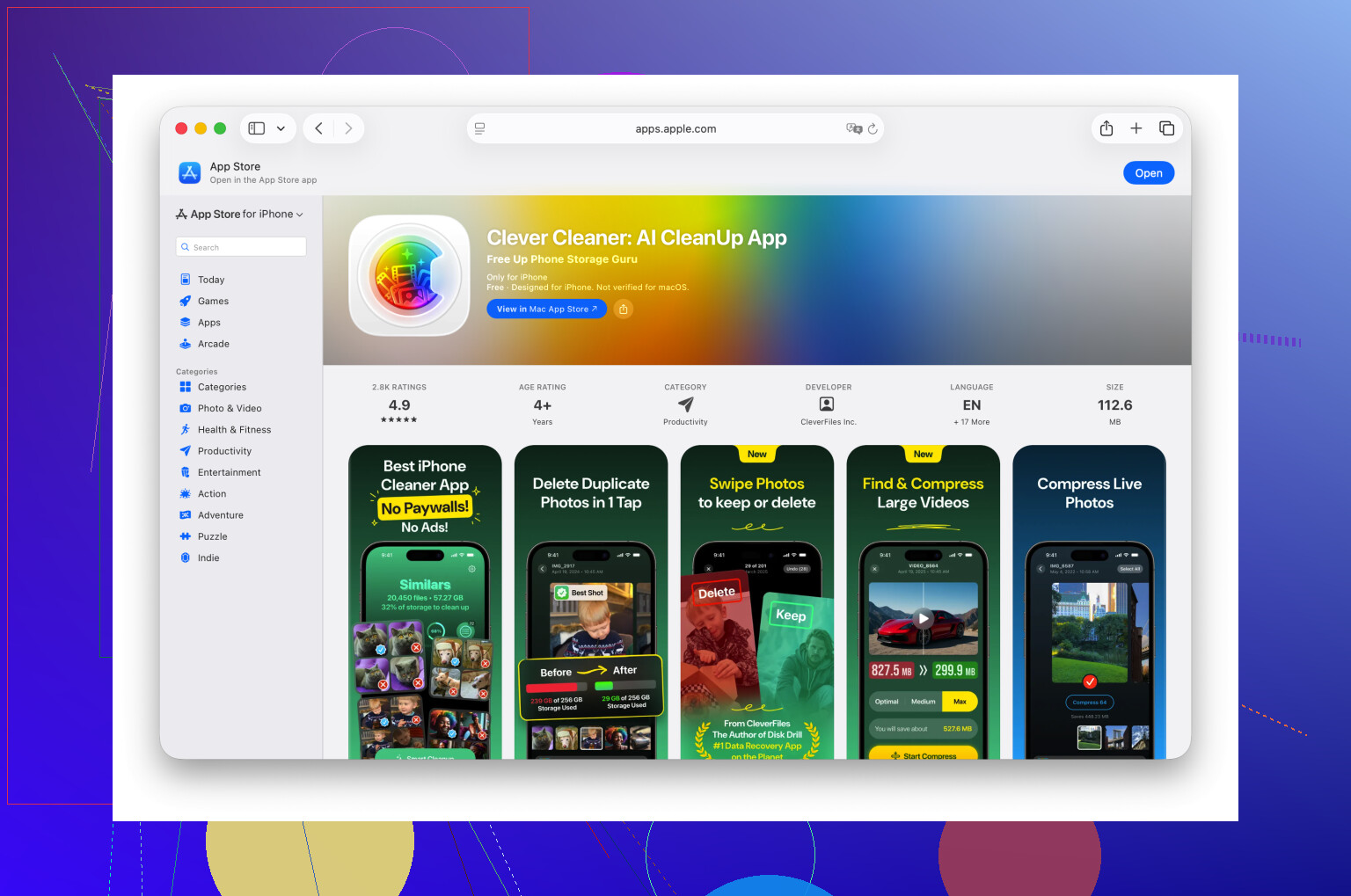
I wasted way too much time digging through screenshots, burst shots, and giant videos by hand. If you want the fastest route, use a cleaner app and let it sort the worst stuff first. I had decent results with Clever Cleaner because it gets straight to the big space hogs.
The part I liked most was the section for large videos. One forgotten 4K clip from a concert or a vacation can eat several gigabytes. I deleted two long videos and got enough room for the update right away. The similar photo tool helped too. If you have ten near-identical pics of your dog or your lunch, it groups them so you keep one and ditch the rest.
One thing people miss, I did too the first time. After deleting photos or videos, open Photos, go to Recently Deleted, and clear it out. If you skip that, the storage does not come back yet.
Delete apps, not because of the app size, because of the junk behind it
Go to Settings > General > iPhone Storage.
Sort through the biggest apps and look for ones you barely touch. Social apps, streaming apps, and games tend to pile up a lot of extra data over time. On iPhone it shows up as Documents & Data. I’ve seen apps listed at a modest size, then hiding multiple gigabytes in cached junk. Deleting the app wipes all of it in one shot.
Check the places people forget
A few spots tend to hold random junk for years.
-
Files app
Open Files and look in On My iPhone, then Downloads. Mine had old PDFs, zip files, saved forms, and random attachments I forgot existed. -
Messages attachments
In iPhone Storage, open Messages and look for Review Large Attachments. This one is sneaky. Old videos, memes, and photos from group chats sit there forever unless you remove them. -
Safari data
Go to Settings > Apps > Safari, then tap Clear History and Website Data. It won’t always free a huge amount, but when you’re short on space, even a few hundred megabytes matters.
Use a computer if the phone keeps refusing
This helped when I was out of easy stuff to delete.
Connect the iPhone to a Mac and use Finder, or connect it to a Windows PC and use iTunes. Updating this way takes pressure off the phone because the computer handles the download and prep work. Your iPhone still needs free space, but not as much as an over-the-air update usually wants.
Last resort, wipe and restore
If none of the above gets you there, the cleanest fix is backup, erase, update, restore.
Back up the iPhone to iCloud, or to your computer if you prefer. Then do a factory reset, install the update on the clean device, and restore your backup after. It takes longer and it’s annoying, but I’ve seen it work when nothing else did.
If you’re stuck, start with videos, then app data, then Messages attachments. In my case, those three were the big ones.
One thing I’d add to @mikeappsreviewer’s list, check if the iOS update file itself is already sitting on your phone and failing over and over.
Go to Settings, General, iPhone Storage. Look for an item named iOS or Software Update. Delete it. Then restart the iPhone and try again. I’ve seen failed update files take 3 GB to 8 GB by themselfs.
Also look at System Data. If it’s huge, like 15 GB to 30 GB, a restart sometimes trims it. Syncing once with Finder or iTunes also helps flush temp junk. Apple never explains this well.
I don’t fully agree with needing 20 GB to 30 GB free every time. Big jumps need more room, yes, but updating from a computer is often the cleaner fix before deleting half your phone.
Another safe move, turn on Offload Unused Apps in Settings, App Store. It removes the app, keeps its docs. Better than deleting stuff blind.
If your photo library is still the main problem, Clever Cleaner is worth a look for sorting duplicates, screenshots, and big videos faster. This overview of Clever Cleaner features is useful too: see how Clever Cleaner finds hidden photo clutter fast.
My order would be:
- Delete old iOS update file.
- Restart phone.
- Offload unused apps.
- Update with Mac or PC.
- Backup, erase, restore if it still wont go.
One thing I’d add to what @mikeappsreviewer and @nachtschatten said: check whether the problem is actually your storage total, or just iOS being stubborn because of fragmented temp space. I’ve had an iPhone say “not enough storage” with several gigs open, then install fine after a hard restart and a few hours on charge. Annoying, but real.
A couple things that are pretty safe to remove that people forget:
- Downloaded Spotify/Apple Music playlists
- Netflix, YouTube, Prime Video offline downloads
- Podcast downloads
- Mail app attachments and old downloaded message content
- Voice Memos if you use it a lot
- Books/PDFs stored offline in Books or Files
- GarageBand projects, iMovie exports, CapCut drafts
Also, if you use iCloud Photos, make sure Optimize iPhone Storage is on. That can shrink what’s stored locally, but it may take a little time, so don’t expect instant results in 30 seconds.
I kinda disagree with the idea that you always need some giant 20 to 30 GB cushion. Sometimes yes, but not always. A lot depends on whether the phone has bloated system caches or a stuck update process. What does help is leaving the phone plugged in overnight on Wi-Fi after freeing space. iOS does some cleanup on its own when idle.
If photos are still the main hog, Clever Cleaner is honestly one of the faster ways to sort duplicates, screenshots, and especially huge videos without poking around forever. If you want a quick visual walkthrough, this TikTok is decent: see how to clean up iPhone storage fast for an iOS update.
Also check this weird one:
Settings > Accessibility > Spoken Content or VoiceOver if you ever downloaded voices. Those enhanced voices can eat a surprsingly big chunk.
If nothing works, I’d stop deleting personal stuff and just do the update from a computer before you accidentally nuke something you wanted to keep. That’s usualy the cleaner move.