I’m trying to figure out whether a serial port on my PC is working correctly, but I’m not sure which tools or steps to use for proper testing. I’ve had inconsistent readings from a device connected via RS-232, and I’m not sure if the issue is the cable, the configuration, or the port itself. What’s the best way to test and troubleshoot a serial port, including any recommended software and basic loopback tests?
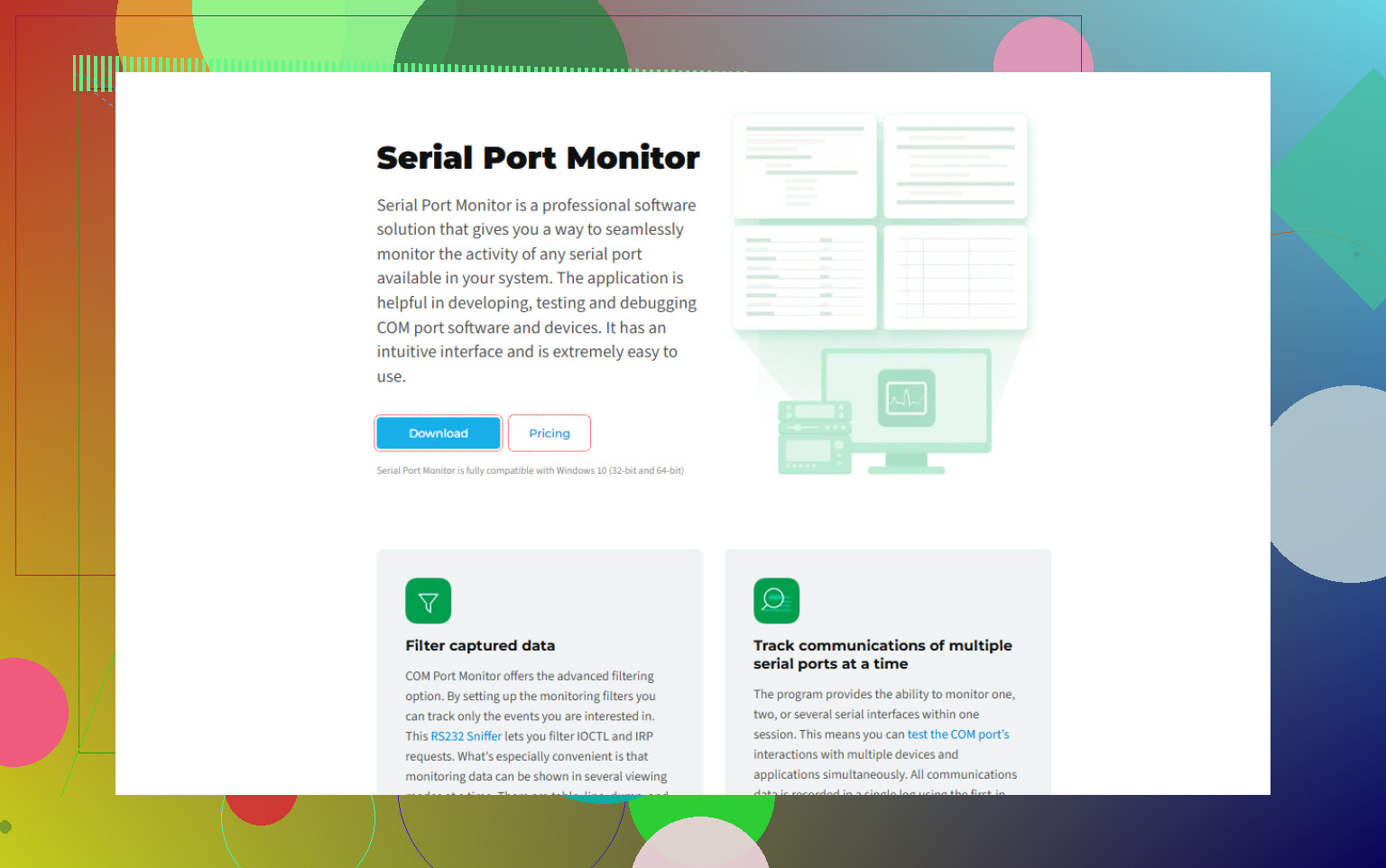
A specialized tool like Serial Port Monitor helps a lot for this. It hooks into the port driver and shows:
- All bytes sent and received, with timestamps.
- Control line changes, RTS, CTS, DTR, DSR, DCD.
- Hex view, ASCII view, request and response pairs.
Look at something like advanced serial port diagnostics for Windows.
This sort of Serial Port Monitor lets you:
- Log long sessions with your RS 232 device.
- Compare a “good” session to a “bad” one.
- See if the PC stops sending, or the device stops replying.
- Check for wrong baud rate by looking at garbled bytes.
Your “inconsistent readings” often come from wrong flow control.
- If your device expects hardware flow control, RTS/CTS, and you set “none”, data might get dropped.
- Start simple, set both sides to no flow control if your device supports it.
- If it needs RTS/CTS, enable it on both device and PC and check that CTS really toggles in your monitor tool.
Once the loopback looks good and basic comms work with the device, do a longer soak test.
- Use Serial Port Monitor or a simple script to send requests every few seconds for 30 to 60 minutes.
- Log the responses to a file.
- If you see a drop only after long time, you might have:
- USB adapter overheating.
- Power saving on USB hubs.
- Driver bugs.
If the loopback test fails, fix the PC port or driver first.
If the loopback passes, but device comms fail, focus on cable, wiring, settings, and flow control.
A detailed monitoring tool like Serial Port Monitor saves a lot of time when the failure is intermittent, since it lets you capture the exact byte stream when the device acts up.
1. Stop testing with the “real” app first
Your normal application is the worst debugging tool. It hides details and adds its own bugs.
Use a dedicated serial tool:
- On Windows: Tera Term, RealTerm, or Serial Port Monitor
- On Linux:
minicom,picocom, or justscreen
Talk to the port manually first. If you can’t get stable comms with a simple terminal, your fancy software has no chance.
2. Use known‑good “reference gear”
Everyone tells you to do loopback (and they’re right), but there’s a second reference that’s even better:
- If you have any other RS‑232 device with a known good protocol (like a serial GPS, a USB‑RS232 dongle in loopback, a label printer, whatever), use that as a “golden” test target.
- Or hook your PC to another PC via a proper null‑modem cable and send text both ways from plain terminals.
If PC ↔ PC works perfectly for 30+ minutes but PC ↔ your device is flaky, guess what isn’t guilty: the PC port.
4. Measure line levels if possible
RS‑232 is ± voltage, not TTL. If you or someone else used a sketchy USB‑RS232 adapter or a cheap converter board, signal levels can be marginal.
If you can borrow a scope or logic analyzer with an RS‑232 decoder:
- Check that TX from the PC is roughly ±7 to ±12 V and not some half‑dead ±3 V garbage.
- Decode the stream and see if the actual on‑wire bits match what the PC thinks it sent.
5. Use proper logging and timestamps
Where I strongly agree with @viajeroceleste is using a monitor, but I’d double‑down on one point: timestamps are critical.
A tool like Serial Port Monitor is worth it here, because you can:
- Log every send/receive operation with exact timestamps
- See which side stopped talking first
- Correlate “I saw a bad value” with “oh look, three bytes were dropped right before that”
This is way more precise than staring at a terminal window and guessing.
If you want to dig into this properly, grab it from:
download Serial Port Monitor for advanced RS‑232 diagnostics
Run it, let your device talk for a while, and when you see a bad reading, scroll to that timestamp and see exactly what bytes and control signals changed.
Using Serial Port Monitor or a terminal, capture a raw frame that you call “bad,” and decode it by hand using the device’s protocol doc. Sometimes the serial layer is completely fine and the bug is just a parsing off‑by‑one in your code.
If you put it all together, a solid test stack is:
- Loopback or PC ↔ PC test
- Terminal test with your device
- Stress pattern test
- Logged capture with Serial Port Monitor including timestamps
- Manual decode of at least one “bad” exchange
By the end of that, you’re not “guessing if the COM port is bad,” you actually know which component is lying to you.