I recently got a Hisense Roku TV and I’m struggling to connect my iPhone to it. I want to stream videos and mirror my screen, but nothing seems to work. Any tips or guides to make this work would be greatly appreciated!
Connecting an iPhone to a Hisense Roku TV can be done in a couple of ways, depending on whether you want to stream videos or fully mirror your screen.
Method 1: AirPlay (most Hisense Roku TVs support this)
On the TV
- Press Home on the Roku remote.
- Go to Settings → Apple AirPlay and HomeKit.
- Set AirPlay to On (and Require Code to “First Time Only” for easier pairing).
On the iPhone
- Connect your iPhone to the same Wi-Fi as the TV.
- Open Control Center (swipe down from the top-right).
- Tap Screen Mirroring → select your Hisense Roku TV.

- Enter the AirPlay code shown on the TV (first time only).
To stream from apps (YouTube, Photos, etc.) via AirPlay
- In the app, tap the AirPlay icon (or Share → AirPlay), pick your TV, and play.
Method 2: Third-party mirroring apps (if AirPlay isn’t available/working)
Try using the DoCast app. It’s a lifesaver for tricky connections and offers a straightforward interface to mirror your iPhone to any Roku TV, Hassle-free.
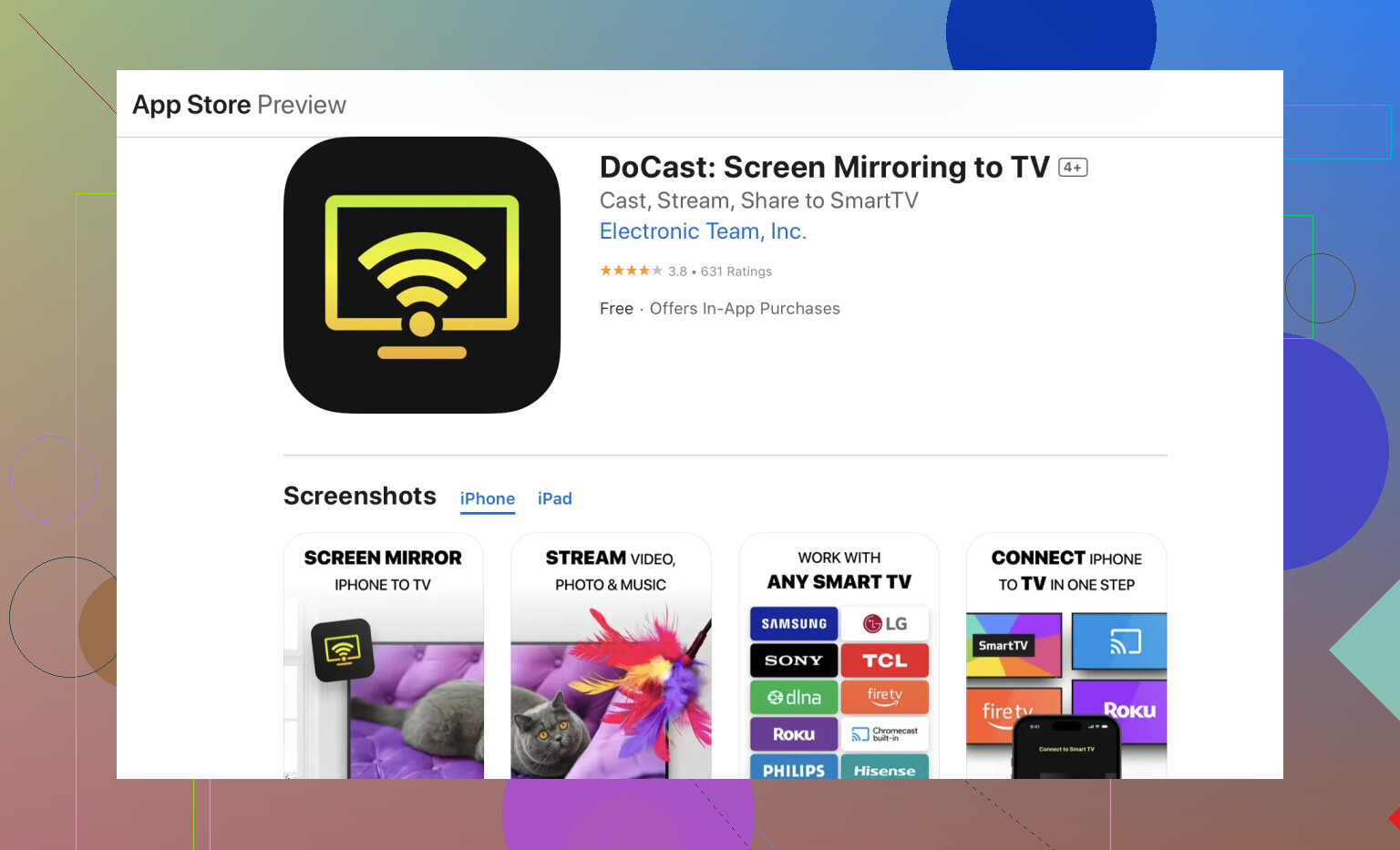
- To install it, simply visit the App Store and search for the DoCast app.
- Give it Local Network permission when prompted.
- Connect iPhone and TV to the same Wi-Fi.
- Open the app → pick your Hisense Roku TV → start Screen Mirroring.
Method 3: HDMI (rock-solid, zero Wi-Fi issues)
- Get the right adapter:
- Lightning → HDMI (iPhone 8–14), or
- USB-C → HDMI (iPhone 15 and newer).
- Plug adapter into iPhone → connect HDMI cable → TV HDMI input.
- Switch the TV to that HDMI input—your screen appears instantly.
Quick fixes if it won’t connect
- Confirm same Wi-Fi SSID (avoid guest networks/VPN).
- Restart iPhone, TV, and router.
- On TV: Settings → System → System update (install any updates).
- On iPhone: update iOS, and in Settings → Privacy & Security → Local Network, ensure your mirroring/casting app has access.
- In AirPlay settings on the TV, set Require Code to First Time Only and try again.
- Move to 5 GHz Wi-Fi for smoother wireless mirroring.
Hope this helps! Let us know if you run into any snags, or if you’ve found another solution that works better. If you share your exact Hisense Roku TV model and iPhone model, I can tailor the steps (and confirm whether your TV has AirPlay built in).
20 Likes
Hey there! Look, I feel you on this—connecting your iPhone to a Hisense Roku TV can be super frustrating, but let’s see if we can crack this nut together.
First things first, @shizuka is spot on with the basics: ensuring both your iPhone and Roku TV are on the same Wi-Fi network and checking those crucial settings like Screen Mirroring and AirPlay. However, if you’re still banging your head against a wall, let’s dig a little deeper.
-
Restart Everything: Seriously, sometimes the simplest solution is the best. Restart your iPhone, and your Roku TV, and even your router. This can sometimes clear out any weird hiccups that might be causing issues.
-
Update Firmware & Software: Make sure both your Roku TV and iPhone have the latest firmware and software updates. Go to Settings → System → System update on your Roku TV and Settings → General → Software Update on your iPhone.
-
Check AirPlay Settings on iPhone: Go to Settings → General → AirPlay & Handoff on your iPhone, and make sure AirPlay is turned on and set to automatically detect AirPlay TVs.
-
Manually Add the TV: You can also try manually adding your Roku TV to the Home app on your iPhone. Open the Home app, tap the ‘+’ icon, and follow the instructions to add your Roku TV.
-
Check for Interference: Ensure no other devices are hogging the Wi-Fi network or causing interference. Switch off other connected devices or move them away if they are using the same network.
Now, if all that still leads you to a dead end, dive a bit deeper with apps like the DoCast app that @shizuka recommended. It’s a solid tool to bypass some of the more annoying connection issues. You can find it easily on the App Store.
Oh, and one more thing—don’t forget to check out this detailed guide for screen mirroring your iPhone to Hisense TV for even more step-by-step methods. This could lay out some methods you haven’t tried yet.
Best of luck, and update us if you find a magic trick that works for you!