I’m trying to embed a Google Map on a page of my website but I’m confused by the different embed options and code snippets Google provides. I’m not sure which method is best for responsive design and fast loading, or where exactly to paste the code in my HTML. Can someone walk me through the right way to embed a Google Map so it displays correctly on desktop and mobile and doesn’t slow down my site?
For a simple, responsive Google Map embed, use the standard iframe, not the full JavaScript Maps API. The iframe is lighter and easier to drop into any page.
Basic steps:
- Go to Google Maps.
- Search your place.
- Click Share.
- Click Embed a map.
- Copy the iframe code.
Then adjust it for responsive design:
Wrap it like this:
Key points:
• width:100% inside the iframe style makes it scale with the container.
• The wrapper with padding-bottom keeps the aspect ratio on all screens.
• loading=‘lazy’ delays loading until the user scrolls near the map, so the page feels faster.
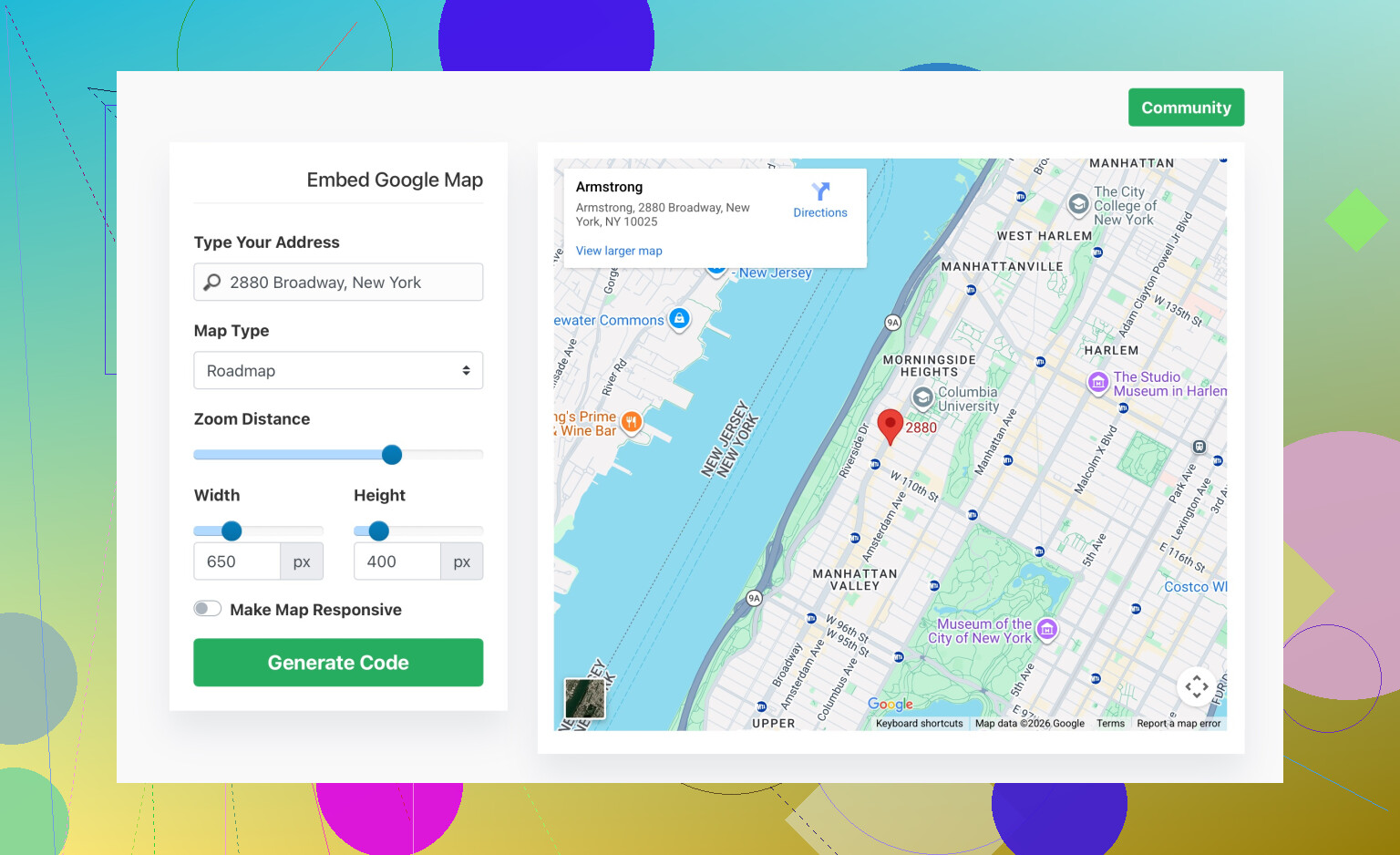
If you want to generate different map sizes or styles without poking around in the Maps UI every time, use a generator like
easy Google Map embed generator for your website
You paste your address, tweak zoom and size, then copy the ready iframe.
Common issues:
• Map looks tiny on mobile
Set the outer container to width:100% and avoid fixed pixel widths.
• Page layout shifts when map loads
Use a fixed height or the aspect ratio wrapper so the browser reserves the space.
• Multiple maps on one page
Repeat the same pattern for each map. If the page feels slow, add lazy loading to all of them and avoid huge zoomed out views.
If you need custom markers, routes, or dynamic data, then the JavaScript Maps API is the next step, but for a contact page or location page the iframe approach is faster to implement and lighter for users.
If you’re confused by all the Google Maps options, you’re not alone. Google kind of buries the practical differences under a pile of docs and cryptic switches.
@viaggiatoresolare covered the basic iframe route already, which is honestly the right call for most “just show the map” use cases. I’ll focus on when you might not want to use the plain embed, and how to keep things fast and responsive without repeating the same wrapper trick.
1. When the standard iframe is not ideal
Use the regular “Share → Embed a map → iframe” if:
- You only need to show 1 or a few static locations
- You don’t care about custom interactions beyond zoom/drag
- You don’t need to control it with JavaScript
Use the Maps JavaScript API if you need things like:
- Custom markers/icons loaded from your database
- Clicking a marker shows rich HTML info windows
- Filtering locations with buttons or dropdowns
- Changing map center/zoom dynamically
- Dark mode or custom map styles
Downside: you’ll need an API key, billing enabled, and some JavaScript knowledge. It’s heavier than an iframe, so you have to be more careful about performance.
2. Responsive without the padding-bottom hack
The aspect ratio wrapper @viaggiatoresolare posted works fine, but if your layout is more “fixed height” than “video-style ratio,” you can do it differently:
<div class='map-wrapper'>
  <iframe
    src='YOUR_GOOGLE_MAP_EMBED_URL'
    loading='lazy'
    referrerpolicy='no-referrer-when-downgrade'
    style='border:0; width:100%; height:100%;'>
  </iframe>
</div>
And the CSS:
.map-wrapper {
  width: 100%;
  max-width: 900px; /* or whatever fits your design */
  height: 350px;    /* fixed height */
  margin: 0 auto;
}
@media (max-width: 600px) {
  .map-wrapper {
    height: 250px;
  }
}
This avoids calculating padding ratios and just treats the map as a block with adaptive width and breakpoint-based height. For a contact page, that’s usually all you need.
3. Faster loading: beyond just loading='lazy'
The iframe lazy loading flag helps, but if your page is heavy you can push it further:
Approach: “click to load” placeholder
- Show a static thumbnail image of the map.
- Only load the real map iframe when the user clicks it.
Example idea:
<div class='map-placeholder' id='mapPlaceholder'>
  <img src='YOUR_STATIC_MAP_IMAGE_URL' alt='Our location on map'>
  <button type='button'>Open interactive map</button>
</div>

<div class='map-wrapper' id='mapWrapper' style='display:none;'>
  <iframe
    src='YOUR_GOOGLE_MAP_EMBED_URL'
    loading='lazy'
    style='border:0; width:100%; height:100%;'>
  </iframe>
</div>
Simple JS:
document.getElementById('mapPlaceholder').addEventListener('click', function () {
  this.style.display = 'none';
  document.getElementById('mapWrapper').style.display = 'block';
});
That way the heavy map code does not load at all unless someone actually wants to interact with it. Page feels way snappier, especially on slower phones.
4. Deciding between “Embed a map” url vs other snippets
Google sometimes shows different styles of embed URLs:
- Standard place embed: highlights a specific place with its info card
- View/coordinates embed: just shows a map at some point/zoom
Both are fine for responsiveness and speed. The real question is:
Do you want the place card (reviews, address) visible?
If yes, use the place embed. If no, use the plain view link from the “Embed a map” tab and zoom it how you like in the UI before copying.
I disagree slightly with the idea that you always stick to the simplest iframe. If your business relies heavily on the map (e.g. store locator), investing in the JS API can actually improve UX and conversions. For a basic single location though, the iframe wins every time.
5. Generating embed code without digging through Maps each time
If you’re tired of hunting around the Google Maps UI just to adjust size or zoom, a map code generator is handy. One example:
simple Google Map embed creator for your website
You can paste your address, tune zoom and size, and grab the iframe. It’s not magic, but it saves a few annoying clicks, especially if you’re doing this on multiple pages.
6. TL;DR pick your method
-
Single office / simple “where we are” section
→ Use iframe embed, width:100%, fixed responsive height via CSS,loading='lazy'. -
Need advanced control, custom markers, filters
→ Use Maps JavaScript API, but expect more dev work and pay attention to performance. -
Performance-obsessed or lots of maps on one page
→ Use placeholder image + “click to load” or intersection observer to only load if scrolled into view.
If you share what your page looks like (e.g. full-width hero section vs small sidebar widget), people can chime in with more specific layout tweaks.
If you zoom out a bit, there are really three layers to this problem: layout, performance, and maintainability. @caminantenocturno and @viaggiatoresolare nailed the first two for “drop-in iframe” setups, so I’ll lean more on tradeoffs and where you might choose differently.
1. Choosing where the map lives in your layout
A mistake I see a lot: people treat the map as content, not as a layout component.
Instead of only styling the iframe wrapper, think in terms of sections:
<section class='contact'>
  <div class='contact-info'>
    <!-- address, phone, form -->
  </div>
  <div class='contact-map'>
    <!-- iframe or JS map -->
  </div>
</section>
Then control responsiveness via layout, not the map itself:
.contact {
  display: grid;
  grid-template-columns: 1.2fr 1.8fr;
  gap: 2rem;
}

.contact-map {
  min-height: 280px;
}

.contact-map iframe {
  width: 100%;
  height: 100%;
  border: 0;
}

@media (max-width: 768px) {
  .contact {
    grid-template-columns: 1fr;
  }
  .contact-map {
    min-height: 220px;
  }
}
That way, you can swap iframe vs JS map later without rewriting the layout logic.
2. When Google’s embed is overkill
This is where I slightly disagree with relying only on Google’s embed in all “simple” cases. If your map is mostly decorative and you just want users to understand the rough location, a static map image plus a link to open in Google Maps can be:
Pros
- Zero JS from Google
- Fast initial paint
- Totally under your CSS control
Cons
- No pan/zoom on-page
- Users must click to do anything serious
You can still make it feel interactive:
<a class='static-map' href='YOUR_MAPS_LINK' target='_blank' rel='noopener'>
  <img src='YOUR_STATIC_MAP_IMAGE' alt='Our location on a map'>
  <span class='static-map__label'>Open interactive map</span>
</a>
This can outperform both an iframe and JS API on slow connections.
3. Avoiding the “iframe clutter” problem
If you have multiple maps on the same page, even with loading='lazy' you can end up with a mess of iframes in the DOM. Instead of repeating wrappers everywhere, centralize it:
<div class='map' data-src='YOUR_GOOGLE_MAP_EMBED_URL'></div>
<div class='map' data-src='ANOTHER_EMBED_URL'></div>
JS:
const observer = new IntersectionObserver(entries => {
  entries.forEach(entry => {
    if (!entry.isIntersecting) return;
    const el = entry.target;
    const src = el.dataset.src;
    if (!src) return;

    const iframe = document.createElement('iframe');
    iframe.src = src;
    iframe.loading = 'lazy';
    iframe.style.border = 0;
    iframe.style.width = '100%';
    iframe.style.height = '100%';

    el.appendChild(iframe);
    observer.unobserve(el);
  });
}, { rootMargin: '200px' });

document.querySelectorAll('.map').forEach(el => observer.observe(el));
This gives you more control than just relying on the browser’s lazy loading.
4. About that “generator” tools topic
Tools like the “easy Google Map embed generator for your website” that @viaggiatoresolare mentioned are handy when you:
- Are non technical
- Need one-off snippets
- Want to tweak zoom/size visually
Pros
- Quick for beginners
- Outputs ready iframe code
- Can save you hunting around the Maps UI
Cons
- Still just produces iframe code you could copy from Google
- Another dependency to visit for every change
- Can encourage copy paste without understanding layout issues
I prefer using such generators once to learn the pattern, then codifying it in your own components so you never touch them again except to change the src.
Competitors in this space are basically:
- Google Maps standard embed (what @caminantenocturno focused on)
- Full Maps JavaScript API setups (more like what @viaggiatoresolare hinted for advanced cases)
Each “competes” by trading simplicity for control. For a single contact page, iframe wins. For a store locator with filtering, the JS API wins. For ultra speed and basic visuals, a static image plus link can quietly beat both.
5. Decision shortcut
-
You want: fastest load, least maintenance
→ Static image + link to map -
You want: basic interaction, low effort, works everywhere
→ iframe embed, styled via your own layout grid/flex -
You want: custom markers, filters, advanced UX
→ Maps JavaScript API with lazy loading and a proper bundler
If you share a screenshot or rough wireframe of your page, you can dial in one of these without much extra code.