I’m trying to use an LG universal remote app to control my TV, but it suddenly stopped connecting and now I can’t change inputs or adjust the volume. I’ve already checked Wi-Fi and restarted both devices, so I need help figuring out how to get the app working again. Or maybe recommend another LG TV remote apps.
If you keep losing your LG remote in the couch, under a blanket, or in some weird kitchen spot, using your iPhone is easier. I went through a bunch of LG TV remote apps on iPhone, and the gap between them is bigger than I expected. Some worked once, then failed on reconnect. Some buried typing or shortcuts behind a paywall. A few were so stuffed with ads I gave up before pairing finished.
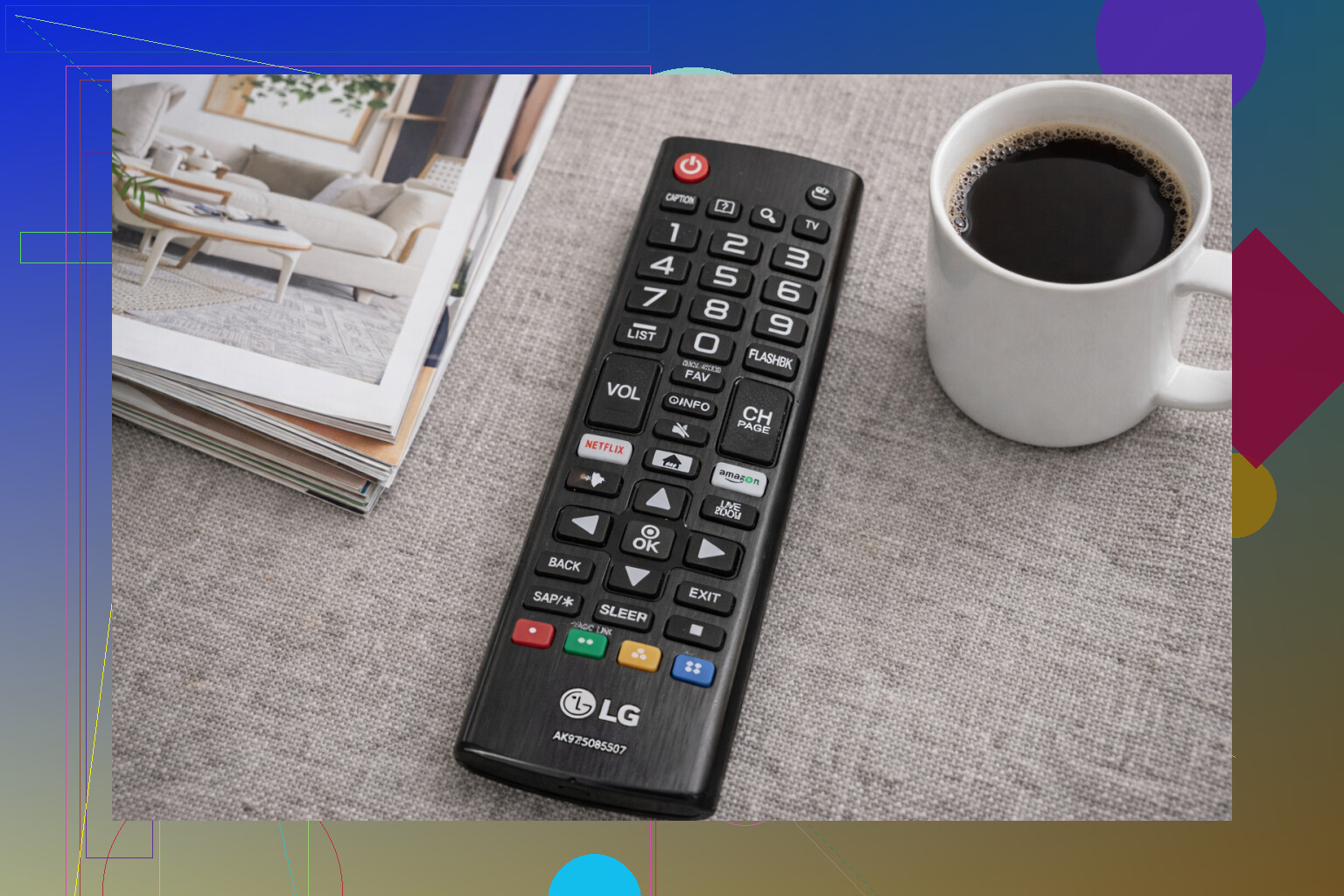
Here’s the short version. If you want something you install, connect, and use without fighting it, these are the ones worth looking at.
- TVRem – Universal TV Remote
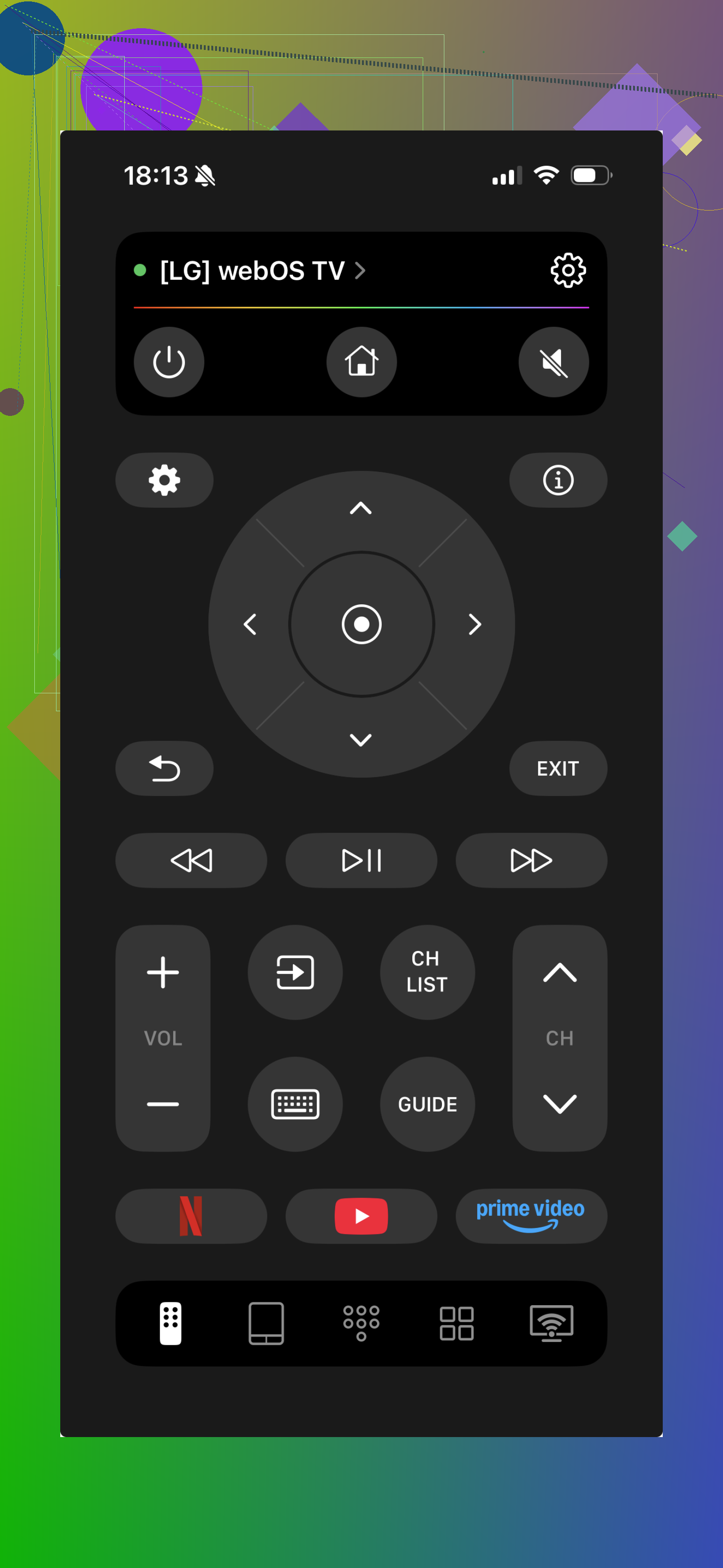
https://apps.apple.com/us/app/tvrem-universal-tv-remote/id6746162794
This one ended up being the easiest pick for me. It works with LG, but it also handles Samsung, Roku, Fire TV, Android TV, Google TV, and Apple TV. So if your house has a random mix of screens, you don’t need three different apps cluttering your phone.
What I noticed first was the layout. No weird clutter, no hunting around for basic controls. Pairing was quick on my side, and the main stuff was there right away.
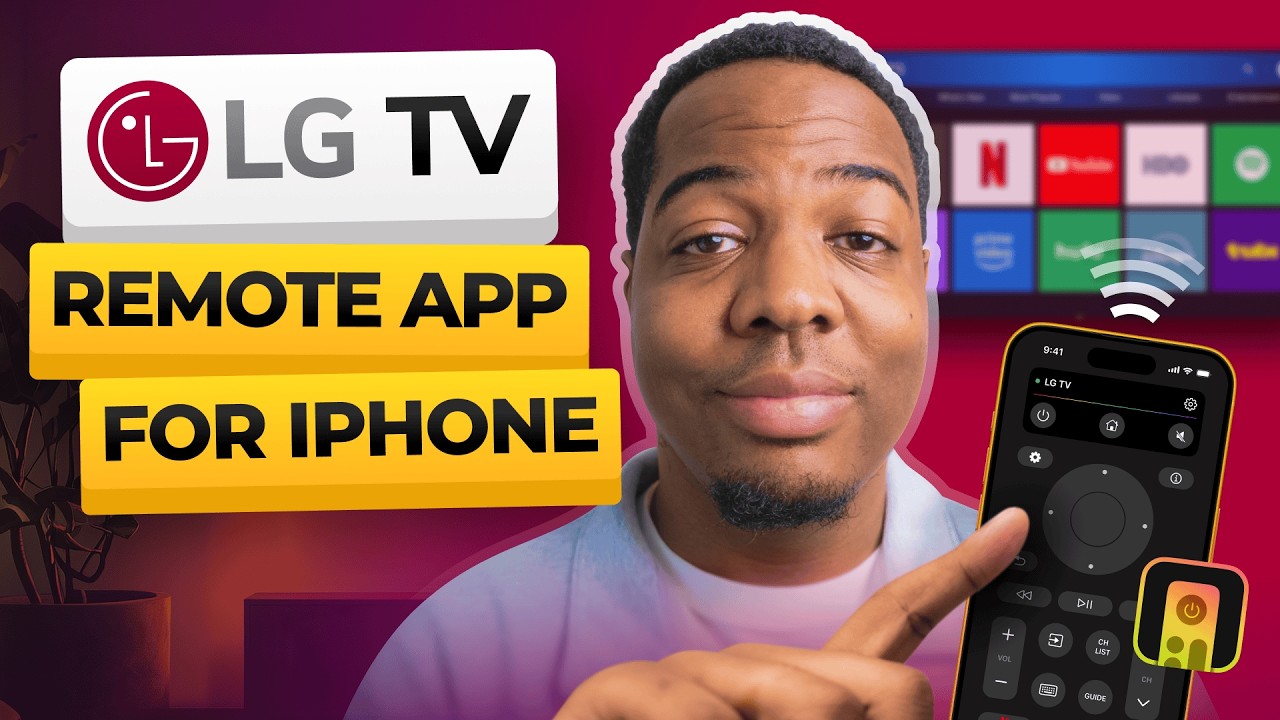
What you get:
- Full remote controls
- Volume and channel buttons
- Touchpad navigation
- Built-in keyboard
- Voice search
- Shortcuts for apps like YouTube and Netflix
- Auto-detection for nearby TVs
Why it stayed on my phone:
A lot of “free” remote apps stop being free the second you try to do something useful. This one didn’t pull that stunt. I could control the TV, type into search boxes, jump into apps, all without hitting a subscription wall. For me, that was the whole point.
- Universal Remote Smart TV
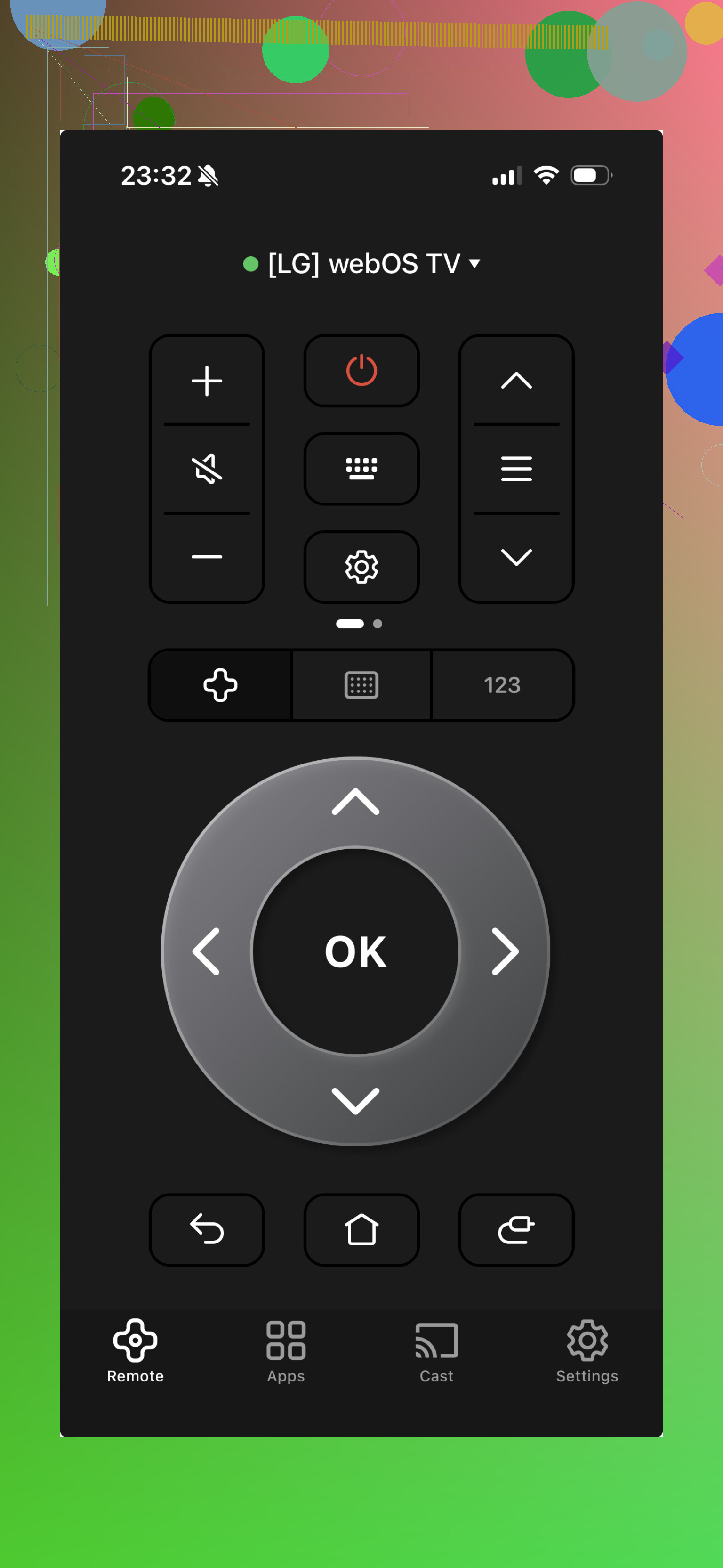
This one felt decent if you want one remote app for multiple brands and don’t care much about anything fancy. It supports LG and a bunch of other TVs, and the setup was plain enough.
The design looks newer than some of the older remote apps floating around the App Store. I didn’t feel lost using it, which sounds minor, but some of these apps are weirdly messy.
Features:
- Regular remote buttons
- Touchpad
- Keyboard input
- Streaming app shortcuts
Good:
Supports lots of TV brands
Easy to set up
Clean design
Less good:
Some extra features sit behind a subscription
- Remote Control for LG TV
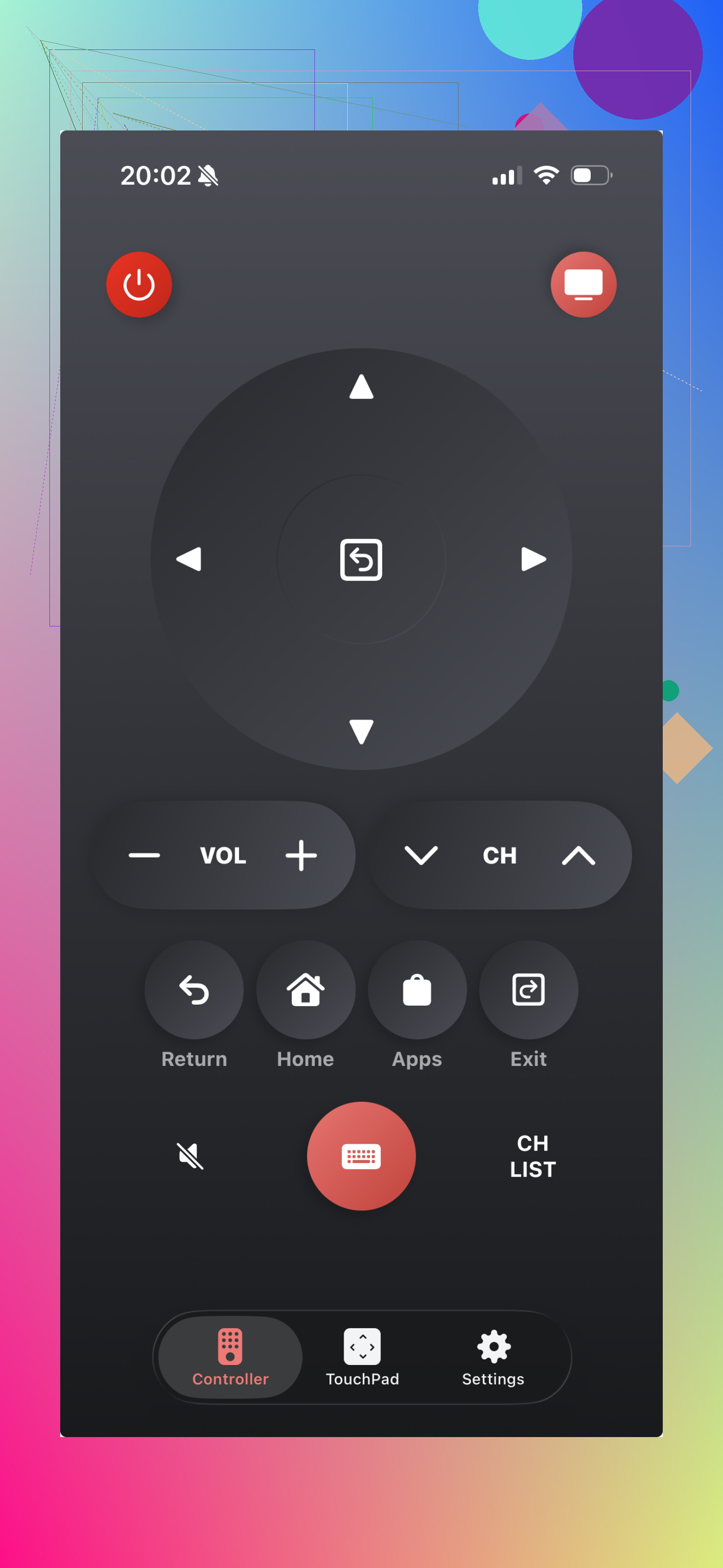
If you only own LG TVs, this type of app makes sense. It stays focused on one brand, which cuts down on clutter. I found it straightforward, no extra noise, no trying to be a universal control center for your entire living room.
It covers the basics well enough for daily use.
Features:
- Power and volume controls
- Touchpad
- Keyboard for typing
- Fast access to smart TV apps
Good:
Made for LG TVs
Easy to figure out
Handles the core functions
Less good:
Doesn’t help if you also have non-LG TVs around the house
- TV Remote – Universal Remote
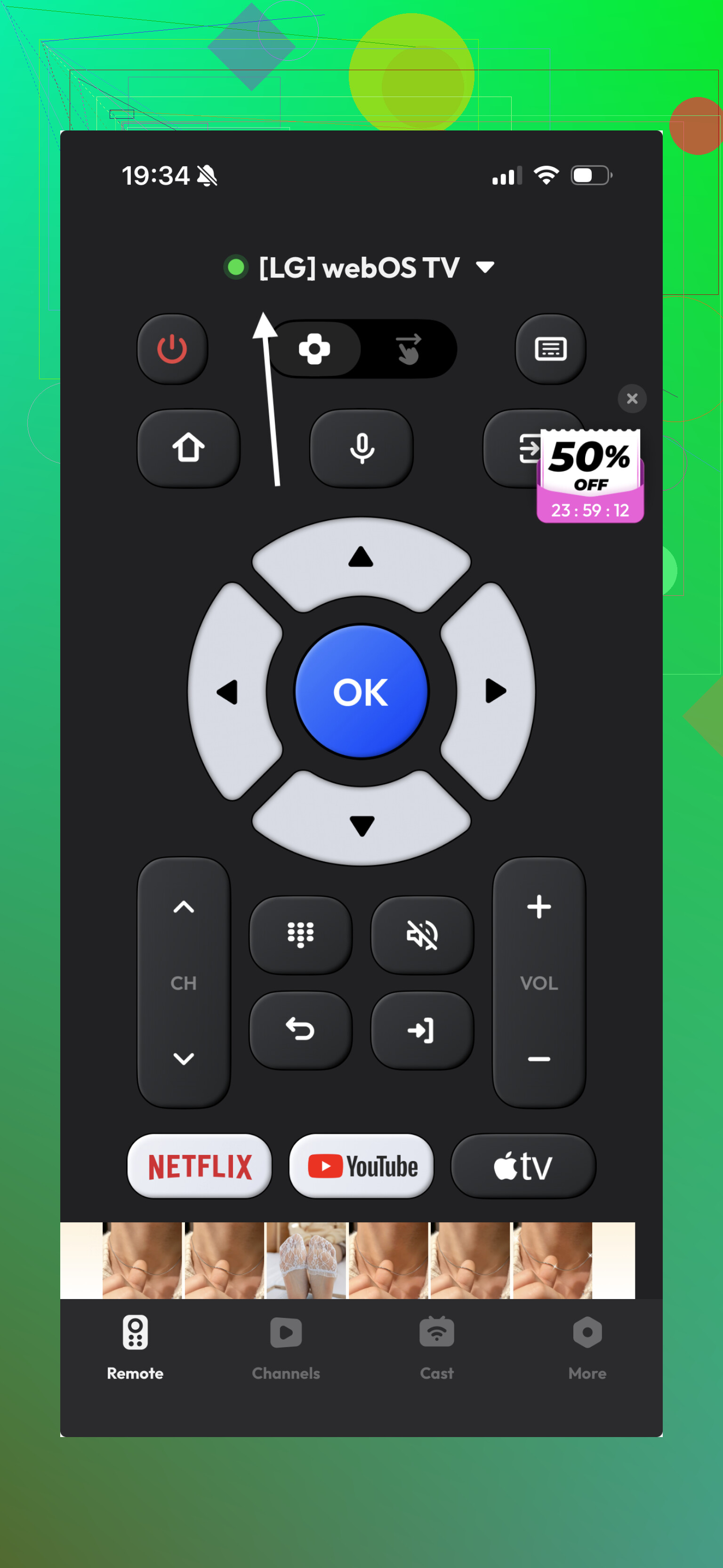
This one felt fine, though I wasn’t blown away. It supports a lot of smart TVs and gives you the standard control set. If you’re the type who installs two or three apps and keeps whichever interface annoys you the least, this is one of those.
Features:
- Basic remote buttons
- Touch navigation
- Keyboard input
Good:
Works across many TV brands
Interface is clean enough
Less good:
Some tools are locked unless you pay
- Remote Control for LG
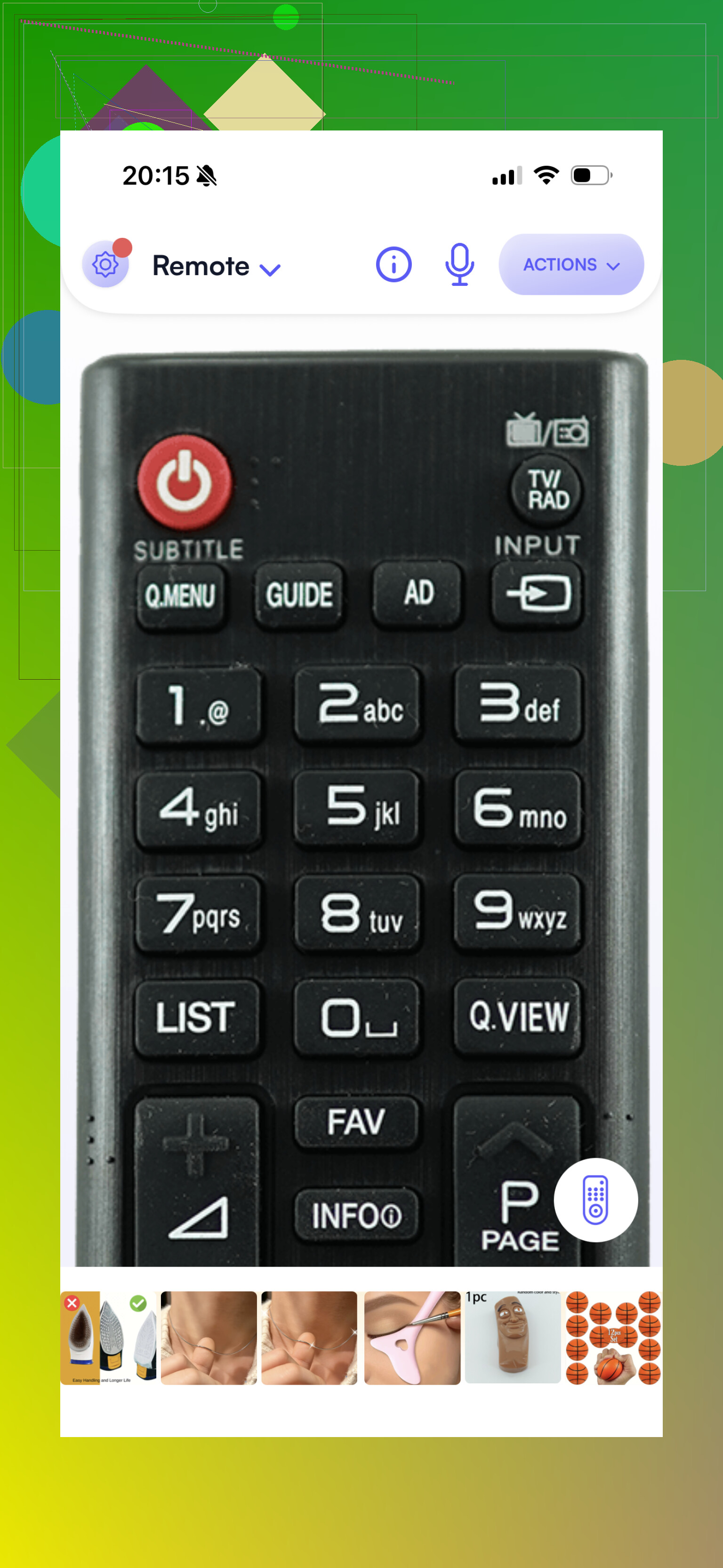
This app feels older, and you’ll notice it fast. Still, older doesn’t always mean broken. It handled the main controls people use every day, and I can see why some users stick with it if they want something simple.
Features:
- Power, volume, and channel controls
- Input switching
- Navigation buttons
Good:
Focused on LG TVs
Works reliably for basic use
Less good:
The interface looks dated, yeah
Final take
If you want the strongest free pick for an LG TV on iPhone, best free LG universal remote app for iPhone, TVRem came out ahead for me.
Why:
Full core controls without paying
No hidden lock on useful features
Works with LG and other TV brands
Built-in keyboard for typing fast
Touchpad and voice search
Quick pairing, stable connection
The part I liked most was simple. One app handled more than one TV brand, so I wasn’t stuck replacing it later if the hardware changed. If your original LG remote is gone, dead, or chewed up by a dog, this is the first app I’d try.
I’d try a different angle than @mikeappsreviewer. If the app used to work and then stopped, the issue is often pairing data on the TV, not the app itself.
Do this on the LG TV:
- Go to Settings, Connection, Mobile TV On.
- Make sure LG Connect Apps or TV Manager is enabled. Name varies by model.
- Open the list of connected devices and remove your phone.
- Turn Quick Start+ off, then power the TV off for 30 seconds.
- Open the app and pair again.
Also check this:
- iPhone local network permission for the app. iOS updates sometimes flip this off.
- VPN off on your phone.
- Private Wi-Fi address off for your home network.
- Router AP isolation or guest Wi-Fi off. This blocks device-to-device control.
One more thing. Some LG apps lose input control after a webOS update. If volume fails too, test with the official LG ThinQ app first. If ThinQ fails, it’s the TV settings or network path, not your remote app. Annoying, but faster than reinstalling 5 apps for no reason.
If you post your LG model and webOS version, ppl here can narrow it down fast.
I’d check one thing neither @mikeappsreviewer nor @nachtschatten really leaned on: whether the TV changed its network identity.
LG sets can silently hop between 2.4GHz and 5GHz bands, or grab a new IP after a router update. A lot of remote apps cache the old target, then act dead even though Wi-Fi itself looks “fine.” If your TV has a network status page, confirm it’s on the same subnet as your phone. If the TV says something like 192.168.0.x and your phone is on 192.168.1.x, that’s your problem right there.
Also try this:
- Forget the TV inside the remote app, not just reinstall the app
- Rename the TV in LG settings, then scan again
- Disable IPv6 on the router temporarily if you can
- Test with mobile hotspot just once, weirdly this can expose router issues fast
If input switching is broken but navigation still half-works, I kinda disagree with the “just try more apps” approach. That usually means the control API is partially blocked, not that every app suddenly sucks.
If you have the physical remote for even 2 mins, check for a software update on the TV itself. webOS gets cranky after updates and sometimes needs another reboot after finishing. Annoying, but very LG tbh.
I’d actually push one check that @nachtschatten, @waldgeist, and @mikeappsreviewer only touched indirectly: date/time drift on the TV or phone. Sounds dumb, but when webOS time gets wrong after a power blip, discovery and session handshakes can fail even though both devices are “online.” Set both to automatic date/time, then fully unplug the TV for a minute.
Another angle: region/input restrictions. On some LG models, HDMI input naming or Home Hub permissions get weird after updates. If you can access TV settings with the physical remote, rename the HDMI input back to default and disable any hotel/public display mode if it somehow got enabled.
I also wouldn’t jump straight to trying five apps. If the official app and your current one both fail, it’s almost always TV-side permission/state corruption.
If you do want an alternative, the LG universal remote app category is hit-or-miss.
Pros for ‘’
- can be quicker than hunting for the physical remote
- usually gives keyboard input
- handy for input switching when pairing works
Cons for ‘’
- reconnect bugs are common
- some lose control after webOS updates
- input selection is often the first thing to break
One more test: reboot your router, but specifically check whether your phone is connected through a mesh satellite while the TV is on the main node. Some routers isolate clients across nodes badly.